Visture V4 Manual de usuario

Visture Ltd all rights reserve
www.visture.com ‐1‐
User Manual
(V20120825)

Visture Ltd all rights reserve
www.visture.com ‐2‐
Table of Contents
Safety instructions-------------------------------------------------------------- 3
Device overview --------------------------------------------------------------------4
Description of the buttons ----------------------------------------------------------5
Language settings-------------------------------------------------------------------6
Power monitoring and charging the batteries--------------------------------------7
Screen lock---------------------------------------------------------------------------7
Connecting with computer and data transfer---------------------------------------7
Functions of the buttons on theUser interface--------------------------------------8
Programme menu--------------------------------------------------------------------10
System settings----------------------------------------------------------------------13
1. Wireless & Networks----------------------------------------------------13
2. Bluetooth setting--------------------------------------------------------13
3. Sound settings----------------------------------------------------------14
4. Display settings----------------------------------------------------------14
5. Location & safety--------------------------------------------------------15
6. Application---------------------------------------------------------------15
7. Accounts & sync-- ------------------------------------------------------15
7. Data protection----------------------------------------------------------15
9. Memory-------------------------------------------------------------------16
10. Language & keyboard -------------------------------------------------16
11. Date & time------------------------------------------------------------16
12. Telephone info----------------------------------------------------------16
Internet -------------------------------------------------------------------------------17
Open Source Code & GNU General Public License----------------------------------18
Technical Data------------------------------------------------------------------------19
Trouble shooting----------------------------------------------------------------------20

Visture Ltd all rights reserve
www.visture.com ‐3‐
This user manual contains important safety instructions and
information for proper use of the device. Please follow the
instructions in this manual carefully.
A Please keep the device away from places with high temperatures,
high humidity or dust.
BIn particular please avoid leaving the device in the car during
summer if the doors are closed.
CAvoid shocks and do not let the device fall, as otherwise it may
cause damage to the device.
DThe Standby Time of the batteries may vary due to different
environmental influences.
EWe are not responsible for data losses that are caused by damage
to the product, repairs or any other reasons.
FDo not open the housing of the device. Doing this will void your
warranty claims.
GDo not use alcohol, thinners or petrol to clean the display
– use only a dry cloth.

Visture Ltd all rights reserve
www.visture.com ‐4‐
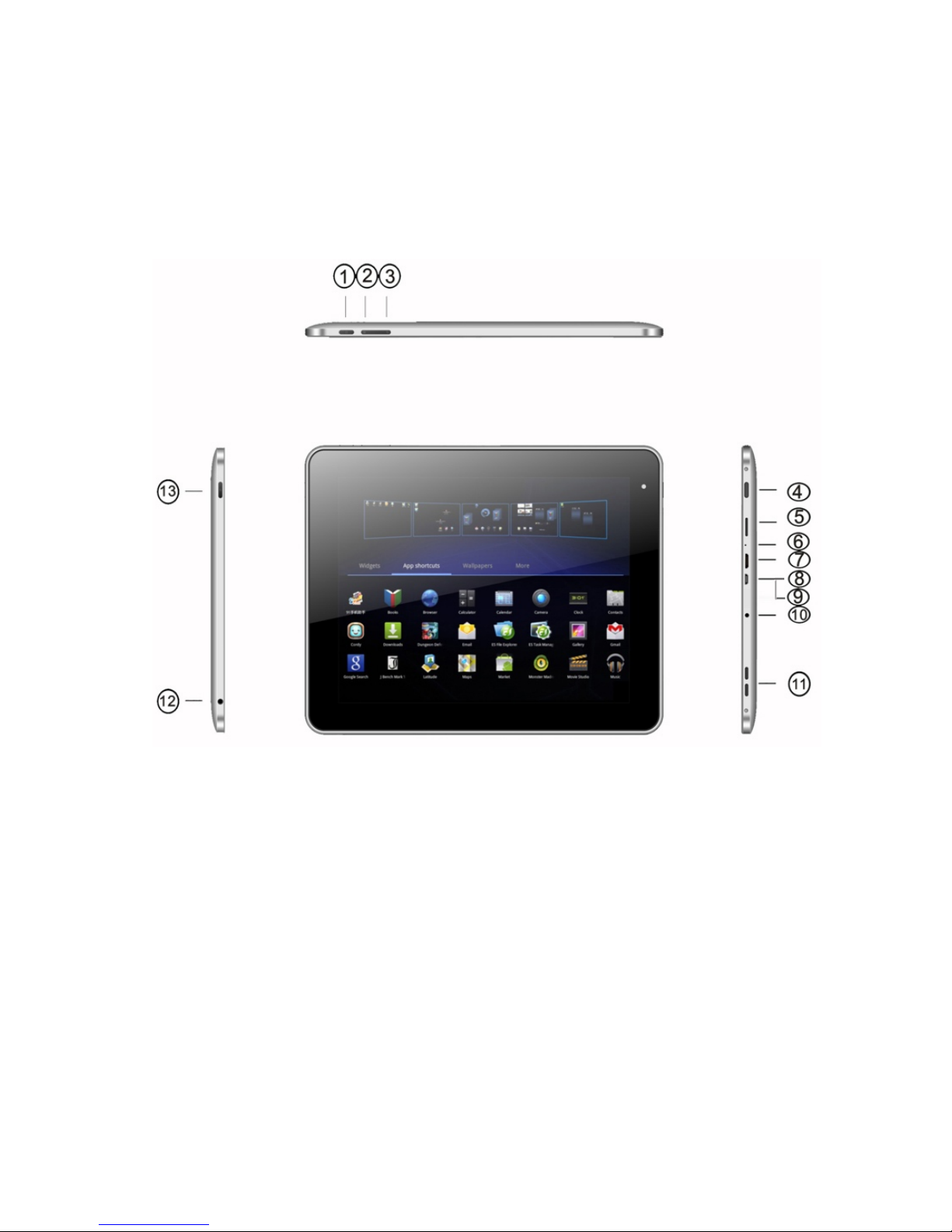
Device overview
1. Menu button 11. Speakers
2. Volume up Button 12. Earphone
3. Volume down Button 13. Power button
4. Home button
5. Micro SD/SDHC Card Slot
6.Mic
7.HDMI Port
8. USB Port
9. OTG Port: USB from your external HDD
10. DC-in

Visture Ltd all rights reserve
www.visture.com ‐5‐
Description of the buttons
Volume Buttons:
Increase or reduce the volume.
Power Button:
Press the button for 2~3 seconds to switch on or switch off
the device. Short Press the button to enter or end the Standby-Mode.
Reset: Press the button for 7~10 seconds to restart
the device.
ESC Button:
To go back to the previous screen
Menu Button:
To open the menu
Home Button:
To go back to the Home Screen

Visture Ltd all rights reserve
www.visture.com ‐6‐
Language setting
V4 is delivered with English as a default language.
To change the language setting, please do the following:
- Press on the programme menu symbol
on the right side of the screen.
- Select ‘Settings’ .
- Scroll to the end of the list.
- Select ‘Language & keyboard’.
- Select ‘Select language’.
- Type your preferred language.
- Press the ‘Home’ button to return to the home screen.

Visture Ltd all rights reserve
www.visture.com ‐7‐
Power monitoring and charging the batteries
The battery charge symbol in on the status bar indicates
the charging status of the batteries.
If the power goes down to empty, the device shuts off automatically.
If power is empty, use the power adapter to charge the device.
The charging time for the battery is approximately 6~8 hours.
Screen lock
If the device is not used for specified time or press the ‘Power’
button briefly, the screen will switch off and display lock is activated.
By short pressing the ‘Power’ button the screen will be reactivated.
For unlocking the screen press the ‘Lock’ button toward the unlock
direction.
Connecting to the computer and data transfer
V4 is equipped with a High-Speed USB2.0 Interface.
After you connect the device to a computer, it appears in
the status bar display .
Pull the status bar down and press ‘USB Connection’ to activate
the USB Memory. When using the device for data transfer,
you cannot access the Micro SD/TF Card from V4!

Visture Ltd all rights reserve
www.visture.com ‐8‐
Functions of the buttons on the user interface:
Home Button:
To go back to the Home screen.
Menu Button:
To open the menu.
Back Button:
To go back to the previous menu / previous page.
Program Menu Button:
To display the programs and applications.
Change Window Button:
The device has five desktops. You can press this button
or push your finger on the touch screen to the side to navigate
between different desktops.
WIFI / WLAN Signal Icon
System instructions:
Pull the status bar down to view messages about new e-mails,
downloaded documents, USB Connection Status or other information.

Visture Ltd all rights reserve
www.visture.com ‐9‐
Program menu
ApkInstaller:
Program for installing and uninstalling Apps that were not
downloaded from the Android Market.
Market (Google Play Store):
Load Apps (programs) from the Android Market. You can download
and install apps, games and other applications. Many are free.
Explorer:
Open the Explorer to access Micro SD TF Cards, USB sticks and
other storage media. The Explorer is a practical manager for
documents and all types of data.
Internet browser
Camera
E-mail:
App for exchange email account set up, and compose/send/receive
email
G-mail:
App from Google, receiving, processing and sending e-mails through
Google account.
Google Maps:
Program for the display of maps or satellite images – Route planner.

Visture Ltd all rights reserve
www.visture.com ‐10‐
Skype:
Program to chat with other Skype users or to make video/audio calls
via Internet.
Twitter:
Application for Microblogging – Facilitates the display of public
diaries or create a public diary of your own.
Facebook:
Program for using the social network site Facebook.
Calendar:
Managing schedules – can be synchronised automatically with a
Google account.
Pocket Calculator
Time:
Time display and setting alarm functions.
Settings:
Changing the basic settings of V4.
Sound Recorder:
Record Sound.
Tabla de contenidos
Otros manuales de Tableta de Visture