
URC TKP-7600 Manual de usuario

TKP-7600
Owner’s Manual

Introducing the TKP-7600
Thank you for purchasing URC’s TKP-7600 In-Wall Network Keypad. Its easy and intuitive
use helps to simplify your life while adding control of more things than thought possible.
Online Help:
Visit the URC Home Page for downloads, training materials, and frequently asked questions.
Contact Support:
Total Control is a URC product sold direct or through distribution. For questions or
assistance contact your Custom Installer/Programmer.
My Installer/Programmer:
or URC Technical Support at: [email protected]
(914) 835-4484
Universal Remote Control, Inc.
500 Mamaroneck Ave
Harrison, New York 10528
Toll Free: (800) 901-0800
Table of Contents
Features and Benefits..........................................................................................1
Parts List.................................................................................................................3
Installation.............................................................................................................4
Main Menu: Navigation.......................................................................................6
Title Bar..................................................................................................................7
Room’s Menu...................................................................................................9
Room Linking.................................................................................................10
Now Playing..................................................................................................11
Core Buttons.........................................................................................................12
Shortcut Popup Menu..................................................................................13
Status Bar......................................................................................................15
Intercom................................................................................................................17
Navigating the Intercom Menu..................................................................19
Making Calls: Audio-Video........................................................................20
Making Calls: Audio Calls..........................................................................22
Making Calls: Baby Monitor......................................................................24
Making Calls: Audio Broadcast.................................................................26
Do Not Disturb Mode...................................................................................28
Scenes Menu.......................................................................................................29
Settings Menu......................................................................................................30
Specifications......................................................................................................39
Limited Warranty Statement.............................................................................39

1
Features and Benefits:
The TKP-7600 In-Wall Network Keypad is one of URC’s most advanced devices that is
optimized for usage with Total Control 2.0.
Enjoy these key features:
Updated User Experience:
This device has the capability of using URC’s Total Control 2.0 software suite. Using
this software provides this device with a modern “look and feel” giving the end-user
an improved user experience in terms of graphics, performance, and features.
Audio-Video Interface:
Communicate with any other URC Intercom-Enabled device in the system with this
feature. The end-user can make Audio-Video, Audio, or Baby Monitor calls directly
from the TKP-7600.

2
Proximity Sensor:
This feature allows the TKP-7600 to spring into action automatically. Utilizing
its proximity sensor, the keypad can detect distances from up to three (3) feet
away. This setting can be adjusted in the device’s Settings menu.
Flexible Orientation:
The TKP-7600 offers the ability to display the device in either portrait or
landscape mode making it the perfect keypad for almost any room. This feature
can only be set from within the Accelerator 2.0 software, speak to a custom
home professional prior to installation.
3
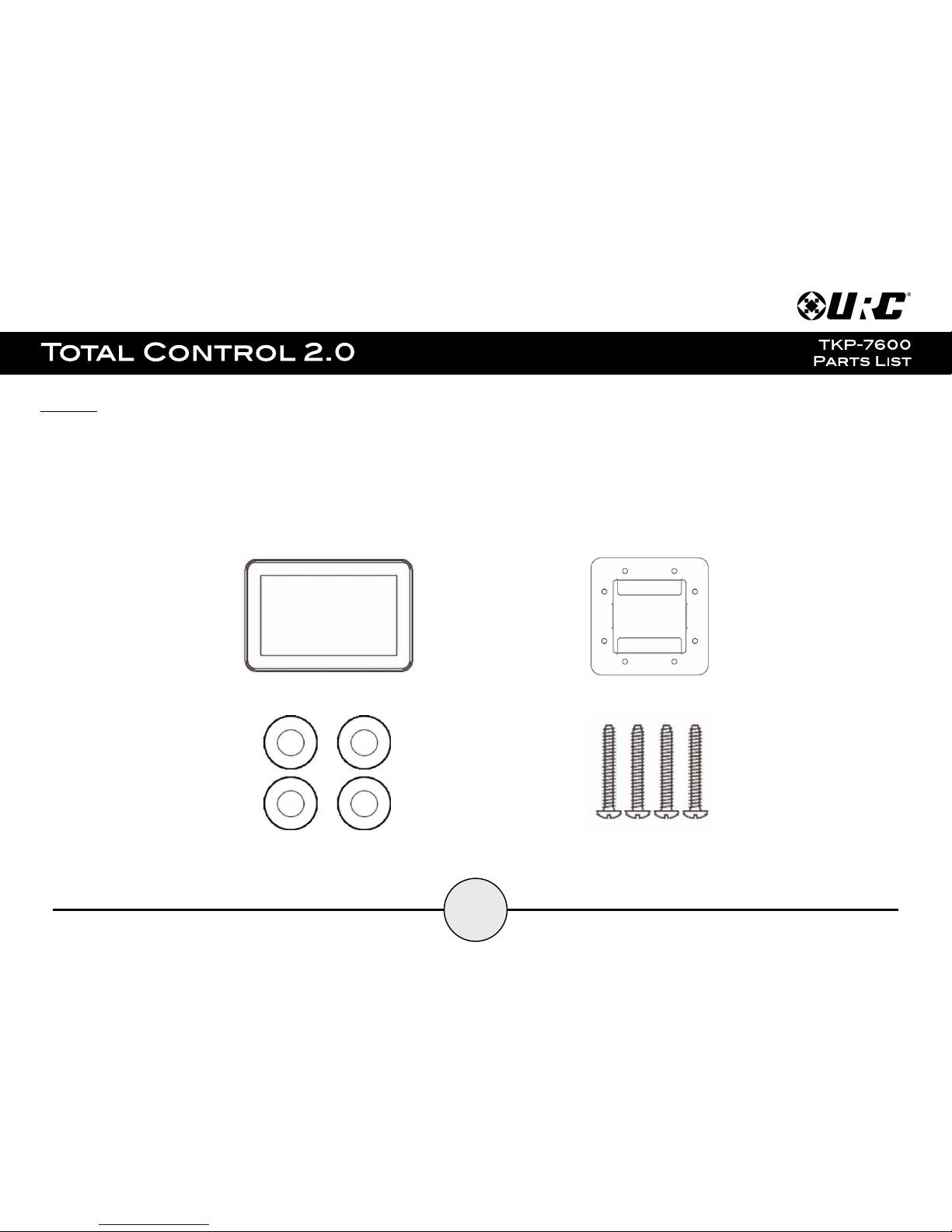
Part List:
Included in the TKP-7600:
1x - TKP-7600 Network Keypad
1x - Mounting Ring
4x - Mounting Screws
4x - Spacers
TKP-7600
Mounting Ring
Spacers
Mounting Screws

4
Installation:
The TKP-7600 is wall mountable and fits into a standard dual gang (J-box or Mud Ring)
opening. Prior to installation, make sure power is available at the preferred location.
Power can be supplied to the TKP-7600 through an Ethernet (RJ45) cable connected to a
PoE (Power over Ethernet) in either of the following ways:
●Router/Switch
●PoE Injector
Power over Ethernet describes a system that passes electrical power safely, along with
data, along Ethernet cabling. A shielded Ethernet cable is preferred. The IEEE standard
for PoE requires a Category 5 or higher for high power levels.
Using the Spacers:
Use the spacers when installing the mounting ring on to a gang box. The spacers are
NOT needed when using a p-ring.
Included in the box are four (4) spacers that are to be used at specific installation
sites. Most new homes are retrofitted with plaster ring boxes (p-ring) that allow the
TKP-7600 to be mounted flat and flushed to the wall without the user of spacers.
However, in some instances, the only boxes that are in the home are dual-gang
boxes. In those situation spacers are REQUIRED in order to install the TKP-7600.
Use the spacers as a buffer between the mounting ring and the dual-gang box, this
can be done by using a screw to secure the mounting ring to the box.
With this the TKP-7600 can sit flush and flat on its mount without the risk of
bending or breaking the dual-gang box.
Mounting Ring
Spacers
Dual-Gang

5
Wall Mounting:
Follow the steps below for installation:
1. Assure the dual-gang opening is fitted with the standard two-gang
retro-box (available at almost any electronic supplier).
2. Mount the wall-plate to the two-gang retro-box.
3. Connect the Ethernet cable to the rear of the supplied TKP-7600.
4. The TKP-7600 easily snaps into the wall-plate.
The keypad mount rotates to accommodate landscape or portrait viewing
modes. The viewing mode is set from within the Accelerator 2.0 software.
Mounting Ring
TKP-7600
Dual-Gang Box
Landscape
Portrait

6
Main Menu Navigation:
Although specific screen design and certain options are dictated by the
custom integrator that programmed the Total Control 2.0 system, the general
layout remains the same.
Actual navigation is performed via screen swipes:
●Left Swipe: Swipe left to reveal additional Main Menu pages. The
amount of pages available on the Main Menu is dictated by the
custom integrator.
●Right Swipe: Swipe right to reveal the Scenes Menu. The Scenes
Menu contains URC Scenes that are created by the custom
integrator. Return to the Main Menu by swiping left from the
Scenes Menu.
●Button Tapping: On the Main Menu selecting each of these areas
provide the end-user with control:
1. Category/Device Ribbon: Select a Category button to reveal
the associated submenu OR select a Device located here to
access that devices menu. This is dictated by the
custom integrator.
2. Rooms Menu: Select the Room Name to access the
Room’s Menu. This menu allows the end-user to control another
room and more.
3. Volume Control: Tap the minus (Vol-) to lower the volume, plus
(Vol+) to increase the volume, and Mute to mute the volume.
4. Shortcuts: Select this button to reveal the Shortcuts Popup
menu. The end-user can add up to six (6) items on this menu.
5. Main: Select this to return to the Main Menu regardless of what page the device is
currently on. This can be changed to return to the Scenes Menu, speak with the custom
integrator to program the TKP-7600 this way.
6. Room Power Off: Select this button to turn off the current room.
7. Now Playing: Select the Now Playing button at the top to instantly jump into that
device/activity’s menu pages.
1
2
3
4
5
6
7

7
Main Menu: View Modes
Total Control 2.0 features two different view modes for the TKP-
7600. Each view mode has its own unique properties that
compliment the user experience.
The view mode must be programmed from within the
Accelerator 2.0 software, speak to a custom home integrator for
more details.
1. Ribbon View: This is the default view mode and it
contains up to six (6) items per page.
Ribbon View (Landscape & Portrait):
2. Grid View: This view mode contains up to
fifteen (15) items per page.
Grid View (Landscape & Portrait):

8
Title Bar:
The Title Bar is always present regardless of what menu and/or room the
TKP-7600 is currently using.
On the left of the Title Bar, the current room the TKP-7600 is controlling is
displayed. Selecting it reveals the Rooms Menu.
At the right of the Title Bar is the Now Playing area. This displays which
device/activity is currently active. Selecting it returns the interface to the
device/activity’s menu for control.
The Title Bar is located at the very top of the display. To access its menu,
swipe down as depicted on the image to the right. There are three (3)
selectable options here:
1. Close: Select this to hide the Title Bar Menu.
2. Weather Module: Select this to display the Time and Weather
Module, this feature requires the home location. This location is set
from within the Accelerator 2.0 software.
3. Intercom: Select this button to display the Intercom Menu. This
menu displays all available Intercom-Enabled device (clients). Please
see this documents Audio-Video Intercom section for more details.
4. Settings: Select this button to access the TKP-7600’s
Settings Menu. The various parts of the Settings Menu are
explained in detail in a later section of this document.
Current Room
Now Playing
1
2
3
4
Otros manuales para TKP-7600
1
Tabla de contenidos
Otros manuales de Pantalla táctil de URC

URC
URC Total Control TKP-8600 Manual de usuario

URC
URC Total Control TKP-5600 Manual de usuario

URC
URC Total Control TDC-5100 Manual de usuario

URC
URC Total Control TDC-9100 Manual de usuario

URC
URC Total Control TDC-7100 Manual de usuario

URC
URC TKP-9600 Manual de usuario

URC
URC Smart 1-Line Manual de usuario
Manuales populares de Pantalla táctil de otras marcas

Elecro Engineering
Elecro Engineering Poolsmart Plus Instrucciones de instalación

Johnson Controls
Johnson Controls IQ4 HUB Manual de usuario

Elo TouchSystems
Elo TouchSystems ET2270L Manual de usuario

Elo TouchSystems
Elo TouchSystems ET1002L Manual de usuario

Elo TouchSystems
Elo TouchSystems 3201L Manual de usuario

Duratec
Duratec S15 Manual de usuario


