
ULNA CPE629D Manual de usuario

WIRELESS BRIDGE
USER MANUAL
Model: CPE629D
Tips:
Thank you for ordering and using ULNA CPE629D Wireless Bridge, please
read the manual carefully before use. If there are any problems during
the use, please contact us in time.
(Reference connection setup video: You can search for ULNA wireless
bridge on Hardy Brothers Product Reviews channel on YouTube.)
The installation of this device requires some network knowledge. If you
can't install it, please let us know or contact a professional.

Contents
1. Overview
1.1 introduce
1.2 Highlights
1.3 specifications
2. PackageIncluded
3. Interface Details
3.1. Button Operation
4. LED Indicator Details
4.1 Details
4.2 Successfully Pairing
5. Quick Start
5.1 PoE Power Supply
5.2 Point to Point Pairing Step
5.3 Point to Multipoint Pairing Step
6. Installation
6.1 Pole mount
6.2 Wall-mounted
6.3 Connect to the device
7. WiFi Function
8. Application Case
9. Advanced Settings
10. Troubleshooting
11. Technical Support and Service
1
1
1
2
3
3
4
4
4
4
5
5
6
7
8
8
8
8
10
11
12
31
32

1、Overview
1.1 Introduce
ULNA CPE629D is a dual band long-distance 5.8G&2.4G wireless
transmission device. It uses wireless communication technology to transmit
network data using air as a medium to perform long-distance point-to-
point or point to multi-point interconnection. The working data link layer
realizes the interconnection of local area networks. The transmission
distance can reach up to 5km.
CPE629D Video Bridge Transmission usually consists of two devices in AP
and Client mode respectively. On the Client-side
(Receiver)
CPE connects
with IP Camera, at the AP side
(Transmitter)
CPE connects with a video
recorder. The AP can be receiving wireless data transmitted from multiple
Clients, and it is easy and convenient for centralized management of the
remote equipment.
CPE is widely used in highways, reservoir river monitoring, elevator
monitoring systems, site crane monitoring systems, port terminal
monitoring systems, marine aquaculture monitoring systems, and so on.
Point to point extend network WiFi range, extend the network in the house to
your barn, garage, church, warehouse, and even neighbor's house through
wireless bridge signal transmission. No need to install a new modem and
pay for it every month, saving you money.
1.2 Highlights
1. Transmission using dual band 5.8Ghz&2.4Ghz wireless technology;
2. High Speed 1000Mbps RJ45 LAN port, support Gigabit;
3. Built-in 4 x 15dbi high gain WiFi antenna;
4. IEEE802.11ac,IEEE802.11a ,IEEE802.3u,IEEE802.11b/g/n,;
5. Transmission distance up to 5km (Barrier-Free);
6. Supports WiFi hotspot access;
7. Easy to dial to set the transmitter
(Master bridge)
and receiver
(Slave bridge)
;

1.3 Specifications
02
8. WDS networking mode, video network dual compatible;
9. Support point-to-point, point to multi-point mode;
10. Support 24V POE power supply, easy to install and deploy;
11. Support WEB GUI access management device.
ULNABrand
CPE629DModel
MT7620A+7612E+JL2101DCPU
8MByteFlash
64MByteDRAM
1000Mbps LAN x 1 & 10/100Mbps LAN x 1
Interface
11b:1/2/5.5/11Mbps
11g:6/9/12/18/24/36/48/54Mbps
11n:Up to 300Mbps
11ac+: Up to 900Mbps
Data rate
IEEE802.11ac, IEEE802.11a, IEEE802.3u, IEEE802.11b/g/nTransfer method
2.4G:2412-2184 MHz 5.8G:5180-5825 MHzFrequency Range
≤3W, POE 24V~1APower
15dBi x 4, Horizontal 60°/Vertical 30°Antenna
SupportWEP GUI
SupportTelnet
SupportSerial
WPA-PSK/WPA2-PSK, WPA/WPA2Safety
-40~75℃Temperature

2. Package Included
3. Interface Details
2 x CPE629D Wireless Bridge
2 x Gigabit PoE injector (24V)
2 x Cat 5e Network Cable
2 x Metal Hoop
1 x Mounting Screw Set
1 x User Manual
Power
indicator
Reset Button
LAN1/LAN2
WLAN
Signal
Light
1000Mbps LAN
DC(Unavailable)
Fixed Bracket
Universal Ball
Head
Digital Tube
A-B Button
100Mbps LAN
WIRELESS BRIDGE
USER MANUAL
Model: CPE629D
Tips:
Thank you for ordering and using ULNA CPE629D Wireless Bridge, please
read the manual carefully before use. If there are any problems during
the use, please contact us in time.
(Reference connection setup video: You can search for ULNA wireless
bridge on Hardy Brothers Product Reviews channel on YouTube.)
The installation of this device requires some network knowledge. If you
can't install it, please let us know or contact a professional.
PWR LAN1 LAN2 WLAN
Horizontal Ruler

4. LED Indicator Details
04
Press and hold for 5S to reset the wireless bridge; in setup mode, short
press once to toggle a different character to pairing.
Pushing the button to "A" indicates that the bridge acts as the master
bridge (transmitter), and pushing the button to "B" indicates that the bridge
acts as the slave bridge (receiver).
3.1. Button Operation
4.1 Details
4.2 Successfully Pairing
Reset Button :
A-B Button :
Master bridge
Slave bridge
PWR LAN1 LAN2 WLAN
Power indicator
LAN1/LAN2
WLAN Signal Light
Transmitter A Mode Receiver B Mode
0 1 2 F
PWR LAN1 LAN2 WLAN
PWR LAN1 LAN2 WLAN

5. Quick Start
The CPE629D wireless bridge adopts a PoE power supply, which is easy to
install and manage while saving costs.
5.1 PoE Power Supply
DescriptionLED Light
Power indicator, the LED is on after the power is
connected.
PWR
Digital display LED display "H" indicates manual
configuration status.
Digital Tube
Digital display LED display "L" and flashing
indicates settings status.
Digital Tube
Digital display LED flashing indicates edit the
config or connecting
Digital Tube
Display that a fixed number is solid, it means that
the two bridges are paired successfully and are
working.
Digital Tube
When the bridge is connected successfully, the
WLAN light will be on, Otherwise, the WLAN light
will not bright.
Signal Lights
The data connection is successful, the LED light is
on. Otherwise, it is not bright.
LAN1/LAN2

06
1.2 You can also connect the PoE port of the PoE injector to the 1000Mbps
LAN Port of wireless bridge, LAN port of PoE to the the PC, router, and switch.....
1.1.1. According to the requirements, prepare a long enough network cable
(Recommended within 20 meters, must Cat 5e or up)to connect the
wireless bridge and the PoE injector. The PoE port of the PoE injector is
connected to the 100Mbps LAN port of the wireless bridge.
1.1.2. The 1000Mbps LAN port of the Wireless bridge is connected to the PC,
router, and switch...
5.2 Point to Point Pairing Step:
1. Switch one unit to A(Master Bridge) and one unit to B(Slave Bridge)
2. Connect the POE to each unit by the Ethernet cable and plug the POE in;
3. Wait for them to power up, about 2 min;
4. Use the tiny reset button to click through until you get a channel with a
letter. 1,2,3,..., A,B,C,...,F
5. Then on the other unit do the same. Both units need to be on the same
channel;
6. Wait for 2-5 minutes to complete the pairing. When the number of the
digital tube is solid and the signal light on the side turns on, it means the
pairing is successful;
7. Finally connect other devices(Router, PC, Switch) and install them to the
target location.
(TIPS: Steps 1, 4 and 5 are already pre-set)

5.3 Point to Multi-point Pairing Step:
e.g. 1 Master bridge with 3 slave bridges
1. Switch one unit to A(Master Bridge) and 3 units to B(Slave Bridge);
2. Connect the POE to each unit by the Ethernet cable and plug the POE in;
3. Wait for them to power up, about 2 min;
4. Use the tiny reset button to click through until you get a channel with a
letter. 1,2,3,..., A,B,C,...,F
5. Then on the other 3 unit do the same. 4 units need to be on the same
channel;
6. Wait for 2-5 minutes to complete the pairing. When the number of the
digital tube is solid and the signal light on the side turns on, it means they
pairing is successful;
7. Finally connect other devices (Router, PC, Switch) and install them to the
target location.
★Note:
For point-to-point installation, the line of sight of the 2 wireless bridge
must be clear and cannot pass through the wall. The signal transmission
angle of the bridge is 60 degrees. For point to multi-point installation, the
angle of the slave bridge needs to be adjusted to ensure that it is within
the 60-degree signal range of the main bridge. The antenna polarization
direction is horizontal 60°/vertical 30°.
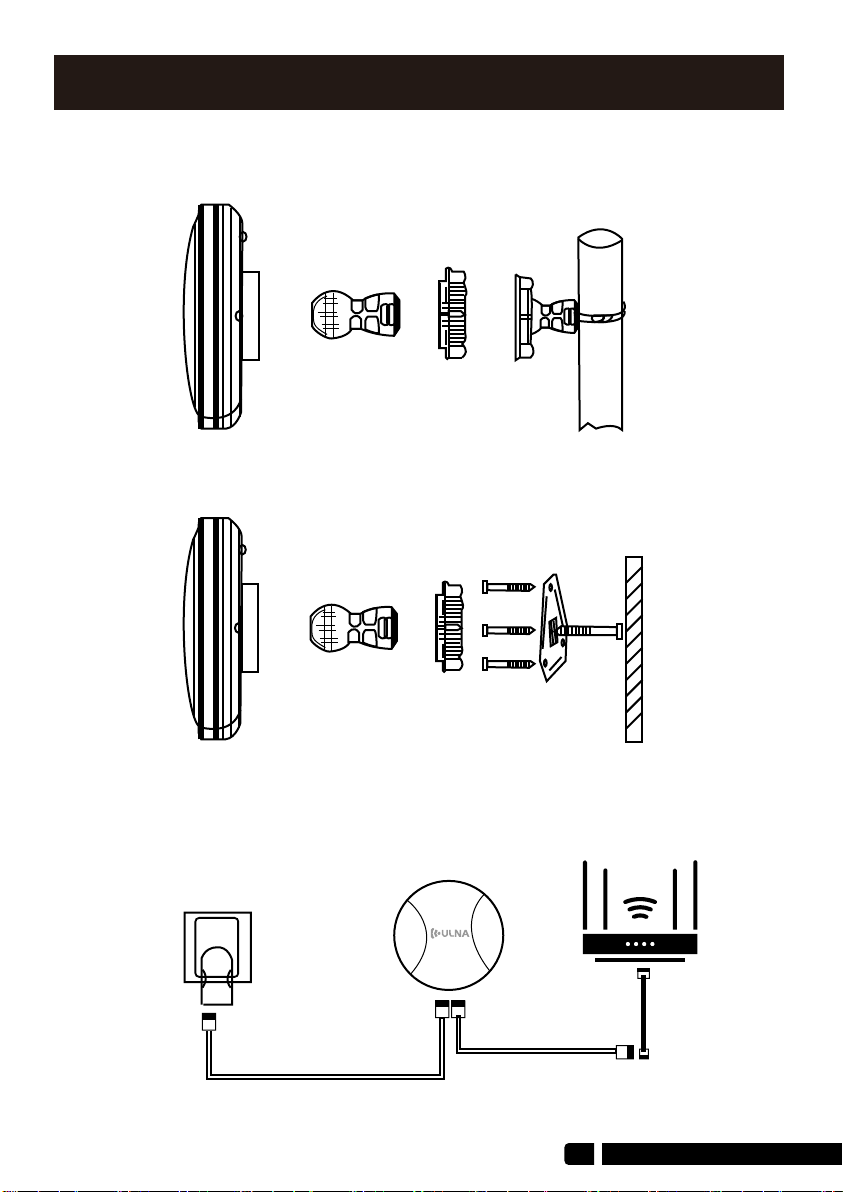
Tabla de contenidos
Otros manuales de Hardware de red de ULNA


Manuales populares de Hardware de red de otras marcas

Matrix Switch Corporation
Matrix Switch Corporation MSC-HD161DEL Manual de usuario

B&B Electronics
B&B Electronics ZXT9-IO-222R2 Manual de usuario

Yudor
Yudor YDS-16 Manual de usuario

D-Link
D-Link ShareCenter DNS-320L Manual de usuario

Samsung
Samsung ES1642dc Instrucciones de uso

Honeywell Home
Honeywell Home LTEM-PV Instrucciones de montaje


