Ubee DDM3521 Manual de usuario

www.ubeeinteractive.com
8085 S. Chester Street, Suite 200
Englewood, CO 80112
1.888.390.8233
Sales (email): amsales@ubeeinteractive.com
Support (email) amsupport@ubeeinteractive.com
February 2013
Ubee DDM3521
Cable Modem User
Guide

Notices and Copyrights
Copyright 2013 Ubee. All Rights Reserved. This document contains proprietary information of Ubee and is not to be disclosed or used
except in accordance with applicable agreements. This material is protected by the copyright laws of the United States and other
countries. It may not be reproduced, distributed, or altered in any fashion by any entity (either internal or external to Ubee), except in
accordance with applicable agreements, contracts, or licensing, without the express written consent of Ubee and the business
management owner of the material.

www.ubeeinteractive.com
8085 S. Chester Street, Suite 200
Englewood, CO 80112
1.888.390.8233
Sales (email): amsales@ubeeinteractive.com
Support (email) amsupport@ubeeinteractive.com
February 2013
Contents
1 Introduction . . . . . . . . . . . . . . . . . . . . . . . . . . . . . . . . . . . . . . . . . . . . . 1
1.1 Understanding Safety and Regulatory Information .......................................... 1
1.2 Understanding the Customer Premises Network............................................. 4
1.3 Contacting Support .......................................................................................... 4
1.4 Understanding Specifications, Standards, and Firmware................................ 4
1.5 Verifying Device Package Components .......................................................... 6
1.6 Understanding the DDM3521 Back Panel ....................................................... 7
1.7 Understanding the DDM3521 Front Panel and LED Behavior......................... 8
2 Installing and Connecting the DDM3521 . . . . . . . . . . . . . . . . . . . . . 11
2.1 Understanding Minimum System Requirements............................................ 11
2.2 Installing the DDM3521 ................................................................................. 12
2.3 Connecting Devices to Your Network ............................................................ 12
2.4 Troubleshooting the Installation..................................................................... 13
3 Accessing the Web User Interface . . . . . . . . . . . . . . . . . . . . . . . . . . 15
4 Understanding the Cable Modem Menu. . . . . . . . . . . . . . . . . . . . . . 17
4.1 Using the Cable Modem Information Option.................................................. 17
4.2 Using the Cable Modem Status Option ......................................................... 18
4.3 Using the Cable Modem Downstream Option................................................ 19
4.4 Using the Cable Modem Upstream Option .................................................... 21
4.5 Using the Modem Upstream Burst Option ..................................................... 22
4.6 Using the Cable Modem Event Log Option ................................................... 24

Ubee DDM3521 Cable Modem User Guide • February 2013 1
1 Introduction
Welcome to the Ubee family of data networking products. This document provides
instructions for anyone who installs, configures, maintains, and uses the DDM3521 Cable
Modem. Ubee recommends that you read this chapter before installing and using the
device. The following topics are provided in this section:
Topics
See the following topics:
Understanding Safety and Regulatory Information on page 1
Understanding the Customer Premises Network on page 4
Contacting Support on page 4
Understanding Specifications, Standards, and Firmware on page 4
Verifying Device Package Components on page 6
Understanding the DDM3521 Back Panel on page 7
Understanding the DDM3521 Front Panel and LED Behavior on page 8
1.1 Understanding Safety and Regulatory Information
The following information provides safety and regulatory standards for anyone installing,
maintaining, and using the DDM3521.
1.1.1 Safety
WARNING: The following information provides safety guidelines for anyone
installing and maintaining the DDM3521. Read all safety instructions in this
guide before attempting to unpack, install, operate, or connect power to this
product. Follow all instruction labels on the device itself. Comply with the
following safety guidelines for proper operation of the device:
Always follow basic safety precautions to reduce the risk of fire, electrical shock
and injury. To prevent fire or shock hazard, do not expose the unit to rain,
moisture, or install this product near water. Never spill any form of liquid on or
into this product. Do not use liquid cleaners or aerosol cleaners on or close to
the product. Use a soft dry cloth for cleaning.
Do not insert any sharp object into the product’s module openings or empty
slots. Doing so may accidentally damage its parts and/or cause electric shock.
Electrostatic discharge (ESD) can permanently damage semiconductor
devices. Always follow ESD-prevention guidelines for equipment handling and
storage.
Use only the power adapter supplied with the device.
Do not place heavy objects on top of the device.

Introduction Ubee Interactive
2Ubee DDM3521 Cable Modem User Guide • February 2013
Rest the power cable freely without any obstacle or heavy items piled on top of it.
Refrain from abusing, stepping or walking on the cable. Do not place the device on an
unstable stand or table; the device may drop and become damaged.
To protect the equipment from overheating, do not block the slots and openings in the
module housing that provides ventilation. Do not expose this device to direct sunlight.
Do not place any hot devices close to this device, as it may degrade or cause damage
to it.
Federal Communications Commission (FCC) Interference Statement
This device has been tested and found to comply with the limits for a Class B digital
device, pursuant to Part 15 of the FCC Rules. These limits are designed to provide
reasonable protection against harmful interference in a residential installation. This device
generates, uses, and can radiate radio frequency energy. If not installed and used in
accordance with the instructions, the device may cause harmful interference to radio
communications. There is no guarantee, however, that interference will not occur in a
particular installation. If this device causes harmful interference to radio or television
reception, which can be determined by turning it off and on, the user can try to correct the
interference by one of the following measures:
Increase the separation between the device and the equipment with which it is
interfering (for example, a television or radio).
Connect the device into an electrical outlet on a different circuit than the interfered
device is connected.
Consult the dealer or an experienced radio/TV technician for help.
FCC Regulatory Information
This device complies with Part 15 of the FCC Rules. Operation is subject to the following
two conditions:
(1) This device may not cause harmful interference.
(2) This device must accept any interference received, including interference that may
cause undesired operation.
(3) There are two statements for this product:
FCC Caution: Any changes or modifications not expressly approved by the party
responsible for compliance could void the user's authority to operate this device.
IEEE 802.11b or 802.11g or 802.11n operation of this device in the U.S.A. is
firmware-limited to channels 1 through 11.
Safety Notices
1. Grounding: Install the device to include grounding the coaxial cable to the earth at
the building entrance per ANSI/NFPA 70 and the National Electrical Code (NEC, in
particular, Section 820.93, Grounding of the Outer Conductive Shield of a Coaxial
Cable).
2. Disconnecting: If the device becomes damaged or encounters some other
abnormality, disconnect the power plug from the wall outlet immediately.

Ubee Interactive Introduction
Ubee DDM3521 Cable Modem User Guide • February 2013 3
3. Installing: Install the device in a location not to exceed the maximum temperature of
40 degrees Celsius (104 degrees Fahrenheit).
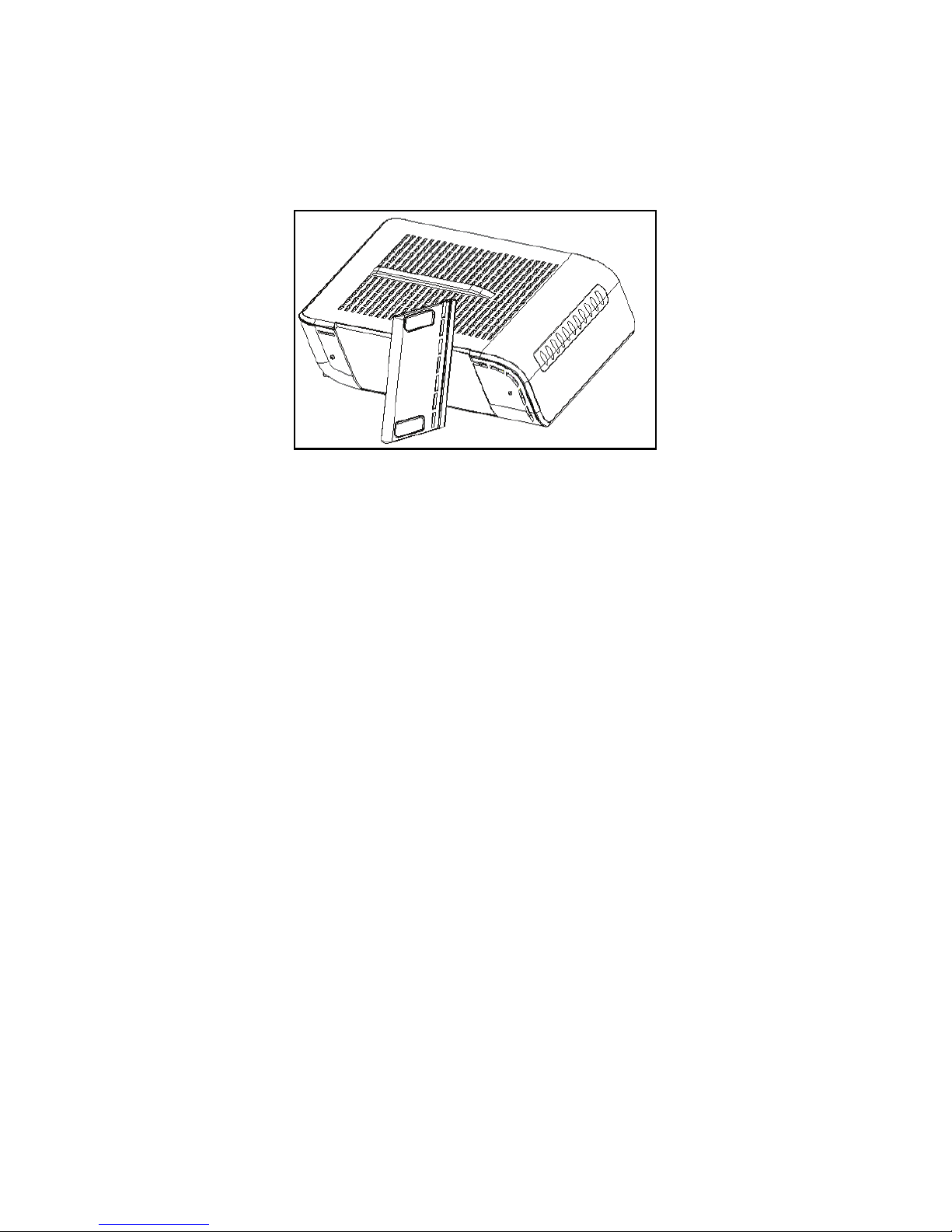
4. Mounting: When this device is placed upright with the aid of the stand, fix the stand
at a 90-degree angle to the device. Otherwise, the device may tip over.
1.1.2 Eco-Environmental Statements
The following eco-environmental statements apply to the DDM3521.
Packaging Collection and Recovery Requirements:
Countries, states, localities, or other jurisdictions may require that systems be established
for the return and/or collection of packaging waste from the consumer, or other end user,
or from sewer and waste water. Additionally, reuse, recovery, and/or recycling targets for
the return and/or collection of the packaging waste may be established. For more
information regarding collection and recovery of packaging and packaging waste within
specific jurisdictions, contact Ubee Interactive at www.ubeeinteractive.com.

Introduction Ubee Interactive
4Ubee DDM3521 Cable Modem User Guide • February 2013
1.2 Understanding the Customer Premises Network
The following diagram illustrates the general connection network and uses of the
DDM3521.
1.3 Contacting Support
Subscribers must contact their service provider for direct support. Device documentation
support may be available at:
http://www.ubeeinteractive.com
1.4 Understanding Specifications, Standards, and Firmware
Following are the features and specifications of the DDM3521:
Interfaces and Standards
RF Interface: External F-Connector
CPE Interface: 10/100/1000 Base Ethernet
DOCSIS 3.0/2.0./1.x Certified
Downstream
Frequency Range: 88MHz ~ 1002 MHz
Modulation: 64/256 QAM
Maximum Data Rate: 8 DS: 343 Mbps*
RF Input/Output Power: -15 to +15 dBmV
Application Diagram
Laptop PC and/or Other
Wireless Devices
Cable RF/Coax Ethernet/LAN
Connection
Single Computer or Other
Ethernet-Enabled Device
Cable RF/Coax Ethernet/LAN
Connection
Wireless Access Point
LAN Switch Router
Desktop PCs and/or other
Ethernet LAN Devices
(e.g., Gaming Console)
Ethernet/LAN Connection
Subscriber Premises
Basic Configuration
Common Configuration
DDM3521 Cable Modem
DDM3521 Cable Modem
Subscriber Premises

Ubee Interactive Introduction
Ubee DDM3521 Cable Modem User Guide • February 2013 5
Channel Bandwidth: 6 MHz
*Maximum Speeds (actual speeds vary based on factors such as network configuration, conditions, and service tier).
Upstream
Frequency Range: 5 MHz ~ 42 MHz
Modulation: QPSK, 8, 16, 32, 64 QAM, 128 QAM (S-CDMA only)
Maximum Data Rate 4 US: 122 Mbps*
RF Output Power: TDMA /ATDMA:
+8 to +54 dBmV (32QAM, 64QAM ATDMA only)
+8 to +55 dBmV (8QAM, 16QAM)
+8 to +58 dBmV (QPSK)
S-CDMA: +8 to +53 dBmV (all modulations)
*Maximum Speeds (actual speeds vary based on factors such as network configuration, conditions, and service tier).
Device Management
Local and Remote Web Management Interface
Telnet Remote Management
SNMP v1/v2/v2c and v3 agent built-in
IPv4 and IPv6 support
Physical and Environmental
Dimensions: 6.7” W x 6” D x 1.75” H
(170 mm x 152 mm x 44 mm)
Input Power: 100-120VAC, 50-60Hz
Output Power: 12V @ 1.0A
Power Consumption: < 10W (full load)
LEDs: Power, Ethernet, US, DS, Ready
Operating temp: 0˚C to 40˚C (32˚F to 104˚F)
Humidity: 5~95% (non-condensing)
Storage temp: -40˚C to 70˚C (-40˚F to 158˚F)
Certifications
Safety: UL 60950; CE/FCC Class B
Others: RoHS, WEEE

Introduction Ubee Interactive
6Ubee DDM3521 Cable Modem User Guide • February 2013
1.5 Verifying Device Package Components
The package for the DDM3521 contains the following items:
Item Description
DDM3521 Front View DDM3521 Back View
1 - RJ45 Cable (Ethernet)
Length ~ 6.0 ft RoHS & UL compliant
Sample image, actual appearance subject to change.
1 - Power Adapter AC to DC Power Switching
Input Power: 100-120VAC 50/60 Hz 0.3A
Output Power: 12V / 1.0Amp
Sample image, actual appearance subject to change.

Ubee Interactive Introduction
Ubee DDM3521 Cable Modem User Guide • February 2013 7
1.6 Understanding the DDM3521 Back Panel
All ports to connect the device are located on the back panel. The following image and
table describe the device’s back panel connections.
Back Panel Label Description
PWR Connects to the power adapter. WARNING: Use only the power
adapter shipped with this device. Failure to do so may cause
damage to the device.
ETHERNET Connects an Ethernet device such as a computer, gaming console, or a
router/hub to the Internet using a standard RJ45 Ethernet cable. See the
Understanding the Customer Premises Network on page 4 for more
information.
RESET Resets the device. Insert a pointed object into the opening. Press for less
than10 seconds to power cycle the device. Press for more than 10 seconds
to reset the device to the factory defaults.
CABLE Connects to the coaxial cable (not included) that comes from the cable wall
outlet or cable splitter (not included).
Tabla de contenidos
Otros manuales de Módem de Ubee

Ubee
Ubee DDW262.G Manual de usuario

Ubee
Ubee DDW3612 Manual de usuario

Ubee
Ubee U10C035 Manual de usuario

Ubee
Ubee DDW3600 Manual de usuario

Ubee
Ubee DDW3611 Manual de usuario

Ubee
Ubee U10C035 Manual de usuario

Ubee
Ubee DDM354 Manual de usuario

Ubee
Ubee DDW365 Manual de usuario

Ubee
Ubee U10C019 Manual de usuario

Ubee
Ubee Interactive DDM3500 Manual de usuario
Manuales populares de Módem de otras marcas

US Robotics
US Robotics 3453C Manual de usuario

MaxTech
MaxTech Plug & Play Internal Voice/FAX/Data/SVD... Manual de usuario

Zte
Zte MF823 Manual de usuario

Four-Faith
Four-Faith F1403 Manual de usuario

Sierra Wireless
Sierra Wireless AIRLINK MP595W Manual de usuario

Gemtek
Gemtek WiMAX WIXFBR-103 Manual de usuario