TYPHOON TYPHOON TYPHOON SPEEDNET WIRELESS PCMCIA... Manual de usuario

Instruction Manual
TYPHOON SPEEDNET WIRELESS PCMCIA CARD
Art: 70060B
08/2002
HTTP://WWW.TYPHOONLINE.COM

Typhoon Speednet Wireless PCMCIA Card
1
DECLARATION OF CONFORMITY
We, the manufacturer / importer
Anubis Electronic GmbH
Am Langfeld 38
66130 Saarbrücken
Germany
Declare that the product
Type of product: Wireless PCMCIA Card
Type designation: Typhoon Speednet Wireless PCMCIA Card
Is herewith confirmed to comply with the requirements set in the
Council Directive on the Approximation of the Laws of the Member
States relating to
Electro Magnetic Compatibility Directive:
IEC60 950: 1991+A1: 1992+A2: 1993+A3: 1995+A4: 1996
EN60 950: 1992+A1: 1993:A2: 1993+A3: 1995+A11: 1997
EN300826:
-Measurement Stand:
EN300328-2: 2000
ETS 300826:1997
-Measurement Procedure:
EN300328-1: 2000
EN50081-1: 1992
EN50082-1: 1997
EN55022: 1994
EN61000-4-2: 1995
EN61000-4-3: 1995
EN61000-4-4: 1995
EN61000-4-5: 1995
EN61000-4-6: 1996
EN61000-4-11: 1994
EN600826:
-Measurement Stand:
ETSI EN300328-2: 2000
-Measurement Procedure:
EN300328-1: 2000

Typhoon Speednet Wireless PCMCIA Card
2
Copyright
Copyright 2001by ANUBIS International Comp. Ltd. All rights reserved.
No part of this publication may be reproduced, transmitted, transcribed,
stored in a retrieval system, or translated into any language or computer
language, in any form or by any means, electronic, mechanical, magnetic,
optical, chemical, manual or otherwise, without the prior written permission of
ANUBIS International Comp. Ltd.
ANUBIS International Comp. Ltd. makes no representations or warranties,
either expressed or implied, with respect to the contents hereof and
specifically disclaims any warranties, merchantability or fitness for any
particular purpose. Any software described in this manual is sold or licensed
"as is". Should the programs prove defective following their purchase, the
buyer (and not ANUBIS International Comp. Ltd., its distributor, or its dealer)
assumes the entire cost of all necessary servicing, repair, and any incidental
or consequential damages resulting from any defect in the software. Further,
ANUBIS International Comp. Ltd. reserves the right to revise this publication
and to make changes from time to time in the contents hereof without
obligation to notify any person of such revision or changes.
All brand and product names mentioned in this manual are trademarks and/or registered
trademarks of their respective holders.

Typhoon Speednet Wireless PCMCIA Card
3
Federal Communication Commission
Interference Statement
This equipment has been tested and found to comply with the limits for a
Class B digital device, pursuant to Part 15 of FCC Rules. These limits are
designed to provide reasonable protection against harmful interference in a
residential installation. This equipment generates, uses, and can radiate radio
frequency energy and, if not installed and used in accordance with the
instructions, may cause harmful interference to radio communications.
However, there is no guarantee that interference will not occur in a particular
installation. If this equipment does cause harmful interference to radio or
television reception, which can be determined by turning the equipment off
and on, the user is encouraged to try to correct the interference by one or
more of the following measures:
1.Reorient or relocate the receiving antenna.
2. Increase the separation between the equipment and receiver.
3. Connect the equipment into an outlet on a circuit different from that to which the
receiver is connected.
4. Consult the dealer or an experienced radio technician for help.
FCC Caution
This equipment must be installed and operated in accordance with provided
instructions and a minimum 20 cm spacing must be provided between
computer mounted antenna and person’s body (excluding extremities of
hands, wrist and feet) during wireless modes of operation.
This device complies with Part 15 of the FCC Rules. Operation is subject to
the following two conditions: (1) this device may not cause harmful
interference, and (2) this device must accept any interference received,
including interference that may cause undesired operation.
Any changes or modifications not expressly approved by the party responsible
for compliance could void the authority to operate equipment.
Federal Communication Commission (FCC) Radiation Exposure Statement
This equipment complies with FCC radiation exposure set forth for an
uncontrolled environment. In order to avoid the possibility of exceeding the
FCC radio frequency exposure limits, human proximity to the antenna shall
not be less than 20cm (8 inches) during normal operation.

Typhoon Speednet Wireless PCMCIA Card
4
R&TTE Compliance Statement
This equipment complies with all the requirements of DIRECTIVE 1999/5/CE
OF THE EUROPEAN PARLIAMENT AND THE COUNCIL of March 9, 1999 on
radio equipment and telecommunication terminal Equipment and the mutual
recognition of their conformity (R&TTE)
The R&TTE Directive repeals and replaces in the directive 98/13/EEC
(Telecommunications Terminal Equipment and Satellite Earth Station
Equipment) As of April 8, 2000.
Safety
This equipment is designed with the utmost care for the safety of those who
install and use it. However, special attention must be paid to the dangers of
electric shock and static electricity when working with electrical equipment. All
guidelines of this and of the computer manufacture must therefore be allowed
at all times to ensure the safe use of the equipment.
EU Countries Intended for Use
The ETSI version of this device is intended for home and office use in Austria
Belgium, Denmark, Finland, France,(with Frequency channel restrictions)
Germany, Greece, Ireland, Italy, Luxembourg, the Netherlands, Portugal,
Spain, Sweden,and the United Kingdom.
The ETSI version of this device is also authorized for use in EFTA member
states:Iceland, Liechtenstein, Norway,and Switzerland.
EU Countries Not intended for use
None.
Potential restrictive use
France: Only channels 10,11,12, and 13

Typhoon Speednet Wireless PCMCIA Card
5
Manual Contents
Chapter 1 Introduction ………………………………………………………………………….….…6
Chapter 2 Installation Procedure …...………………………………………………..………….7
Chapter 3 Configuring Utility …..………………………………………….……………………..10
3.1 Status ……………………………………………………………………………………..…10
3.2 Statistic ……………………………………………………………………………………..…11
3.3 Site Survey ……………………………………………………………………………………..…12
3.4 Encryption ……………………………………………………………………………………..…12
3.5 Advanced ……………………………………………………………………………………..…13
3.6 Version ……………………………………………………………………………………..…13
Chapter 4 Technical Specifications……………………………………………..……………..14
Chapter 5 Troubleshooting……………………………………………..…………..……………..15

Typhoon Speednet Wireless PCMCIA Card
6
Chapter
1
Introduction
Thank you for purchasing the Wireless PCMCIA Card.This device features the latest
innovation wireless technology and will help you build the world of wireless networking. This
manual will give you step-by-step instructions of the installation to help you use the
Wireless PCMCIA Card properly.
Package Contents
Before you begin the installation, please check the items of your package. The package
should include the following items:
•One Wireless PCMCIA Card
•One CD-Based Software (Including Wireless PCMCIA Card driver & utility and user manual.)
•One Quick Guide
If any of the above items is missing, contact your supplier as soon as possible.
Minimum System Requirements
Before you begin the installation, please check the following requirements with your
equipment.
•Pentium Based (above) IBM-compatible PC system
•CD-ROM driver
•ISA to PCMCIA or PCI to PCMCIA controller in case of desktop PC
•PCMCIA Type Ⅱor Type Ⅲslot in case of notebook PC
•Windows 98/2000/ME/XP Operating System
•At least 500Kbytes of free disk space for utility and driver installation
Safety Precaution
This PCMCIA card only supports+3.3V operating voltage.

Typhoon Speednet Wireless PCMCIA Card
7
Chapter
2
Installation Procedure
If you are using Windows 98/2000/ME, please read the following instructions.
Before you proceed with the installation, it is important for you to know…
Note1: The following installation was operatedunder Windows98.(Procedures will be the
same for Windows2000/ME. If you are using Windows XP, please turn to page 9.)
Note2: If you have installed the Wireless PCMCIA Card driver & utility before, please uninstall
the old version first.
Note3: Be sure not to insert the Wireless PCMCIA Card before the installation is finished.
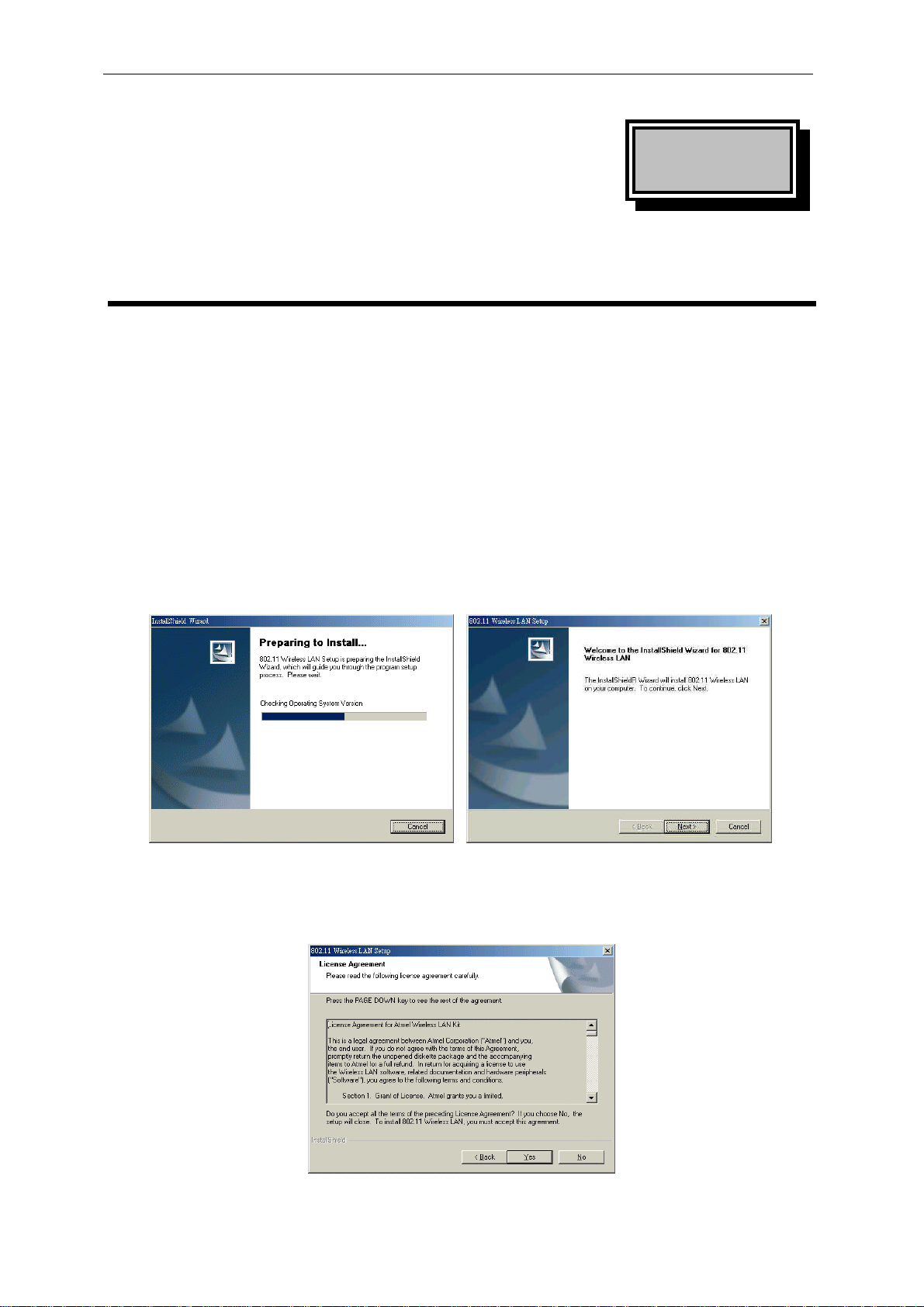
A. Execute the “Setup.exe”program under the “Driver & Utility”folder. The InstallShield
Wizard will check the operating system version first. Please follow the directions after it
finishes checking.
B. To install the device you must accept the “License Agreement.”To continue the
process, please select “Yes”, or select “No”to cancel the installation.

Typhoon Speednet Wireless PCMCIA Card
8
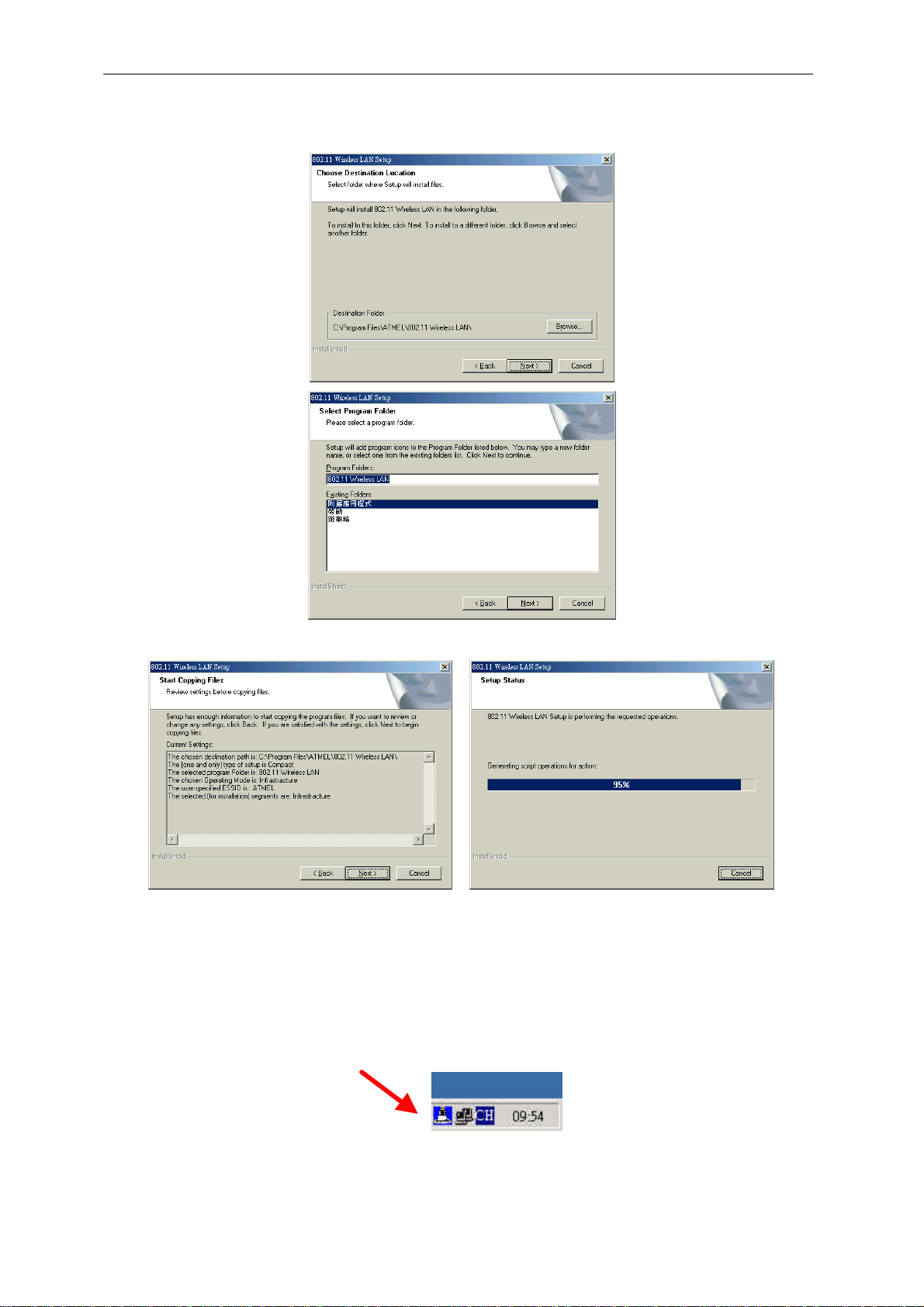
C. Click “Next” to install the driver. If you want to install this to a different folder,click
“Browse”, and select another folder. Then click “Next.”
D. Click “Next” to begin copying the filesto your hard disk.
E. Click “Finish” to complete the installation.
F. You must restart the computer now. Then insert the Wireless PCMCIA Card in your
computer. Please wait for 2-3 minutes for the system to find the device.
Note: When you complete the installation,the Configuration & Monitor Utility icon will appear
on the system tray.If not, it meansthat the installation failed. Please uninstall the driver
form the system, and repeat the installation process.
Now, the Wireless PCMCIA Card is SUCCESSFULLY installed. Please continue to read the
instructions in Chapter 3.

Typhoon Speednet Wireless PCMCIA Card
9
If you are using Windows XP, please read the following instructions.
Before you proceed with the installation, it is important for you to know…
Note1: Windows XP has built-in support for wireless networking utility.
Note2: Do not execute the “Setup.exe”under the “Driver”folder.
A. Please insert the Wireless PCMCIA Card in your computer.
B. The system will find the device and search for its driver. Please select the “Driver &
Utility/Drivers/WinXP”folder.
C. Please wait for 2-3 minutes, the system will restart the computer after it finishes the
installation.
Note: When you complete the installation,the Wireless Network Connection Status icon will
appear on the system tray.Please right-click the icon, choose “Properties”to monitor
the connection status .If you need to change the setup, please click “Properties.”
Now, the Wireless PCMCIA Card is SUCCESSFULLY installed. Please continue to read the
instructions in Chapter 3.
Este manual sirve para los siguientes modelos
1
Tabla de contenidos
Manuales populares de Tarjeta de red de otras marcas

3Com
3Com EtherLink 3C509B Manual de usuario

TRENDnet
TRENDnet TEG-PCITX Manual de usuario

Cisco
Cisco MC16E Manual de usuario

Delta Electronics
Delta Electronics Braking Modules VFDB Series Manual de usuario

TwinMOS
TwinMOS Booming Manual de usuario

Dialogic
Dialogic Media Board DM/V1200BTEPEQ Manual de usuario

Buffalo
Buffalo AirStation WLI-PCM-L11GP Manual de usuario

National Instruments
National Instruments NI 9234 Manual de usuario

Hama
Hama 49276 Manual de usuario

Linksys
Linksys WCF54G - Wireless-G Compact Flash Card Manual de operación

Compaq
Compaq Wireless LAN 100 Manual de usuario

Bose
Bose PowerMatch Dante Manual de usuario