
TSYS RP350x Manual de usuario

User Guide
mPOS Readers RP350x & RP457c
Mobile Payment Acceptance
User Guide for Android

Disclosure Statements
Confidential Notice
The information contained herein is the property of Total System Services, Inc. ® (TSYS®). This
document contains CONFIDENTIAL information that is produced solely for the benefit of the
named parties. All parties should keep all information contained herein confidential, and on no
account should the information, in whole or in part, be disclosed or disseminated to any third
party without the express written permission of TSYS.
Copyright & Trademark
© 2017 Total System Services, Inc. ® all rights reserved worldwide. Total System Services, Inc., and
TSYS®are federally registered service marks of Total System Services, Inc., in the United States.
Total System Services, Inc., and its affiliates own a number of service marks that are registered in
the United States and in other countries. All other products and company names are trademarks
of their respective companies.

Table of Contents
Introduction.............................................................................................................................. 4
Mobile Payment Acceptance 3.0 .......................................................................................... 5
Account Activation and Login................................................................................................ 7
Activate Your Account .............................................................................................................................7
PIN Entry......................................................................................................................................................13
Login to Your Account (if the app has been deleted).....................................................................14
The Main Menu ...................................................................................................................... 16
Settings, Account Information, and Help............................................................................. 17
Manage Settings ......................................................................................................................................17
Readers ......................................................................................................................................................24
EMV Readers .............................................................................................................................................25
Printers.........................................................................................................................................................30
View Account Information .....................................................................................................................32
Help.............................................................................................................................................................33
Customers .............................................................................................................................. 34
Manage Customer Information.............................................................................................................34
Add New Customer .................................................................................................................................35
Remove Customer Information .............................................................................................................42

Table of Contents
Transactions ........................................................................................................................... 45
Add a Customer to a Transaction.........................................................................................................46
Create a Transaction...............................................................................................................................48
Processing a Payment.............................................................................................................................50
Offline Payments ......................................................................................................................................58
Forced Authorizations..............................................................................................................................59
Partial Authorizations ...............................................................................................................................62
Tips and Signature ....................................................................................................................................67
Approved Transaction.............................................................................................................................68
Declined Transaction...............................................................................................................................69
History and Returns ................................................................................................................ 71
Transaction History....................................................................................................................................71

User Guide
4│Mobile Payment Acceptance User Guide for Android
Introduction
Mobile Payment Acceptance (MPA) is an easy-to-use application on your smartphone with the
mPOS RP350x and RP457c devices that provides reliable, secure, and portable transaction
processing, as well as other useful features for managing your business. MPA can be
downloaded to a compatible device from the Google Play store; however, the available
features and functionality may differ depending on the device you use.

User Guide
Mobile Payment Acceptance User Guide for Android │5
Mobile Payment Acceptance 3.0
Application Download
TSYS’ Mobile Payment Acceptance application is available in Google Play on Android
smartphone devices. The application is compatible with most devices running Android 4.4 and
higher. You can download the application from Google Play.
1. Open Google Play on your phone and search for TSYS Mobile Payment Acceptance.
2. Tap Install.
2.
User Guide
6│Mobile Payment Acceptance User Guide for Android
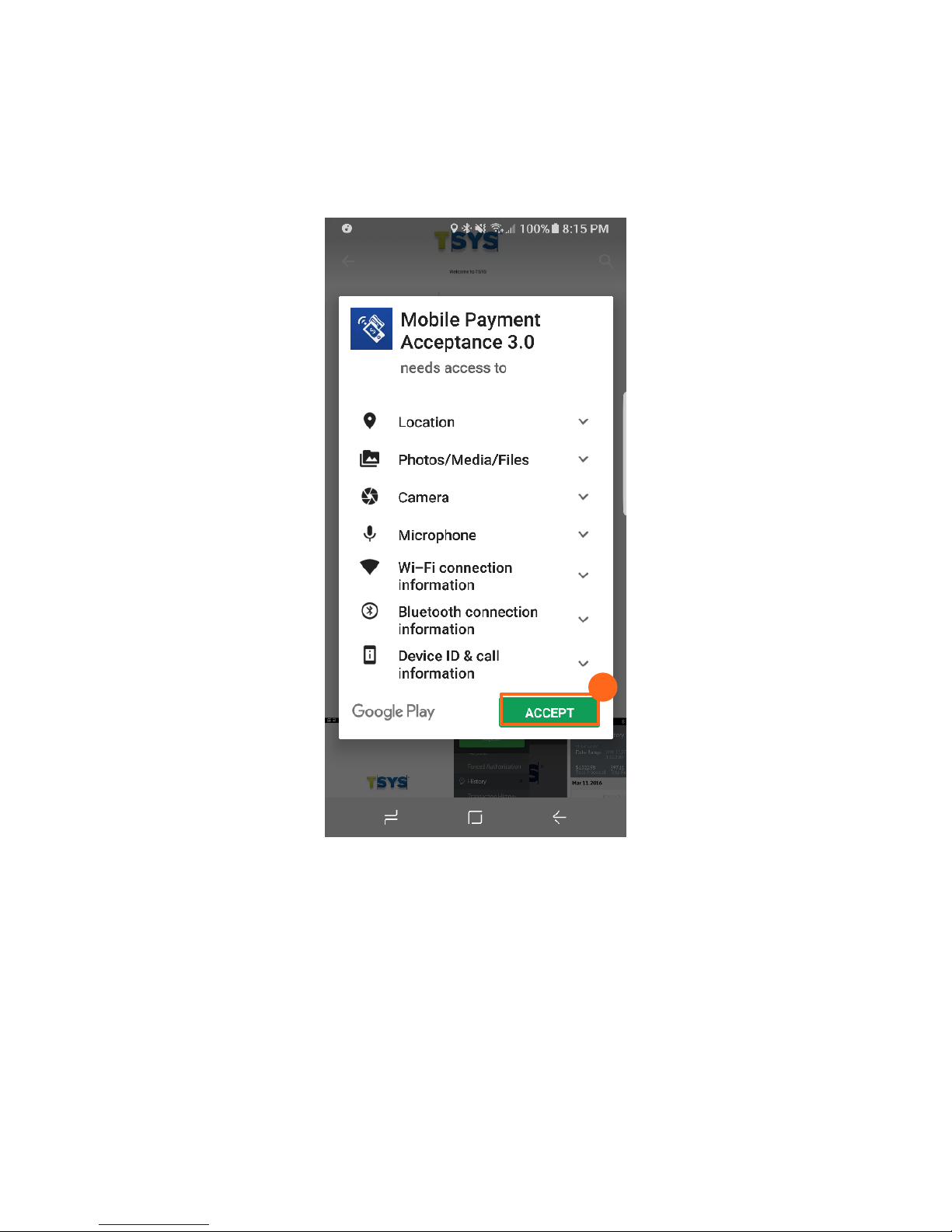
3. Tap Accept to give Mobile Payment Acceptance access to functions of your phone that
facilitate features of the application.
Open the application once it finishes installing.
3.

User Guide
Mobile Payment Acceptance User Guide for Android │7
Account Activation and Login
Activate Your Account
To begin processing payments with Mobile Payment Acceptance, you first need to activate
your merchant account. During the account activation process, you will create a password for
future login as well as a personal identification number (PIN) for quick access.
In order to activate your merchant account, you will need the email address associated which
contains your merchant account information as well as your truncated 12-digit Merchant ID and
14-digit Device ID numbers. Your non truncated Merchant ID will be provided to you during our
phone onboarding and training session.
To activate your account and sign in for the first time:
1. From the Login screen, tap Activate to proceed to the Account Activation page.
1.

User Guide
8│Mobile Payment Acceptance User Guide for Android
2. Enter the Email ID. This is the email used for correspondence related to the merchant
account.
3. Enter the 12 digit Merchant ID associated with your merchant account.
4. Enter and re-enter a NEW Password. Be sure to record this password for future use.
Note: The password must contain eight to sixteen characters, and consist of at least one number from
0 to 9, at least one uppercase and one lowercase letter from A to Z, and at least one special character
(! @ $ ^ * - _ .). Your password can not contain spaces or match any of the previous six passwords.
5. For the Device ID enter two digits to the end of the Merchant ID. If you have one device
this is 01, if you have 2 devices this is 02 and so on.
6. Move the slider to indicate that you agree with the Terms and Conditions.
7. Tap Next.
5.
2.
4.
6.
7.
3.

User Guide
Mobile Payment Acceptance User Guide for Android │9
8. Tap each security question prompt and select a question.
9. Enter answers for each of the four security questions.
8.
9.
Este manual sirve para los siguientes modelos
1
Tabla de contenidos


