
Transmitter Solutions EIS ENTRY-RX Manual de usuario
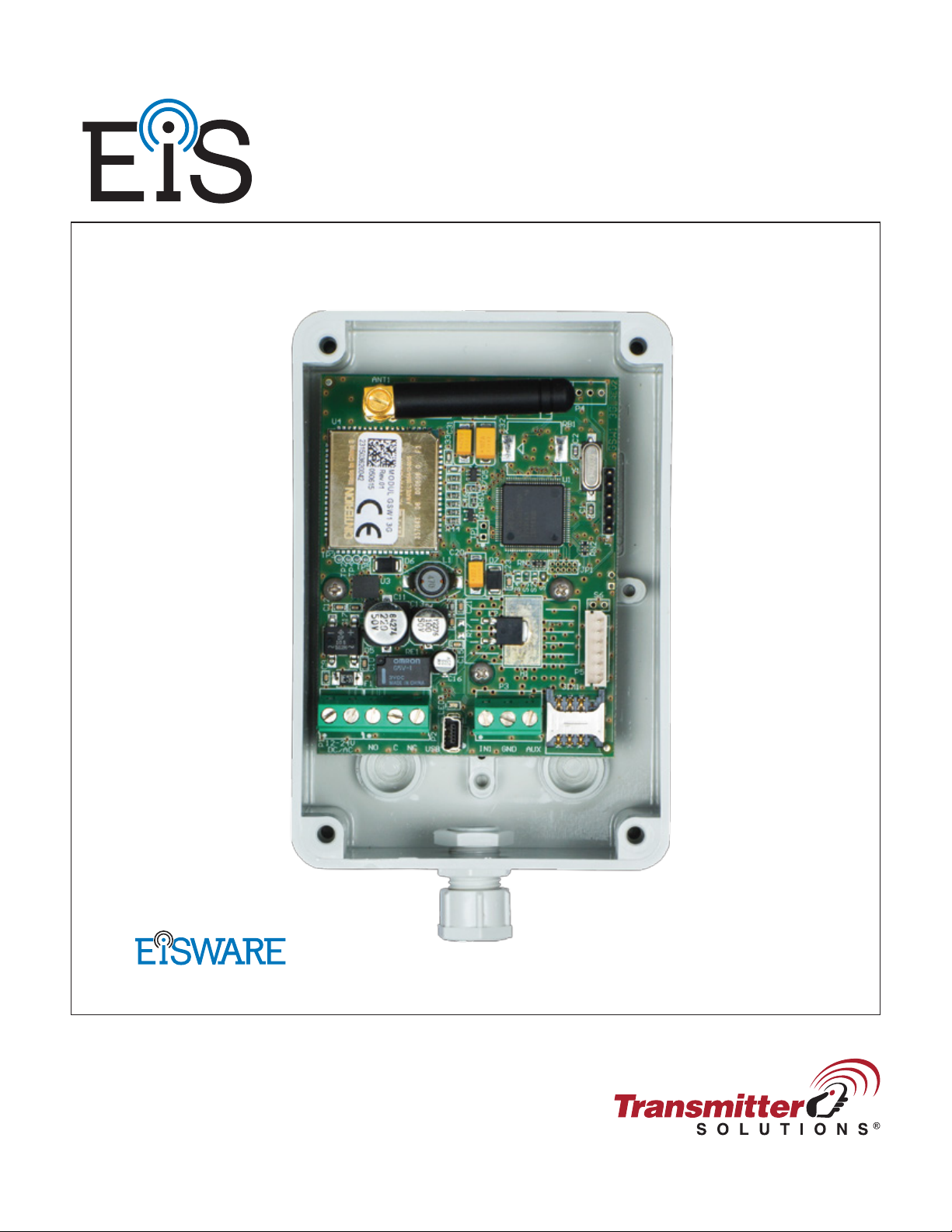
EIS ENTRY-RX
USER MANUAL
GSM REMOTE
MOBILE SWITCH
Programming Software
v.1.4.2016.0816


EIS$ENTRY-RX$
USER$MANUAL!
Page%1%
Contents
1!FOR YOUR SAFETY ..............................................................................................................................................3!
2!INTRODUCTION .................................................................................................................................................... 4!
3!EIS ENTRY-RX FEATURES AND APPLICATIONS ........................................................................................5!
4!START UP ................................................................................................................................................................6!
5!LED INDICATION..................................................................................................................................................7!
6!CONNECTION DIAGRAM ...................................................................................................................................8!
7!EIS UNIT MANAGEMENT ................................................................................................................................... 9!
8!EIS FUNCTIONS WITH PROGRAMMING INSTRUCTIONS......................................................................10!
8.1!WEB SERVER - LOG IN ................................................................................................................................................... 10!
8.2!WEB SERVER – ADDING UNITS TO USER PROFILE.................................................................................................11!
8.3!WEB SERVER-UNIT MANAGEMENT ........................................................................................................................... 13!
8.4!CALLER ID ACCESS ........................................................................................................................................................ 14!
8.5!OUTPUTS SETTINGS ....................................................................................................................................................... 15!
8.6!ADMINISTRATION .......................................................................................................................................................... 17!
8.7!MISCELLANEOUS............................................................................................................................................................ 19!

EIS$ENTRY-RX$
USER$MANUAL!
Page%2%
Figures
Figure 1: EIS: Connection diagram .....................................................................................................8!
Figure 2: WEB Server-Sign In page ..................................................................................................10!
Figure 3: WEB Server-Main page select ADD mode........................................................................11!
Figure 4: WEB Server-Main page adding EIS units..........................................................................12!
Figure 5: WEB Server-Unit management window ............................................................................13!
Figure 6: WEB Server-Caller ID Access ...........................................................................................14!
Figure 7: WEB Server-Output setting................................................................................................15!
Figure 8: WEB Server-Notification numbers ....................................................................................17!
Figure 9: WEB Server-Input alarm configuration .............................................................................17!
Figure 10: WEB Server-Misc ............................................................................................................19!

EIS$ENTRY-RX$
USER$MANUAL!
Page%3%
1FOR YOUR SAFETY
SWITCH ON SAFELY
Do not switch the unit on when use of wireless phone is prohibited or when it may cause
interference or danger.
INTERFERENCE
All wireless phones and units may be susceptible to interference, which could affect performance.
SWITCH OFF IN HOSPITALS
Follow any restrictions. Switch the unit off near medical equipment.
SWITCH OFF IN AIRCRAFT
Follow any restrictions. Wireless devices can cause interference in aircraft.
SWITCH OFF WHEN REFUELING
Do not use the unit at a refueling point. Do not use near fuel or chemicals.
SWITCH OFF NEAR BLASTING
Follow any restrictions. Do not use the unit where blasting is in progress.
USE SENSIBLY
Use only in the normal position as explained in the product documentation. Do not touch the
antenna unnecessarily.

EIS$ENTRY-RX$
USER$MANUAL!
Page%4%
2INTRODUCTION
EIS ENTRY-CR (EIS) is a simple GSM switch system designed to ensure low-cost, simple to
install/use, reliable and single box solution for remote managed switching application. It is designed
for unlimited range caller ID control.
Optional EIS supports alarm detection, stay-alive messages, credit detection etc…

EIS$ENTRY-RX$
USER$MANUAL!
Page%5%
3EIS ENTRY-RX FEATURES and APPLICATIONS
Features:
⇒Built-in 5 band GSM module
⇒Caller ID numbers control (up-to 100 caller ID numbers)
⇒1 output (relay supported)
⇒Programming with PC via “USB to Mini USB cable” connected to the unit
⇒Programming by WEB server
⇒Programming by SMS commands
Applications:
⇒Remote gate opener – Caller ID number recognition

EIS$ENTRY-RX$
USER$MANUAL!
Page%6%
4START UP
EIS unit accepts a standard GSM SIM (T-Mobile or AT&T)
card from any network.
VERY
IMPORTANT
USE A MICRO SIM CARD
WARNING
DO NOT Insert or remove the SIM card while the unit is powered ON!!
IMPORTANT
Before inserting SIM card to unit make sure the PIN code is removed!!
⇒Insert SIM card in EIS unit.
⇒Connect power cable to EIS unit (YOU MUST POWER THE EIS UNIT WITH THE
POWER SUPPLY INCLUDED. Do not power with any other power supply.
⇒Power up the unit.
⇒Wait until LED1 (Green) starts flashing. This is set in around 30 – 45 seconds.
⇒EIS unit is now ready to operate.
Powering the Intercom
Please use 15V DC PSU supplied with Intercom
Most technical issues arrise from powering the intercom via CAT5 or alarm cable.
Neither are rated to carry enough power (2 amp peak)
Please use following cable…
Up to 6 feet – Use minimum 18 gauge
Up to 12 feet – Use minimum 16 gauge
Up to 24 feet – Use minimum 14 gauge

EIS$ENTRY-RX$
USER$MANUAL!
Page%7%
5LED INDICATION
Green LED (LED1)
- Indicates the level of the GSM signal from 1 to 5 LED flashes (1 is weak signal, 5 is
excellent signal)
Yellow LED (LED3)
- Short flashing indicates that the GSM module is ON, but it is not yet connected on the GSM
network. After connection, yellow led is flashing with short pulse (0,5s) ON and a long
pulse OFF(5s).

EIS$ENTRY-RX$
USER$MANUAL!
Page%8%
6CONNECTION DIAGRAM
Before connection the EIS please take a look at connection diagram.
Figure 1: EIS: Connection diagram
IMPORTANT
DO NOT USE Power out (12V AUX) for electric lock driving! Use separate
power source for door electric lock!
Must use 15VDC power supply that is provided with EIS unit.
Este manual sirve para los siguientes modelos
1
Tabla de contenidos


