
Transcend TS64GDPB60A Manual de usuario

User’s Manual
Body Camera
DrivePro Body 60
2023/09
(Version 1.2)

1
Table of Contents
1. Introduction....................................................................................................................................3
2. System Requirements..................................................................................................................4
3. Getting Started...............................................................................................................................4
3-1 Mounting the DrivePro Body.............................................................................................4
3-2 Function Buttons.................................................................................................................6
3-3 Function Buttons Description............................................................................................7
3-4 LED Indicator Table............................................................................................................8
3-5 Charging the DrivePro Body 60 .......................................................................................9
4. Recording Videos........................................................................................................................10
4-1 Buffering Mode..................................................................................................................10
4-2 Recording Mode ...............................................................................................................10
5. Taking Photos..............................................................................................................................11
6. Using the DrivePro Body App ...................................................................................................11
6-1 Downloading and Installing the App..............................................................................11
6-2 Connecting to the DrivePro BodyApp ..........................................................................11
6-3 DrivePro Body App Home...............................................................................................14
6-4 Playing Videos and Browsing Photos ...........................................................................14
6-5 Settings..............................................................................................................................16
7. Using the DrivePro Body Toolbox Software............................................................................18
7-1 Status..................................................................................................................................19
7-2 Settings..............................................................................................................................19
7-3 Tools ...................................................................................................................................22
7-4 File Manager .....................................................................................................................22
7-5 Preference.........................................................................................................................24
8. Docking Station (Optional).........................................................................................................26
9. Cautions .......................................................................................................................................29
10. IP67 Protection..........................................................................................................................30
11. Package Contents.....................................................................................................................31
12. Specifications ............................................................................................................................33
13. Frequently Asked Questions...................................................................................................34
14. EU Compliance Statement......................................................................................................35
15. Recycling and Environmental Protection..............................................................................36
16. Two-year Limited Warranty .....................................................................................................37
17. GNU General Public License (GPL) Disclosure..................................................................38
18. End-User License Agreement (EULA) ..................................................................................38
19. Federal Communications Commission (FCC) Statement..................................................41


3
1. Introduction
Transcend’s DrivePro Body 60 is an easy-to-operate wearable video camera that is tailor-made for
police officers, security guards, military personnel, and other professionals to capture real time
videos and photos of events. The DrivePro Body 60 features a camera unit connected to the main
unit by a flexible cable, allowing for a wide variety of attachment options and best recording
perspective. The Sony sensor can capture high-resolution images even in low light conditions. The
built-in GPS receiver allows for GPS coordinates to be embedded on footage, enabling accurate
retracing to the site of an incident. Paired with Transcend’s exclusive DrivePro Body App, the Wi-Fi
network and Bluetooth allows live streaming to smartphones and adjusting the function settings.
The DrivePro Body 60 features a 130°wide angle lens and records videos in Full HD 1080P (30 FPS)
with a F2.8 aperture. The handy snapshot function allows for taking photos while recording. The
high-capacity built-in Li-Polymer battery can record up to 10 hours of recording on a single charge.
The internal 64GB storage allows users to store up to 16 hours of Full HD 1080P video. In addition,
the camera is IP67 water and dust resistant, and meets rigorous US military drop-test standards for
shock resistance.
The DrivePro Body Toolbox provides a password protection mechanism to protect the recorded data.
For enterprises or departments that purchase multiple DrivePro Body cameras, Transcend’s optional
6-port Docking Station offers the best solution as each port can simultaneously charge and upload
the recorded data to your database.
Features
Smooth and detailed Full HD 1080P recording at 30fps resolution.
Handy snapshot button to take photos while recording (2 million pixels camera).
F2.8 aperture with 130°wide angle lens.
Built-in Wi-Fi and Bluetooth to allow live streaming to your smartphone app and adjust the
function settings.
64GB internal storage.
Record videos in .MP4 file format with 7Mbps high video bit rate.
Meets U.S. military drop-test standards and IP67 protection (non-submersible).
360°rotatable clip or adhesive mounts attached for easy operation.
Built-in microphone.
Built-in Li-Polymer battery to record up to 10 hours of footage.
Built-in battery indicator to accurately show the battery usage status.
Multiple indicator lights and a vibrator for easy operation.

4
2. System Requirements
System requirements for connecting the DrivePro Body 60 to a computer and for using the DrivePro
Body Toolbox:
A desktop or a laptop with a working USB port
Windows®7
Windows®8
Windows®8.1
Windows®10
macOS®10.14 or later
System requirements for using DrivePro Body App on a mobile device:
For compatibility information, please refer to the links below:
3. Getting Started
3-1 Mounting the DrivePro Body
1. Attach the main unit to your duty belt.
2. Insert and slide the camera holder into the
clip/adhesive mount until your hear a click.
Adhesive mount
Clip mount

5
3. Push the camera into the holder until
you hear a click.
4. Mount the camera in place.
Allow at least 24 hours for the adhesive mount to properly
adhere to the surface.
5. Rotate the camera so that the LED
recording indicator faces upward.
6. To power on, long press the button.
7. To switch between Buffering and
Recording modes, press the
button twice in quick succession.
8. To take a snapshot, short press the button.
Clip mount
Adhesive mount

6
3-2 Function Buttons
Lens
Status Indicator
Battery Indicator
Lanyard Hole
Microphone
Status Button
Buzzer
Reset Button
Assistive Button
Power Button
Connection Socket
Snapshot Button

7
3-3 Function Buttons Description
Power Button
Long press once
Power on/off.
Short press twice
Switch between Buffering mode and Recording
mode.
Default mode: Buffering mode.
Snapshot Button
Short press once
Take a snapshot.
In Recording mode, a note will be added to the
recording file.
Long press once
Audio recording.
+
Press for 5 seconds
Reset, format and power off the device.
This function is disabled by default and can be
enabled using the DrivePro Body Toolbox.
Warning! All data will be permanently removed.
Status Button
Press for 5 seconds
Pair and connect to Bluetooth.
Short press once
Check the battery and recording status.
Assistive Button
Long press once
Turn on/off the light indicators and buzzer (Stealth
Mode)
Short press twice
Turn on/off the microphone (Silent Mode)

8
3-4 LED Indicator Table
Top View 1
Recording
LED
Status
LED Definition
Flashing
Low battery
Connected to computer/power
LED
Status
LED Definition
Solid
Charging
Checking the battery status
LED
Status
LED Definition
Solid
> 67% remaining
Solid
31%-67% remaining
Solid
< 31% remaining
Top View 2
Recording
LED
Status
LED Definition
Flashing
Memory almost full
Flashing quickly
Bluetooth pairing
Flashing
GPS positioning
Solid
Checking status in
buffering mode
Flashing steadily
Checking status in
recording mode
Flashing twice
Checking status in
audio recording
mode
Solid
Silent mode
(Microphone off)
Battery Indicator
Status Indicator
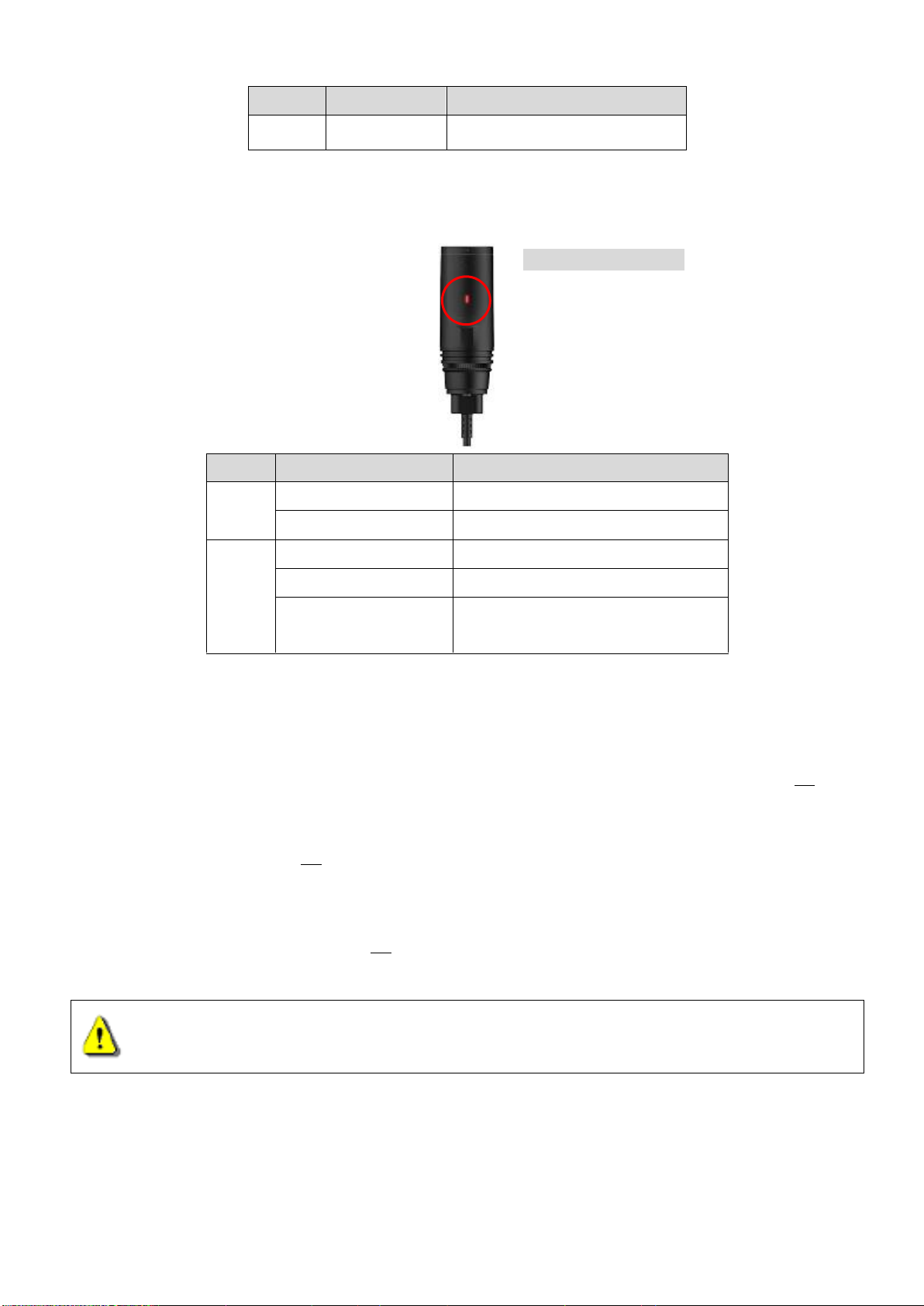
9
Connected to computer
LED
Status
LED Definition
Flashing
Transferring data
Camera Top View
LED
Status
LED Definition
Flashing
Powering on
Solid
Buffering mode
Flashing steadily
Recording mode
Flashing twice
Audio recording mode
Solid
Browser/connected to
computer
3-5 Charging the DrivePro Body 60
Before use, please ensure that the battery is fully charged. Charge the DrivePro Body 30 via the
bundled 3.5mm to USB cable. A solid orange LED light is visible while charging; the orange LED light
will turn off when fully charged.
To charge the DrivePro Body 30, you can either:
1. Connect the bundled 3.5mm to USB cable to a wall outlet with the included adapter
2. Connect the bundled 3.5mm to USB cable to a computer
3. Connect the DrivePro Body 30 to Transcend’s Docking Station (Optional)
WARNING:
Do not use the 3.5mm to USB cable on other devices.
Recording Indicator
Este manual sirve para los siguientes modelos
1
Tabla de contenidos
Otros manuales de Cámara digital de Transcend

Transcend
Transcend TS32GDPB20A Manual de usuario

Transcend
Transcend DrivePro Body 70 Manual de usuario

Transcend
Transcend DrivePro Body 70 Manual de usuario

Transcend
Transcend DrivePro Body 70 Manual de usuario

Transcend
Transcend DrivePro Body 30 Manual de usuario

Transcend
Transcend DrivePro Body 70 Manual de usuario

Transcend
Transcend DrivePro Body 60 Manual de usuario


