
TOPigeon iPigeon Manual de usuario

iPigeon
Club System User Guide - (short version)
Club System User Guide - (short version)

INDEX - Ring Marker & Club Manager Software
when first setting up please do in the page order below
p2
Page 3 Ring Marker - Computer Com 1 setup
Page 6 Set up Computer System & Region Settings
Page 8 Install Club Manager Software - Windows 10
Page 10 Install Club Manager Software - Windows 7
Page 11 Add new member to Club Manager
Page 12 Synchronise member’s new clock to Club Manager
Page 14 Add member Life Rings using Club Manager
Page 16 Assign ETS Rings using Club Ring Marker
Page 18 Add New Race Point to Club Manager
Page 19 Add New Race using existing Race Point information on Club Manager
Page 20 Race Marking
Page 21 Race Close
Page 22 Race Progress
Page 23 Race Delete
Page 25 Marking & Closing race with iPigeon on other Manufacturer’s system
Page 26 Synchronising iPigeon clock to Club Manager

TOPigeon Ring Marker - Com1 Setup Guide
For Windows: Win10 - Win8
Now select where the red circle indicates
If you do not see Ports (COM & LPT)
Unplug and replace the USB cable from the computer
Then right click where it shows your present COM setting
Continue to next page
After mains electric power is switched on your
computer will be busy for a few minutes
until this screen appears
If this screen does not appear go to page 5
Then select Properties
Power adapter USB cable
Because the club manager software communicates using your computer Port COM1
you must set your USB connection cable to the COM1 Port
Firstly close all open programs on your computer
Connect your Club Antenna to the computer - USB cable first - then Power adapter - then switch on Mains power
This number
may be different
p3

Now select Port Settings
Then select Advanced
Now select where the red circle indicates
Then scroll up to the very top which will display COM1
Now select COM1
Then select OK
Now finally select OK
On your computer you must always remember to use the same USB Port for connecting the Club Antenna (Ring Marker)
because if you connect to the wrong USB port the connection will fail
Now you must install the Club Manager software and so power down the Club Antenna
and remove the USB cable from the computer
p4

Call up Device Manager if screen missing on page 3 of these instructions
Using your Desktop near the Start button
Type the words device manager
Then select Device Manager
You now have the missing screen
Do not close down this screen
Now return to Page 3 of these instructions
and continue from this same screen
p5

The Club Manager software uses this date and time settings: DDMMYYYY HHMMSS
Using your Desktop type the words region
To check the settings do the following (Windows 7 users are on Next Page)
Then select Region
These are the settings you require
Any that are wrong use the to correct
After correcting click Apply
then OK
TOPigeon System & Region Settings
p6

Close all programs and on the Windows Desktop screen click the Start button.
Then select Control Panel on the right-hand side of the start menu.
You may see a window similar to the this image, if so where the red bounding
box indicates select View by Category then Small icons which will take you to
the image below
Now select Region and Language where the red bounding box indicates
which takes you to the image below
This image depicts what settings you require and if yours does not, then you
simply use the at the end of each button to make the selection
After making any changes click the Apply and OK buttons
SYSTEM REGION, DATE & TIME - Windows 7
p7

Do not install this Club Manager software unless you have installed the Club Antenna (Ring Marker)
Your local sales agent will have provided you with the web site address to download and save your country specific
TOPigeon Club Manager installation file which is called ClubSys_V8_E_UTCSetup.exe
To install the Club Manager software, make sure your computer has no other programs running.
Warning: When doing the installation instructions
on Microsoft Windows there might be a
Windows protected your PC message, If so just
Click More Info message and Run anyway
Double click the saved execution file ClubSys_V8_E_UTCSetup.exe (Setup Type is to be Typical)
and always select either the Next/Yes/OK/Install/Finish buttons as each screen progresses
When completed this icon will be on your computer Desktop.
Right click on the new Desktop icon and select Properties
Then select the Advanced button
Check mark Run as administrator
Click the OK button
If you receive this Access Denied message
click Continue button
Finally click buttons Apply then OK
You now need to set up the installed Club Manager to run as an Administrator (you only do this once)
We now need to set up your Club details on the next Page 9
TOPigeon Install Club Manager Software - Windows 10
p8

We do advise you to have the Club Antenna (Ring Marker) set up and connected when using the Club Manager, otherwise when
moving from screen to screen you will keep having this screen prompt reminder
You will require the Club Manager password contained in the SysKey9999.txt file provided by the Sales Agent
We suggest you open the file with Notepad and copy it to do a Paste later when Club Manager is loading
On your desktop left double click the Club Manager icon and enter your password
As this is your first time of loading Club Manager the club setup screen will open immediately, if not select the Setup Tab
The red boxes are the Club’s Name
and must be typed exactly the same
Street can be followed by local area
Example:- 3 High Street, (area)
Club Abbreviation maximum 8 letters
Association = RPRA - NEHU - etc
Mode = yds/min
Copies: The number of printed pages
needed for Marking and Closing Races
After completion close down using the X at the top right of the program screen
which if this is the first time you opened the program it will auto reopen again
Your now ready to use the Club Manager
Adding Club details to Club Manager
p9
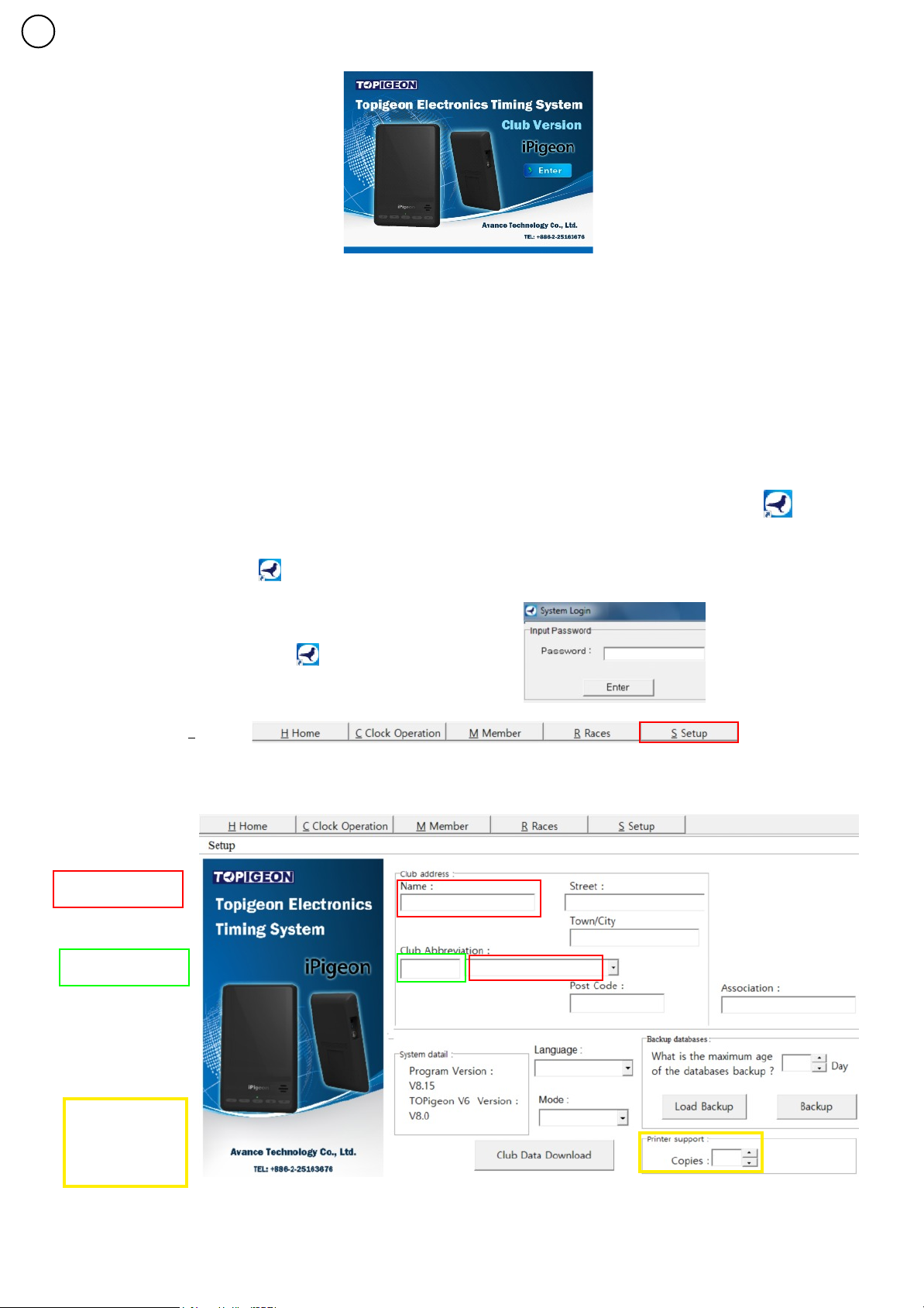
Do not install this Club Manager software unless you have installed the Club Ring Marker
Your local sales agent will have provided you with the web site address to download and save your country specific
TOPigeon Club Manager installation file which is called ClubSys_V8_E_UTCSetup.exe
To install the Club Manager software, make sure your computer has no other programs running.
Double click the saved execution file ClubSys_V8_E_UTCSetup.exe and as each screen progresses you select either the
Next/Yes/OK/Install/Finish buttons (on Setup screen select Typical) on completion your Desktop has this icon.
Next you need to setup and run the program as an Administrator (you only do this once)
Right click on the desktop icon and select Properties then select the Tab named Shortcut then select Advanced button
then click the box Run as administrator followed by the OK button and finally on the last screen select the OK button.
If the above did not take you to this System Login Password screen
Double left click on the desktop icon and enter your password
Then select the Tab S Setup
Now complete your club details
You will require the Club Manager password contained in the SysKey9999.txt file and so write it down
Club Abbreviation
Maximum 8 letters
These 2 must be
exactly the same
RPRA - NEHU etc
English
yrds/min
Printer support is
Number of
Race Marking
Race Closed
Printed pages
TOPigeon Install Club Manager Software Windows 7
p10
After completion close down using the X at the top right of the program screen
which if this is the first time you opened the program it will auto reopen again
Your now ready to use the Club Manager
Otros manuales para iPigeon
2
Otros manuales de Registrador de datos de TOPigeon


