Toa EV-20R Manual de usuario

SOFTWARE INSTRUCTION MANUAL
SOUND REPEATER EV-20R
PM-20EV
EV-20A
EV-20S
S-20S
Please follow the instructions in this manual to obtain the optimum results from this unit.
We also recommend that you keep this manual handy for future reference.
Note
This manual applies to the data transfer software program Version 4.0 or later.
If the different version* has already been installed in your PC, a window pops up
and prompts you to select "Repair EV-20PCENG" or "Remove EV-20PCENG"
during the program installation. Be sure to select "Remove EV-20PCENG" to
delete the already installed program, and then reinstall the 4.0 or later version of
the program. (Refer to p. 7.)
* To confirm the program version, select Help from the menu bar on the
program screen.

2
TABLE OF CONTENTS
1. GENERAL DESCRIPTION ............................................................................. 3
2. HANDLING PRECAUTIONS .......................................................................... 3
3. SYSTEM REQUIREMENTS ........................................................................... 3
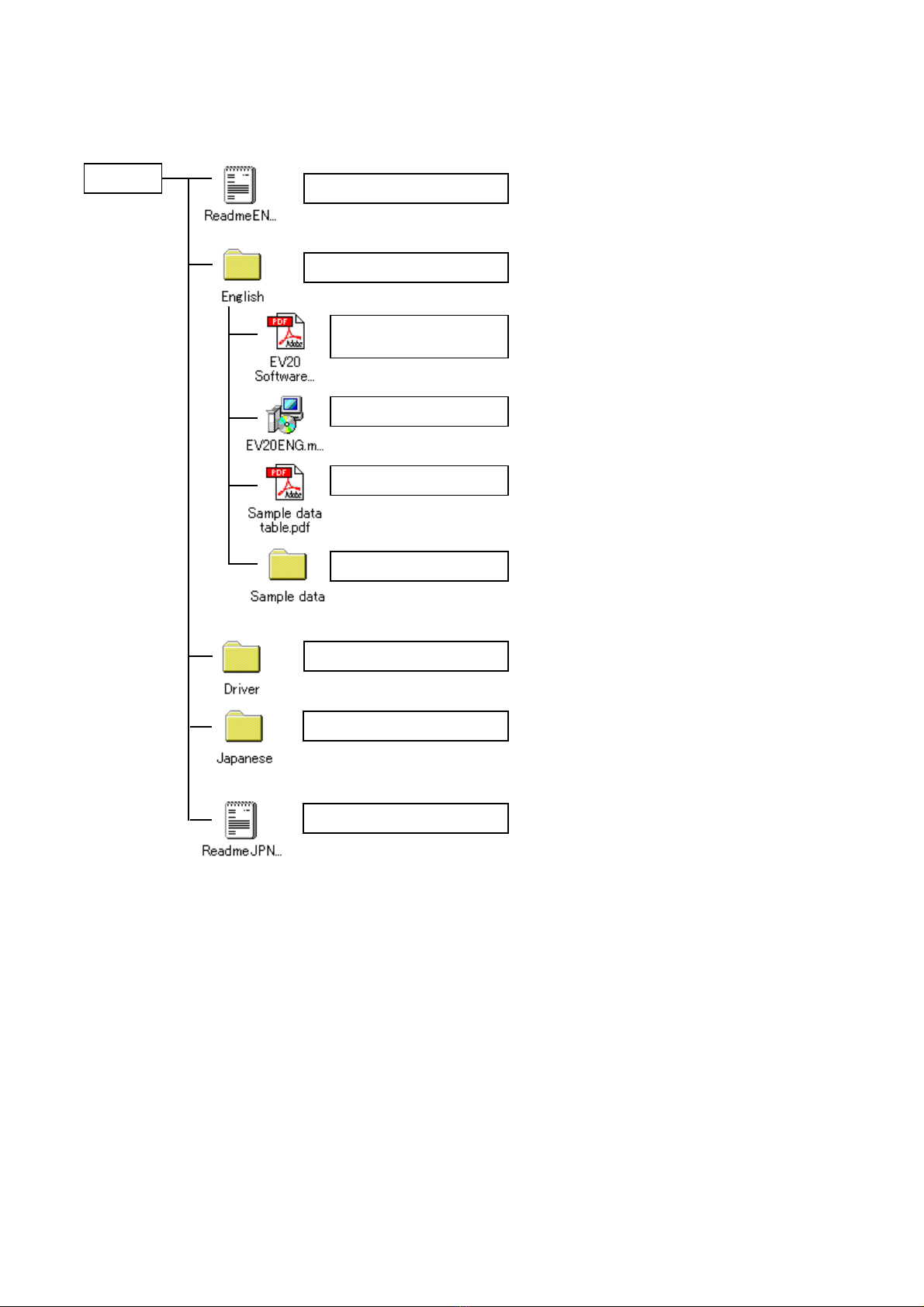
4. CD-ROM FILE CONFIGURATION ............................................................... 4
5. SOFTWARE PROGRAM INSTALLATION
5.1. USB Driver Installation ...................................................................................... 5
5.2. Installing the Data Transfer Software Program ................................................ 7
6. SOFTWARE STARTUP ................................................................................... 9
7. SCREEN DESCRIPTION
7.1. Sound Repeater Memory Area ........................................................................ 10
7.2. PC Hard Disk Area ........................................................................................... 12
7.3. Wave File Audition Area .................................................................................. 14
8. USABLE AUDIO DATA
8.1. Sample Data .................................................................................................... 15
8.2. Audio Data Creation ......................................................................................... 15
8.3. Linking Wave Files to Create New Files .......................................................... 16
9. AUDIO DATA TRANSFER TO THE SOUND REPEATER
9.1. Creating and Writing the Entire Repeater Data ............................................... 19
9.2. Writing Individual Audio Data to the Sound Repeater
9.2.1. Writing individual audio data .................................................................. 25
9.2.2. Deleting individual audio data ................................................................ 27
10. RECORDED DATA BACKUP
10.1. Entire Repeater Data Backup ........................................................................ 29
10.2. Individual Audio Data Backup ........................................................................ 32
11. BACKED-UP DATA TRANSFER ................................................................. 34
12. CONTROLLING THE SOUND REPEATER
12.1. Playback ........................................................................................................ 38
12.2. Recording (except the EV-20S and S-20S) ................................................... 39
12.3. Formatting ...................................................................................................... 40
12.4. Activating the EV-20A .................................................................................... 43
12.5. Initializing the SmartMedia Card (EV-20A only) ............................................. 44
13. TROUBLESHOOTING ..................................................................................... 46

3
1. GENERAL DESCRIPTION
The software program described in this manual is a data transfer program used to enable communications
between the TOA Sound Repeater and a computer (PC).
Audio data can be transferred bi-directionally.
For your convenience, the supplied CD-ROM also provides the sample audio data of chime tones and BGM in
the sample data folder.
2. HANDLING PRECAUTIONS
• This CD-ROM is not an audio CD-ROM. Do not attempt to use it in an ordinary audio CD player.
• Avoid exposing the CD-ROM to direct sunlight, as data may be lost.
• When the Sound Repeater is in the following operating status, do not switch off its power nor insert or
remove the USB cable. PC operation may stop.
· While the driver software program is being installed.
· While the OS is being activated or terminated.
· During the course of being suspended or resumed.
· While data is being transferred between the Sound Repeater and the PC.
Because PC operations could also freeze, avoid performing the following:
· Frequent ON and OFF power switching
· Frequent USB cable insertion and detachment
• Be sure to use the installer to install this software program. Never copy the program to the PC.
After installation, never move any of the installed files as doing so may disable the program operation.
3. SYSTEM REQUIREMENTS
The following PC specifications are highly recommended for correct operation of the software program.
Notes
• Pentium is a trademark of Intel Corporation.
• Windows is a trademark of Microsoft Corporation.
Personal Computer IBM-AT compatible type (equipped with the USB terminal)
Main Specifications CPU: Pentium compatible CPU of 133 MHz or more
Memory: Over 64 MB (recommended: 128 MB or more)
Free disk space: Over 10 MB (space for audio data storage excluded)
OS Windows 2000/XP (32-bit version)/Vista (32-bit version)

4
4. CD-ROM FILE CONFIGURATION
The unit's supplied CD-ROM is configured as follows:
* Acrobat Reader is required to view this file. If Acrobat Reader is not installed in the PC to be used, download
it from the Adobe web site.
Note: Both Adobe and Acrobat are trademarks of Adobe Systems Incorporated.
ReadmeJPN.txt
Japanese
Japanese version of Readme file.
PCs require Japanese OS to read this file.
Contains a software program, data, instruction
manual, etc. of Japanese version.
PCs require Japanese OS for the program
operation.
CD-ROM
Driver
ReadmeENG.txt
Sample data
EV20ENG.msi
EV20 Software
Instruction Manual.pdf *
Describes the supplied software's operating
environment requirements and update log data.
Please read this before using the software.
Contains sample chime tone and BGM data.
Installer program for the data transfer software
program.
Instructions for the data transfer software program.
Contains the USB driver necessary for USB
connection of the Sound Repeater to a PC.
English Contains the following folders and files in English.
Sample data table.pdf * Shows the contents of sample data.

5
5. SOFTWARE PROGRAM INSTALLATION
To use the USB function, install the software programs in the PC.
Two software programs need to be installed: The USB driver and data transfer software programs.
Notes
• Before operating, confirm the CD-ROM drive letter (such as E or F) of the PC to be used. The drive letter is
displayed near the CD-ROM icon in "My Computer."
• You need not install the USB driver program if the different version of the data transfer software program has
already been installed in the PC.
5.1. USB Driver Installation
Step 1. Start the PC.
Step 2. Insert the supplied CD-ROM into the PC's CD-ROM drive.
Step 3. Check to be sure that the Sound Repeater's power is switched OFF.
Step 4. Using the supplied USB cable, connect the Repeater's USB terminal to the USB terminal of the PC or
USB hub.
Step 5. Switch on the Repeater's power.
The following screen is displayed on the PC screen.
A few seconds later, the following screen is displayed.
After another few seconds, the following screen is displayed.

6
Cause
USB cable is not
correctly connected.
PC's USB disabled.
Unknown device
programmed.
[Troubleshooting when the driver cannot be installed]
Remedy
Unplug the USB cable, then reinsert it.
When connecting the Sound Repeater to the PC, if the Step 5 screen for the
USB driver installation is not displayed, the PC may be set to disable USB.
Check PC settings with the following procedure:
Step 1. Select "My Computer" – "Control Panel" – "System."
Step 2. Click "Device Manager" in "Hardware."
Step 3. Check to be sure that there is no "!" or "X" symbol in "USB Controller"
and "USB Root Hub." When "!" or "X" symbols are displayed, perform
settings so that USB can be used. For the setting procedure, refer to the
PC instruction manual.
When the driver cannot be correctly installed, the Sound Repeater may be
recognized as an "Unknown Device," making installation impossible thereafter.
Delete "Unknown Device" with the following procedure:
Step 1. Select "My Computer" – "Control Panel" – "System."
Step 2. Click "Device Manager" in "Hardware."
Step 3. Click "Display" to select "Device (classified by type) (E)."
Step 4. Ensure there is no "Other Device."
Step 5. When there is "Other Device," click that tab. If there is "Unknown File"
under the tab, select and delete it.
Step 6. Remove the USB cable and after reinserting it, reinstall the driver.
Step 6. Select the source to copy.
Pull down the "Copy files from:" menu to select "\Driver" in the CD drive.
Note: The drive letter may differ depending on the PC to be used.
Step 7. Click the OK button to start driver installation.
The screen disappears in several seconds and the driver installation is completed.

7
5.2. Installing the Data Transfer Software Program
Step 1. Start the PC.
Step 2. Insert the supplied CD-ROM into the PC's CD-ROM drive.
Step 3. Double-click "CD-ROM Drive" from "My Computer" icon on the desktop screen.
Step 4. Select "English" folder and double-click "EV20ENG.msi."
The following screen is displayed on the PC screen.
Note
If any version of the data transfer software program has
already been installed in the PC, the window shown at
right appears.
Select "Remove EV-20PCENG," click the Finish button,
and follow the on-screen instructions to delete the installed
program.
Then, reinstall the program following Step 4 again from
the beginning.

8
Step 5. Click the Next button according to the instructions on the screen until the installation is completed.
The Data Transfer Program "EV20man.exe" file has been installed in the designated folder
(c:\ProgramFiles\EV-20PCENG\ by default).
Step 6. Click the Close button.
The screen disappears, completing the software program installation.
Ensure that the "EV20man.exe" file has been correctly installed.

9
6. SOFTWARE STARTUP
Note
Install the USB driver and data transfer program in a PC, then connect the PC to the Sound Repeater. For
more information regarding software installation and connections, please refer to the separately supplied
instruction manual.
The data transfer software program can be started by double-clicking on the shortcut icon created on
the desktop screen during installation. (The data transfer program is located in the "C:\Program Files\EV-
20PCENG\" folder, unless the designated installation folder was changed during installation.)
The above screen appears when one EV-20A Sound Repeater is connected to the PC.
The displayed screen differs in the control buttons and the audio data area* depending on the Sound
Repeater model connected.
* The area in which 3 or 4 sets of audio data are written.
Audio data area*

10
7. SCREEN DESCRIPTION
7.1. Sound Repeater Memory Area
The screen is used to display the Sound Repeater's recorded audio data, save the unit's recorded audio data
to the PC, or delete these data one by one. The Sound Repeater's playback and recording operations can
also be controlled.
(1) Model number tab
Displays the Model number of the Sound
Repeater connected to the PC. When the EV-
20A is connected, its ID number is suffixed such
as "EV-20A-1."
If more than one EV-20A is connected, select the
unit you want to handle on the screen by clicking
the corresponding tab.
Note
Up to 16 EV-20A units can be connected to the
PC, while only a single unit can be connected for
other Repeater models.
[Information]
Displays project information.
(2) Project name
Displays the name of the project.
(3) Creator
Displays the creator.
(4) Explanation
Displays the explanatory information about the
project.
(5) Model
Displays the Sound Repeater model number.
The model number is automatically indicated
when the Sound Repeater is connected to the
PC.
(1)
(2) (3)
(4)
(5)
(6)
(7)
(8)
(9)
(10)
(11)
(12)
(13) (14) (15) (16) (17)
(18) (19) (20) (21) (22)
(23)
Otros manuales para EV-20R
2
Este manual sirve para los siguientes modelos
4
Tabla de contenidos
Otros manuales de Reloj de repetición de Toa