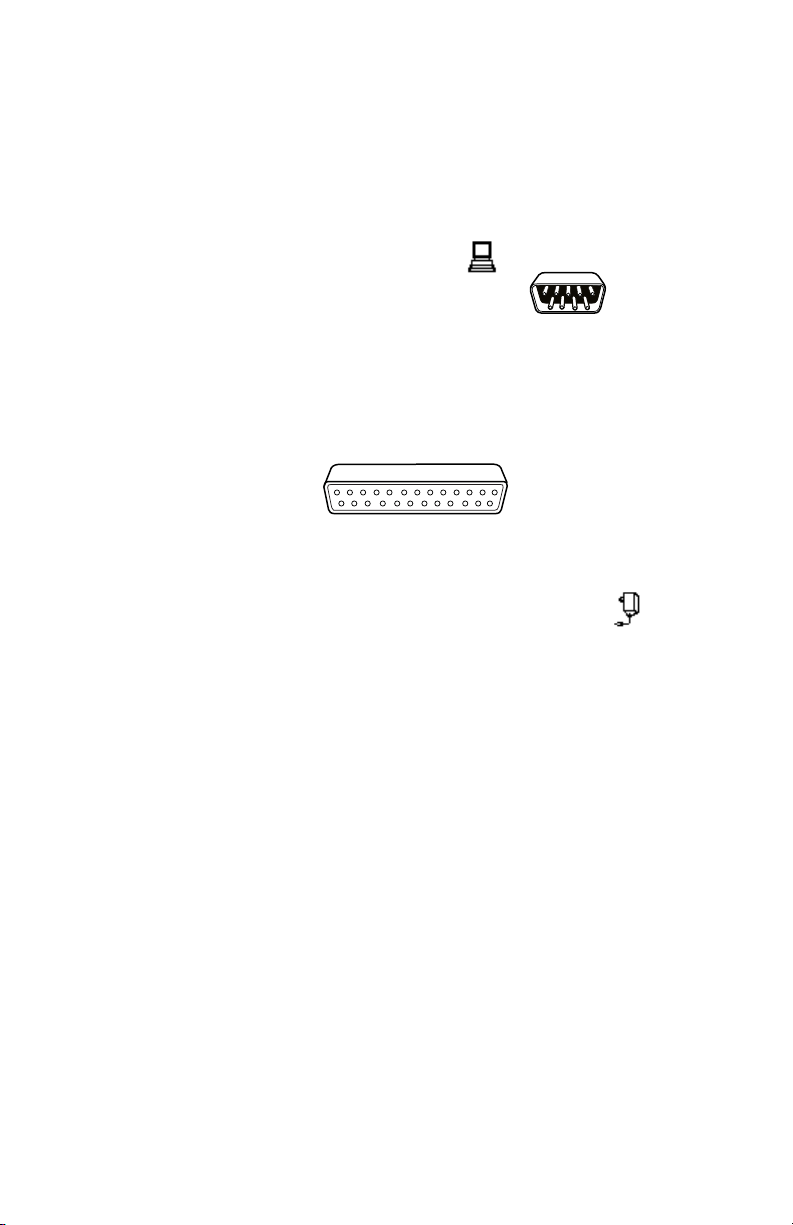
To connect the modem and configure the Modem Downloader:
1. Locate the modem cable, included with your Modem Downloader. It will have
a 25-pin connector on one end and a modular telephone style connector on
the other. Connect this modular connector to the port marked with the
icon on your Modem Downloader.
2. Connect the other end of the cable to the 25-pin connector on your modem.
3. Connect the telephone line to the appropriate connector on the modem.
Note: the telephone cable is not included with the Modem Downloader. These
are typically included with modems and are also available separately from
computer and electronics supply vendors.
4. Apply power to the modem using the correct power supply, as provided with
the modem.
Note: Modems generally do not work reliably with third-party power supplies.
Be sure to use the supply that was included with the modem, or contact the
modem manufacturer for an exact replacement if necessary.
5. While holding down the push button on the top of the Modem Downloader,
connect its power supply. The Modem Downloader will power up into its self-
test mode. You can confirm this by noting the display on the downloader — it
should show "Modem Downloader" followed by the manufacturing date, ver-
sion number, serial number, etc. Once the self-test mode starts you can
release the push button. If instead the LCD displays "Modem Downloader"
followed by the time and date, the push button was released too soon. Repeat
this step and wait for the self-test to start before releasing the push button.
6. By default, the Modem Downloader is configured at the factory for the U.S.
Robotics 5686 External Faxmodem, which is the recommended modem for
use with the Modem Downloader. If you are using this modem, skip this step.
Continue watching the LCD. Immediately after the "RTC test", the Modem
Downloader will display "U.S. Robotics", which will be followed by the remain-
ing three modem types. When the modem type that matches your modem
appears on the LCD, press the push button. The Modem Downloader will
beep, acknowledging the button press. When it beeps you should release the
push button. If you miss your modem type, disconnect power from the
Modem Downloader and start again with step 5 above.
7. The Modem Downloader will next attempt to automatically initialize the con-
nected modem. If this is successful, the modem will enter auto-answer mode.
An "AA" LED or other display on the modem usually indicates this. Check your
modem's manual for details. The modem must enter AA mode or it will not be
able to answer calls. The Modem Downloader will remember the modem type
even after a power failure or if you intentionally remove and reconnect its
power adapter. You do not have to repeat this procedure after a power failure
as long as you continue to use the same type of modem. If you change
modems in the future you may need to repeat the initialization process.
8. The MODEM LED on the Modem Downloader will light yellow after a modem has
been detected and initialized.
If the modem does not initialize properly, you can repeat this step and try the other
configuration choices. If none of these work with your modem, you will have to
use the direct connection method. TimeKeeping Systems' GUARD1 or GUARD1
PLUS software can configure a Modem Downloader for many other types of
modems. See the software manual or on-line help for instructions.