
THOMSON BB8299 Manual de usuario

GPS Car Tracker
BB8299
Bigben Interactive FRANCE
Rue de la voyette CRT2 - 59814
LESQUIN Cedex
CAR TRACKER
TRAQUEUR GPS DE VOITURE

2
THOMSON Car Tracker
Thank you for purchasing this THOMSON product. In case of a malfunction please refer to the support information at
the end of this manual. We highly appreciate any feedback which helps us to improve our products. Please keep this
instruction manual for future reference.
WARRANTY
This product bearing the Thomson trademark, is guaranteed by the manufacturer for a period of 1 year from the date
of purchase, and will, during this period be replaced with the same or a similar model, at our option, free of charge, if
there is a defect due to faulty material, or workmanship. This guarantee does not cover defects arising from accidental
damage, misuse or wear and tear, and is available only to the original purchaser of the product. This does not aect your
statutory rights.
PRODUCT SPECIFICATIONS
• OBDII GPS tracker
• Operates on GPS and GPRS
• Product dimensions 78x42x25 mm
• Weight 58g
CONTENTS OF THE PACKAGE
• GPS Tracker Unit
• ODBII ext cable (optional)
DEVICE DESCRIPTION
1.1 INSTALLATION
01. Ensure you have purchased a full size sim card with a data and text plan included. 20MB and 200 texts per month
should be sucient for normal use. Make sure that the card is already registered with your operator and take careful
note of the sim card phone number. Also ensure that there is no PIN code on your sim card. If so, this needs to be
removed. Check with your operator for more details.
NOTE: the product comes with 2 years of positioning service.
02. Open the tracker by sliding open the cover on the underside of the tracker.

3
03. Slide the sim card holder down and fold up so you can t the sim card.
OPEN
04. Insert the sim card, fold the holder down and slide the holder up so it locks into position.
CLOSE
05. Connect the Tracker to the ODBII port on your car. This is normally under your dashboard or behind a closed panel.
Please refer to your car manual or check online for your make and model of vehicle. If you are using an OBDII
extension cable, insert this rst and then attach the tracker. Please visit our website for more information.
Prise ODB
06. To check that the sim card and tracker is installed correctly, call the phone number of the sim card. The LED’s on the
product will ash to conrm it is functioning.
1.2 APP SET UP
Now that the product is tted to your car, you need to set up the app on your Apple or Android smartphone.
Download the app from the Apple Store or Google Play. The app name is Thomson GPS car tracker.

4
Once your app is installed you can begin the set up process.
01. Launch the app and select the register option at the bottom left of the login page.
02. Fill in all of the details requested. Once completed, press the tick icon in the top right corner of the page. During the
process you will need to scan the QR code or manually input the IMEI number.
Insert your user name here
Insert your emaill address
Insert a password
Repeat the same password
Enter the IMEI number or scan the QR code
Enter the name for the GPS tracker device
Enter the sim card number for the GPS tracker device
Enter the APN name for your sim card operator
Enter the User name of your sim card operator
Enter the password of your sim card operator
NOTE: that the APN details are very important. You will need to get this information from your sim card operator or you
can nd it online.
You can also check our table at the end of the instruction book which lists the most common APN setting* for the main
operators.
When you submit the details you will receive an email to conrm the registration. Click the link in the email to complete
the registration. You will get a message back to login, but you do not need to do this at this stage. Exit your email and go
back to the app to login.
You will also send and receive an SMS message back from the tracker to conrm that the sim card number is correct. The
message will show the IMEI number of your tracker and the APN details you input.
If you do not receive any email or SMS, you may have input your email address or sim card number details incorrectly.
Please check again and retry.

5
03. Once complete, login with your chosen user name and password, press sign in and you will be taken to the home
page.
04. Once on the home page you can select your options and start tracking your vehicle.
The available options are as follows.
Map page
Journey reports page
Log Out
My vehicle page
Review page
Settings
05. For rst use, we recommend going to the settings option in the bottom left of the home page to insert more
information about your Vehicle.
SETTINGS PAGE
01. Press the settings button in the bottom left of the home page to enter the settings.
Here you can enter a range of information.

6
• About and Help should be listed here.
• About gives information about Thomson.
• Help directs you to the support page and online full instructions.
• Notication Centre. – This lists all of the notications sent.
• Change password – This allows you to change the password for the app.
• Receive alerted cell phones – This allows you to input up to 4 phone numbers to receive alert SMS messages.
• Map Loading on Wi-Fi – Activate this if you only want to download map data while on a Wi-Fi network to save your
mobile data usage.
• Receive Alerted email – This allows you to input an email address to receive alerts
• Mile \ KM – Use this to set your unit measurement as miles of kilometres
• Gallon \ Litre – Use this to set your fuel unit measurement as gallons or litres.
• Summertime – use this if you are using summertime settings for your time zone.
• The nal option provides a sub page to enter details about your account and vehicle. This is the Edit Vehicle screen.
You can also add a photo of your vehicle by pressing the camera icon. You can use an existing photo or create a new
one with your camera.
02. To enter the Edit Vehicle page, touch the area where your user name and serial number are shown.
On the Edit Vehicle page you can do the following:
• Change the user account name
• Change the sim number of the tracker
• Change your local time zone
• Input a speed limit alert
• Input your fuel cost per litre
• Input your vehicle mileage
• Input your Vehicle MPG \ KPL

7
Note: It is important to input the correct Urban and Extra Urban MPG \ KPL in order for the app to calculate your
fuel consumption as accurately as possible. You should nd this information in your vehicle handbook or online. This
calculation is only an estimate as fuel consumption will dier depending on driving style and vehicle age.
When you make any changes to this page, ensure you press the submit button.
03. If for any reason you change the sim card operator for your tracker, you will also need to change the APN details. To
do this, select the APN Setting option at the top right of the Edit Vehicle page and enter the new APN settings. Then
select modify. Your new APN details will then be set.
1.3. APP USAGE
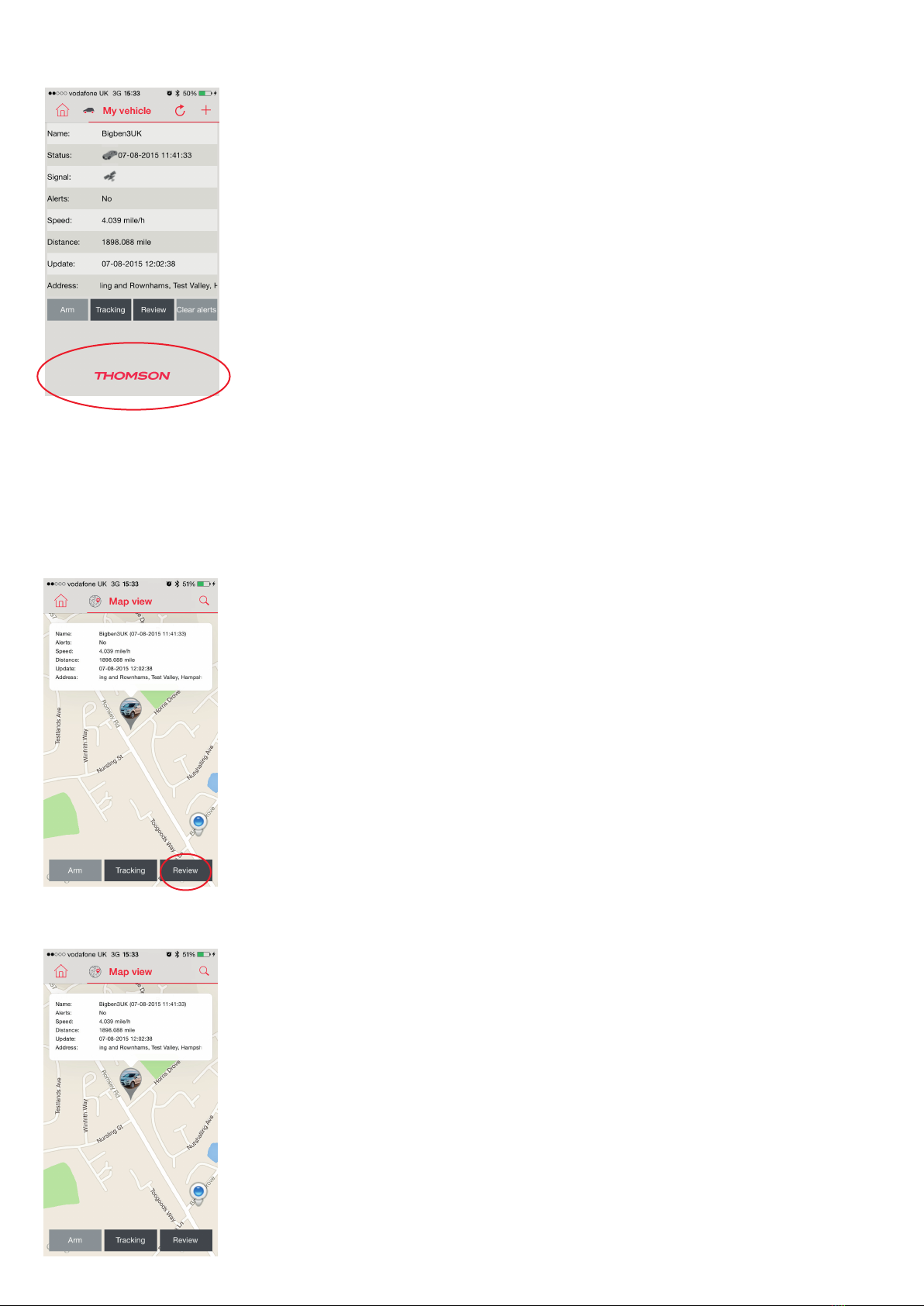
My Vehicle.
01. Now that your tracker is installed and the app is fully congured, you can start to use it. Press on car icon in the top
left of the home page. This will take you the ‘My Vehicle’ page

8
Shows your device name
Shows the current status of your vehicle and the last tracked time it was seen online
Shows the GPS signal status. Green = good / Grey = lost / Red = Alert triggered
Shows any current alerts
Shows the current speed of your vehicle
Shows the total distance your vehicle has taken
Shows the last time the tracker was updated.
Shows the current address of your vehicle
02. If you wish to add any additional vehicles to the same account, simply press the + logo in the top right of the My
vehicle page and the enter the required information, similar to when you rst registered. Once complete, press the
tick icon in the top right corner.
03. If you do not wish to add any other vehicles, you can skip step 2 and simply read the data from your tracker on the My
Vehicle page.
04. At the bottom of the my vehicles page you will see 4 options.
Arm – This allows you to arm the Anti – theft alarm. If your car is moved without authorization, you will receive a
message on your phone or email.
Tracking – This allows you to view your car in real time on Google Maps and track its route.
Review – This allows you to watch any previous recorded journey from any date, fully animated on a map.
9
Clear Alerts – This clears any existing alert status.
Press the house logo in the top left of the page to return to the home page.
Map View
01. On the home page, press Map icon in the top right of the page.
02. On this page you can view the position of your vehicle. It will also display other information such as the Alert status,
current speed (if it is moving) and the full address.
03. At the bottom of this page you can also arm or disarm the tracker, switch tracking on or o so you can see a trace line
of its journey or shortcut to the review page. Press the house logo in the top left of the page to return to the home
page.
04. This page also allows you to view the proximity of you to your vehicle. Press the proximity icon in the lower right
corner of the map screen.

10
05. The proximity view allows you to view your current position on the map and the position of your vehicle. If you have
more than one vehicle on your account you can limit the range of this mode by using the slider tool on the left side
of the map. Slide it up to increase the distance and down to decrease the distance.
Use 2 ngers to spread or pinch the view to zoom in and out of the map.
06. You can also use your camera to help nd your vehicle if you have parked it somewhere and are nding it dicult to
locate. To do this, press the down chevron in the top right of the map view. This is known as the Augmented Reality
mode.
You can now hold up your phone so that the camera can view your location. As you circle from that spot a pointer should
appear on your screen. This will then give you the rough direction and distance to your vehicle. Keep walking in that
direction and it should lead you back to your parked vehicle position.
Note: that this will only work in an outdoor environment and not in covered car parks like multi-story or underground.
The tracker will only know the last known position when it entered the car park.
Tabla de contenidos
Otros manuales de GPS de THOMSON


