Thermasol SWM-2 Manual de usuario

Solitude Wireless Wi-Fi Controller Module
OVER 55 YEARS OF STEAM SHOWER INNOVATION
For use with Android and Apple Wi-Fi equipped devices
THERMASOL.COM/solutions
SWM-2

2Getting Started
DO NOT USE THIS PRODUCT UNLESS YOU HAVE CONSULTED YOUR
DOCTOR AND HAVE RECEIVED WRITTEN PERMISSION TO DO SO. USE
OF THIS PRODUCT MAY BE HAZARDOUS TO YOUR HEALTH.
STEAM IS HOT! DO NOT TOUCH OR GO NEAR THE STEAM HEAD FROM
THE TIME THE UNIT IS “ON”, UP TO ONE HOUR FROM THE TIME THE
UNIT IS OFF. SEVERE BURNS WILL OCCUR IF YOU COME IN CONTACT
WITH THE STEAM HEAD OR STEAM EMITTING FROM THE STEAM HEAD.
NEVER ATTEMPT TO FILL AROMA THERAPY RESERVOIR ON THE STEAM
HEAD WHEN UNIT IS IN THE “ON” POSITION. SEVERE BURNS WILL
OCCUR.
YOUR SHOWER MAY BE A SLIP AND FALL HAZARD CHECK WITH
YOUR CONTRACTOR OR TILE MANUFACTURER REGARDING THE
SAFE USE OF YOUR FLOORING IN A STEAM APPLICATION. SLIPPING
AND FALLING INTO THE STEAM HEAD ITSELF OR INTO THE STREAM
OF STEAM EMITTING FROM THE STEAM HEAD WILL CAUSE SERIOUS
BURNS, OR PHYSICAL INJURY.
DO NOT USE A STEAM ROOM WHILE UNDER THE INFLUENCE OF
ALCOHOL OR DRUGS, AS THIS CAN BE HAZARDOUS TO YOUR
HEALTH.
IF YOU ARE FEELING UNCOMFORTABLE, DIZZY, FAINT, OR ARE
STARTING TO FALL ASLEEP, IMMEDIATELY EXIT THE STEAM ROOM.
DO NOT USE A STEAM ROOM IF YOU ARE UNDER THE AGE OF 16
UNLESS SUPERVISED BY AN ADULT.
THERMASOL GENERATORS ARE FOR INDOOR USE ONLY. THEY
SHOULD NEVER BE LOCATED OUTSIDE THE HOME.
THERMASOL GENERATORS ARE NOT TO BE USED FOR SPACE
HEATING PURPOSES.
FOR SAFETY, SMOOTH OPERATION PRACTICE AND LIABILITY. IF YOU
ARE A PLUMBER/INSTALLER, PLEASE ENSURE THIS OWNERS MANUAL
& WARRANTY INFORMATION IS IN THE OWNER’S POSSESSION
WITH SPECIFIC DELEGATION FOR THE PURPOSE OF COMPLETELY
FAMILIARIZING ANY USERS WITH THIS PRODUCT.
DO NOT TAKE A PERSONAL ELECTRONIC DEVICE OF ANY TYPE THAT
IS UNPROTECTED FROM MOISTURE INTO THE STEAM ENVIRONMENT.
YOUR DEVICE WILL BE DAMAGED.
FAILURE TO FOLLOW INSTALLATION INSTRUCTIONS SPECIFICALLY
WILL CAUSE THE WARRANTY TO BE VOID.
NEVER OPERATE THIS PRODUCT UNLESS YOU ARE COMPLETELY
AWARE OF ALL OCCUPANTS WITHIN THE SHOWER ENVIRONMENT.
NEVER OPERATE POWER FLUSH FEATURE WITH OCCUPANT(S) IN THE
SHOWER ENVIRONMENT.
*Wi-Fi TRANSMITTER LOCATED WITHIN THE SWM-2
FCC ID: R68XPICOW
TO COMPLY WITH FCC RF EXPOSURE COMPLIANCE REQUIREMENTS.
FOR MOBILE CONFIGURATIONS, A SEPARATION DISTANCE OF
AT LEAST 20 CENTIMETERS MUST BE MAINTAINED BETWEEN THE
ANTENNA OF THIS DEVICE AND ALL PERSONS. THIS DEVICE MUST
NOT BE CO-LOCATED OR OPERATING IN CONJUNCTION WITH ANY
OTHER ANTENNA OR TRANSMITTER.
CAUTION — EXPOSURE TO RADIO-FREQUENCY RADIATION.
2THERMASOL.COM I800.776.0711
Solitude Wireless Wi-Fi Controller Module Installation Instructions
1Customer Warnings
Congratulations, you have purchased the ThermaSol solitude
Wi-Fi module that allows you to control your steam shower
environment from a Wi-Fi enabled device. It is important to
carefully read and follow the instructions to ensure a smooth
installation and operation of this amazing feature.
WARNING: Please take time to read the consumer
warnings above.
Read full owners manual that was provided with steam
generator system and other accessories.
CAUTION: Always password protect your Wi-Fi devices to
prevent unauthorized use.
Do not take any personal electronic device into the
steam environment that is unprotected from moisture.
Your device will be damaged otherwise. ThermaSol is
not responsible for damage if it should occur.
Reliable waterproof methods are available from third
party manufacturers.
Please do your research to ensure the safety of your device.
ThermaSol Steambath Company
Headquarters & Technical support
1958 Steam Way, Round Rock TX, 78665 – (800) 776.0711
WWW.THERMASOL.COM
NETWORK SYSTEM REQUIREMENTS:
Interface……………….…….......…Wi-Fi 802.11 B/G/N
Power Requirements…….......…100-240VAC 50/60HZ
Internal Operating Voltage….12VDC
Network Connectivity Modes – Direct or Networked
Wireless Security - WPA, WPA2
Wireless Encryption – TKIP, AES
PARTS ENCLOSED:
1. SWM-2 Solitude Module
2. Instructions (81188)
3. SWM-1 Antenna
4. 12 Volt Power Supply
5. Power Supply Cord
6. 20 ft. Data Cable
81188 Rev A 02/16

3
THERMASOL.COM I800.776.0711
ThermaSol steam system components are plug-and-play. As long as you have a continuous path with the yellow data cable from
the steam generator to the control (Y cable with Easy Start outside control), you can add or omit any accessory, including the steam
generator, if you choose to have the light and sound system as the only feature in your shower environment.
Follow diagram on this page to make the proper connections. Also, find a dry location for all components and your SWM-2 module.
To ensure the complete system is functioning properly prior to attempting the Wi-Fi connection: test the system with the wall
mounted in-room control. Please familiarize yourself with the available functions and features using the wall mounted in-room
control and the instructions (81188) provided with generator and light and sound system.
Solitude Wireless Wi-Fi Controller Module Installation Instructions
3Installing SWM-2 to your ThermaSol Steam/Light
and Music System
RESETTING YOUR THERMASOL MODULE BACK TO FACTORY DEFAULT SETTINGS
If at any time there is a need to go back to the factory default settings, reset the ThermaSol module's IP address and other
default settings by inserting a straightened paper clip into the reset hole. You will feel a button depress. Keep the button
depressed until the green "RST" LED on the front panel begins to blink, then release.
When the unit is reset, the
green "RST" LED will blink
Press reset button
with paper clip
81188 Rev A 02/16
110VAC
NOTE: THE SWM-2 MODULE
INCLUDES A Wi-Fi ANTENNA
AND POWER SUPPLY. MAKE
SURE ALL OF THESE ITEMS
INCLUDING THE DATA
CABLES ARE PROPERLY
INSERTED AND THE
CONNECTIONS ARE TIGHT.
SWM-2
GENERATOR
208/240VAC
EASY START
LIGHT & SOUND SYSTEM
W/BLUETOOTH
FULL SYSTEM WITH PRO
SERIES GENERATOR
LIGHT & SOUND SYSTEM
AND EASY START OUTSIDE
ROOM CONTROL
IN SHOWER CONTROL
(One only)

4THERMASOL.COM I800.776.0711
There are two different ways to connect your mobile device to the SWM-2: Direct and Networked.
4a Connecting Your Mobile Device to the SWM-2
To directly connect an Apple mobile
device, refer to the section titled
"DIRECTLY CONNECTING AN
APPLE DEVICE" on PAGE 6.
To directly connect an Android
mobile device, refer to the section
titled "DIRECTLY CONNECTING AN
ANDROID DEVICE" on PAGE 12.
DIRECT CONNECTION:
Mobile device connects to SWM-2 directly
Phone or tablet device ThermaSol SWM-2
Solitude Wireless Wi-Fi Controller Module Installation Instructions
81188 Rev A 02/16

5
THERMASOL.COM I800.776.0711
There are two different ways to connect your mobile device to the SWM-2: Direct and Networked.
4b Connecting Your Mobile Device to the SWM-2
To connect an Apple device in
networked mode, refer to the
section titled "CONNECTING A
NETWORKED APPLE DEVICE"
on PAGE 8.
To directly connect an Android device
in networked mode, refer to the section
titled "CONNECTING A NETWORKED
ANDROID DEVICE" on PAGE 14.
NETWORKED CONNECTION:
Mobile device connects to SWM-2 through customer's home wireless router
Phone or tablet device Wireless Router (required)
ThermaSol SWM-2
Solitude Wireless Wi-Fi Controller Module Installation Instructions
81188 Rev A 02/16

DOWNLOAD THE APP AND CONNECT TO THE THERMASOL SWM-2
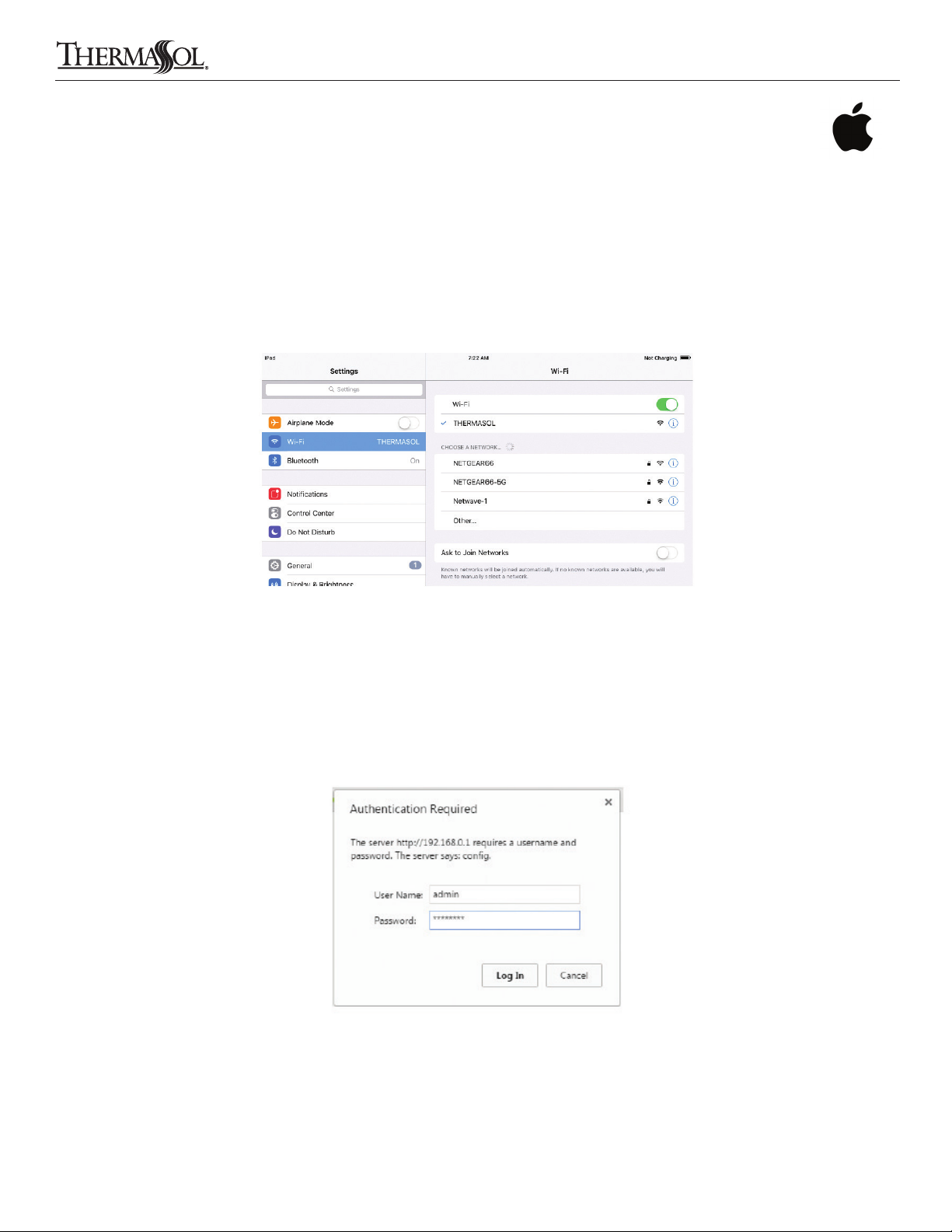
1. Go to the App Store on your iPhone, iTouch or iPad. Search for and download the latest ThermaSol App
2. Select “Settings” on your Apple device
3. In the Settings, select the Wi-Fi menu and make sure it is on/active
4. Under “CHOOSE A NETWORK” select “ThermaSol”
5. After connecting you will see a check mark next to ThermaSol as shown below in Figure 1
SECURE THE NETWORK
1. Open a browser1and enter “192.168.0.1” in the address bar
2. When prompted, enter default values “admin” for username and “PASSWORD” for password to log in to the SWM-2
configuration web page as shown in Figure 2
Continued on page 7.
Figure 1: Apple Wi-Fi settings
Figure 2: ThermaSol SWM-2 configuration web page log in
6THERMASOL.COM I800.776.0711
5Directly Connecting Your Apple Wi-Fi Device
Solitude Wireless Wi-Fi Controller Module Installation Instructions
1Supported browsers are Internet Explorer 6.0 and up, Mozilla Firefox 2.0 and up, Google Chrome 18.0 and up, Apple Safari 3.0 and up
81188 Rev A 02/16

3. Select the “Advanced” tab on the left side column of the configuration web page
4. Enter your own password for the access point and then press submit. The change will be confirmed
as shown below in Figure 3
RECONNECT TO THE THERMASOL SWM-2
1. Select “Settings” on your Apple device
2. In the Settings, select the Wi-Fi menu and make sure it is on/active
3. Under “CHOOSE A NETWORK” select “ThermaSol”
4. Enter the password that was created in the previous section and connect
CONFIGURE AND START THE THERMASOL APP
1. Select “Settings” on your Apple device
2. Scroll down to the ThermaSol App icon
3. Enter “192.168.0.1” in the IP address field as shown below in Figure 4
4. Exit the settings menu and start the ThermaSol App
5. Confirm that the App connects to your hardware
6. Go to page 18 of these instructions to learn to operate the ThermaSol SWM-2 App
Figure 3: Password protection for direct connect mode
Figure 4: ThermaSol App IP address setting
THERMASOL.COM I800.776.0711 7
5Directly Connecting Your Apple Wi-Fi Device
Solitude Wireless Wi-Fi Controller Module Installation Instructions
81188 Rev A 02/16

6Connecting a Networked Apple Device
DOWNLOAD THE APP AND CONNECT TO THE THERMASOL SWM-2
1. Go to the App Store on your iPhone, iTouch or iPad. Search for and download the latest ThermaSol App
2. Select “Settings” on your Apple device
3. In the Settings, select the Wi-Fi menu and make sure it is on/active
4. Under “CHOOSE A NETWORK” select “ThermaSol”
5. After connecting you will see a check mark next to ThermaSol as shown below in Figure 5
CONFIGURE THE NETWORK
1. Open a browser2and enter “192.168.0.1” in the address bar
2. Enter default values “admin” for username and “PASSWORD” for password to log in to the SWM-2 configuration
web page as shown in Figure 6
2 Supported browsers are Internet Explorer 6.0 and up, Mozilla Firefox 2.0 and up, Google Chrome 18.0 and up, Apple Safari 3.0 and up
8THERMASOL.COM I800.776.0711
Figure 6: ThermaSol SWM-2 configuration web page log in
Figure 5: Apple Wi-Fi settings
Solitude Wireless Wi-Fi Controller Module Installation Instructions
81188 Rev A 02/16

6Connecting a Networked Apple Device
3. Select the “QuickConnect” tab on the left side column of the configuration web page
4. Find and select the name of your local WLAN Wi-Fi access point in the list of available devices in the QuickConnect WLAN
Link Scan as shown below in Figure 7 (“NETGEAR66” WLAN Wi-Fi access point device is used in this guide for illustration
purposes. Customers WLAN Wi-Fi access point name may differ)
5. Enter your Wi-Fi access point password or hex key in the space provided and select submit as shown below in Figure 8
Continued on page 10.
9
THERMASOL.COM I800.776.0711
Figure 7: QuickConnect WLAN Link Scan list
Figure 8: WLAN Wi-Fi Password
Solitude Wireless Wi-Fi Controller Module Installation Instructions
81188 Rev A 02/16
6. Confirm the changes by selecting “OK” if prompted as shown below in Figure 9.
7. Once connection is complete, the configuration web page will reflect the changes as shown below in Figure 10, and the
WLAN LINK indicator light on the front of the SWM-2 will become lit green
Continued on page 11.
THERMASOL.COM I800.776.0711
10
Solitude Wireless Wi-Fi Controller Module Installation Instructions
Figure 10: Successful local WLAN Wi-Fi access point connection
Figure 9: QuickConnect WLAN Profile Confirmation
81188 Rev A 02/16
6Connecting a Networked Apple Device
Tabla de contenidos
Otros manuales de Unidad de control de Thermasol
Manuales populares de Unidad de control de otras marcas

Festo
Festo Compact Performance CP-FB6-E Manual de lista de piezas

Elo TouchSystems
Elo TouchSystems DMS-SA19P-EXTME Manual de usuario

JS Automation
JS Automation MPC3034A Manual de usuario

JAUDT
JAUDT SW GII 6406 Series Guía rápida

Spektrum
Spektrum Air Module System Manual de usuario

BOC Edwards
BOC Edwards Q Series Manual de usuario


