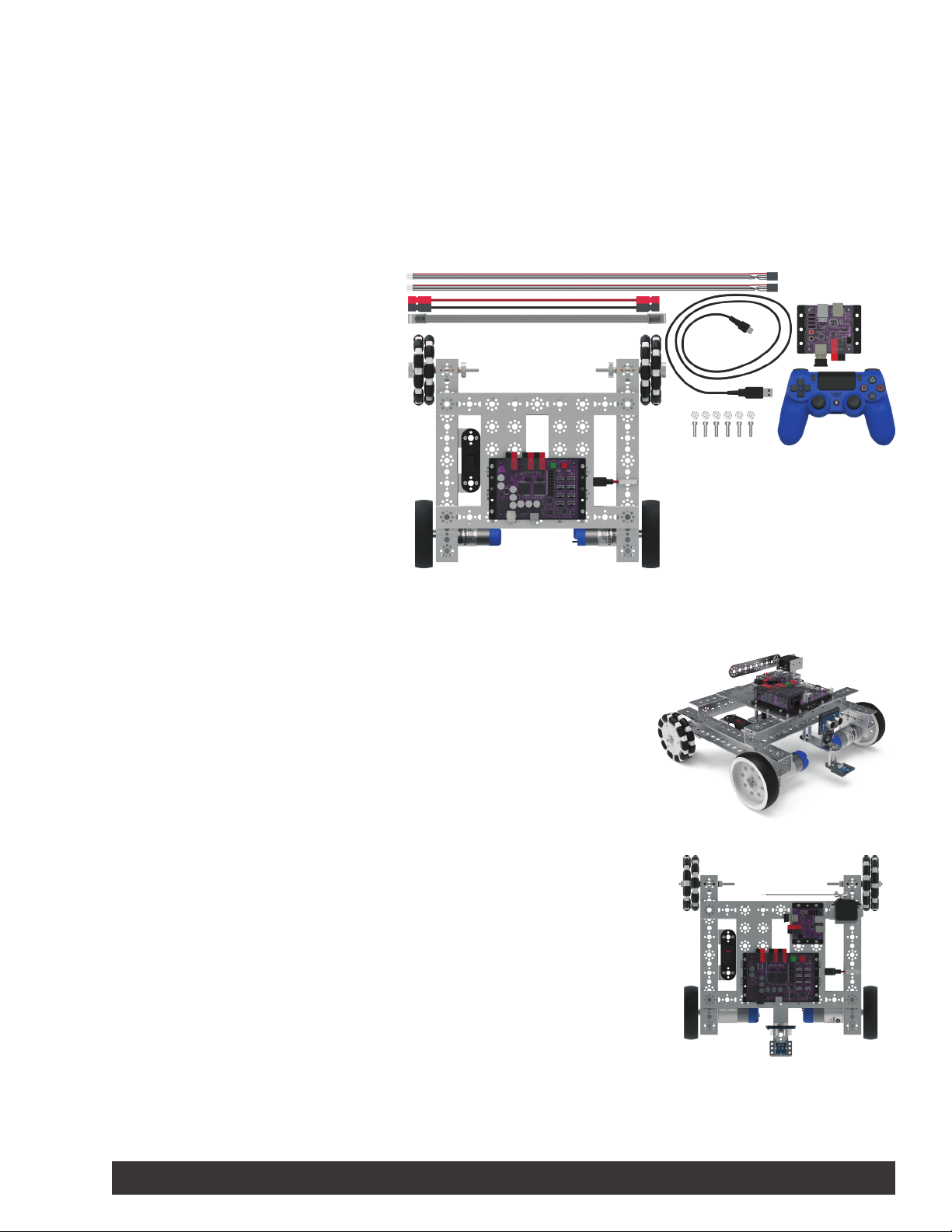
Opening the Sketch
On your computer, open the Arduino Software (IDE). The sketch for this activity is
stored with the examples that come with the Tele-Op library. To open the sketch,
select File > Examples > TETRIX_TeleOp > PS4_Examples > TaskBot_Activity_1.
A new sketch window will open with the example sketch.
Executing the Code
1. Connect the USB cable to a USB port on your computer or device.
Connect the other end of the cable to the USB port on PRIZM.
2. Make sure the PRIZM and Tele-Op module are turned on and that your
PS4 controller is paired with your Tele-Op module. There should be a
solid green LED showing on both the PS4 controller and the Tele-Op
module.
3. In the Arduino Software (IDE), make sure the correct COM port is
selected to communicate with PRIZM. Go to Tools > Port and then
select the correct COM port.
4. In the software window, click the Upload button to upload the sketch.
After the sketch has been uploaded, unplug the USB cable from PRIZM.
5. Start the program by pressing the green Start button on PRIZM. You
should now be able to control the movement of the TaskBot using the
PS4 controller. Try out these dierent controls.
Set Motor Power
Drag your finger across the touch pad from left to right to set the speed of your
motors. The further you drag to the right, the faster your motors will turn. You can
adjust the speed at any time by touching a different position on the touch pad.
Tank Drive Navigation
Use the joysticks to drive the TaskBot around. The left joystick should control
the left motor and the right joystick should control the right motor. If they are
opposite, turn off your TaskBot. Switch the motor ports and encoder ports that each
TorqueNADO is plugged into, turn your TaskBot back on, and restart the program.
You should find that the farther you push the joysticks up, the faster the TaskBot will
move forward. The farther you pull the joysticks down, the faster the TaskBot will
move backward.
Direction Pad Control
You can also steer the TaskBot using the four buttons on the direction pad. This
enables you to steer the TaskBot with your left hand while freeing up your right
hand to press other buttons.
90-Degree Turns
To make a 90-degree turn, press the L2 or R2 button. Using the encoders, the
TaskBot will automatically perform a 90-degree turn to the left or right.
Crawl Mode
While driving the TaskBot, hold down the L1 button to enter crawl mode. This
cuts the motor power down to 15% of its current speed, slowing the robot down.
Although the robot is much slower in crawl mode, you have much more precise
control of the robot to get it to go exactly where you want it to go.
Turbo Mode
While driving the TaskBot, hold down the R1 button to enter turbo mode. This
increases the motor power to a full 100 percent of the speed set by the PS4’s touch
pad. Turbo mode enables you to move your TaskBot much faster but makes it more
difficult to have precise control.
Note: The Tele-Op module has a
USB port that is used to flash its
firmware. This USB port should not
be used when uploading sketches.
Make sure you use the USB port
on PRIZM. Uploading a sketch to
the Tele-Op module will overwrite
its firmware, making it unusable
until it can have its firmware
flashed again.
Note: Due to wheel slippage,
you might notice the TaskBot not
making an exact 90-degree turn.
The friction between the wheel
and the surface you are driving on
is always an issue when trying to
make precise movements.
TETRIX Tele-Op Control Module Activity 2 3