
Technika MP-112 Guía del usuario

Owner’s
Handbook
MP-112
MP3 Player with FM radio


1
IMPORTANT SAFETY INFORMATION
Read these instructions.•
Keep these instructions.•
Heed all warnings.•
Follow all instructions.•
Do not use this apparatus near water.•
Clean only with a slightly damp cloth.•
Do not block any ventilation openings.•
Install in accordance with the manufacturer’s instructions.•
Do not install or operate near any heat sources such as radiators,•
stoves, or other apparatus that produce heat.
Do not expose the unit to rain or moisture.•
Never listen to music through headphones when driving a car or•
cycling. It is not only dangerous, it is illegal.
To avoid possible damage to your hearing, do not listen to music•
at high levels through headphones.
Never disconnect the player from the PC without following the•
correct procedure.
After use, always disconnect the earphones and store the•
earphones and the player safely.
IMPORTANT SAFETY INFORMATION
WARNING: This product contains an integral battery. There is a risk of
re and burns if the player is handled improperly. Do not disassemble,
crush, puncture or dispose of in re or wter. Do not attempt to open
the player case or service the battery pack. Use a qualied service
technician to replace the battery and replace only with a battery
designated for this product. Dispose of the product with the battery
intact in accordance with recycling regulations in your area.

2
UNPACKING
Carefully unpack the unit. If it is damaged, please return it to
your nearest Tesco store for replacement. Remember to take your
purchase receipt with you.
Retain the User Handbook. If you pass the unit on to a third party
make sure you pass on the handbook.
We suggest you retain the packaging. If you dispose of it, do so
having regard to any recycling regulations in your area.
CONTENTS
The carton should contain:
The MP-112 MP3 player•
Headphones•
Operating Manual•
If any items are missing or damaged, contact your nearest TESCO
store for a replacement. Have your receipt ready when you call.
Retain the packaging. If you dispose of it, do so having regard to
any recycling regulations in your area.
INTRODUCTIONINDEX
INDEX
Important safety information ................................................. 1
Introduction & unpacking ....................................................... 2
Controls & connections............................................................3
Battery & charging.................................................................. 4
Getting started & le transfer .................................................5
Operation.............................................................................. 10
Playing music........................................................................11
Voice recordings....................................................................15
FM radio................................................................................17
File & folder navigation......................................................... 20
Settings................................................................................. 22
Troubleshooting.................................................................... 25
Specications........................................................................ 25
Warranty...............................................................................25
Microsoft, Windows, XP, Vista and Windows Media Player are
trademarks of the Microsoft group of companies.

3
aReset hole
bDisplay window
cPlay/Pause button.
Press and hold to enter the main menu
dNext/Right button
ePrevious/Left button
fVolume up button
gVolume down button
hSelect button. Press to enter a sub-menu.
Press and hold to switch on and o.
iMicrophone
1) Headphone jack
1! Hook for carrying strap
1@ USB plug release
CONTROLS AND CONNECTIONS
4
BATTERY AND CHARGING
POWER SUPPLY
The player is powered by an internal rechargeable battery.
Battery cautions
The battery is not replaceable. Do not attempt to open the player to
replace the battery.
As the unit contains a battery, do not throw it into water, the general
rubbish or in a re.
RECHARGING THE BATTERY
The battery is automatically recharged when the player is connected
to the USB port of a computer.
A full charge will take approximately two and a half hours. Once
plugged into the computer for charging the player should be left
charging for the recommended time period.
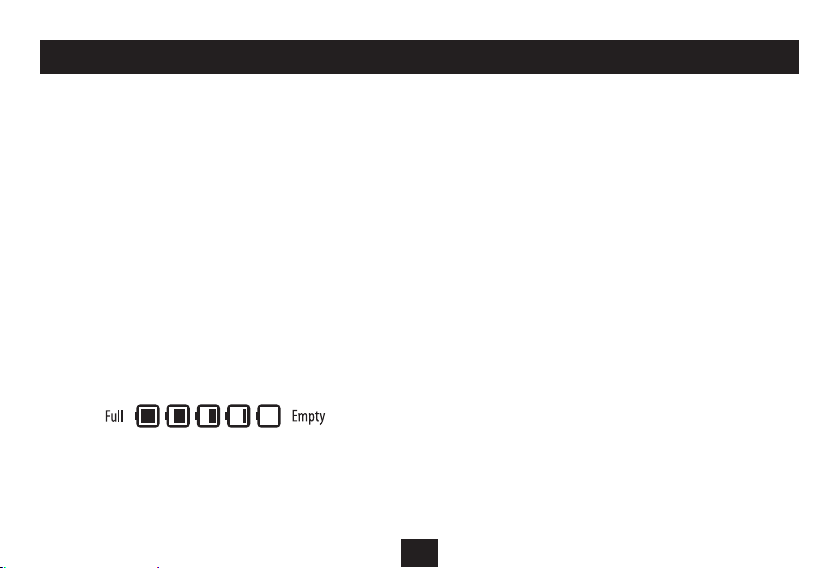
A battery level indicator is provided to monitor the charge condition
of the battery.
BATTERY CARE
To preserve the life of the battery, the following recommendations are
made -
Fully charge the battery before rst use.•
Charge the battery immediately if the ‘Low battery’ message is•
displayed.
Do not overcharge the battery. Unplug the player from the•
computer when the battery level indication reads fully charged.
Do not allow the battery to over-discharge. To avoid over-•
discharge, fully charge the player every 3 months.

5
How does the player work?
A library of music les is created on a personal computer. These les
are generally copied to the computer from music CDs (ripped). You
can then select music within the library that you want to listen to on
your personal MP3 player. Each time your MP3 player is connected, the
player will check the computer library and add new tracks that you
have marked to synchronise with the player.
Does the computer need to be a particular specication?
Your computer should meet a minimum specication of -
Processor minimum of Pentium 200MHz.•
Operating system MicrosoftWindows XP, Vista or later.•
120MB or more of available hard disk space.•
A free USB port.•
What software will be required on my computer?
For easy communication with your player, Windows Media Player,
version 11 (WMP11) or later is recommended to manage your music
les.
Windows Media Player software is supplied free of charge with
Microsoft Windows, but depending on the age of your computer, the
version installed may not be version 11.
To check the version of Windows Media Player:
Open Windows Media Player (click• Start>All programs>Windows
Media Player)
Once Windows Media Player is open, click• Help>About Windows
Media Player.
The version is shown on this screen. Version 11 or later is recommended,
although earlier versions will function.
If you need to upgrade to a newer version of Windows Media Player,
visit www.microsoft.com and download the latest version.
Building a music library on the computer:
Collect together the CDs that you want to include in your library and
rip them into the Windows Media Player (WMP) library. The default
setting for ripping via WMP is .WMA format les at a quality of
128kb/s. This setting is compatible with your player and is best left
unchanged unless you are condent with changing the format and
quality settings.
iTunes:
The iTunes Media Player is not recommended for managing the music
les on your player.
GETTING STARTED

6
Copying music to your player
Switch on your computer.•
Open Windows Media Player 11.•
Slide the USB plug release on the•
back of the player to extend the
USB docking connector.
Dock the player into a convenient•
USB port on your computer.
The display on the player will light and
show the synchronisation symbols.
After a short delay, a pane will open on
the right of the Windows Media Player
display titled ‘Sync List’.
In the main library, click on the•
albums or tracks you want to
transfer and drag them across to
the sync list.
NOTE: You can drag individual tracks
from the track list or click on the
album symbol to select the entire
album.
TRANSFERRING MUSIC FILES FROM A WINDOWS MEDIA PLAYER 11 LIBRARY

7
The display above the sync list will
show the available memory in your
player.
When you have added all the•
music you want to transfer, press
the ‘Start Sync’ button at the
bottom of the sync list.
Synchronisation will start as Windows
Media Player copies all the music les
to your player. Progress bars display
synchronisation progress. Leave the
player docked to the computer until
synchronisation is nished.
NOTE: Synchronisation may take
some time if you are copying a large
number of albums to the player.
When synchronisation is complete,
a message will be displayed - ‘You
can now disconnect MP112 USB MP3
player’.
Unplug the player.•
The player will switch o.
TRANSFERRING MUSIC FILES FROM A WINDOWS MEDIA PLAYER 11 LIBRARY

8
USING WINDOWS EXPLORER TO TRANSFER MUSIC FILES
Copying music to your player using Windows Explorer
For users familiar with computer le transfer, Windows Explorer can
be used as an alternative to Windows Media Player 11 to transfer
music les to your player.
Switch on the computer.•
Navigate to‘My Computer’(• Click Start>My Computer).
Slide the catch on the back panel of the player to extend the USB•
docking connector.
Dock the player into a convenient USB port on your computer.•
Browse to the list of drives on your computer.•
After a short delay, the player will appear as a‘Removable Disk’.•
To make it easier to identify the player you may want to rename the disk
for easy recognition. The computer will recognise the player by its new
name whenever you connect it.
Double click to open this drive and you will see a MUSIC folder (for•
uploading music) and a RECORD folder (for recordings).
Open a second window of‘My Computer’.•
Browse to your music les and drag the album folders or music•
les onto the MUSIC folder to upload them.
NOTE: If your les are stored in folders you can copy the complete
folder into the MUSIC folder. Ensure that only MP3 or WMA music les
are in the folders before transferring them.
Tabla de contenidos
Otros manuales de Reproductor de MP3 de Technika


