Technicolor TCHT2AA0 Manual de usuario

Getting Started Guide
TCA 400 Install
Touchscreen for XFINITY Home
Product name: Integrated Device
Model name: TCHT2AA0

2TouchScreen TCA 400 Getting Started Guide – Installation
Compliances
FCC
This device complies with part 15 of the FCC Rules. Operation is subject to the following two
conditions:
1. This device may not cause harmful interference.
2. This device must accept any interference received, including interference
that may cause undesired operation.
Device Purpose
Household Fire/Alarm Central Panel
This equipment has been tested and found to comply with the limits for a Class B digital device,
pursuant to part 15 of the FCC Rules. These limits are designed to provide reasonable protection
against harmful interference in a residential installation. This equipment generates, uses and can
radiate radio frequency energy and, if not installed and used in accordance with the instructions,
may cause harmful interference to radio communications. However, there is no guarantee that
interference will not occur in a particular installation. If this equipment does cause harmful
interference to radio or television reception, which can be determined by turning the equipment
measures:
Reorient or relocate the receiving antenna.
Increase the separation between the equipment and receiver.
which the receiver is connected.
Consult the dealer or an experienced radio/TV technician for help.
RF Exposure information: At least 20cm (8 inches) of separation distance between Touchscreen
and the user’s body should be maintained to ensure compliance with FCC RF Exposure
Requirements.
CAUTION:
for compliance could void the user’s authority to operate the equipment.
FCC Part 15B Supplier’s Declaration of Conformity
The FCC Part 15B Supplier’s Declaration of
Conformity (SDoC) for your product is available
at the following internet address:
www.technicolor.com/ch_regulatory
Responsible Party - U.S. Contact Information
Technicolor Connected Home LLC, 5030
Sugarloaf Parkway, Building 6
Lawrenceville, GA
30044 USA, 317-587-5466
This transmitter must not be co-located or operating in conjunction with any other antenna or transmitter.
Operations in the 5.15-5.25GHz band are restricted to indoor usage only.
This device meets all the other requirements specified in Part 15E, Section 15.407 of the FCC Rules.
RF Exposure information: At least 20cm (8 inches) of separation distance between Touchscreen
and the user's body should be maintained to ensure compliance with FCC RF Exposure Requirements.

3TouchScreen TCA 400 Getting Started Guide – Installation
Evacuation Plan
Develop an emergency evacuation plan for use in the event of re.
Here are some recommendations from the National Fire Protection Association.
Make an evacuation plan for how to leave your home in the case of re
or other emergency. Sketch a map of your home that shows all the doors
and windows. Discuss the plan with everyone in your home so that
everyone will know what to do.
Have at least two ways to exit each room. Make sure that windows and
doors open easily.
Discuss with your family and agree on a single meeting location outside
your home.
In the event of re, get out and stay out. Don’t go back inside for people,
pets or possessions.
Do not open a door if the handle is hot.
If there is smoke stay low to the ground and go under the smoke.
Escape your home before calling the re department. Call the re
department and police from the outside meeting place using your cell
phone or call from a neighbor’s phone.
Practice your home evacuation plan.
Safety
This device complies with UL 985, UL1023, UL1635.
The rechargeable battery is only available through your service operator. If yourWARNING:
battery needs to be replaced, contact your service operator to arrange for replacement.
This transmitter must not be co-located or operating in conjunction with any other antenna or transmitter.
Operations in the 5.15-5.25GHz band are restricted to indoor usage only.
This device meets all the other requirements specified in Part 15E, Section 15.407 of the FCC Rules.

4TouchScreen TCA 400 Getting Started Guide – Installation
Using Touchscreen
Touchscreen is the center of your home security system. This device allows you to perform actions
such as arming and disarming your security system, monitoring the status of your security sensors,
and sending emergency alarms.
The follow diagram shows the major components of Touchscreen:
This guide provides an overview of Touchscreen and its basic operation.NOTE:
This guide assumes Touchscreen has been activated and you have assigned a Keypad Code.
For more information, see Touchscreen User’s Guide and the Home System Installation Guide.
Home button:
Press this button to go to Home
screen of the user interface.
LED light

5TouchScreen TCA 400 Getting Started Guide – Installation
Understanding Touchscreen
Touchscreen communicates with your security system. It combines security and home connectivity
into a graphical interface that provides a real time view of your security devices and tools to manage
your security system.
The rst screen displayed is Home screen. Through interaction with this screen you can access the
functions you desire, including:
Arming and Disarming your Security System
Accessing and Managing System Alerts, Recent Activity, and Settings
Accessing the Dashboard Screen
Initiating a Panic Alarm
The screen is divided into the following operational sections:
System Header for Navigation and Reference
Security Status Content Area
Footer Area

6TouchScreen TCA 400 Getting Started Guide – Installation
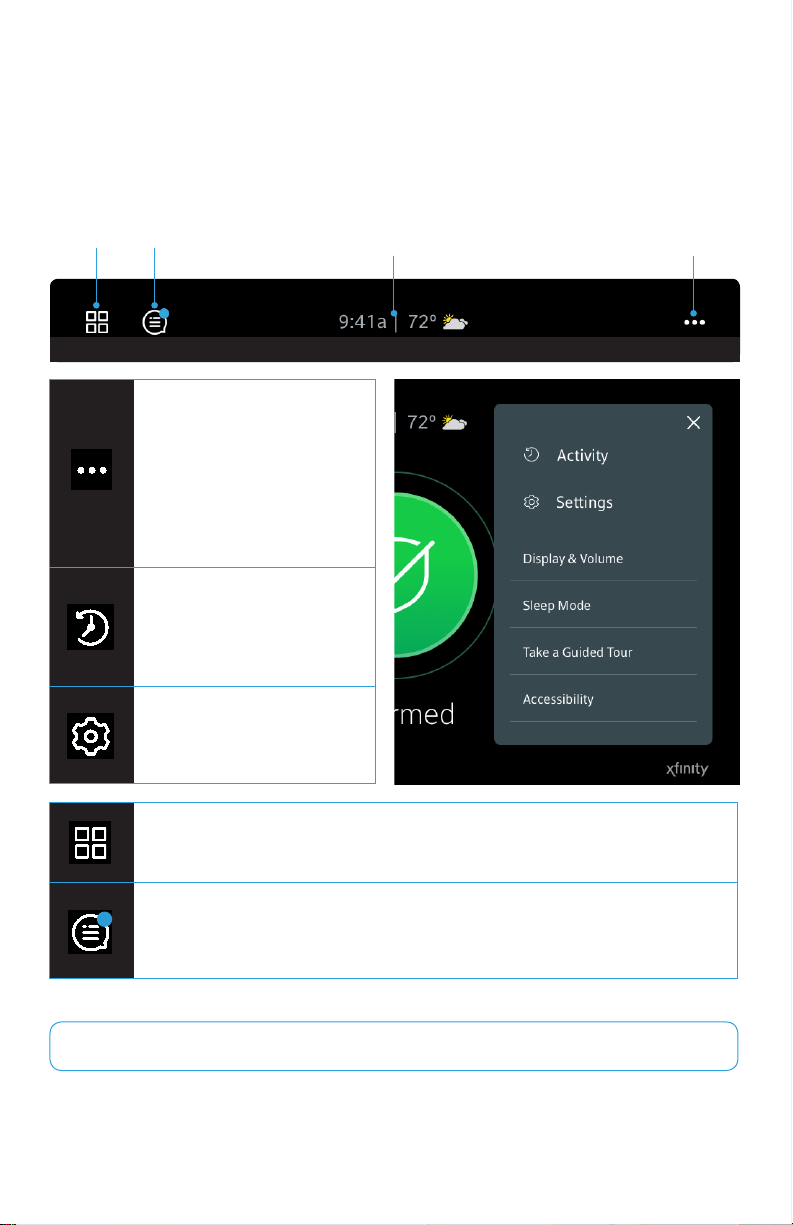
Tapping Dashboard icon will allow you to access your home devices and
additional zone information.
Tapping More Menu icon
will open a window providing
access to additional features
including: Activity, Settings,
Display & Volume, Sleep
Mode, Take a Guided Tour,
and Accessibility.
Blue dot will appear when your system has an alert. The system will also sound
an audible alert regularly to ensure that you are aware of the problem. Tapping
the icon will open a list of all the current alerts.
Tapping Activity icon will
allow you to review recent
zone activity for your security
system.
Tapping the Setting icon will
allow you to manage your
devices and security.
Settings access is disabled when the Security System is armed.NOTE:
System Navigation and Reference Header
The System Navigation and Reference header displays at the top of Touchscreen. On the left side,
it provides a navigation icon allowing you to access the Dashboard screen. Centrally it provides the
current time and basic weather information. The right side provides a trouble indicator, when system
troubles are present, access to recent System Activity, and access to System Settings.
Dashboard
Icon Alerts Icon Current Time
Basic Weather More Menu Icon

7TouchScreen TCA 400 Getting Started Guide – Installation
Security Status Content Area
Footer Area
The centrally displayed Security Status Content area contains the current status of your Touchscreen
Security System. The various statuses displayed will tell you if your system is:
Disarmed – (Green) Disarmed and ready to be armed
Disarmed – (Grey) Disarmed and not ready to be armed due to
arm-blocking zones (Open Zones or Alerts)
Armed – (Red) Armed in Away, Stay, or Night mode
The Footer section contains Emergency icon, located in the bottom left of the screen. Tapping
this icon will provide you the ability to sound an immediate audible alarm and send an alert to the
Central Monitoring Station that an Emergency Alarm has been initiated.
Emergency Icon

8TouchScreen TCA 400 Getting Started Guide – Installation
Understanding Arming Modes
You can arm the system for multiple scenarios:
Arm Away – Best for leaving your home unattended
Arm Stay – Ideal for hanging out at home
Arm Night—Best for when everyone is in bed
Dierent arming modes use dierent rules for when sensors are tripped and for Entry/Exit delays.
An Exit delay is a short period of time after the system is armed for you to leave the premises. Entry
delay gives you time to disarm the system when you reenter the premises. You must enter a valid
keypad code within the Entry delay period to avoid sounding an alarm.
Arm Away mode is used when everyone is leaving the house. The following rules apply:
Alarm trips immediately if a monitored Perimeter zone (non-entry/exit
door or window) is opened.
Interior motion detectors are armed.
Entry/Exit zones start an Entry Delay.
Exit Delay starts when the system is armed.
Arm Stay mode is used to arm the system when there are people in the premises. The following
rules apply:
Alarm trips immediately if a monitored Perimeter zone (non-entry/exit
door or window) is opened.
Interior motion detectors are armed.
Entry/Exit zones start an Entry Delay.
Exit Delay starts when the system is armed.
Exit Delay does not beep and is twice the length of Alarm Away mode.
Arm Night mode, is used when everyone is going to bed.
This mode works the same as Arm Stay except that there is no Entry Delay period. If an entry/exit
zone is opened, an alarm sounds immediately.
Arm Away Mode
Arm Stay Mode
Arm Night Mode
There is still an Exit Delay period that works the same as in Arm Stay mode.NOTE:

9TouchScreen TCA 400 Getting Started Guide – Installation
Arming and Disarming the System
The Security status of your security system is displayed in the Security Status content area.
Disarmed - Ready
When your security system is disarmed and ready to be
armed, the security status will be shown as “Disarmed” with
a green shield. Tap the big green circle to arm your system.
Armed
When your security system is armed, the security status will
be shown as “Armed Away”, “Armed Stay”, or “Armed Night”
based on the arm mode selected when the system was
armed. The status will also show you the date and time that
the security system was armed.
Disarmed - Not Ready
A grey shield is displayed, when your security system is
disarmed, but unable to be armed due to an open zone or
an alert that prevents arming. The status below “Disarmed”
will advise how many zones are preventing you from arming
your system and whether the status is caused by an open
zone, an alert, or both!

10 TouchScreen TCA 400 Getting Started Guide – Installation
Zones that are currently preventing you from arming the system are easily distinguished by the
dierent row color.
Tapping the button will temporarily turn o, or “bypass” the aected zones
so you can arm your security system.
Tapping the grey Security Shield will open a Bypass Options screen which will allow you to see
the current status of all of your security zones, and give you the option to bypass all Arm-Blocking
Zones, or bypass any zone individually. If the aected zones are closed or alerts are resolved the
status will automatically update to Disarmed - Ready.
Bypassed Zones are NOT armed and will not trigger an alarm ifIMPORTANT NOTE:
tripped while the system is armed.
Tabla de contenidos
Otros manuales de Pantalla táctil de Technicolor
Manuales populares de Pantalla táctil de otras marcas

Elecro Engineering
Elecro Engineering Poolsmart Plus Instrucciones de instalación

Johnson Controls
Johnson Controls IQ4 HUB Manual de usuario

Elo TouchSystems
Elo TouchSystems ET2270L Manual de usuario

Elo TouchSystems
Elo TouchSystems ET1002L Manual de usuario

Elo TouchSystems
Elo TouchSystems 3201L Manual de usuario

Duratec
Duratec S15 Manual de usuario