
Techage PoE AI Camera Manual de usuario


PoE AI Camera System
User Guide
Security Expert for Your Home and Business
www.techage.com

Table of Contents
01. Connect Your System
02. View on Smartphone
03. View on PC Client Software
04. Video Record
05. View on PC via IE
06. Video Playback
07. Video Backup
08. Unique Features
Security Expert
for Your Home and Business
01
Security Expert
for Your Home and Business 01
Security Expert
for Your Home and Business
Preface
Thank you for purchasing Techage PoE AI security camera system. Techage is committed to
providing customers with high quality and reliable security products and solutions for home and
business.
This quick user guide will help you learn fast and make it work easily. For detailed and latest user
manual, you can download the PDF user manual on our website : www.techage.com
If you have any troubles when following this user guide, please visit our website :
http//:techage.com/support.php. You can find FAQ answers, videos, software and documents
needed.
If you need customers support, email us and we will respond within 24h.
This quick user guide is subject to change without previous notice due to hardware and software
upgrade.
The PoE Camera System is a true plug and play professional AI security video surveillance
system. It is highly recommended that all products and components to be tested before installa-
tion and cabling.
Before Installation
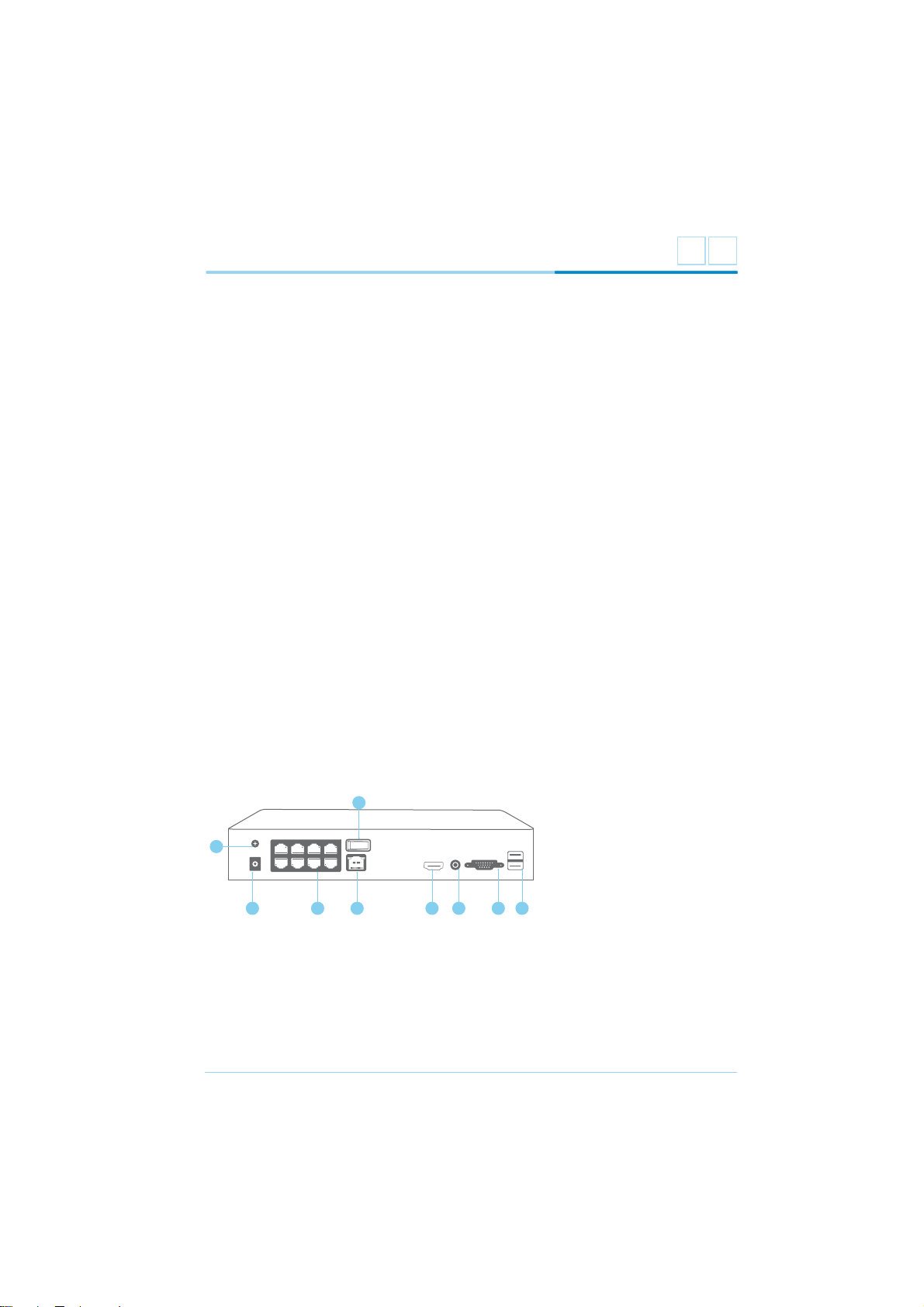
PoE NVR
6. PoE Cameras Ports
7. Power Port : Power Adapter for NVR(48V or above)
8. GND
9. Power Switch
1. Two USB Ports
2. VGA Port
3. Audio Out
4. HDMI Port for Display
5. Ethernet Port for Connecting Router
8
7
8
65 3421
9
oI

02
Security Expert
for Your Home and Business
PoE AI Camera
1. DC Power Port: Power Input 12V 1A.
2. RJ45 Port: Ethernet cable for video transmit and 48V DC Power Supply from NVR.
3. Speaker:For two way talk, alert voice play and broadcast
4. Microphone: For picking up audio(For different models of cameras, the mic position may be
different.)
This PoE camera is a AI camera, with flood light on in the night after human detect. Human detect
is a smarter way to detect human motion with AI tech. It is much more accurate than motion sensor
and common motion detection and no false alarm because of pets.
This AI camera is with a speaker, which is for two way talk and alert voice play. When human
detect or alarm, it will play alert voice message like : “Alert area, please leave” or “Hello, welcome !
” if this feature is turned on. (As factory defaults it is off.)
Tips:
Detailed settings on flood light on/off and alert voice, please refer to Chapter 08.
21
3
4

03
Security Expert
for Your Home and Business
01 Connect Your System
1. Connect Your System
1.1 Connect the PoE cameras to their ports with Ethernet cables in the security kit.
1.2 Plug the mouse (included) into the USB port at the rear panel of the NVR.
1.3 Connect the LCD Display to the NVR and power it on.
1.4 Connect the NVR to the router with the Ethernet cable.
1.5 Plug the power adapter cable into the NVR DC port. Then plug power adapter into power
strip. There is only one power adapter in the system which is DC48V or above and for
the NVR only.
1.6 Turn on the NVR power switch.
All the PoE Cameras in the kit have already been programmed into the NVR after you power on
the NVR. There will be live video images shown on the monitor in seconds.
2. Connect the NVR to Internet
After steps above, the system is on and the video images shown up,you can right click the
mouse, choose the “start wizard” and follow it. In the step for “Network Test”, it may show
you “Test Gateway . . . . ERR”, click “Network” to do the network settings and enable the “DHCP”,
Power supply
NVR
VGA
Router
IP Camera
TV Monitor TV Monitor Mouse
HDMI
Display Device for Remote View
oI

04
Security Expert
for Your Home and Business
Tips:
All the PoE cameras in the packed kits have already been programmed into the NVR. So cameras
will auto connect to NVR after the NVR is powered on. You do not need to add it again.
then click “OK”.
And then click “Retry”, it will show all ok. And that means the NVR is connect to internet successfully.
3. Add an Additional PoE Camera to the NVR
3.1 When you need to add an additional PoE camera
Add a new additional PoE camera to your NVR system.
When a PoE camera lost connection with the NVR or reset to factory defaults. You need to
add it to the NVR again.
1
2

05
Security Expert
for Your Home and Business
3.2 How to add an additional camera.
Use the Ethernet cable to connect the PoE Camera into the NVR camera ports or to the parts of
PoE switch that connect to the same router with the NVR.
Click ”+” on the channel that with no video and you want to add the camera in, then it will start
search the PoE cameras that connected in the same network. On the cameras list, the ones
already connected to the NVR will show in below list and showed“connected”, you can choose
the new additional one that not connected and just click “Quick set”, it will start add it into the
PoE NVR automatically. Click “OK” and then apply to finish it.
First check the cameras spots where you want to monitor and then decide where to put your
NVR. So that all the cameras are within the NVR’s access with the Ethernet cables in the kit. Or
you need additional Ethernet cables for extension if the cables in the kit can not make it.
After finding the best positions for cameras and NVR, you can start the wiring work for cameras
to NVR and NVR to the router.
4. Installation
4.1 Find the proper spots for cameras and position for NVR.
4.2 Wiring the cameras and NVR

06
Security Expert
for Your Home and Business
Tips:
When you install the PoE cameras outdoor, you will need the waterproof lids for them. Here below
is the diagram for your reference.
After wiring, connect the Ethernet cables into each cameras and the NVR to the router. Plug in
the power supply for NVR and power on the system and you will get the live videos images and
enjoy the video surveillance.
Step 1: Download the APP
In the “Start Wizard”,there is the step for “Install mobile app” ,scan the QR code with your
smartphone to download the app. Or search the “XMEye” in app store or google play and
download it.
4.3 Connect cables and power on NVR
02 View on Smartphone
1. Add the NVR to APP

07
Security Expert
for Your Home and Business
Step 2: Run the app and add the device
After you download the app, create an account and then scan the device’s serial No. QR code
to add the device.You can do some changes make your own profile.
1
2
3
2
4
1. Name of the System , you can name it like : My Home or Office so on.
2. The serial number of the device , you can find it in the step of “install mobile app” in the
“start wizard”.
3. User name of the account in the device ,as default it is “admin”
4. Password, as default is none, just leave it blank.
After all done ,then click “OK”, it will go to the device list . You can choose which channel you
want to view, choose how many channels of live videos you want to view at a time like 4, 9 or 16
channels, and can change the video quality between HD (High Definition) and SD (Standard
Definition).
After you click “Start Preview” , you can see live images, do intercoms , screenshot and video
record for the channels selected.
Otros manuales para PoE AI Camera
2
Tabla de contenidos
Manuales populares de Sistema de seguridad de otras marcas


EDM
EDM Solution 6+6 Wireless-AE Manual de usuario

Highway Safety Group
Highway Safety Group EA401 Manual de usuario

Siren
Siren LED GSM Manual de usuario

Detection Systems
Detection Systems 7090i Instrucciones de montaje

Se-Kure Controls
Se-Kure Controls MicroMini SK-4841 Manual de usuario

Siemens
Siemens FDM273 Manual de usuario