
TCL 20 Pro 5G Manual de usuario

1
Note:
This is a user manual for TCL 20 Pro 5G (T810S).
There may be certain differences between the user manual description and the
phone’s operation, depending on the software release of your phone or specific
carrier services.
Help
Refer to the following resources to get more FAQ, software, and service information.
Consulting FAQ
Go to https://support.tcl.com/ca
Finding your serial number or IMEI
You can find your serial number or International Mobile Equipment Identity (IMEI)
on the packaging materials. Alternatively, choose Settings >System >About
phone >Status >IMEI information on the phone itself.
Obtaining warranty service
For information on warranty of your device, visit the Canada website at https://www.
tcl.com/ca/en/mobile/warranty
Viewing legal information
On the phone, go to Settings >System >About phone >Legal information.

2
Table of Contents
1 Your mobile ...................................................................................................4
1.1 Keys and connectors ............................................................................4
1.2 Getting started.......................................................................................7
1.3 Home screen.........................................................................................9
1.4 Text input.............................................................................................16
2 Multimedia applications.............................................................................19
2.1 Camera................................................................................................19
2.2 Gallery.................................................................................................25
2.3 Music...................................................................................................28
2.4 IR Remote ...........................................................................................29
3 Apps and features ......................................................................................30
3.1 Phone..................................................................................................30
3.2 Contacts ..............................................................................................35
3.3 Messages............................................................................................38
3.4 Calendar..............................................................................................41
3.5 Clock ...................................................................................................42
3.6 Calculator ............................................................................................45
3.7 TCL apps.............................................................................................46
3.8 Other applications ..............................................................................46
3.9 Google applications.............................................................................46
4 Settings........................................................................................................49
4.1 Wi-Fi....................................................................................................49
4.2 Bluetooth .............................................................................................50
4.3 SIM card & cellular network ................................................................51

3
4.4 Connected devices..............................................................................53
4.5 Home screen & lock screen................................................................56
4.6 Display.................................................................................................56
4.7 Sound & vibration................................................................................58
4.8 Notifications.........................................................................................58
4.9 Button & gestures ...............................................................................58
4.10 Advanced features ..............................................................................59
4.11 Smart Manager ...................................................................................61
4.12 Security & biometrics ..........................................................................61
4.13 Location...............................................................................................62
4.14 Privacy.................................................................................................62
4.15 Apps ....................................................................................................62
4.16 Storage................................................................................................62
4.17 Accounts..............................................................................................63
4.18 Digital Wellbeing & parental controls ..................................................63
4.19 Google.................................................................................................63
4.20 Accessibility.........................................................................................63
4.21 System ................................................................................................63
5 FOTA upgrade .............................................................................................66
6 Troubleshooting..........................................................................................67
7 Specifications .............................................................................................72
8 Accessories.................................................................................................74
9 Licenses ......................................................................................................75
4
1 Your mobile
1.1 Keys and connectors
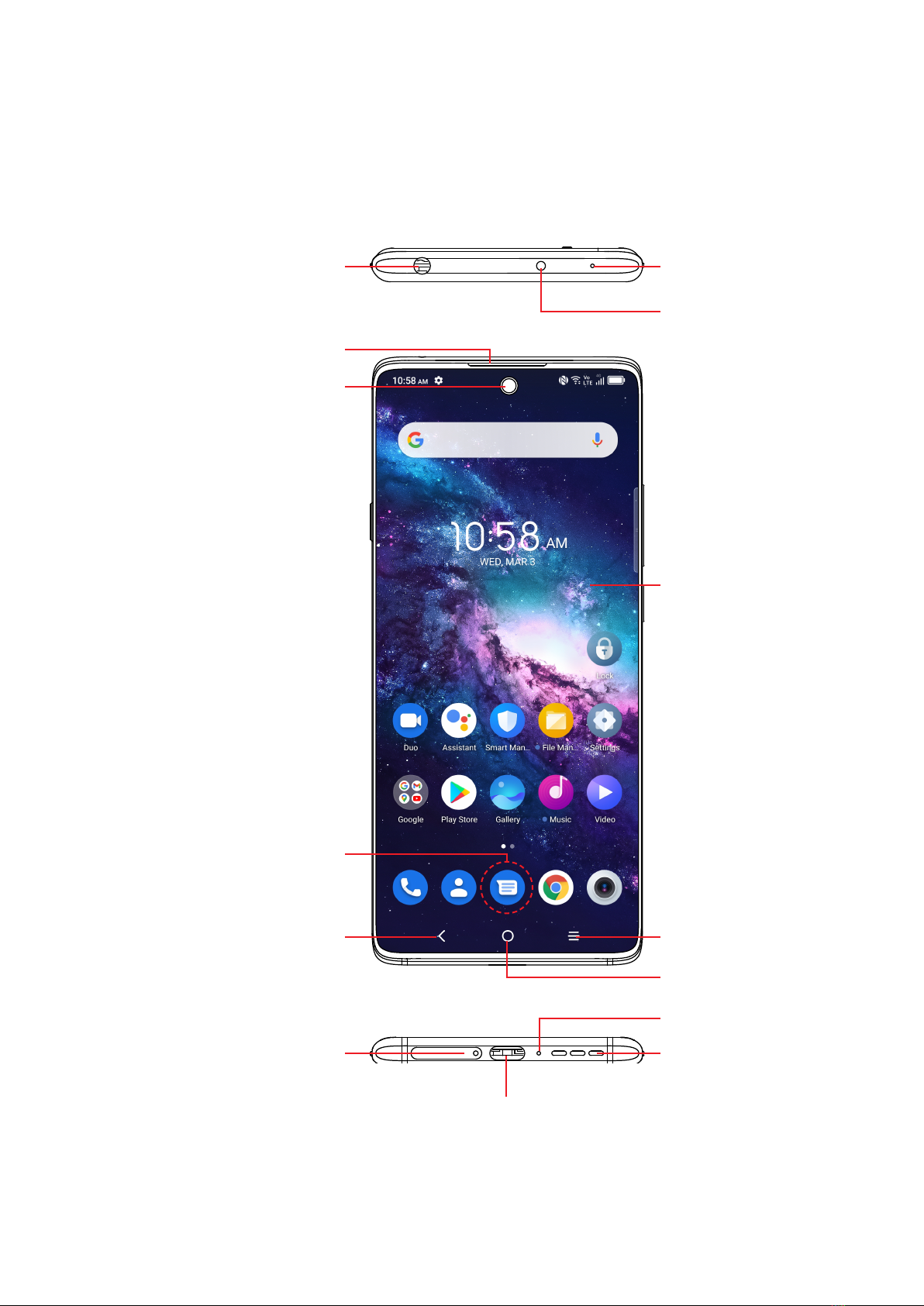
Microphone
IR light
Receiver
USB Type-C connector
3.5mm headset
connector
Front Camera
Back key
Fingerprint sensor
Home key
Touch screen
Recent apps
Speaker
SIM card slot/
microSDTM card slot
Microphone
5
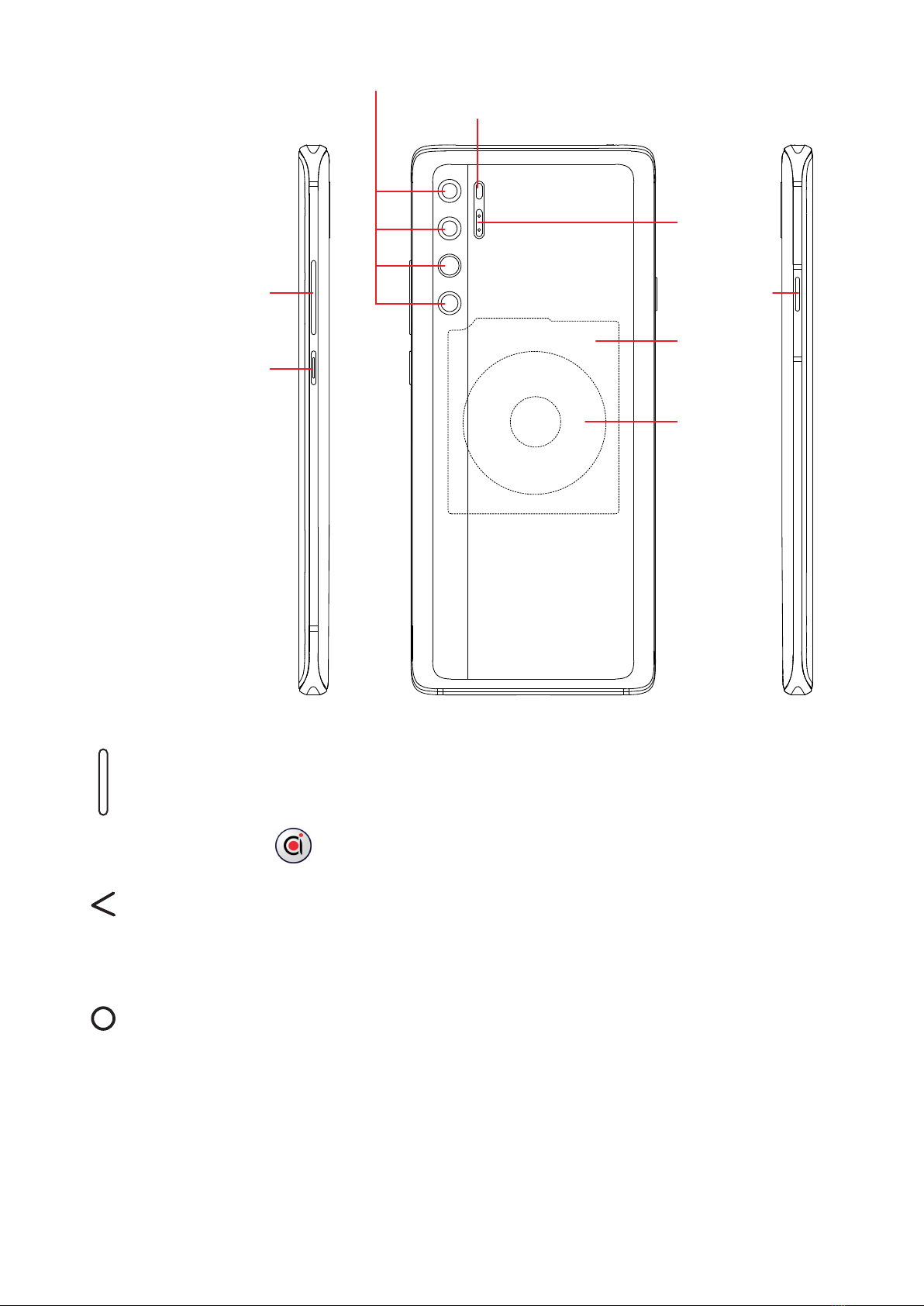
Multiple rear cameras
LED
flash
Smart key
RGB/Light sensor
NFC
sensor
area
Volume up/down
Power key
Wireless
charging
area
Smart key (left of the device)
• Press to access a customized, convenient shortcut. Smart key settings
are available at: Settings > Button & gestures > Smart key. Or touch
Smart key in the app list.
Back key
• Touch to go back to the previous screen, or to close a dialog box, options
menu, the notification panel, etc.
Home key
• Touch to return to the Home screen from any other application or screen.
• Touch and hold to open Google Assistant. You can get help such as
getting directions and restaurant information based on the content
detected on the screen.

6
Recent apps
• Touch to switch between recently opened individual app activities and
documents.
Power key (right of the device)
• Press: Lock the screen/Light up the screen
Note: Additional shortcuts and customizable settings are available at
Settings > Button & gestures > Power key.
• Press and hold: Show the popup menu to select from Power off/Restart/
Airplane mode/Cast.
• Press the Power key and Volume down key at the same time to take a
screenshot.
• Press and hold the Power key for at least 10 seconds to force reboot.
Volume up/down
• In call mode, adjusts the earpiece or headset volume.
• In Music/Video/Streaming mode, adjusts the media volume.
• In general mode, adjusts the media volume.
• Mutes the ringtone of an incoming call.
• In camera preview mode, press the Volume up or Down key to take
a photo or press and hold to take burst shots. To set, touch Camera >
Settings > Volume button function.
7
1.2 Getting started
Setting up
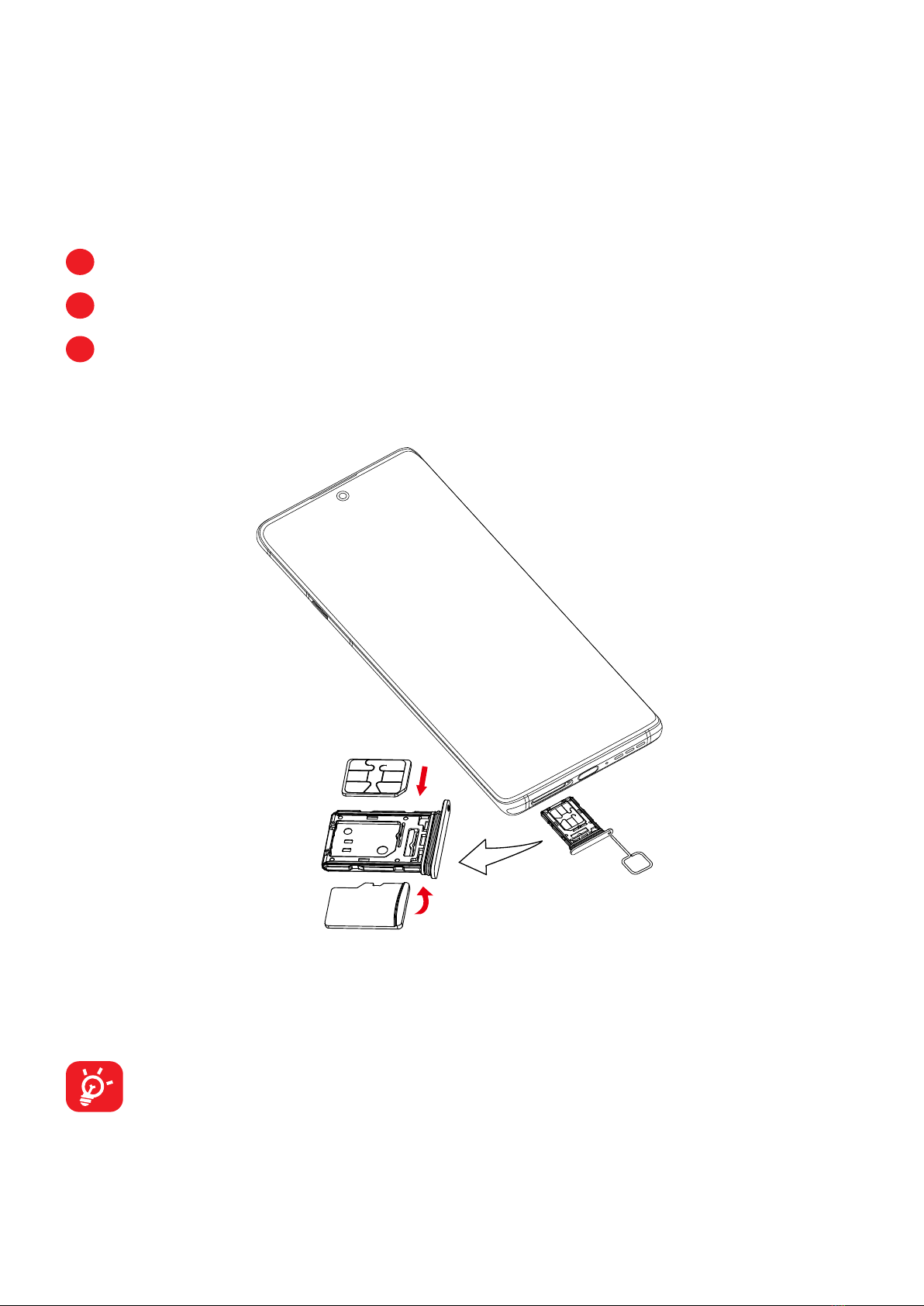
Inserting or removing the SIM/microSDTM card
1Use the provided SIM pin to open the SIM tray.
2Place the Nano SIM card into the tray slot labeled "SIM".
3Place the microSDTM card into the tray slot labeled "SD".
Note: microSDTM cards are sold separately. Only use Nano SIM cards with your
phone.
SIM
Micro SD
①
③
②
You must insert your SIM card to make phone calls. You do not need to power off
your phone before inserting or removing the SIM card as this phone supports hot
swap.
Your phone only supports nano-SIM cards. Do not attempt to insert other
SIM types; otherwise this may cause damage to your phone.
8
Charging the battery
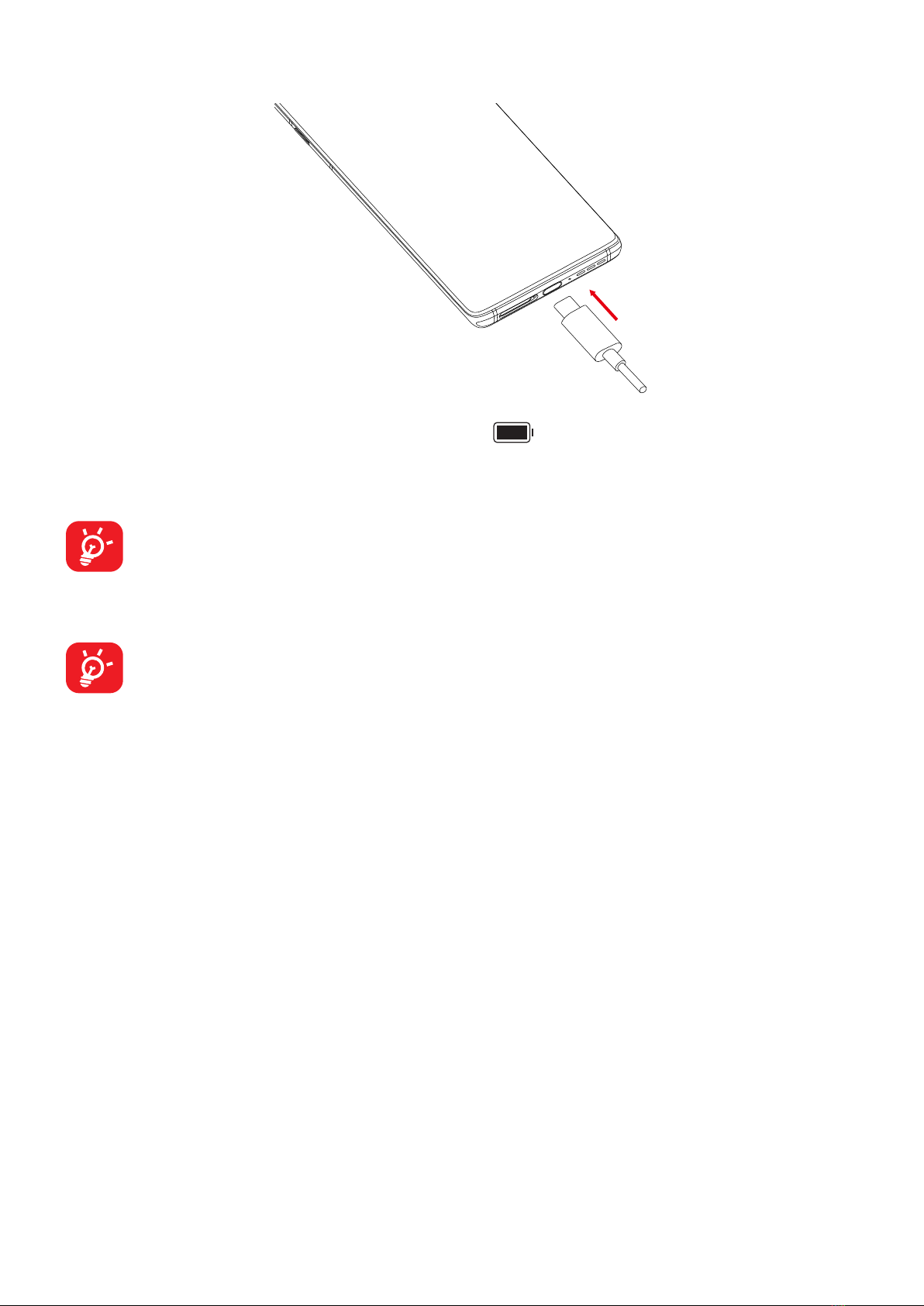
You are advised to fully charge the battery ( ). Charging status is indicated by
a percentage displayed on screen while the phone is powered off. The percentage
increases as the phone is charged.
To reduce power consumption and energy waste when the battery is fully
charged, disconnect your charger from the plug; switch off Wi-Fi, GPS,
Bluetooth or background-running applications when not in use; reduce the
backlight time, etc.
If you use a wireless charger we recommend either that it is fitted with a
standard charging plug; it is the charging plug provided with this device; or
it is one of at least 18W power.
Reverse Charging with an OTG Cable
On-The-Go (OTG) is a USB transmitting technology that allows a phone to connect
to an external device with the help of an OTG cable.
You can use your phone to charge other devices using an OTG cable.
1. Connect your phone with the device to be charged using an OTG cable.
2. After connecting, a reminder box will pop up indicating that your phone can charge
the other phone and that the battery will reduce quickly during the charging.
3. Swipe down from the status bar to open the notification panel; touch Charging
connected device via USB, and then check that Supply power is selected by
default.
9
Powering on your phone
Hold down the Power key until the phone powers on, unlock your phone (Swipe,
PIN, Password, Pattern, Fingerprint or Face recognition) if necessary and confirm.
The Home screen is displayed.
If you do not know your PIN code or forget it, contact your network carrier. Be sure
to keep your PIN code secure.
Powering off your phone
Press and hold the Power key until options appear, then select Power off.
1.3 Home screen
You can bring all the items (applications, shortcuts, folders and widgets) you love or
use most frequently to your Home screen for quick access. Touch the Home button
to switch to the Home screen.
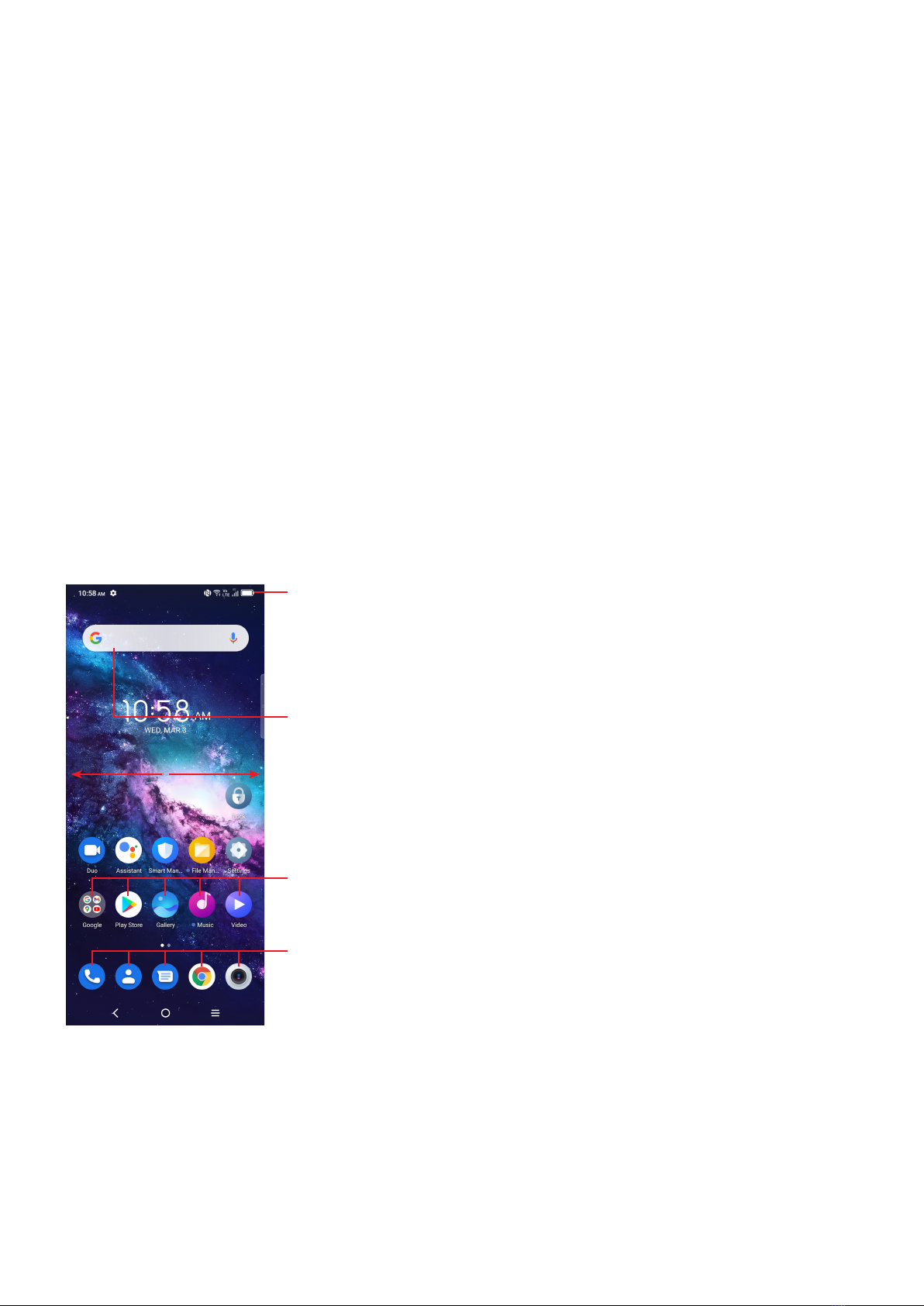
Status bar
• Status/Notification icons
• Drag down to open the notification panel
Search bar
• Touch to enter text search screen
• Touch to enter voice search screen
Touch an icon to open an application, folder, etc.
Favourite tray applications
• Touch to enter the application.
• Touch and hold to move or remove applications.
The Home screen is provided in an extended format to allow more space for adding
applications, shortcuts etc. Slide the Home screen horizontally left and right to get
a complete view.
Otros manuales para 20 Pro 5G
1
Este manual sirve para los siguientes modelos
1
Tabla de contenidos
Otros manuales de Teléfono móvil de TCL

TCL
TCL 10 Pro Manual de usuario

TCL
TCL A3X Manual de usuario

TCL
TCL 40XE 5G Manual de usuario

TCL
TCL Flip Manual de usuario

TCL
TCL 30XL Manual de usuario

TCL
TCL 40XL Manual de usuario

TCL
TCL 403 32GO BLEU Manual de usuario

TCL
TCL Pixi4-6 3G Manual técnico

TCL
TCL Alcatel Idol4 Manual técnico

TCL
TCL T728 Manual de usuario


