
Tapo RV10 Plus Manual de usuario

User Manual
Robot Vacuum & Mop
+ Smart Auto-Empty Dock
©2022 TP-Link 7106509862 REV1.0.0
*Images may dier from actual products.

Package Contents
User Manual ×1
HEPA Filter ×1
Auto-Empty Dock* + Dust Bag ×1
*One dust bag installed
User Manual
*One side brush and HEPA lter installed
Robot Vacuum*
Side Brush ×1 Cleaning Brush ×1Mop Cloth Mount* ×1
*One washable mop cloth installed
1
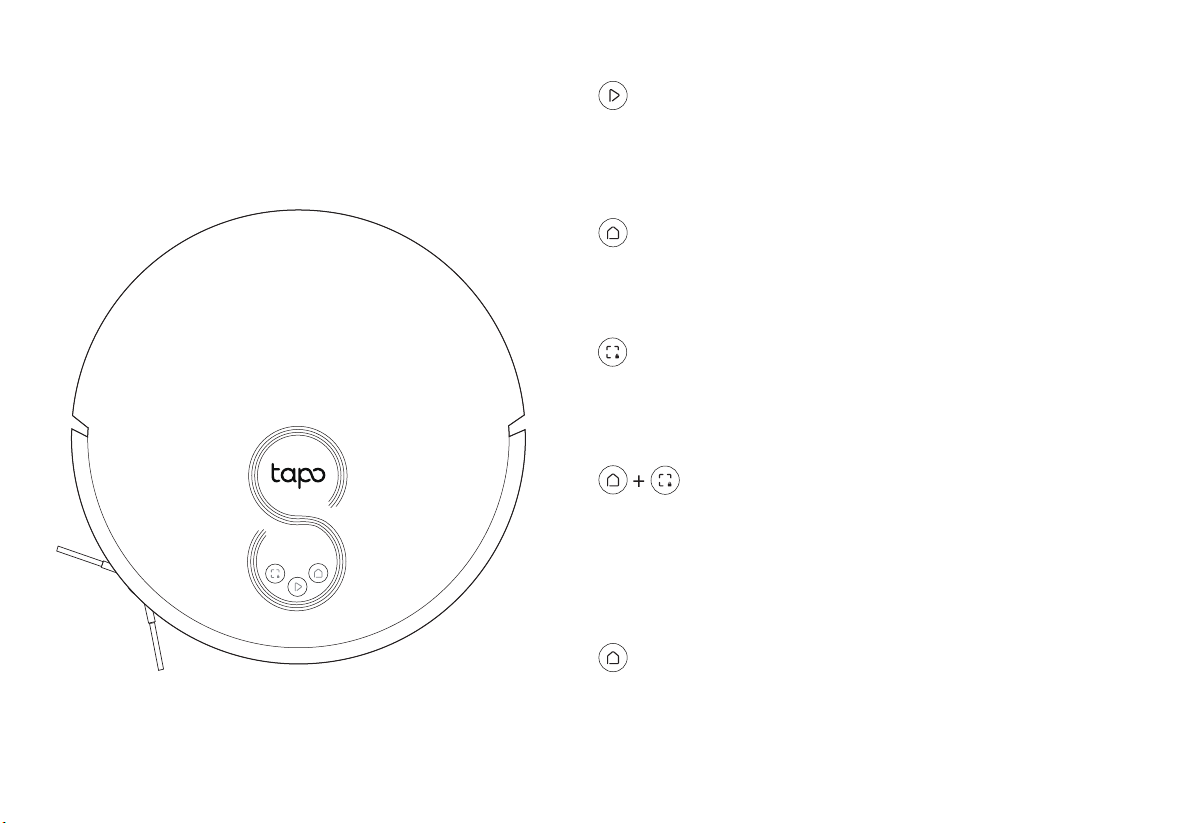
Power/Clean
Combination Button
• Press once: Start/pause cleaning.
• Press and hold for 5 seconds: Turn on/o the robot vacuum.
• Press and hold simultaneously for 5 seconds:
Enter setup mode to congure network.
• Press and hold simultaneously for 10 seconds:
Restore to factory default settings.
• Return to the dock to charge.
• Empty the bin when docked.
Dock
• Press once: Start spot cleaning.
• Press and hold for 5 seconds: Turn on/o the child lock.
Spot Cleaning/Child Lock
*For the rst use, slide the power switch from OFF to ON to turn on.
LED
• Red: Battery level < 20%; Error
• Orange: Battery level between 20% and 80%
• Green: Battery level >80%
Overview
Robot Vacuum
2

OFF ON
Cli Sensors
Power Switch
Side Brush
Charging Contacts
Caster Wheel
Main Brush
Main Brush Cover Latch
Wheel
Bumper
Recharge
Sensor
Buttons
& LEDs
Dustbin & Water Tank
Water Tank Latch
Dust Collection Port
Filter Latch
Rubber Plug
Charging Contacts
Open Dustbin
Dustbin
Filter
Water Tank
OFF ON
Recharge
Sensor
Cover
3

Overview
Auto-Empty Dock
LED Indicator
Top cover
Open to install/take out the dust bag.
Replace the cover each time you open it.
Dust Bag Compartment
Charging Contacts
Dust Collection Port
The debris in the robot vacuum will be
collected into the dust bag through the
port.
• White: Working properly
• O: Robot vacuum is connected to the dock; sleeping.
• Solid Red: Dust bag not installed; top cover not closed.
• Flashing Red: Error
Dust Bag Handle
Dust Bag
Fan Filter
4
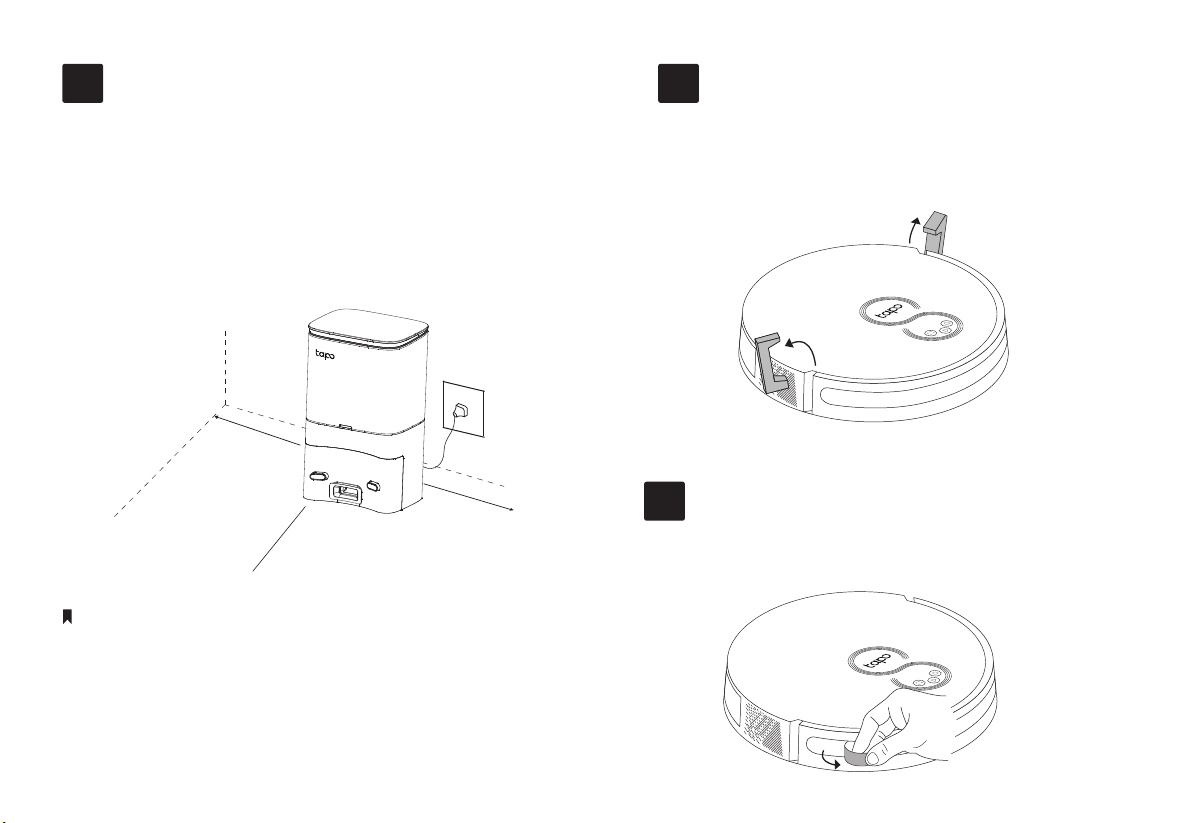
Remove Protective Film
3
Remove Protective Strip
2
0.5m (1.6ft)
0.5m (1.6ft)
• To ensure a better user experience, make sure the area is with good Wi-Fi signal.
• Do not place it in direct sunlight. Ensure the area around the dock is free of clutter to
improve docking performance.
• To prevent the risk of your robot falling downstairs, ensure that the dock is placed at
least 1.2m (4 ft) away from stairs.
• Always keep the dock powered on, otherwise the robot vacuum will not automatically
return. And do not move the dock frequently.
• Place a waterproof pad to prevent the mop from wetting the oor when the robot
vacuum is being charged.
1. Place the dock on a level surface, at against a wall,
without obstacles within 1.5m (4.9ft) in front and
0.5m (1.6ft) on left and right.
2. Connect the power cord to the dock. Ensure the
cable is kept tidy.
Before use, remove the protective strips on
both sides of the front bumper.
Remove the protective lm on the front bumper.
Notes
1.5m (4.9ft)
Position the Dock
1
5

Power On and Charge
4
Place the robot vacuum on the charging dock
or tap to send it back to the dock to charge.
It will return to the dock at the end of a cleaning
job and whenever it needs to recharge.
Slide the power switch from OFF to ON to turn on
your robot vacuum.
• If the power switch is in the ON position, you can also press and hold the button
for 5 seconds to turn on/o your robot vacuum.
• If the power switch is in the OFF position, the robot vacuum will automatically turn
on when it is charged on the dock, and turn o when it leaves the charging dock.
Notes
• When the LED of the charging dock ashes 3 times and then goes out, the
charging will begin.
• We recommend that you charge the robot vacuum fully for about 4 hours prior
to starting the rst cleaning job.
Notes
OFF ON
OFF ON
6

• Cleaning Modes & Preferences
Customize vacuum power, water level, and cleaning
times.
• Scheduled Cleaning
Set an automatic cleaning schedule, then the robot
vacuum will clean automatically at the set time and
return to the dock after cleaning.
OR
Download the Tapo App and Connect to Wi-Fi
5
1. Download the Tapo app from the App
Store or Google Play, then log in.
2. Open the Tapo app, tap + icon, and select
your model. Follow the step-by-step
instructions to easily set up your robot
vacuum.
In the Tapo app, you can enjoy the following
functions.
7

Cleaning
6
• Cleaning cannot start if the battery is too low. Charge your robot vacuum rst.
• Pick up obstacles like wires, clothing, and plastic bags. Loose wires and objects
may get caught in the robot vacuum, resulting in disconnection or damage to
wires and property.
• Put away high pile carpeting before cleaning.
• Do not pick up the robot vacuum during cleaning.
• If the cleaning area is too small, the area may be cleaned twice.
• If the robot vacuum is paused for 10 minutes, it will automatically enter sleep
mode and the cleaning job will be canceled.
The robot vacuum will automatically explore and clean
your home in neat rows. It will return to the charging
station at the end of a cleaning job and whenever it
needs to recharge.
Notes
In Spot Cleaning mode, it will sweep the circular area
with a diameter of 1.5m (4.9ft) calculated from its own
position.
1.5m (4.9ft)
Press Once
Start/pause cleaning. Start spot cleaning.
Press Once
8

Mopping
7• Vacuum oors at least 3 times before the rst mopping cycle.
• The ability to cross obstacles is reduced when mopping.
• It is recommended to wash the mop cloth after each use.
2. Remove the rubber plug
and add water to the
water tank.
1. Take out the dustbin
and water tank.
3. Install the washable
mop cloth.
4. Install the mop cloth
mount.
5. Re-install the dustbin
and water tank.
2. Empty the water tank.
1. Remove the mop cloth mount.
3. Remove the washable
mop cloth.
5. Sun dry mop cloth and
mop cloth mount.
4. Clean the mop cloth.
OFF ON
OFF ON
• Fill with cool/room temperature water only.
Be careful not to wet the metal contacts.
• Use only cleaning agents specied by Tapo.
Others may corrode the water tank.
9
Otros manuales para RV10 Plus
2
Este manual sirve para los siguientes modelos
1
Tabla de contenidos
Manuales populares de Robótica de otras marcas

STEMCenter USA
STEMCenter USA Pi-Bot v2.00 Manual de usuario

SunFounder
SunFounder PiDog Manual de usuario

Universal Robots
Universal Robots UR5 Manual de usuario

Universal Robots
Universal Robots E Series Manual de usuario

YASKAWA
YASKAWA MOTOMAN-MPL80 II Manual de usuario

EFORT
EFORT ECR5 Manual de instrucciones


