
SunComm SC-375 Manual de usuario

SunComm
SC-375
(Nov., 2007 Edition)
User’s Manual

【Content】
1. INTRODUCTION................................................................................................................1
2. FUNCTIONS ........................................................................................................................1
3. THE CONTENTS IN PACKAGE......................................................................................2
4. DIMENSION AND PANEL DESCRIPTION ...................................................................3
5. ACCESSORY ATTACHMENT.........................................................................................4
6. SETTING AND MANAGING VIA WEB PAGE..............................................................5
7. SYSTEM INFORMATION.................................................................................................5
8. ROUTE..................................................................................................................................6
9. MOBILE .............................................................................................................................12
10. NETWORK.......................................................................................................................17
11. SIP SETTING...................................................................................................................20
12. NAT TRANS.....................................................................................................................30
13.SYSTEM AUTH................................................................................................................31
14.SAVE CHANGE................................................................................................................32
15.UPDATE ............................................................................................................................33
16.REBOOT............................................................................................................................35
17. SETTING AND CHECKING VIA IVR.........................................................................36
18.SPECIFICATION.............................................................................................................38
19. APPLICATIONS..............................................................................................................39
20. SIMPLE STEPS ...............................................................................................................40
21. APPENDIX: SETUP SC-375 WITH ASTERISK.........................................................41
22.HOW TO SETUP ASTERISK TO RECEIVE CALLER ID FROM ..........................47

-1-
1. Introduction
SC-375 series products provide you the best connect solution
for heterogeneous network(including:WLAN、GSM or PSTN)
You may use a SIP-protocol VoIP phone or software to connect to
the SC-375, then reach this call to the mobile network, and vice
versa. With multiple sets of SC-375, you may even build an
international call network.
2. Functions
2.1 VoIP (SIP)-GSM conversion.
2.2 VoIP (SIP)-CDMA conversion.
2.3 Voice response for setting and status enquiring. (Dial in GSM
numbers of SC-375 to get voice information or to operate.)
2.4 50 sets of LAN->MOBILE routing, and 50 sets of
MOBILE->LAN routing.
2.5 Series connections to save bills.
2.6 Standard SIP (RFC2543, RFC3261) protocol to communicate
with other gateways or PC.
2.7 settings and managing via web page

-2-
3. The contents in package
3.1 SC-375 main body
3.2 AC-DC Adaptor (110V AC – 12V DC or 220V AC – 12V DC)
3.3 Network cable
3.4 Antenna
3.5 User’s Manual
When you receive SC-375 package and find it is damaged or
incorrect, please contact your vendor.
(3.1)
(3.2)
(3.4)
(3.3)

-3-
4. Dimension and Panel description
4.1 Antenna:Antenna connector.
4.2 DC 12V:Power socket.
4.3 LAN: Standard RJ-45 socket, connecting to Hub circuit.
4.4 PWR: Power indicator light, red light. Light is on when system’s
power supply is normal.
4.5 MOBILE: GSM indicator light, green light. Light flashes when
GSM status is normal; light turns on constantly when GSM is
called.
4.6 LAN: LAN indicator light, green light. Light flashes when Lan is
called; light turns off when GSM answers.
4.7 LINK: Link indicator light, green light. Light is on when network
is connected correctly.
(4.1) (4.2) (4.3) (4.4) (4.6)
(4.5) (4.7)
14.5cm
17cm
4
.
1
cm
-4-
5. Accessory attachment
5.1 Connect the network cable both to your Hub and to LAN socket
of SC-375.
5.2 Connect the antenna and place it in a good receiving location
(not too close to the device).
5.3 Insert a SIM card into back of SC-375.
5.4 Plug the adapter in DC 12V socket and PWR socket. The PWR
light should turn red at the moment.
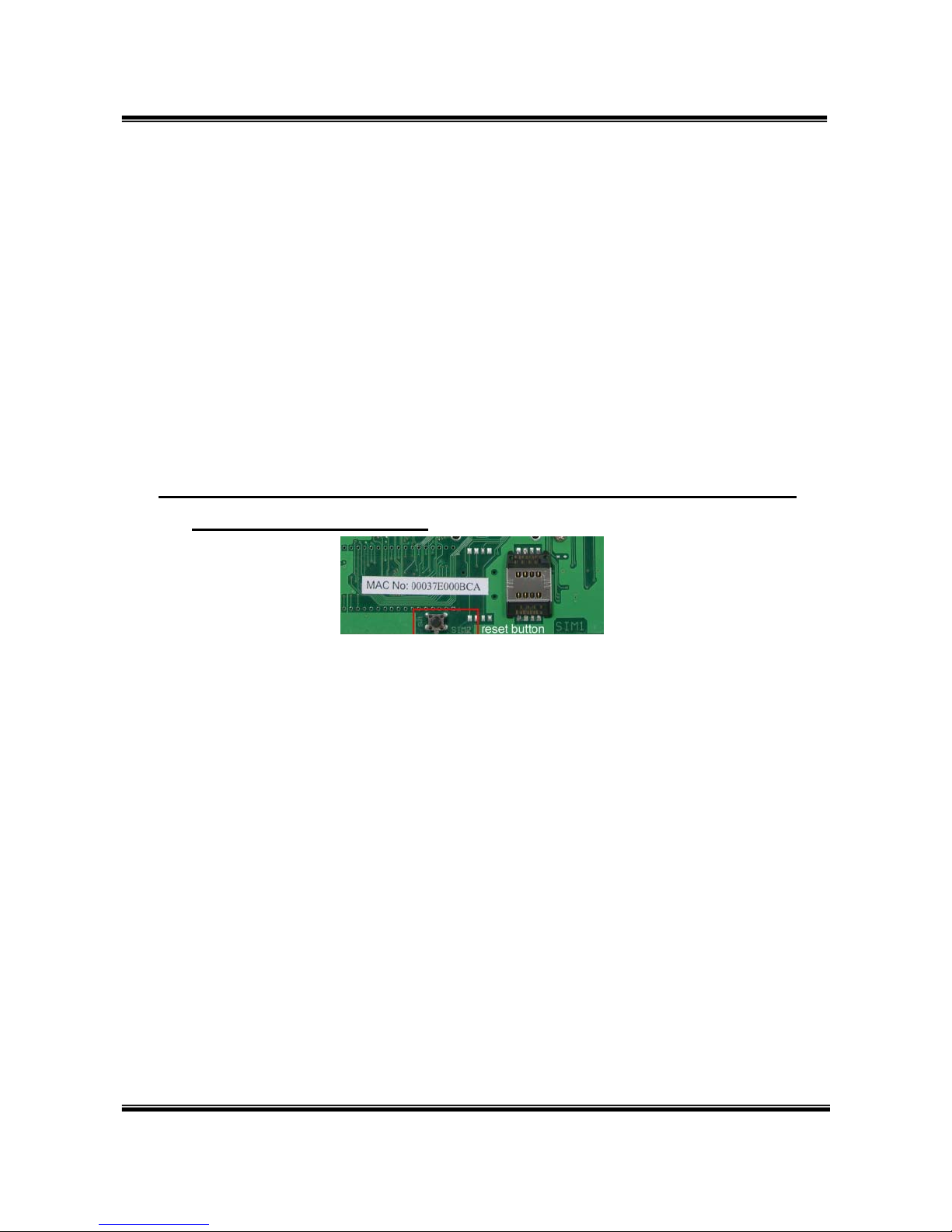
5.5 Click reset button 3 sec. SC-375 will restore default IP.
Other setting as usual.

-5-
6. Setting and managing via web page
The default IP address of SC-375 is http://192.168.0.100. Before
accessing the web page, please confirm this address is available
in your network.
Enter the default username and password to login.
Default username: voip
Default password: 1234
7. System Information.
7.1 After login, you could see the system information such as: model
name, firmware version, codec version name, etc. in this page.

-6-
7.2 You could also see the setting table in the left side. Please click on
the option you would like to set. The setting methods are indicated as
the following chapters, please input the value or select the item
according to your situation.
Note:
Please remember to save change whenever you submit any setting.
Click “Save Change” then “Save” button, the system will restart and
make the changed function/setting operative.
8. Route
8.1 Route/ Mobile to LAN Settings
In this page: Mobile To Lan Table, you could set the routing rules to
transfer the calls incoming from MOBILE to LAN. Maximum 50 sets.

-7-
When the GSM number of the SC-375 is called, this device transfers the
call to URL according to the caller ID of the incoming call.
8.1.1 CID: caller ID, the numbers of incoming call
You could set the CID as the following formats:
(1) The complete number, e.g. 0911111111
(2) The prefix part plus *, e.g. 0911*. This format means any number
starting with 0911 will be accepted to transfer.
(3) *, this means any incoming call is accepted to transfer.
(4) N, this means the incoming call without showing its CID is accepted
to transfer.
Please note the priority of the routing rules; the CID with more digits
gets the priority.
8.1.2 URL:The IP address of destination
You could set the URL as the following formats:
(1) The complete IP address, e.g. 192.168.0.101
(2) The proxy extension numbers
(3) The phone numbers.
Note: If the device has registered at proxy server/Asterisk, you
can enter any destination phone number. Also note that
in the proxy server/Asterisk, you need to set the route of
destination phone number.
(4) Leave it blank or ‘N’, this mean to refuse to transfer.
(5) *, this means to transfer via 2-stage-dialing. The call will be
answered with a prompt dial tone for the caller to press the IP
address, proxy extension, or any phone number as destination.

-8-
The caller press the IP address on the phone keys: 192*168*0*101#
as 192.168.0.101
8.1.3 Example of Mobile to Lan setting:
(1) Mobile to Lan: 0932*, 0911123456
When the GSM numbers of the device is called, if the caller’s prefix
numbers are 0932, SC-375 transfers the call to 0911123456, then
0911123456 rings (while available).
Precondition:
a. SC-375 has registered at proxy server/Asterisk
b. The proxy server/Asterisk has the route of “09”
(2) Mobile to Lan: *, *
Any incoming call gets a prompt dial tone; so the caller can enter
any IP address, sip extension, or phone number.
Precondition:
a. SIP extension or phone number needs to register at SIP Proxy
Server or Asterisk.
b. Phone number, SIP Proxy Server or Asterisk needs to set the
route of destination phone number.
8.2 Route/ Mobile to LAN Speed Dial Settings
When you set both Mobile to LAN Speed Dial Settings and Mobile to
LAN settings at the same time, Mobile to LAN Speed Dial Settings
gets higher priority. Mobile to Lan setting will be not available.
Tabla de contenidos
Otros manuales de Puerta de SunComm


Manuales populares de Puerta de otras marcas

LST
LST M500RFE-AS Manual de usuario

Kinnex
Kinnex Media Gateway Manual de usuario

2N Telekomunikace
2N Telekomunikace 2N StarGate Manual de usuario

Mitsubishi Heavy Industries
Mitsubishi Heavy Industries Superlink SC-WBGW256 Manual de usuario

ZyXEL Communications
ZyXEL Communications ZYWALL2 ET 2WE Manual de usuario

Telsey
Telsey CPVA 500 - SIP Manual de usuario


