
Sony PCWA-A100 - Wireless Lan Access Point Manual de usuario

PCWA-A100/C100
US Model
Canadian Model
SERVICE MANUAL
WIRELESS LAN ACCESS POINT
WIRELESS LAN PC CARD
9-928-159-11
PCWA-A100
PC Card
(PCWA-C100)
SPECIFICATIONS
Access Point
Access Point PC Card
• Wireless LAN PC Card (1)
• PC card case (1)
• CD-ROM (Setup disk) (1)
• Operating Instructions (1)
• END-USER LICENSE AGREEMENT (1)
• Other printed materials
• Wireless LAN Access Point (1)
• Unit stand (1)
• AC power adapter (1)
• Telephone cable (1)
• Telephone jack splitter (1)
• Operating Instructions (1)
• Other printed materials
Communication distance
Approx. 50 m (approx. 165 feet) with no obstacles
Maximum number of units connected
16 units (number of clients)
Protocol support
TCP/IP, NetBEUI
Standard
IEEE802.11b/IEEE802.11
Radio frequency
2.4 GHz
Modulation method
DS-SS (IEEE802.11 compliant)
General
Power requirements
100 to 240 V AC, 50/60 Hz
Power consumption
Approx. 5 W
Dimensions
With stand: Approx. 156 ×134.5 ×53 mm
(approx. 6
1
/
4
×5
3
/
8
×2
1
/
8
inches) (w/h/d)
Without stand: Approx. 156 ×125 ×35 mm
(approx. 6
1
/
4
×5 ×1
7
/
16
inches) (w/h/d)
Mass
Approx. 480 g (approx. 17oz.) (excluding the unit
stand and the AC power adapter)
Operating temperature
5°C to 35°C (41°F to 95°F) (not condensed)
Environment temperature
-20°C to 60°C (-4°F to 140°F) (not condensed)
Supplied accessories
Protocol support
TCP/IP, NetBEUI compliant
Standard
IEEE802.11b/IEEE802.11
Radio frequency
2.4 GHz
Modulation method
DS-SS (IEEE802.11 compliant)
General
Power requirements
5 V AC (supplied from the computer through the PC
card adapter)
Current
Peak current at transmission; 280 mA,
peak current at reception: 180 mA
Connector
PC card slot Type-II
Dimensions (approx.)
Approx. 118 ×5 ×54 mm (approx. 4
3
/
4
×
7
/
32
×2
1
/
4
inches) (w/h/d)
(Antenna height: 8.7mm (
11
/
32
inches))
Mass
Approx. 55 g (approx. 2 oz)
Operating temperature
5°C to 35°C (41°F to 95°F) (not condensed)
Environment temperature
-20°C to 60°C (-4°F to 140°F) (not condensed)
Supplied accessories

— 2 —
PCWA-A100/C100 (UC)
Information in thisdocumentissubjecttochangewithout notice.
Sony andVAIO are trademarks of Sony. Intel logo and Intel Inside
logo are registered trademarks of Intel Corporation. Pentium MMX
is a trademark of Intel Corporation. Microsoft, MS-DOS, Windows,
theWindows 95 andWindows 98 logo are trademarks of Microsoft
Corporation.
All other trademarks are trademarks or registered trademarks of
their respective owners. Other trademarks and trade names may be
used in this document to refer to the entitles claiming the marks and
namesor their produces.Sony Corporationdisclaims any proprietary
interest in trademarks and trade names other than its own.
Service and Inspection Precautions
1. Obey precautionary markings and instructions
Labels and stamps on the cabinet, chassis, and components identify areas
requiring special precautions. Be sure to observe these precautions, as well
as all precautions listed in the operating manual and other associated
documents.
2. Use designated parts only
The set’s components possess important safety characteristics, such as
noncombustibility and the ability to tolerate large voltages. Be sure that
replacement parts possess the same safety characteristics as the originals.
Also remember that the 0mark, which appears in circuit diagrams and
parts lists, denotes components that have particularly important safety
functions; be extra sure to use only the designated components.
3. Alwaysfollowthe originaldesignwhen mounting
parts and routing wires
The original layout includes various safety features, such as inclusion of
insulating materials (tubes and tape) and the mounting of parts above the
printer board. In addition, internal wiring has been routed and clamped so
as to keep it away from hot or high-voltage parts. When mounting parts or
routing wires, therefore, be sure to duplicate the original layout.
4. Inspect after completing service
After servicing, inspect to make sure that all screws, components, and wiring
have been returned to their original condition. Also check the area around
the repair location to ensure that repair work has caused no damage, and
confirm safety.
5. When replacing chip components...
Never reuse components. Also remember that the negative side of tantalum
capacitors is easily damaged by heat.
6. When handling flexible print boards...
•The temperature of the soldering-iron tip should be about 270C.
•Do not apply the tip more than three times to the same pattern.
•Handle patterns with care; never apply force.
Caution: Remember that hard disk drives are easily damaged by
vibration. Always handle with care.
CautionMarkings for Lithium/Ion Battery -The followingor similar
texts shall be provided on battery pack of equipment or in both the
operating and the service instructions.
CAUTION: Danger of explosion if battery is incorrectly replaced.
Replace only with the same or equivalent type recommended by
the manufacturer. Discard used batteries according to the
manufacturer’s instructions.
CAUTION: The battery pack used in this device may present a fire
or chemical burn hazard if mistreated. Do not disassemble, heat
above 100°C (212°F) or incinerate.
Dispose of used battery promptly.
Keep away from children.
ATTENTION AU COMPOSANT AYANT RAPPORT
À LA SÉCURITÉ!
LES COMPOSANTS IDENTIFÉS PAR UNE MARQUE 0SUR LES
DIAGRAMMES SCHÉMATIQUES ET LA LISTE DES PIÈCES SONT
CRITIQUES POUR LA SÉCURITÉ DE FONCTIONNEMENT. NE
REMPLACER CES COMPOSANTS QUE PAR DES PIÈSES SONY
DONT LES NUMÉROS SONT DONNÉS DANS CE MANUEL OU
DANS LES SUPPÉMENTS PUBLIÉS PAR SONY.
Confidential

— 3 — PCWA-A100/C100 (UC)
Confidential
TABLE OF CONTENTS
1. OVERVIEW
1-1. Access Point ....................................................................1-1
1-2. PC Card ...........................................................................1-1
2. SERVICE PROGRAM
2-1. Procedure of Service Inspection of
Access Point and PC Card...............................................2-1
2-1-1.Preparation for Inspection ...............................................2-1
2-1-2.Inspecting the Access Point and PC Card .......................2-2
2-1-3.Wireless LAN Link Test ..................................................2-2
2-1-4.Ethernet Link Test ...........................................................2-4
2-2. Setup of Desktop PC .......................................................2-7
2-2-1.Required Tools.................................................................2-7
2-2-2.Network Setting of Desktop PC ......................................2-7
2-2-3.Setting the Magic DHCP Server .....................................2-8
2-3. Setup of Notebook PC .....................................................2-8
2-3-1.Required Tools.................................................................2-8
2-3-2.Network Setting of Notebook PC....................................2-8
2-4. Inspection Procedure of Access Point Modem ................2-9
2-4-1.Preparation.......................................................................2-9
2-4-2.Inspection ........................................................................2-9
Extracted from the PCWA-C100 Instruction Manual ...2-10
2-5. Checking Symptoms Pointed Out by User
(Final Check) .................................................................2-16
2-6. How to Return to the Factory Settings ..........................2-16
2-6-1.Setup ..............................................................................2-16
2-6-2.Resetting the Access Point ............................................2-17
2-6-3.Running the Upgrade Utility .........................................2-17
3. ACCESSORIES & PACKING MATERIALS ········3-1

1-1 PCWA-A100/C100 (UC)
Confidential
(END)
SECTION 1
OVERVIEW This section is extracted from
instruction manual(4-647-079-11).
1-1. Access Point
1-2. PC Card This section is extracted from
instruction manual(4-647-085-11).
11
1POWER indicator (page 17)
Lit while power is supplied.
2WIRELESS indicator
Lit when data is being exchanged on a wireless LAN.
3ETHERNET indicator (page 14)
Lit while data exchange is in progress through the 10BASE-T
connector.
4PHONE indicator (page 12)
Lit while data exchange is in progress through the LINE/PHONE
connector.
5Wall-mounting holes
6LINE/PHONE connector (RJ-11) (page 12)
Used to connect the telephone cable.
7DC IN 9V jack (page 17)
Used to connect the AC power adapter.
8ID label (page 18)
The Access Point ID and other information are printed on this
label.
910BASE-T connector (RJ-45) (page 14)
Used to connect to a cable modem/ xDSL modem, ISDN router, or
hub.
Parts and indicators
8
LINE/
PHONE
DC IN 5V 10BASE-T
1
2
34
5
67 9
11
1DATA indicator
Lights up while data exchange is in progress.
2LINK indicator
Lights up while your computer is connected to the wireless LAN.
Description on the indicators
DATA LINK Description
Flashing (green) Lit (green) Normal communications.
Fast Flashing Lit (green) Peer to Peer mode
(green)
Off Lit (green) The PC card is powered, but no
communication is taking place.
Flashing at 10sec intervals The PC card is operating, but no
connection is established.
Off The PC card is powered off.
Indicators
12
2-1 PCWA-A100/C100 (UC)
Confidential
SECTION 2
SERVICE PROGRAM
After repairing and before shipment, return the settings of the unit to the factory settings.
• To inspect the Access Point/PC Card, the following inspection software is required.
Tool No.: J-2500-477-1 (If the OS of the notebook PC is Windows 95 version 4.00.950.)
J-2500-484-1 (If the OS of the notebook PC is not Windows 95 version 4.00.950.)
2-1. Procedure of Service Inspection of Access Point and PC Card
2-1-1. Preparation for Inspection
A: Complete the setup in advance. (Refer to Section 2-2, “Setup of Desktop PC”.)
Start up [Amea.exe] of the desktop PC.
B: Complete the setup in advance. (Refer to Section 2-3, “Setup of Notebook PC”.)
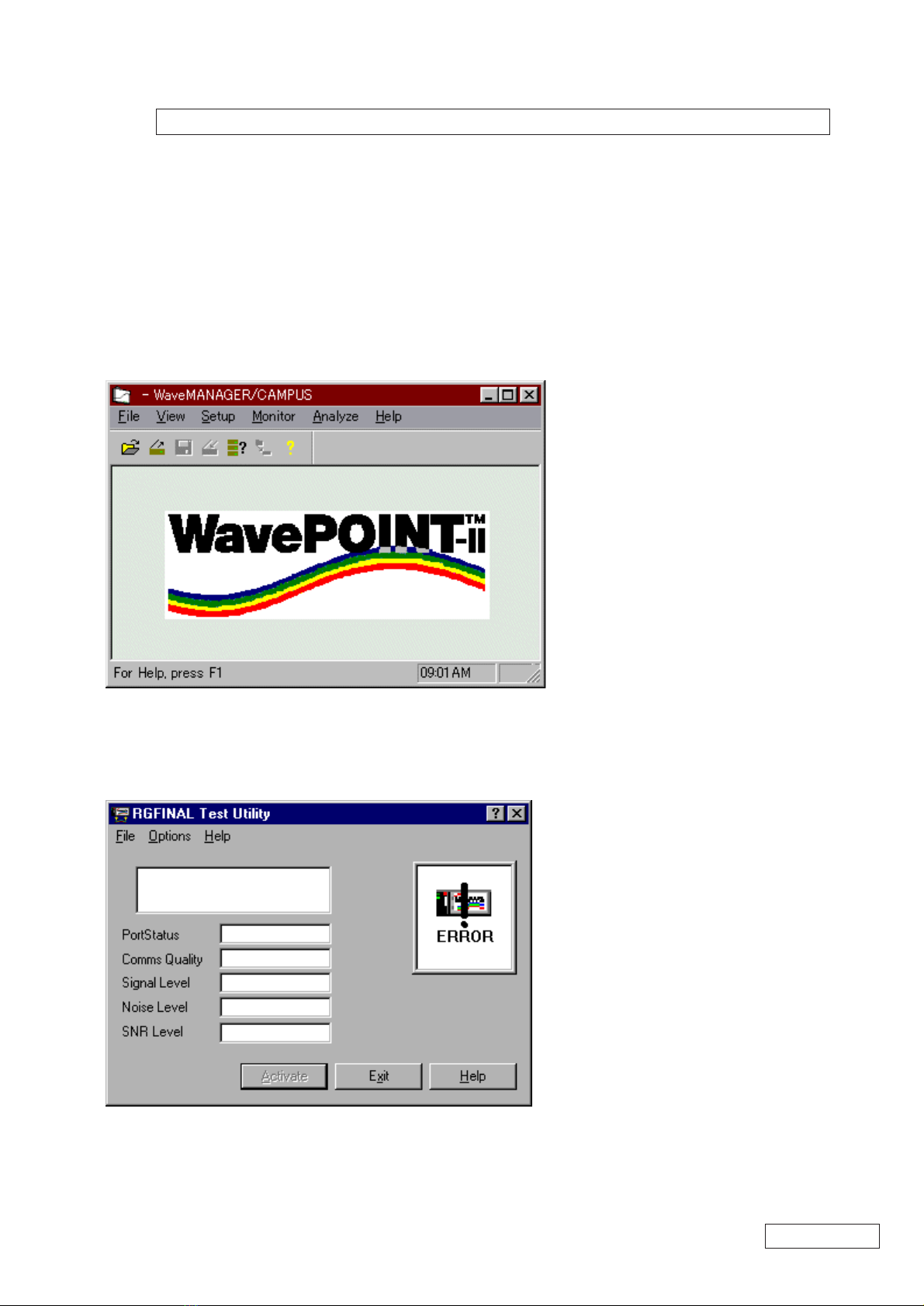
Start up [RGFinal1.exe] of the notebook PC.
∗If the OS of the notebook PC is not Windows 95 version 4.00.950, proceed to “2-1-3-B”.
Connect the AC adapter to the outlet.
Connect the cross cable for Ethernet to the Ethernet terminal of the desktop PC.

2-2PCWA-A100/C100 (UC)
Confidential
2-1-2. Inspecting the Access Point and PC Card
Inspecting theAccess Point
Refer to “Inspection Setup Diagram” of Section 2-6, “How to Return to the Factory Settings”.
(Be sure to perform the inspection using the factory settings.)
Completely insert the DC plug of the AC adapter into the DC jack of the Access Point to be analyzed.
Insert the connector of the opposite end of the Ethernet cross cable connected to the desktop PC into the Ethernet terminal of theAccess Point
until a click is heard.
Confirm that the POWER LED of theAccess Point lights in green.
Insert the standard PC Card for inspection into the notebook PC.
Inspecting the PC Card
Refer to “Inspection Setup Diagram” of Section 2-6, “How to Return to the Factory Settings”.
Completely insert the DC plug of the AC adapter into the DC jack of the standard Access Point for inspection.
Insert the connector of the opposite end of the Ethernet cross cable connected to the desktop PC into the Ethernet terminal of theAccess Point
until a click is heard.
Confirm that the POWER LED of theAccess Point lights in green.
Insert the PC Card to be analyzed into the notebook PC.
2-1-3. Wireless LAN LinkTest
A: When Windows 95 version 4.00.950 is selected as OS of the notebook PC in “2-1-1 Preparation for Inspection - B”.
Notebook PC: Confirm that “FAIL” is displayed.
Enter the six-digit ID of the Access Point in the largest field and press the [Return] key.
ID Label Location
Line for ID Label
ID:123456
Sn:00UT12345678
Pn:012756
ID Label

2-3 PCWA-A100/C100 (UC)
Confidential
Confirm that “PASS” is displayed.
If “FAIL” is displayed, check the six-digit ID number and enter it again.
If “FAIL” is displayed again when the ID number is reentered, do the following.
• When inspecting the Access Point:
Judge the Access Point as defective.
• When inspecting the PC Card:
Judge the PC Card as defective.
B: When Windows 95 version 4.00.950 is not available in “2-1-1 Preparation for Inspection - B” to be used for inspecting of notebook PC:
Before starting inspection, complete setup of the notebook PC prepared in “2-4. Inspection Procedure of Access Point Modem” by
referring to “2-4-1 Preparation”.
Wireless LAN Link Test
1. Complete “2-1-2 Inspecting the Access Point and PC Card”.
2. Follow the procedure on pages 44 to 46 of the PCWA-C100 Instruction Manual to establish the communication with the standardAccess
Point for inspection or the Access Point to be analyzed.
3. Follow the procedure on page 48 of the PCWA-C100 Instruction Manual to establish the communication with the standard Access Point
for inspection or the Access Point to be analyzed.
4. If the communication with the standardAccess Point for inspection or theAccess Point to be analyzed cannot be checked, return to page
46 of the PCWA-C100 Instruction Manual and repeat checking the communication from [Select].
5. If the communication still cannot be established:
• When inspecting theAccess Point: Judge the Access Point as a defective point.
• When inspecting the PC Card: Judge the PC Card as a defective card.

2-4PCWA-A100/C100 (UC)
Confidential
2-1-4. Ethernet LinkTest
Desktop PC:
Select [Select Another Device] from [Analyze] of theAmea.exe menu of the desktop PC.
Click the [Scan] button.
Select the searched access point and click the [OK] button.
Confirm that the Remote IP Address is already entered and click the [OK] button.

2-5 PCWA-A100/C100 (UC)
Confidential
After “Device located” is displayed, click the [OK] button.
Select [Wireless Link Test] from [Analyze] of the Amea.exe menu.
Select the searched station name and click the [Link Test] button.

2-6PCWA-A100/C100 (UC)
Confidential
Confirm that “Good” is displayed in the Link Quality item.
If a message other than “Good” (Acceptable, Poor, No Connection) is displayed, do the procedure again from the beginning of Section 2-1-
4, “Ethernet Link Test”.
If a message other than “Good” is displayed even when the test is executed again, do the following.
• When inspecting the Access Point:
Judge the Access Point as defective.
• When inspecting the PC Card:
Judge the PC Card as defective.
Otros manuales para PCWA-A100 - Wireless Lan Access Point
4
Este manual sirve para los siguientes modelos
1
Tabla de contenidos
Otros manuales de Punto de acceso inalámbrico de Sony

Sony
Sony PCWA-A320 Manual de usuario

Sony
Sony PCWA-A100 - Wireless Lan Access Point Manual de usuario

Sony
Sony Vaio PCWA-A500 Manual de usuario

Sony
Sony CarrierGate PCWA-A220 Hoja de instrucciones

Sony
Sony PCWA-A100 - Wireless Lan Access Point Manual de usuario

Sony
Sony CarrierGate PCWA-A220 Manual de usuario

Sony
Sony PCWA-A100 - Wireless Lan Access Point Manual de usuario

Sony
Sony PCWA-A100 - Wireless Lan Access Point Manual de usuario

Sony
Sony Vaio PCWA-A500 Manual de usuario

Sony
Sony CarrierGate PCWA-A220 Manual de usuario


