
Socket CompactFlash 56K Modem Card Manual de usuario

Cordless 56K Modem
with Bluetooth®Wireless Technology
Cordless modem for any Bluetooth enabled PDA, notebook
or tablet computer that supports a Dial-up Networking client
User’s Guide
No software
installation
required!

5/2007 Document # 6410-00232 F
Copyright Notice
Copyright © 2007 Socket Communications, Inc. dba Socket Mobile, Inc.
All rights reserved.
Socket, the Socket logo and Battery Friendly are registered trademarks of
Socket Communications, Inc. dba Socket Mobile, Inc. Cordless 56K
Modem with Bluetooth Wireless Technology and Mobility Friendly are
trademarks of Socket Communications, Inc. dba Socket Mobile, Inc. The
Bluetooth word mark and logos are owned by the Bluetooth SIG, Inc., and
any use of such marks by Socket Mobile, Inc. is under license. All other
brand and product names are trademarks of their respective holders.
The Cordless 56K Modem contains technology licensed under United
States Patent No. D519,993 S
Reproduction of the contents of this manual without the permission of
Socket Mobile is expressly prohibited. Please be aware that the products
described in this manual may change without notice.
Feel free to contact Socket Mobile at:
Socket Mobile, Inc.
39700 Eureka Drive
Newark, CA 94560-4808
USA
Other than the above, Socket Mobile can assume no responsibility for
anything resulting from the application of information contained in this
manual.
Socket Mobile requests that you refrain from any applications of the
Cordless 56K Modem with Bluetooth Wireless Technology that are not
described in this manual. Socket Mobile also requests that you refrain from
disassembling the product. Disassembly of this device will void the product
warranty.
You can track new product releases, software updates and technical
bulletins by visiting the Socket website at: www.socketmobile.com.
2

Table of Contents
Copyright Notice 2
1 | INTRODUCTION 5
Optional Software for Windows Mobile 5
System Requirements 6
Package Contents 7
Product Registration 7
About the Power Switch and LEDs 8
2 | SETUP FOR WINDOWS MOBILE 9
STEP 1: Charge the Modem 10
STEP 2: Prepare Dial-up Information 10
STEP 3: Install the Software 11
STEP 4: Complete the Connection Setup Wizard 14
STEP 5: Connect to a Telephone Line 16
STEP 6: Dial and Connect 16
Socket Modem Utilities 24
Manually Setting up a Bluetooth Connection 26
3 | SETUP FOR PALM OS 28
STEP 1: Charge the Modem 29
STEP 2: Prepare Dial-up Information 29
STEP 3: Connect Modem and PDA with Bluetooth 30
STEP 4: Set up Your Dial-up Connection 33
STEP 5: Dial and Connect 34
4 | SETUP FOR WINDOWS 98SE/ME/2000/XP 35
STEP 1: Charge the Modem 36
STEP 2: Prepare Dial-up Information 36
STEP 3: Connect Modem and PC with Bluetooth 37
STEP 4: Make Sure a Virtual Bluetooth Modem Is Installed 38
STEP 5: Set up Your Dial-up Connection 39
STEP 6: Dial and Connect 43
Advanced Networking 44
5 | SETUP FOR WINDOWS XP TABLET EDITION 46
STEP 1: Charge the Modem 47
STEP 2: Prepare Dial-up Information 47
STEP 3: Turn on the Bluetooth Radio 48
STEP 4: Connect Modem and Tablet with Bluetooth 49
STEP 5: Set up Your Dial-up Connection 53
STEP 6: Dial and Connect 55
3

6 | SETUP FOR MAC OS X 57
STEP 1: Charge the Modem 57
STEP 2: Prepare Dial-up Information 57
STEP 3: Connect Modem and Notebook with Bluetooth 58
STEP 4: Set up Your Dial-up Connection 60
STEP 5: Dial and Connect 61
APPENDICES
A | SPECIFICATIONS 62
B | NETWORK INFORMATION 64
C | MANUAL DIAL-UP CONNECTION SETUP 65
D | ADVANCED SOFTWARE INSTALLATION 69
E | FAXING 70
F | TECHNICAL SUPPORT 71
LIMITED WARRANTY 72
REGULATORY COMPLIANCE 74
4

1| Introduction
Why sit confined at a desk when you can check
email and browse the Web while lounging in bed?
The Cordless 56K Modem with Bluetooth
Wireless Technology lets you comfortably access
the Internet from your Pocket PC, Palm PDA,
Windows notebook or tablet PC without any
cables tying you down.
Cellular coverage isn’t ubiquitous, and not all hotels have LAN or Wi-Fi,
but virtually every place you go will have telephone access. Plus, the
modem avoids the hassles of spotty cellular data service, cellular network
incompatibility or expensive roaming charges.
Just connect the Cordless 56K Modem to any analog phone line, make a
Bluetooth connection with your mobile computer, and enjoy up to 328 ft
(100 m) of wireless freedom. You can use the Cordless 56K Modem with
almost any Bluetooth enabled mobile computer that supports a Dial-up
Networking client. No software is required —the Socket Cordless 56K
Modem works right out of the box!
Optional Software for Windows Mobile
Socket software for Windows Mobile is optional to install but highly
recommended because of the great features it offers.
Socket Connect!Agent greatly simplifies Bluetooth by working in the
background to manage the wireless connection between the Pocket PC and
the Cordless 56K Modem. Bluetooth configuration and setup are automated,
providing a hassle-free Bluetooth experience to the user.
Follow the Socket Connection Setup wizard to quickly and
easily set up a dial-up connection to your Internet Service Provider
or office network.
Socket Modem Utilities software enables you to take advantage
of the modem’s v.92 features, program the modem for different
country codes, and adjust the speaker volume.
Get software updates free at: www.socketmobile.com/support/downloads
CHAPTER 1: INTRODUCTION 5

About V.92 Quick Connect
Quick Connect is a V.92 modem specification that reduces the time needed
to establish a connection via faster handshaking. Handshaking (which
makes all the noise you hear while dialing in) typically takes 25-27
seconds, but with Quick Connect, lasts only about half as long.
When enabled with Quick Connect, the Cordless 56K Modem will store
data about the last connection — or in other words, “train” itself for the last
phone line used. While dialing into a network, the Cordless 56K Modem
will compare the phone line characteristics with the stored data, and if a
match is found, the handshake starts using previous settings. Quick Connect
is convenient if you plan to repeatedly use the Cordless 56K Modem with
the same phone line, for example the phone line in your hotel room.
IMPORTANT! If you plan to use your modem in different
locations, Socket recommends that you disable the Quick
Connect feature.
If you enable Quick Connect but use the modem in
different locations, the connection may take twice as long
to establish because it searches for the previous line
characteristics before trying to connect to the new line.
System Requirements
Your mobile computer should meet these minimum requirements:
•Bluetooth wireless technology
•Support for a Bluetooth Dial-up Networking Client
Minimum requirements for Socket software:
•Windows Mobile 2003/2003SE/5.0
•ActiveSync 4.0 or greater
•Connect!Agent: Additionally, your Pocket PC must have the Broadcom
(Widcomm), Microsoft or Socket (SD/CF card) Bluetooth stack*
Note: If your Pocket PC is not compatible with Connect!Agent, or if you do
not want to install it, use your device’s Bluetooth software.
V.92 Quick Connect requires a V.92 Internet Service Provider.
*Socket Connect!Agent is not compatible on Windows Mobile 5.0 devices using the
Socket SD/CF Bluetooth card.
6

WARNING! Do not plug the modem into a digital Private
Branch Exchange (PBX) line. The modem will not work and
may be damaged.
Package Contents
•Cordless 56K Modem with Bluetooth Wireless Technology
•Retractable RJ-11 phone cable
•AC adapter with international plugs for U.S., U.K., Europe and Australia
•Socket 56K Modem Installation CD
•The battery-powered version of the modem also includes a
rechargeable lithium-ion battery and nylon travel pouch
Product Registration
Socket highly recommends that all customers register their Socket products.
Registered users receive the following benefits:
•Priority for technical support
•Special offers for future products and product upgrades
•The latest new product information
To register your product online, visit:
www.socketmobile.com/support/support/new
CHAPTER 1: INTRODUCTION 7

About the Power Switch and LEDs
Power Switch
Position Status Meaning
Down Off The battery-powered version will recharge if plugged
into a power suppy.
Up On The battery-powered version will run on battery
power if not plugged into a power supply. The
battery-powered version will run on AC power if
plugged into a power supply, and also recharge.
Status Indicator LEDs
LED LED Activity Meaning
Off No data is being transferred to the phone
line.
Blinking Green Data is being transferred to the phone line.
Modem
Status
Solid Green Connected with no data transmission.
Off No Bluetooth connection.
Bluetooth
Status
Blinking Blue Bluetooth connection established. Modem
ready to transmit data.
Blinking Green Adequate battery level (more than 10%
charged).
Battery
Level
Blinking Red Low battery level (less than 10% charged).
Recharge immediately.
Off Power supply not plugged in.
Solid Green Power supply plugged in, more than 90%
charged.
Battery
Charging
Status
Solid Amber Power supply plugged in, less than 90%
charged.
8
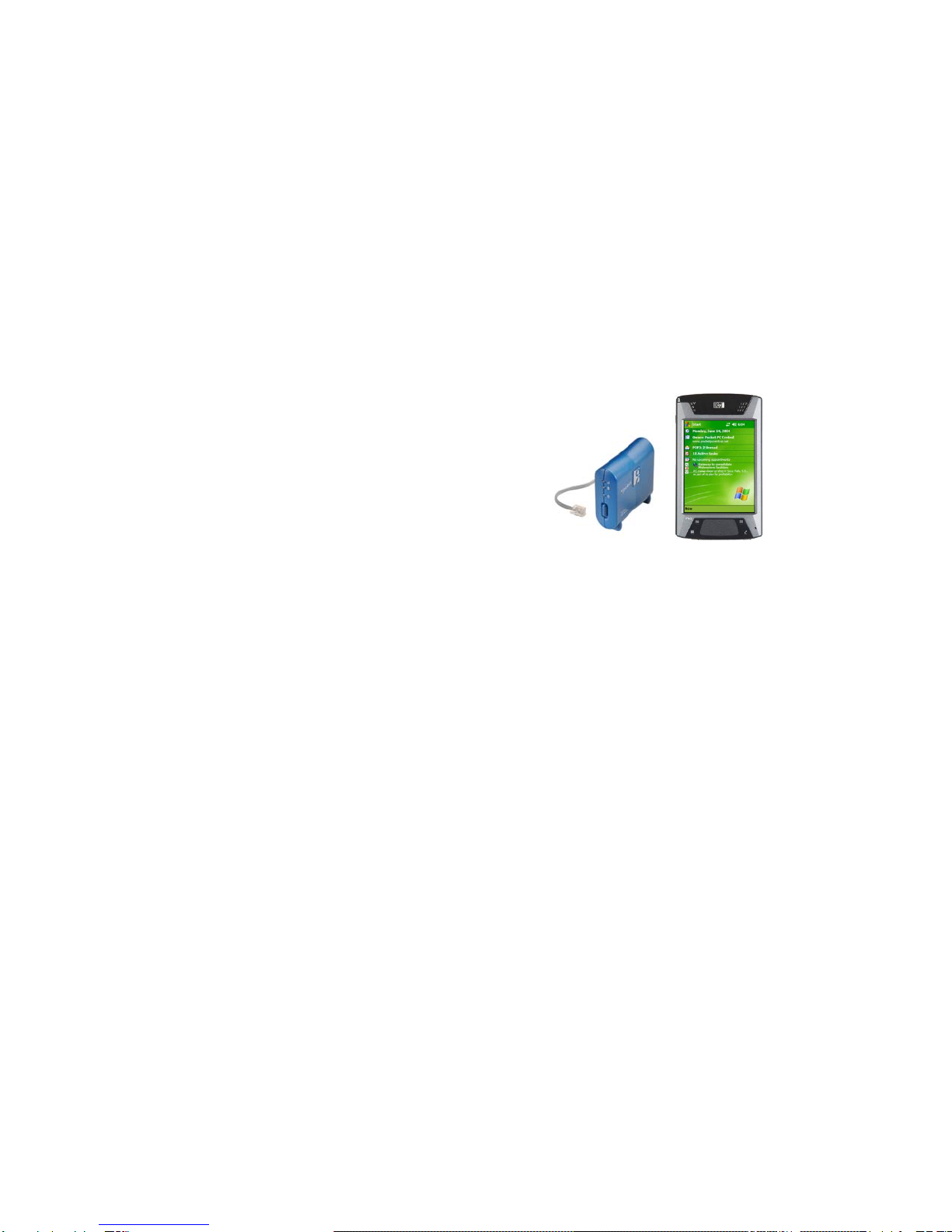
2 | Setup for Windows Mobile
This chapter explains how to install and use the Cordless 56K Modem with
a Pocket PC. Socket has developed a comprehensive suite of software
(optional to install) which is designed to enhance your experience of using
the Cordless 56K Modem with Pocket PCs. Socket’s software applications
for Pocket PCs include Connect!Agent Bluetooth software, the Connection
Setup Wizard, Modem Utilities and modem drivers.
Setup Summary
STEP 1: Charge the modem.
STEP 2: Prepare dial-up information.
STEP 3: Install the software.
STEP 4: Complete the Connection Setup Wizard.
STEP 5: Connect to a telephone line.
STEP 6: Dial and connect.
Socket Modem Utilities
Manually setting up a Bluetooth connection.
CHAPTER 2: SETUP FOR WINDOWS MOBILE 9

STEP 1: Charge the Modem
If you have the battery-powered version of the Cordless 56K Modem and
want to run it on battery power, use the AC adapter to charge the modem. It
may take up to four hours to reach full charge.
The Battery Charging Status LED will be amber when the battery
is less than 90% charged and green when at least 90% charged.
STEP 2: Prepare Dial-up Information
Obtain the following information from your network administrator or ISP.
Dial-up number: (_____) _______________________________
User name: __________________________________________
Password: ___________________________________________
ADVANCED USERS: For advanced setup, you may want to use the
Network Information Form in Appendix B. You must manually set up the
dial-up connection in order to configure advanced connection properties,
as described in Appendix C. Do not use Socket’s Connection Setup Wizard
to set up the dial-up connection.
10
Otros manuales para CompactFlash 56K Modem Card
2
Tabla de contenidos
Otros manuales de Módem de Socket

Manuales populares de Módem de otras marcas


US Robotics
US Robotics 3453C Manual de usuario

MaxTech
MaxTech Plug & Play Internal Voice/FAX/Data/SVD... Manual de usuario

Zte
Zte MF823 Manual de usuario

Four-Faith
Four-Faith F1403 Manual de usuario

Sierra Wireless
Sierra Wireless AIRLINK MP595W Manual de usuario

Gemtek
Gemtek WiMAX WIXFBR-103 Manual de usuario