Snom UC edition 760 Manual de usuario

Your specialist retailer - Ihr Fachhändler -
Votre distributeur - Su distribuidor - Il tuo rivenditore:
© 2013 snom technology AG
V1.02
snom technology AG
Wittestr. 30 G
13509 Berlin, Deutschland
Tel. +49 30 39 83 3-0
Fax +49 30 39 83 31 11
snom technology, Inc.
18 Commerce Way, Suite 6000
Woburn, MA 01801, USA
Tel. 781-569-2044
Fax 978-998-7883
infoU[email protected]
snom UK Ltd
Amethyst House, Meadowcroft Way
Leigh Business Park, Leigh
Manchester WN7 3XZ, UK
Tel. +44 169 348 7500
Fax +44 169 348 7509
snom France SARL
6 Parc des fontenelles
78870 Bailly, France
Tel. +33 1 80 87 62 87
Fax +33 1 80 87 62 88
snom technology SRL
Via A. Lusardi 10
20122 Milano, Italia
Tel +39 02 00611212
Fax +39 02 93661864
snom technology Ltd.
Rm. A2, 3F, No. 37, Ln. 258
Ruiguang Rd., Neihu Dist.
Taipei City 114, Taiwan
Tel +886-2-8751-1120
Fax +886-2-8751-1130
User Guide
and the
Using the
with

2
TABLE OF CONTENTS
Copyright, Trademarks, GPL, Legal Disclaimers ......................................................5
Using the phone with snom UC Edition ......................................................................6
Brief introduction to input modes and navigation ...............................................................6
Entering numerals, letters, special characters, and symbols ...........................................6
Logon ....................................................................................................................................7
Using extension number and PIN ...........................................................................................7
Using SIP URI, domain\username, and password .............................................................8
Logoff ............................................................................................................................................9
Getting to know your phone ........................................................................................10
Display layout ............................................................................................................................10
Context-sensitive function keys ............................................................................................10
Function keys ........................................................................................................................... 11
Call indicator ............................................................................................................................ 12
Message key ............................................................................................................................. 12
Rebooting the phone .............................................................................................................. 12
Changing your Presence status ..................................................................................13
Configuring presence and speed dial keys ..............................................................14
Presence keys .......................................................................................................................... 14
Using Presence function keys ........................................................................................ 14
Configuring Presence function keys for Contacts ..................................................... 14
Speed dial keys ....................................................................................................................... 15
Using speed dial keys ....................................................................................................... 15
Configuring speed dial keys ............................................................................................ 15
Boss/admin function ......................................................................................................17
Configuring the boss/admin function ................................................................................. 17
Boss ...................................................................................................................................... 17
Selecting the admin/delegate .............................................................................. 17
Putting your delegate on a function key ............................................................ 20
Admin/delegate .................................................................................................................. 21
Using the boss/admin function ............................................................................................ 22
Boss ...................................................................................................................................... 22
Admin/delegate .................................................................................................................. 23
One-touch reactivation of boss/admin function ............................................................... 24
Required setting ................................................................................................................. 24
Turning on call forwarding ................................................................................................ 24
Reactivating simultaneous ringing of boss/admin phones ....................................... 27

3
Calling Contacts and Address Book entries ...........................................................28
Looking up Contacts .............................................................................................................. 28
Address Book Search (ABS) ............................................................................................... 29
Transferring calls .............................................................................................................30
What are the different transfer procedures? .................................................................... 30
Attended transfer ............................................................................................................... 30
Unattended (blind) transfer ............................................................................................. 30
Safe unattended/blind transfer ....................................................................................... 30
Transfer cheat sheet ............................................................................................................... 31
Attended transfer ..................................................................................................................... 32
Transferring calls to manually dialed numbers - attended ........................................ 32
Transferring calls to Presence keys - attended ........................................................... 33
Transferring calls to speed dial numbers - attended ................................................. 34
Transferring calls to Contacts - attended .................................................................... 35
Transferring calls to Directory lookup - attended ....................................................... 36
Unattended transfer ................................................................................................................ 37
Transferring calls to manually dialed numbers - unattended ................................... 37
Transferring calls to Presence keys - unattended ...................................................... 38
Transferring calls to speed dial numbers - unattended ............................................ 39
Transferring calls to Contacts - unattended ................................................................ 40
Transferring calls to Directory lookup - unattended ................................................... 41
Safe transfer ............................................................................................................................. 43
Transferring calls to manually dialed numbers safely ................................................ 43
Transferring calls to Presence keys safely ................................................................... 44
Transferring calls to speed dial numbers safely .......................................................... 45
Transferring calls to Contacts safely ............................................................................. 46
Transferring calls to Directory lookups safely .............................................................. 47
Transferring calls directly to Voicemail ............................................................................... 48
Parking and retrieving parked calls ...........................................................................49
Parking calls ............................................................................................................................. 49
Retrieving calls ......................................................................................................................... 49
Unretrieved calls ringing back .............................................................................................. 50
Call history ........................................................................................................................51
Looking up missed, received, and dialed calls ................................................................. 51
Looking up parked calls ......................................................................................................... 51
Hold .....................................................................................................................................53
One call on hold ...................................................................................................................... 53
Holding multiple calls ............................................................................................................. 53

4
Conference - local conference on phone .................................................................55
Initiating a conference ............................................................................................................ 55
Conference screen navigation ............................................................................................. 55
Speaking to one participant in private ................................................................................ 55
Putting one participant on hold ............................................................................................ 56
Dropping a participant ........................................................................................................... 56
Adding a participant ............................................................................................................... 56
Putting the conference on hold ............................................................................................ 56
Terminating the conference ................................................................................................... 56
Call forwarding .................................................................................................................57
Turning call forwarding on ..................................................................................................... 57
Turning call forwarding off ..................................................................................................... 57
Settings menu ..................................................................................................................58

5
snom UC Edition and snom 760 Copyright, Trademarks, GPL, Disclaimers
Copyright, Trademarks, GPL, Legal Disclaimers
© 2013 snom technology AG. All Rights Reserved.
snom, the names of snom products, and snom logos are trademarks owned by snom technology AG.
Microsoft®and LyncTM are the property of Microsoft Corporation. All other product names and names
of enterprises are the property of their respective owners.
Product specifications are subject to change without notice.
snom technology AG reserves the right to revise and change this document at any time, without being
obliged to announce such revisions or changes beforehand or after the fact.
Texts, images, and illustrations and their arrangement in this document are subject to the protection of
copyrights and other legal rights worldwide. Their use, reproduction, and transmittal to third parties
without express written permission may result in legal proceedings in the criminal courts as well as civil
courts.
When this document is made available on snom’s web page, snom technology AG gives its permission
to download and print copies of its content for the intended purpose of using it as a manual. No parts
of this document may be altered, modified or used for commercial purposes without the express written
consent of snom technology AG.
Although due care has been taken in the compilation and presentation of the information in this
document, the data upon which it is based may have changed in the meantime. snom therefore
disclaims all warranties and liability for the accurateness, completeness, and currentness of the
information published, except in the case of intention or gross negligence on the part of snom or where
liability arises due to binding legal provisions.
Our firmware includes some source code that may be used and modified by anyone and everyone
under the GNU Public License (GPL), provided they, in turn, make it available to everyone else with the
same licensing agreement. Please go to http://www.snom.com/en/support/download/gpl-quellcode/
for the original GPL license and the source code of components licensed under GPL and used in
snom products.

6
snom UC Edition and snom 760 Using the phone with UC Edition
Using the phone with snom UC Edition
This guide describes the use of phones running snom UC Edition firmware version 8.8.2.10 with
Microsoft LyncTM. As long as the phone is connected to your network and the Lync server, it will use
the data in your Lync account, even when your computer is turned off or when you are not signed in to
Lync on your PC.
For more information on setting up and connecting the hardware and for any other information not
covered in this User Guide for UC Edition, please refer to the snom 760 User Manual which you can
download from snom's web page at www.snom.com.
Brief introduction to input modes and navigation
Directories, call lists,
contact list, favorites
Input modes:
123: Numerals
abc: Small letters
ABC: Capital letters
Delete character to
the left of the cursor
Current input mode:
Next input mode:
Redial
Move cursor to the left
Move cursor to the right
:
:
Changing input mode:
The current input mode is indicated in the information line. Press the left function key underneath the
display to switch to the input mode indicated by the symbol directly above it in the function key line.
Text in Information Line
= current input mode
Press function key to switch to input mode
indicated by symbol in Function Key Line
123
abc
ABC
Entering numerals, letters, special characters, and symbols
When entering letters and special characters, pause briefly after each character until the cursor has
moved forward so that you won't write over the last character you entered. Pausing is not necessary
when entering numerals.

7
snom UC Edition and snom 760 Logon and logoff
Logon
The data you need to log on depends on the setup of your network and on the Lync server. After
connecting the phone to your network, you will see a screen like the following:
Using extension number and PIN
In the default configuration, the required login data is the extension number and the PIN.
1. Enter the extension number and press .
2. Enter the PIN and press .
3. If this login is successful, the phone will switch to the "signing in" screen and then show the idle
screen with your Lync account.
4. If the login is unsuccessful, either because of a typo or because the network will not accept the
data, the phone will start over at the prompt to press any key and then repeat the prompts for
entering the extension and the PIN.

8
snom UC Edition and snom 760 Logon and logoff
Using SIP URI, domain\username, and password
If the required data for the logon is SIP URI, domain\username, and password, you can switch to this
logon method by pressing .
Entering special characters in letter mode:
◦Press once to enter the period ".".
◦Press three times to enter "@".
◦Press twelve times to enter the backslash "\".
◦Use to delete the character to the left of the prompt; use / to move the cursor
to the left/right.
2. Enter the domain\username and press . The format is "test\my.name".
3. Enter the password and press .
4. If this login was successful, the phone will switch to the "signing in" screen and then show the idle
screen with your Lync account. If the login is unsuccessful, either because of a typo or because
the network will not accept the data, the phone will show the "Welcome" screen again and prompt
you to enter the extension number and the PIN.

9
snom UC Edition and snom 760 Logon and logoff
Logoff
1. Press to open the Settings menu.
2. Press to open the Identity menu.
3. Press to open Logoff User screen.
4. If there is more than one user logged in, use the top and bottom arrows / on the navigation
key to select the one to be logged off.
5. Press to log off the selected user. If you have changed your mind, press to exit without logging
off.

10
snom UC Edition and snom 760 Getting to know your phone
Getting to know your phone
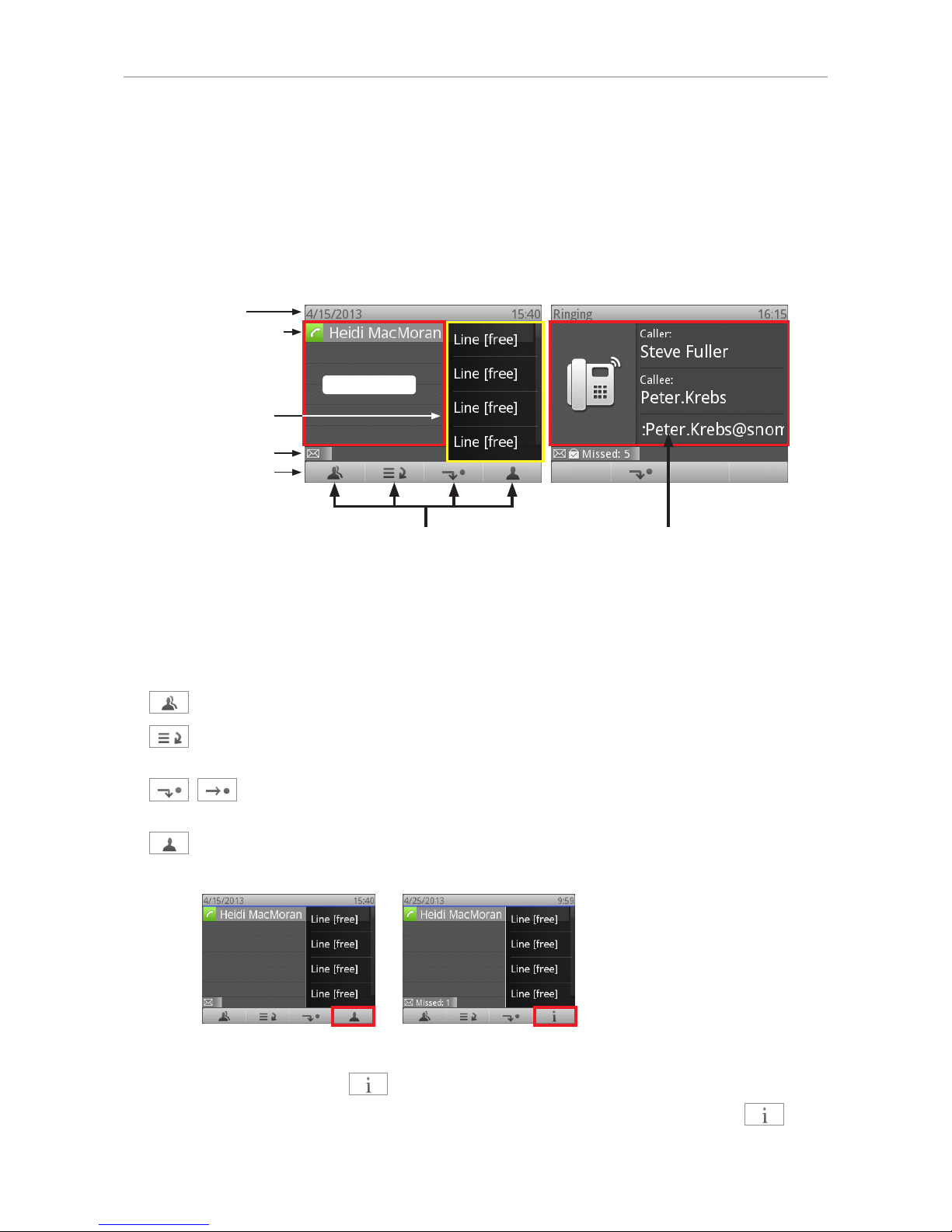
Display layout
Infobar
Logged-in identity
with status symbol
Status line
Line info layer
Function key line
Context area
When active
Context-sensitive function key symbols
In idle mode
Context area
Context-sensitive function keys
In the default configuration of the idle screen the four context-sensitive keys underneath the display
have the following functions:
Contacts list. For more information, see "Looking up Contacts" on page 28.
Call lists (missed, received, dialed, and parked calls). For more information, see "Call
history" on page 51.
Forwarding of all incoming calls (on/off). For more information, see "Call forwarding"
on page 57.
Overriding system presence indication and manually setting your presence state. For more
information, see "Changing your Presence status" on page 13.
Fig. 1 Fig. 2
◦When the phone has received new notifications, the presence icon in Fig. 1 is replaced by
the status info icon (Fig. 2).
◦To bring the presence icon back onscreen, press the function key underneath to
open the status info screen.
Otros manuales para UC edition 760
3
Tabla de contenidos
Otros manuales de Teléfono IP de Snom

Snom
Snom d745 Manual de usuario

Snom
Snom 300 Manual de usuario

Snom
Snom 100 Manual de instrucciones

Snom
Snom D717 Manual de usuario

Snom
Snom 300 Manual de usuario

Snom
Snom M25 Manual de usuario

Snom
Snom 720 Manual de usuario

Snom
Snom 300 Manual de usuario

Snom
Snom D120 Manual de usuario

Snom
Snom 720 Manual de usuario

Snom
Snom Vodafone 821 Manual de usuario

Snom
Snom D785 Manual de usuario

Snom
Snom D315 Manual de usuario

Snom
Snom 220 Manual de usuario

Snom
Snom 320 Manual de usuario

Snom
Snom 360 Manual de usuario

Snom
Snom 720 Manual de usuario

Snom
Snom 320 Manual de usuario

Snom
Snom M700 Guía de referencia rápida

Snom
Snom 360 Manual de usuario