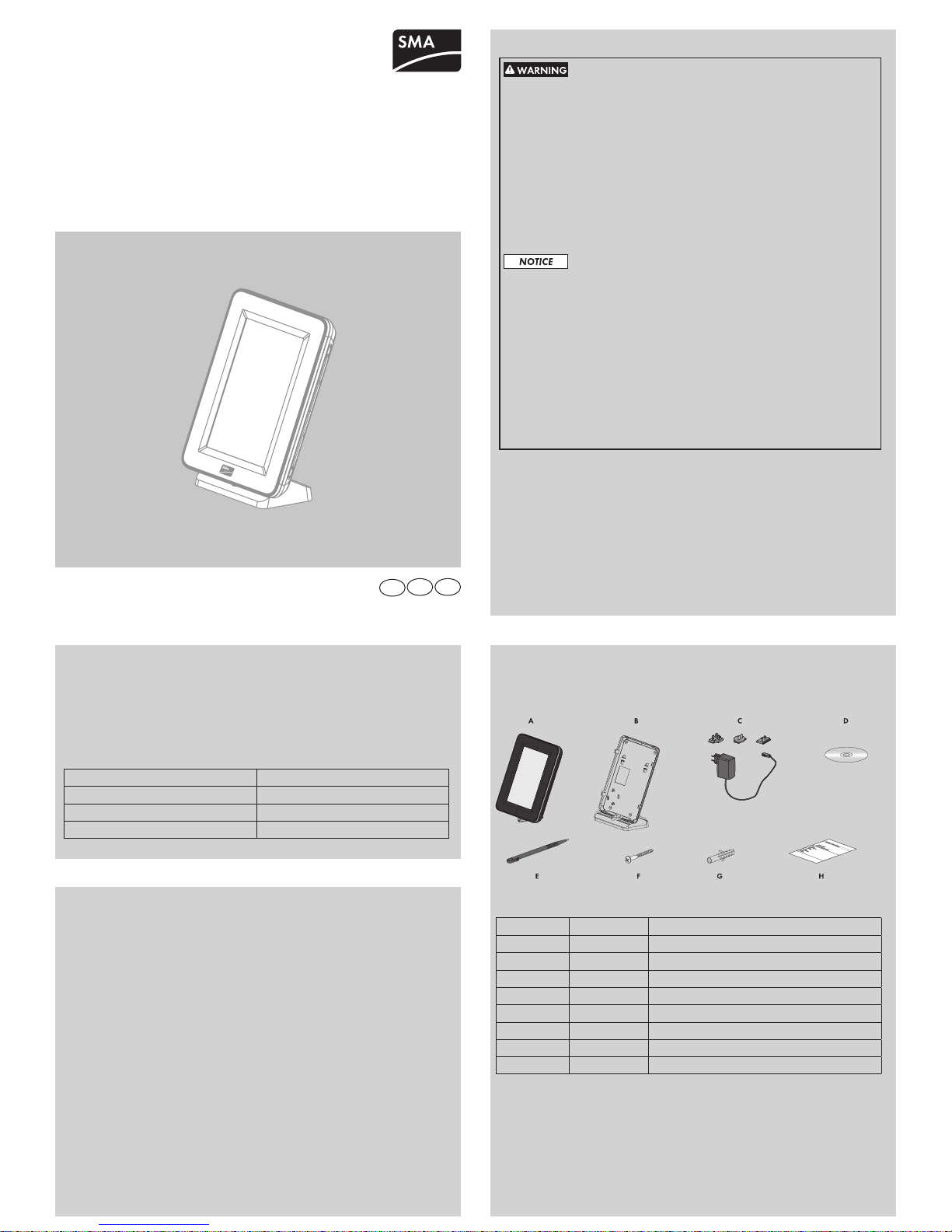
Requirements:
☐ ThesamefreeNetIDissetforalldevices.
☐ AlldevicesofthePVplantarereadyforoperation.
☐ ThePVplantconsistsoffewerthan12inverters.
1. Connect the plug‑in power supply to the
powersupplylineoftheSunnyView.
2. Connect the plug‑in power supply to the socket‑outlet.
☑The SMA logo appears.
3. Select the desired language.
4. Select a country.
TheNetIDservestodistinguishPVplantswithBluetooth in close proximity of each
other.AlldevicesinaPVsystemmusthavethesameNetID.
TheNetIDcanbeanumberfrom1to9oraletterfromAtoF.NetID0
deactivates the Bluetoothmodule.NetID1enablesaBluetooth connection with
one device.
AfreeNetIDisaNetIDthatisusedbynootherPVplantwithSMABluetooth in
your vicinity.
Target Group
This task must be performed by a skilled person.
Requirement:
☐The BluetoothdevicesofyourPVplantmustbeturnedoff.
1. CommissiontheSunnyViewatthevariouslocationsofeachBluetooth
enableddevice(seeSection"Commissioning").
☑ Duringcommissioning,SunnyViewwillsearchforallPVplantsanddisplay
theassignedNetIDs.
2. SelectafreeNetIDandcongureallBluetooth enabled devices
(see installation manual of the device).
DETERMINING A FREE NETID
5. Select [Next].
☑ Thefollowingmessageappears:"Would you like to search for a new plant?"
6. Select [Search].
☑ TheSunnyViewsearchesforallPVplantsinitsenvironment.
☑ AlltheNetIDsthatwerefoundwillbedisplayedafterthesearch.
7. IftheNetIDofyourPVplantdoesnotappear,select[Repeat search].
☑ TheSunnyViewdisplaystheselectedNetID.
✖ IstheSunnyViewnotdisplayingtheselectedNetID?
• ReducethedistancebetweentheSunnyViewandthedevice.
• ChecktheNetIDsettingofthedevices.
8. SelecttheNetIDofyourPVplant.
9. Select [Next].
☑ TheSunnyViewestablishesaconnectiontothePVplant.
☑The password prompt appears.
10. Enterthepasswordfortheusergroup"User".Tip:Thedefaultpasswordis
"0000".
11. Select [Next].
☑ SunnyViewconnectstothePVplant.
12. Ifyouwanttousethe24-hourformatforthetimedisplay,selectthe
[24-hour format] checkbox.
13. IfyouwanttoautomaticallysynchronizethetimeovertheInternet,selectthe
[Automatic]checkbox.Aftercommissioning,aWLANconnectionmustbe
established(forinformationonhowtoestablishtheWLANconnectionafter
commissioning, refer to the user manual).
14. Set the time zone, date format and time.
15. Select [Next].
☑A list of slides is displayed.
16. Selectthecheckboxesoftheslidesyouwanttodisplay.Tip:SelecttheInfo
symbol to view additional information on the slide.
17. Select [Next].
☑The home slides appear.
COMMISSIONING
Ifyouhavetechnicalproblemsconcerningourproducts,pleasecontactthe
SMAServiceLine.Werequirethefollowinginformationinordertoprovideyouwith
the necessary assistance:
• HardwareversionoftheSunnyView
• FirmwareversionoftheSunnyView
• Firmware version of the SMA Bluetooth Piggy‑Back in the inverter
(if available)
• Type and serial number of the inverter
North America
SMA Solar Technology America, LLC
6020WestOaksBlvd,Ste300
Rocklin,CA95765
Tel.+19166250870
Tel.+1877-MYSMATECH
Tel.+18776976283(Tollfree,available
for USA, Canada and Puerto Rico)
Fax+19166250871
Service@SMA‑America.com
www.SMA-America.comEuropa
Europe
SMA Solar Technology AG
Sonnenallee1
34266Niestetal,Germany
www.SMA.de
SMA Service Line
Inverters+4956195221499
Communication:+4956195222499
Fax:+4956195224699
E-Mail:ServiceLine@SMA.de
SMA Solar Technology Canada Inc.
2425MathesonBlvdE,8thFloor
Mississauga,ONL4W5K5,Canada
Tel.+18775061756(Tollfree,
available for Canada)
Service@SMA‑Canada.ca
www.SMA‑Canada.ca
CONTACT
Installation Location Requirements
☐The installation location must be indoors.
☐ Theambienttemperaturemustbebetween0°C(+32°F)and+40°C
(+104°F).
☐The installation location must be protected against dust, moisture, and
corrosive substances.
☐ Devicesthatusethe2.4GHzradiospectrum(e.g.microwaveovens)must
bekeptataminimumdistanceof1m(3ft.4in.).Thiswillpreventreduced
connection quality and decreased data transmission speed.
☐ ThedistancebetweentheSunnyViewandthedevicesthatuseSMA
Bluetooth® WirelessTechnologymustnotbetoogreat.Infree-eldconditions,
themaximumrangeis100m(328ft.).Dependingontheambientconditions,
this range may decrease.
☐There must be no sources of interference (e.g. steel walls) between the
SunnyViewanddeviceswithBluetooth.
Installing the Sunny View
1. PushthetabletopstandontothebackoftheSunnyView.
2. InstalltheSunnyViewatasuitablelocation.
Mounting the Sunny View on the Wall
1. Select the mounting location taking into consideration the requirements for the
installation location.
2. Markthedrillholesanddrillthem:(distancebetweenthedrillholes:56mm
(213 ⁄64in.),diameterofthedrillholes:6mm (15 ⁄64in.)).
3. Insertscrewanchorsintothedrillholes.
4. Screw the screws into the screw anchors.
5. HangtheSunnyViewontothescrews.
MOUNTING