Agility 4 Quick Installation Guide
8
8. Measuring and Defining the Noise Level Threshold
You can measure (“calibrate”) the background noise that the main panel detects, and also define
(“view/edit”) the acceptable threshold value, according to customer requirements.
Background noise (RF interference) is typically generated by other non-system devices operating in
close proximity to the system, and a large amount of background noise may interfere with the
system, causing “jamming.” Communication between your system’s wireless devices and the main
panel must be stronger than any detected background noise at the panel, therefore perform a
Communication test (see below) for each wireless device to check its signal strength.
Measuring the background noise level provides an indication whether the main panel is mounted at
a good location, and defining the threshold value enables you to determine how much background
noise your system will tolerate before it generates jamming events. The lower you define the
threshold value, the more “sensitive” the system will be (it will report jamming events more
frequently), and the higher you define the threshold value, the “more tolerant” the system will be (it
will report jamming events less frequently).
To measure the background noise detected by the system:
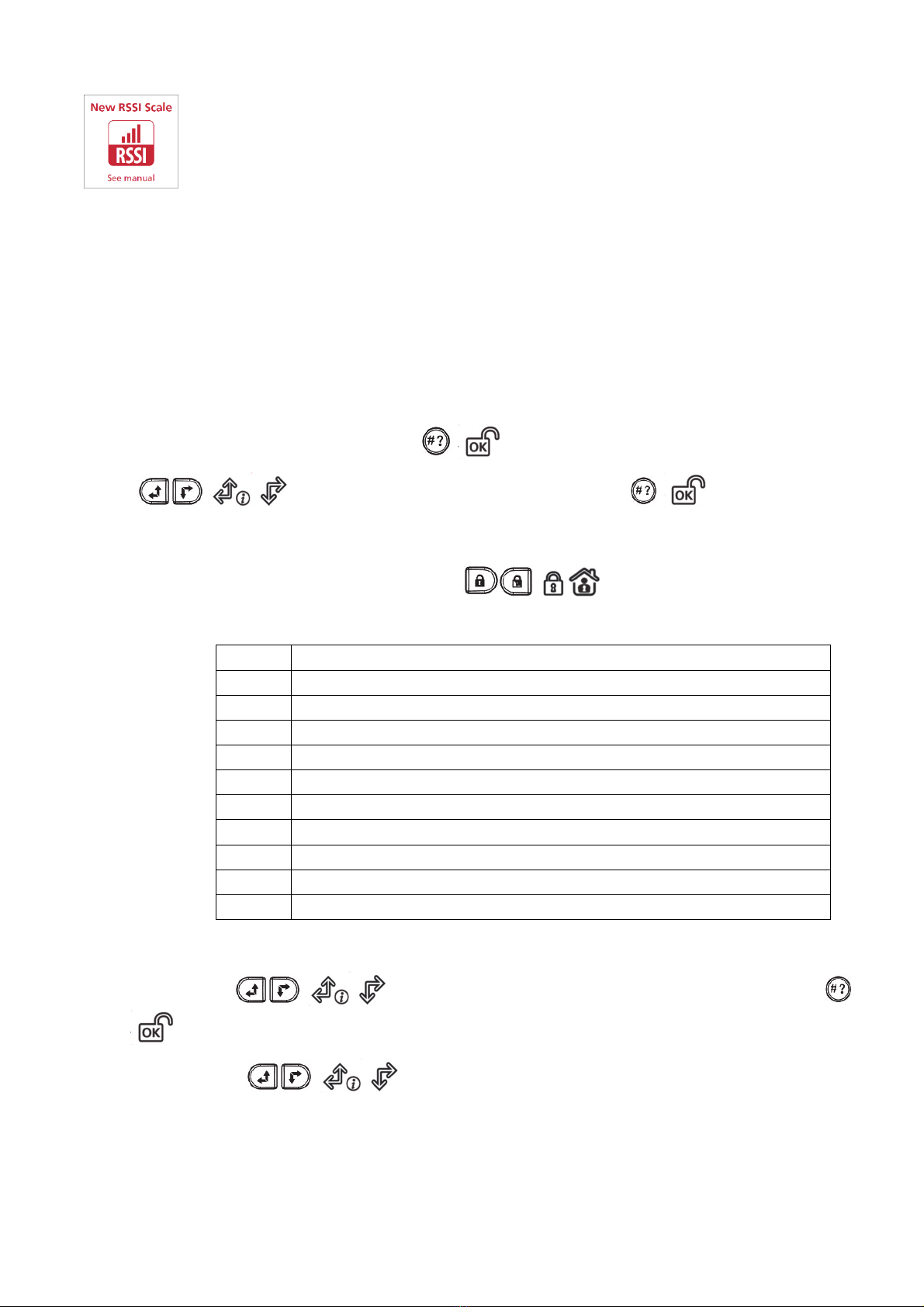
1. From the Installer menu, go to: 2)Testing > 1)Main unit > 1)Noise Level > 2)Calibrate > /
; the detected level of background noise displays.
NOTE: A lower resulting value means less background noise is detected by the system.
2. After measuring, if the resulting value is far from your defined noise level threshold value or if
it is too high (See Comm Test below for an explanation) and you believe the source of
background noise may inherent to the panel’s location , move the panel to a better location.
To define the system’s acceptable noise level threshold value:
1. From the Installer menu, go to: 2)Testing > 1)Main unit > 1)Noise Level > 1)View/Edit > /
.
2. Enter the noise level threshold value you want between 00 –99, and then press / .
NOTE: Keep in mind the lower the number you set, the more “sensitive” the system will be
(generating jamming events more frequently), and the higher the number you set, the “more
tolerant” the system will be (generating jamming events less frequently).
3. See the following Comm Test procedure for an explanation of acceptable results..
Performing a Communication Test
The Comm. test displays results of the signal strength measured after the last device transmission
(last detection or last supervision signal). Make sure to activate the detector prior to the test.
To perform a Communication Test:
1.
From the Installer menu, go to: 2)Testing > 2)Zone [or instead] 3)Keyfob, 4)Keypad, or
5)Siren] > 1)Communication Test > /.
2. Scroll with / to a zone to perform the test, a number (percentage) appears
representing the signal strength the panel received from the device: