
Repotec RP-UBI240 Manual de usuario

Network USB over IP Server
With 4-USB2.0 Port
User Manual
Version 1.2
Feb 2011


1
Table of Contents
1. Introduction..............................................................................4
1.1 Product Overview .....................................................................................................4
1.2 Network Management...............................................................................................4
1.3 Components and Features .......................................................................................4
1.4 Hardware Installation ................................................................................................4
2. The Software Installation........................................................7
2.1 For Windows XP Users.............................................................................................7
2.2 Connecting to an USB Device ..................................................................................8
2.3 Connecting to an USB Printer or Multi-functional Printer.........................................10
2.4 Disconnecting an USB Device ................................................................................11
2.5 Request to Disconnect............................................................................................12
2.6 Setting the Network USB over IP Server by Setup Utility ........................................13
2.7 For Windows 7 Users .............................................................................................15
2.8 Connecting to an USB Device ................................................................................16
2.9 Setting up Auto Connection/Auto Disconnection.....................................................17
3. WEB Management Interface .................................................21
3.1 For Windows XP and Windows 7 Users..................................................................21
3.2 WEB Page Description ...........................................................................................22
4. Troubleshooting ....................................................................28
4.1 Frequently Asked Questions...................................................................................28

Network USB over IP Server With 4-USB2.0 Port
2
Trademarks
Windows XP and Windows 7 are registered trademarks of Microsoft Corp. All other brands and
product names are trademarks of their respective companies.
Copyright
No part of this publication may be reproduced in any form or by any means or used to make any
derivative (such as translation, transformation or adaptation) without the express written
consent of the manufacturer as stipulated by the United States Copyright Act of 1976.
FCC Warning
This equipment has been tested and found to comply with the limits for a Class B digital device,
pursuant to subpart J of Part 15 of the FCC Rules. These limits are designed to provide
reasonable protection against harmful interference when the equipment is operated in a
commercial environment. This equipment generates, uses, and can radiate radio frequency
energy and, if not installed and used in accordance with the instruction manual, may cause
harmful interference to radio communications. Operation of this equipment in a residential area
is likely to cause harmful interference in which the user will be required to correct the
interference at there own expense.
All contents are subject to change without prior notice.

Network USB over IP Server With 4-USB2.0 Port
3
Chapter 1
Installation
1.1 Product Overview
1.2 Net work Management
1.3 Components and Features
1.4 Hard ware Installation

Network USB over IP Server With 4-USB2.0 Port
4
1. Introduction
1.1 Product Overview
The Network USB over IP Server enhances capability by letting you place your USB devices at
convenient locations directly on the Ethernet network. It’s designed to connect your USB
printers, MFP, and USB storage devices to your network, allowing all network users access to
these USB devices remotely.
1.2 Network Management
The Network USB over IP server supports the WEB management, which remote management
and a warning. A standard WEB server is permanent on its Network USB over IP Servers. Any
standard WEB browser can be used to access and manage the Network USB over IP server.
1.3 Components and Features
4-USB2.0 Port Network USB over IP server
․4 USB2.0 port (High-speed)
․Fast Ethernet network port: RJ-45 for 10Base-T or 100Base-TX or 1000Base-T
․4 LED to indicate USB status, 1 LED to indicate system status
․One Setup CD for Windows XP and Windows 7, and User’s Guide
․One external AC power adapter
․Built-in Reset Button
Before you start, you should prepare:
■ One Windows XP or Windows 7 computer with CD-ROM drive
■ The USB device(s) with USB port
1.4 Hardware Installation
Make sure that your USB devices are switched off and that the Network USB over IP Server’s
power adapter is disconnected.
1. Connect the Network USB over IP Server to the router or switch/HUB with the Ethernet
cable.

Network USB over IP Server With 4-USB2.0 Port
5
2. Connect the power adapter to the Network USB over IP Server. When the Link LED lights
up, the Network USB over IP Server is correctly connected to the network.
3. Connect your USB device to the USB port of the Network USB over IP Server.

Network USB over IP Server With 4-USB2.0 Port
6
Chapter 2
The Software Installation
2.1 For Windows XP Users
2.2 Connecting to an USB Device
2.3 Connecting to an USB Printer or Multi-functional Printer
2.4 Disconnecting an USB Device
2.5 Request to Disconnect
2.6 Setting the Network USB over IP Server by Setup Utility
2.7 For Windows 7 Users
2.8 Connecting to an USB Device
2.9 Setting up Auto Connection/Auto Disconnection

Network USB over IP Server With 4-USB2.0 Port
7
2. The Software Installation
2.1 For Windows XP Users
1. Insert the setup CD into your computer. A welcome screen should appear with a menu of
options, including the option to install the proper Network USB over IP Server software,
access the User Manual, or Exit out of the welcome menu.
2. The installation wizard will start the installation process. During the installation, a Windows
security message will appear. Select “Continue Anyway” to continue.
3. When the installation completed, select “Yes, I want to restart my computer now” and click
“Finish” to close the installation wizard.
Network USB over IP Server With 4-USB2.0 Port
8
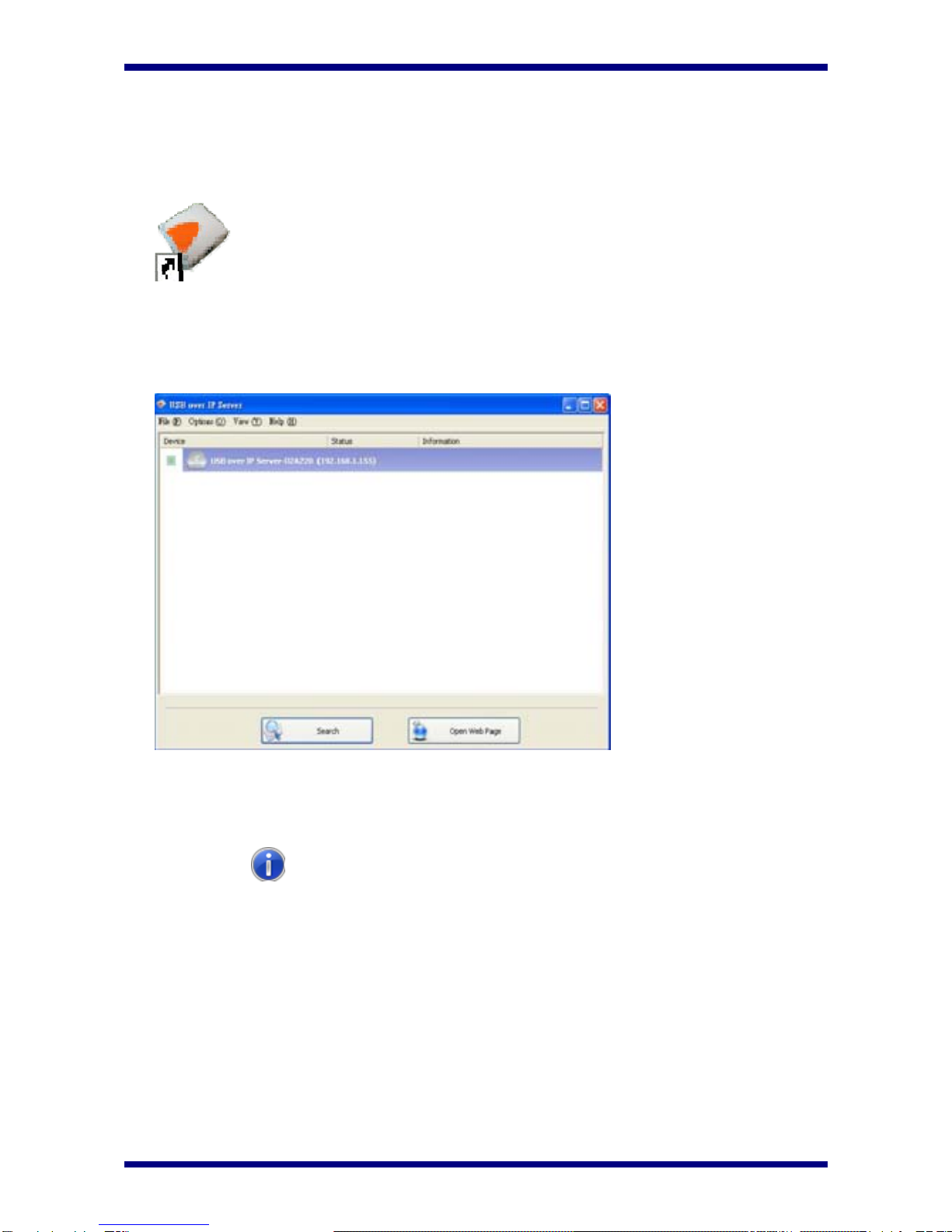
4. When prompted, restart your computer. After rebooting, you will see a new icon on your
desktop. Double-click the icon and it will bring up the Network USB over IP Server setup
utility.
5. The setup utility will show up and display all the active Network USB over IP Server on your
network. In this screen, you will see the product listed as “USB over IP Server-02A220
(192.168.1.155)”. The “02A220” is the last 6 digits of the Network USB over IP Server’s
MAC address, and the “192.168.1.155” is the Network USB over IP Server’s IP address.
2.2 Connecting to an USB Device
1. Connect the USB cable on your USB device to the USB port of the Network USB over IP
Server, and make sure both the USB device and the Network USB over IP Server are
powered on. The USB device will then show up on the Network USB over IP Server utility as
a blue icon ( ). The blue icon indicates that the USB device is ready to be connected.
If for any reason the USB device does not show up, please click the “Search” button to
refresh the list.
Tabla de contenidos
Otros manuales de Servidor de impresión de Repotec


