RCA E13344 Manual de usuario

Television
User's Guide
Changing Entertainment Again

To reduce the risk of electric shock, do
not remove cover (or back). No user
serviceable parts inside. Refer servicing
to qualified service personnel.
This symbol indicates
"dangerous voltage"
inside the product
that presents a risk
of electric shock or
personal injury.
WARNING
RISK OF ELECTRIC
SHOCK DO NOT OPEN
Caution: To reduce the risk of electric shock, match wide blade of plug to wide slot,
fully insert.
Attention: Pour éviter les chocs électriques, introduire la lame la plus large de la fiche
dans la borne correspondante de la prise et pousser jusqú au fond.
Refer to the identification/rating label located on the back panel of your product for its
proper operating voltage.
FCC Regulations state that unauthorized changes or modifications to this equipment
may void the user’s authority to operate it.
If fixed (non-moving) images are left on the screen for long periods, they
may be permanently imprinted on the screen. Such images include network
logos, phone numbers, and video games. This damage is not covered by your
warranty. Extended viewing of channels displaying these images should be
avoided.
Cable TV Installer: This reminder is provided to call your attention to Article 820-40 of
the National Electrical Code (Section 54 of the Canadian Electrical Code, Part 1) which
provides guidelines for proper grounding and, in particular, specifies that the cable
ground shall be connected to the grounding system of the building as close to the point
of cable entry as practical.
Please fill out the product registration card and return it imme-
diately. Returning it will allows us to contact you if needed.
Keep your sales receipt to obtain warranty parts and service and
for proof of purchase. Attach it here and record the serial and
model numbers in case you ever need them. The numbers are
located on the back of the TV.
Product
Registration
WARNING
To reduce the risk of fire
or shock hazard, do not
expose this TV to rain or
moisture. This symbol indicates
important instructions
accompanying the
product.
Model No: _________________________
Serial No: __________________________
Purchase Date: ______________________
Dealer/Address/Phone: ________________________________
______________________________________________________
______________________________________________________
IMPORTANT INFORMATION

GETTING STARTED ......................................................................... 2
Setup and Connection ................................................................ 2
Dipole Antenna Connection ....................................................... 3
TV/VCR Connection ..................................................................... 4
Channel Marker .......................................................................... 5
Front Panel Controls ................................................................... 5
Front Panel Lock .......................................................................... 6
Remote Control Buttons ............................................................. 6
THE MENU SYSTEM ....................................................................... 8
TV Main Menu ............................................................................. 8
The Picture Quality Menu ........................................................... 8
The Screen Menu ........................................................................ 9
The Channel Menu .................................................................... 10
V-Chip Parental Controls .......................................................... 11
V-Chip Movie Rating Limit ........................................................ 12
Blocking Movie Ratings ..................................................... 12
Viewing Movie Ratings ...................................................... 12
V-Chip TV Rating Limit ............................................................ 13
The TV Rating Limit Screen ............................................... 13
Blocking Age-Based Ratings and Content Themes .......... 16
Viewing Age-Based Ratings and Content Themes .......... 17
V-Chip Unrated Program Block ............................................. 18
Lock/Unlock Parental Controls ............................................... 18
The Time menu ......................................................................... 19
TROUBLESHOOTING .................................................................... 20
ACCESSORIES ............................................................................... 22
LIMITED WARRANTY .................................................................. 24
TABLE OF CONTENTS
1

GETTING STARTED
2
Setup and Connection
TV (Back Panel)
ANTENNA, CABLE, CABLE BOX OR VCR
AUDIO
VIDEO
CABLE/
ANTENNA
Step 1: Connect Your TV
Connect the cable from your cable
system or off-air antenna to the CABLE/
ANTENNA jack of the TV, as shown. Also
connect external devices such as a VCR or
DVD player to the video and audio jacks.
Step 2: Plug In Your TV
Plug the end of the power cord into the
wall outlet, matching the wide blade of
the plug with the wide slot in the outlet.
Be sure to insert the plug completely.
Step 3: Put Batteries in the Remote
Control
1. Remove the battery compartment
cover from the back of the
remote.
2. Insert batteries as shown,
matching the + and – ends of each
battery in the compartment.
3. Replace the cover.
Step 4: Turn on the TV
Press the POWER button on the remote
or front panel.
Step 5: Auto Channel Search
Perform an Auto Channel Search
(described in the Channel menu section).
This will program all active channels into
the TV’s channel scan list.

GETTING STARTED
3
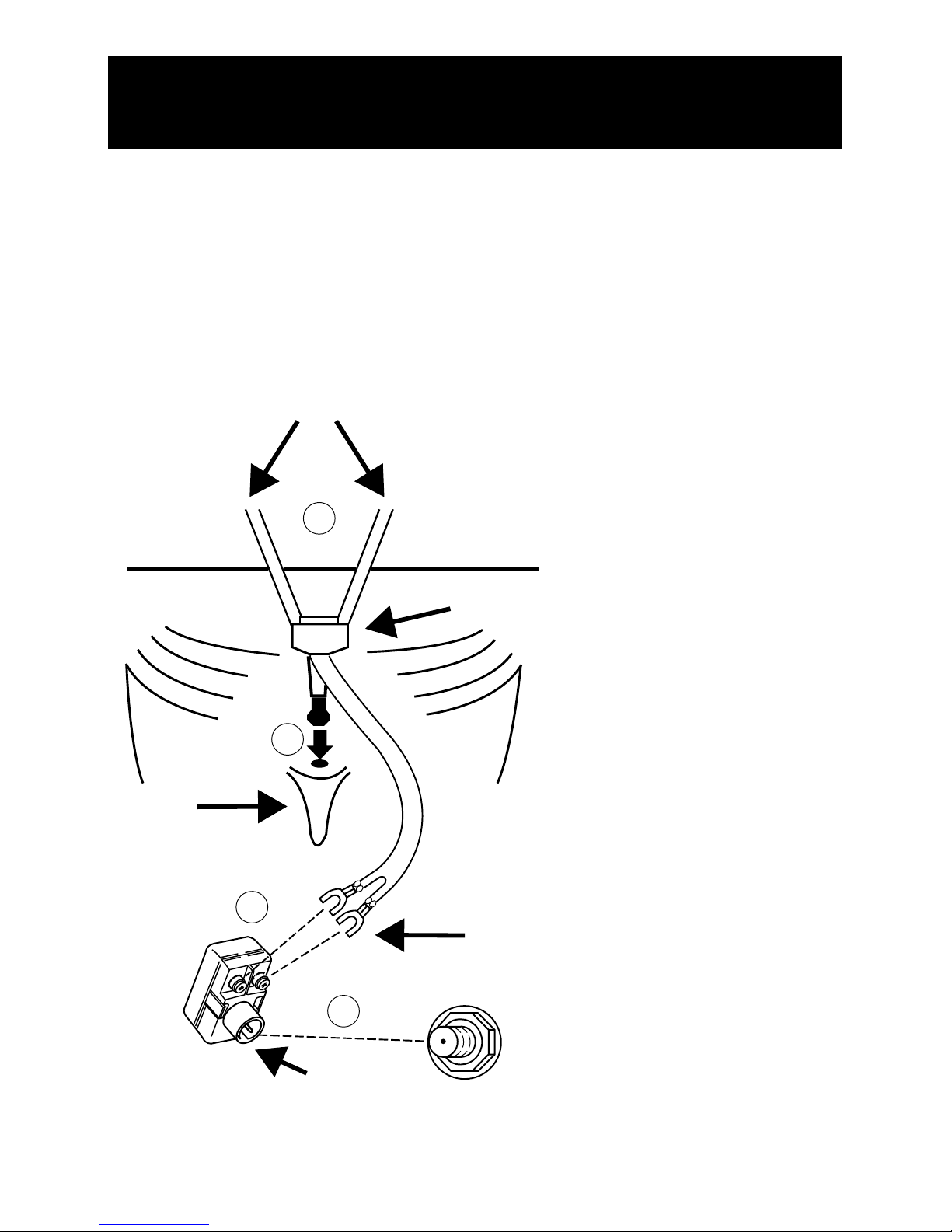
ANTENNA
1
2
3
4
Antenna
Adapter
(Supplied)
Dipole Antenna (Supplied)
Slot
Base
Twin Lead
Dipole Antenna Connection
Follow the steps to connect the indoor antenna supplied with your TV (only if you
do not connect an outdoor antenna or a cable-TV system).
Insert the antenna base into the pocketed slot on the back of your set. Stand at
the back of your set with the antenna twin-lead facing you, and press the base of
the antenna into the slot until it locks in place.
Connect the ends of the twin-
lead to the Antenna Adapter
(supplied).
Connect the Antenna Adapter
to the ANTENNA connector on
the back of the TV.
Later, after you’ve turned on
the TV, adjust the length and
position of the antenna rods for
best reception.
• For viewing VHF channels,
extend the rods fully.
• For viewing UHF channels,
shorten the rods for best
reception.

GETTING STARTED
4
TV/VCR Connection
The basic connection (TV and VCR), right,
is the most common connection and
is therefore used to illustrate a single
component connection with your TV.
Cables
You will use either of the following type
of cable to make your connection:
Coaxial Cables: Carries
the signal from the
antenna or cable directly
to the television or
through a cable box, as
needed by your cable
system.
Audio/Video Cables:
Carries audio and video
from a component to
the TV.
How to View the VCR
To watch the VCR with the connection
using the CABLE/ANTENNA jack, tune
the TV to Channel 3 or 4. To watch
the VCR with the connection using the
AUDIO/VIDEO in jacks, tune the TV to the
Video Input (press 0, 0 on the remote).
VCR 1
TV
AUDIO
VIDEO
OUT
IN FROM ANT
OUT TO TV
CH3
CH4
AUDIO
VIDEO
CABLE/
ANTENNA
CABLE, CABLE BOX, OR ANTENNA
VCR 1
AUDIO
VIDEO
OUT
IN FROM ANT
OUT TO TV
CH3
CH4
TV
CABLE/
ANTENNA AUDIO
VIDEO
CABLE, CABLE BOX, OR ANTENNA
OR
TIP
Your TV is equipped with an audio/video input. To tune to the audio/video input, press
“0, then 0” (zero button twice) on the remote. The audio/video input can also be added
to the channel scan list and accessed by the channel up and down buttons.
Video (yellow)
Right Audio (red)
Left Audio (white)
Video (yellow)
Right Audio (red)
Left Audio (white)

GETTING STARTED
5
Channel Marker
The Channel Marker comes up when you
first turn on the TV, change channels, or
press the DISPLAY button.
13 Displays the current channel.
7:17 Displays the current time.
CC Displayed when Closed Captioning is
available.
Mute Displayed when you mute the
audio.
Sleep Displayed when the Sleep Timer
has been set.
You can press MENU or CLEAR to make the Channel Marker disappear, or it will
disappear automatically after a short time.
Front Panel Controls
CHAN ^ Scans up through the channel list. When a menu is displayed,
CHAN ^ points up to items and adjusts menu controls.
CHAN v Scans down through the channel list. When a menu is displayed, CHAN v
points down to items and adjusts menu controls.
MENU Brings up the Main menu. When in the menu system, it selects
highlighted items. Also returns you to the previous menu.
POWER Turns the TV on and off.
VOL – Decreases the volume. When in the menu system, VOL - is used to point left
to items and adjust menu controls.
VOL + Increases the volume. When in the menu system, VOL + is used to point
right to items and adjust menu controls.
Headphone Jack Connect headphones (not supplied) to this jack.
The Channel Marker shown is just
an example of what your screen
may look like.
Sleep
7:17
Mute
13
CC

GETTING STARTED
6
Remote Control Buttons
When operating the remote, point it directly at the front of the TV. Objects
between the remote and the remote sensor can block the signal to the TV.
POWER Button Press to turn the TV on or off.
MENU Button Press to bring up the menu screen, then press the channel up and
down buttons to choose desired menu choice, and then press the VOL up or
down to adjust each setting.
DISPLAY Button Press to display the time and channel number on the screen.
Press to see if the Sleep Timer and/or Alarm Timer are set. Press to quickly remove
menus from the screen unless otherwise noted within the menu.
CLEAR Button Press to clear the screen of all on-screen displays.
MUTE Button Press to quickly reduce sound to minimum level. To restore sound
and normal picture, press MUTE again or press VOL up.
PREV CH Button (Previous Channel) Pressing this button switches the TV back
to the last tuned channel. This is useful if you want to watch two channels. Select
the first channel you wish to watch. Then select the other channel by pressing two
number buttons. The TV changes back and forth between the two channels each
time you press this button.
Caution
If you choose to use a stand with
your TV, take precautions that the
stand or other furniture the TV is
placed on is properly located and
of adequate size and strength to
prevent the TV from accidentally
being pushed off, pulled off, or
tipped over. This could cause
damage to the TV and/or personal
injury.
Front Panel Lock
This feature allows you to lock the buttons
on the front of the TV. Even when the front
panel lock feature is ON, the TV operates
with the remote control.
• To lock the buttons on the front of
the TV, make sure the TV is turned ON,
then press and hold the POWER button
on the remote for approximately 5
seconds.
• To turn off the front panel lock, make
sure the TV is OFF, then press and hold
the POWER button on the remote for
approximately 5 seconds. Now the
buttons will operate properly.

GETTING STARTED
7
Point and Select
To use the on-screen menus, you need to know one rule: point and select:
• Point to your selection with the on-screen highlight. (Use the VOL < / > buttons
on your remote to move left and right; use the CHAN ^/v buttons to move up and
down.)
• Press the MENU button to select the highlighted item.
C
H
A
N
R
E
S
E
T
V
O
L
V
O
L
C
H
A
N
DISPLAY
1
23
4
5
6
7
8
9
0
CLEAR
MUTE
PREV
CH
POWER
MENU
CHAN ^/v Buttons (Channel Up and Down)
Press to select the next higher or lower channel in
memory. You can add or erase channels in memory
as desired. Details are on page 7. When a menu is
displayed, CHAN ^/v allows you to select and adjust
menu controls.
VOL Buttons (Volume Up and Down) (Also – and
+ Buttons) Press VOL > to increase volume, or
press VOL < to decrease volume. The volume display
appears on the screen when you press the VOL
buttons. When a menu is displayed, press > or < to
adjust the setting of an item that is highlighted in a
menu.
Number Buttons (0-9) Press to access any channel
number. To select a channel, press two number
buttons. For example, press 0 then 6 for channel 6.
To select a 3-digit number, press and hold number
button 1 until 1– – appears on the screen. Then
press the other two numbers.
RESET Button Press to return all video settings
(color, tint, contrast, brightness, and sharpness) back
to the original settings.
Note: Your TV is equipped with an audio/video
input. To tune to the audio/video input press “0”
then “0” (zero button twice) on the remote. The
audio/video input can also be added to the channel
scan list and accessed by the channel buttons.

THE MENU SYSTEM
8
To select a menu item:
1. Press MENU to bring up the TV
Main Menu.
2. Use the CHAN ^/v on the remote
or front of TV to highlight an item
and press MENU to select it; or you
can also press the corresponding
number on the remote.
3. To exit any menu screen, highlight
Exit and press MENU, or press
CLEAR on the remote.
Contrast Adjusts the difference
between light and dark areas of
the picture.
Color Adjusts the richness of the
color.
Tint Adjusts the balance between
the red and green levels allowing
you to get the correct fleshtones.
Black Level Adjusts the brightness
of the picture.
Sharpness Adjusts the crispness of
edges in the picture.
Reset Picture Controls Resets the
picture controls to their original
settings.
TV Main Menu
The TV Main Menu is your gateway to controlling the TV. It lets you adjust the TV's
picture quality, screen, channel settings, parental controls, and time functions.
The Picture Quality Menu
The Picture Quality Menu contains five controls that adjust the TV's picture. Use the
VOL < / > and CHAN ^/v buttons to adjust the controls.
The TV Main Menu
TV Main Menu
1 Picture Quality
2 Screen
3 Channel
4 V-Chip Parental Controls
5 Time
0 Exit
The Picture Quality Menu
1 Contrast +........|........-
2 Color +........|........-
3 Tint +........|........-
4 Black Level +........|........-
5 Sharpness +........|........-
6 Reset Picture Controls
7 Exit
Picture Quality Menu
Tip
You can also use the RESET button on the
remote at any time to reset the picture
controls to their original settings.
Otros manuales para E13344
2
Tabla de contenidos
Otros manuales de Televisor CRT de RCA

RCA
RCA F19432 Manual de usuario

RCA
RCA F19442 Manual de usuario

RCA
RCA Televison Guía del usuario

RCA
RCA J27F636H Manual de usuario

RCA
RCA 32V430T Manual de usuario

RCA
RCA J20435 Manual de usuario

RCA
RCA 27V510T Manual de usuario

RCA
RCA J27F636H Manual de usuario

RCA
RCA 27F634T Manual de usuario

RCA
RCA 27V412T Manual de usuario

RCA
RCA 27F522T Manual de usuario

RCA
RCA F25424 Manual de usuario

RCA
RCA F27648 Manual de usuario

RCA
RCA 27V550T Manual de usuario

RCA
RCA ColorView E13701 Manual de usuario

RCA
RCA Alert Guard 27V570T Guía del usuario

RCA
RCA F27668 Manual de usuario

RCA
RCA F25433 Manual de usuario

RCA
RCA J25400 Manual de usuario

RCA
RCA D32F750T Manual de usuario