Rawafed Libya 300 Mbps Manual de usuario

User Manual of 300 Mbps Wireless Router

Manual of Wireless Router
Version 1.0 – July 2016
1
Table of Contents
Product Main Features ………………………………………………………………………….…………………
Hardware ……………………………………………………………………………………………………….……….
1. Hardware and Operation mode Instruction ……………………………...…………
1.1 Wireless Router Interface ………………………………………………………………..……………
1.2 LED indicator …………………………………………………………………………….………………
1.3 Power Supply …………………………………………………………………….………………….……
1.4 Operation Mode ……………………………………………………………………………..……………
1.5 Gateway ……………………………………………………………………………………………………..
1.6 Wireless Access Point (AP) ………………………………………………….……………………….
1.7 Wireless Repeater ……………………………………..…………………………………………………
1.8 WISP ………………………………………………………………………………………………………….
1.9 Connect Wireless router with PC ……………………………………………………………..…….
2. Login ………………………………………………………………………….………..
3. Quickly Configure Wireless Router ………………………………………………..…………………
3.1 Gateway Mode …………………………………………………………………………….………………
3.2 Wi-Fi Repeater and Station operation configuration …………………...……………………
3.3 AP Mode ……………………………………………………………………………….……………………
3.4 WISP ………………………………………………………………………………………………….………
3.5 Advanced Settings: ……………………………….…………..…………………………………………
•System Status ………………………………………………………….…….………………………
•Wireless Setting …………………………………………………….………………………………
•Network Setting …………………………………………………….………………………………
•Firewall …………………………………………………………………………….……….…………
•Storage …………………………………………………………………………………..……………
•Management …………………………………………………………………………………………
•Share Internet and obtain IP address automatically ……………………………………
•Troubleshooting ……………………………………………………………………………………

Manual of Wireless Router
Version 1.0 – July 2016
2
This is the user manual of 300Mbps Wireless Router, which will approximate guide you how to set and
use this wireless router, it provide a convenient graphical interface for network construction and
maintenance person, as well as a user through a simple and accurate operation, and configuration
management of this wireless router.
Product Main Features:
•Complies with IEEE 802.11n(draft 2.0), IEEE 802.11g, IEEE 802.11b standards
•Integrates router, wireless access point, WiFi Repeater, four-port switch and firewall in one
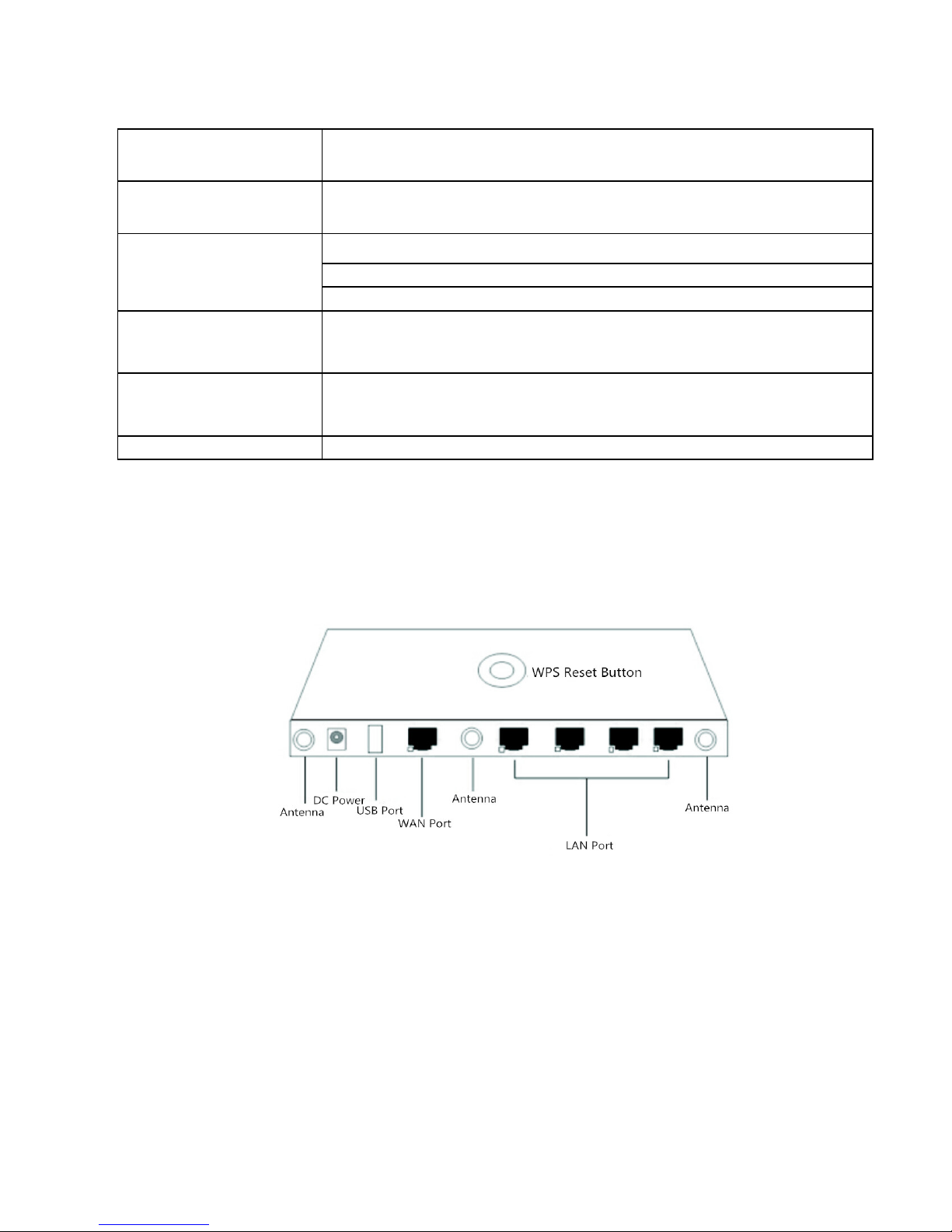
•1 10/100M RJ45 WAN port, 4 10/100M RJ45 LAN ports, 1 USB2.0 Port for DLNA, SUB and
FTP
•WAN Port support passive POE, can supply 12V/1A POE power for other PD equipment
•3PCS 5dBi MIMO fixed antenna for more WIFI range
•Supports PPPoE, Dynamic IP, and static IP broadband functions
•Supports UPnP, DDNS, static routing, VPN Pass-through
•Supports SSID broadcast control and MAC access control list
•With WPS button, setup WIFI connections easy
•Supports 64/128-bit WEP, complies with 128 bit WPA standard(TKIP/AES)
•Built-in firewall features IP, MAC, URL filtering which flexibly controls online access and time
•Built-in DHCP server with automatic dynamic IP address distribution
•User interface supports free WEB software updates
•Supports configuration file backup and restore
Hardware:
Chipset
MT7620N, 300Mbps data rate
Standard
802.11N, 2T2R, 300Mbps MIMO technology
Memory
64MB
Flash
8MB
Interface
LAN 4 10/100M Auto MDI/MDIX RJ45 ports.
WAN 1 10/100M Auto MDI/MDIX RJ45 port, POE port
WPS Reset button: short press work as WPS button, long press work as Reset
button
USB 2.0 port for wifi storage
Frequency Band
2.4GHz-2.4835GHz
Antenna
3PCS Fixed 5dBi Antenna
Power Consumption
<8W
Power Adapter
24V/1A
Size:
175mm*110mm*28mm
Wireless Transmit power
11b: 20±1 dBm
11g:: 16±1 dBm
11n:: 15±1 dBm)

Manual of Wireless Router
Version 1.0 – July 2016
3
Access Protocol
CSMA/CA
、CSMA/CD、TCP/IP、ICMP、NAT、
PPPoE, DHCP , Wired
static , Wifi Client ,UDP, DDNS
、
Security
WEP 64/128bit;MAC based Association; SSID broadcast
disable; Wi-
Fi
Protection Access (TBD),WPA,WPA2, Built
-in firewall
RF Output Power(Typical)
802.11n:15dBm for OFDM mode
802.11g: 17dBm for OFDM mode
802.11b: 20dBm for CCK mode
Receive Sensitivity
11n : -70dBm@10% PER
11g :
-70dBm@10% PER
11b: -85dBm@8% PER
Channels:
2412~2462 MHz (US) 11 channels
2412~2472 MHz (EU) 13 channels
2412~2484 MHz (Japan) 14 channels
WLAN Modulation Scheme
BPSK, QPSK, CCK and OFDM (BPSK/QPSK/16-QAM/ 64-QAM)
1.Hardware and Operation mode Instruction
1.1 Wireless Router Interface:
1.2 LED indicator:
Green: Power Indicator, wireless router working
Blue: WiFi Indicator, wifi signal transmit
WPS Reset button: press it 1~2 seconds:
WPS button; Press it 10~15 Seconds, wireless router’s data revert to default.
1.3 Power Supply:
DC Power for Wireless Router

Manual of Wireless Router
Version 1.0 – July 2016
4
Wireless Router supply passive POE for PD equipment
The working diagram as follow:
P1 Power Supply
Note:
DC Power for wireless router should be 24V/1A, PD equipment should support 24V Passive POE.
1.4 Operation Mode:
There are four operation modes on this wireless router
1.5 Gateway: Supply WAN Connection from DSL, cable or broadband mobile phone network through
PPPoE, Static IP, Dynamic IP operation.
P2. Gateway Operation mode
1.6 Wireless AP: Plug and Play to transmit wireless signal for wireless end users from wired networking.
P3. Wireless AP Operation mode
1.7 Wireless Repeater: Wireless receive and transmit, to extend the existing wireless networking for
more range. In this operation mode, if SSID disable, wireless router work in bridge.

Manual of Wireless Router
Version 1.0 – July 2016
5
P4. Wireless Repeater operation mode
1.8 WISP: Internet service provider provide the wireless internet connection for their community by
domain name registration.
P5. WISP Operation mode
1.9 Connect Wireless router with PC:
User can connect the PC with wireless router by Wireless SSID or cable from LAN port.
Please note: the default SSID is WirelessAP, SSID’s password is 66666666
2.Login
a. Connect the wireless router with computer
b. Configure the PC’s local connection IP address as 192.168.188.X (X is number from 2 to 254)
subnet mask is 255.255.255.0, follow P4 and P5 to finish.
Note:
On gateway operation mode, the PC will obtain an IP address automatically. However, on Wireless AP, WiFi
configure your LAN / IP address before you can connect to the router.

Manual of Wireless Router
Version 1.0 – July 2016
6
P6 Setting of computer’s IP address
P7 Setting of computer’s IP address
c. Type 192.168.188.253 in the address bar on your Internet Browser and press Enter. A Login
window will pop up. The default login user name: Admin, Passwords: admin.

Manual of Wireless Router
Version 1.0 – July 2016
7
P8 Login
d. After login, your will be directed to Device Status page.
P9: Device Status
3. Wireless Router Configuration
a. Gateway Mode:
On Gateway Mode select the right WAN access type, then input the right SSID, Channel, and key.

Manual of Wireless Router
Version 1.0 – July 2016
8
P10 Gateway Mode
b. WiFi Repeater and Station Operation Configuration
1. On management page, click on “ Repeater Mode” and click on “Scan AP”
P11 Repeater Mode

Manual of Wireless Router
Version 1.0 – July 2016
9
2. Select the AP’s you want to connect with, for example: SR800.
P12 Select AP
3. Enter the AP’s key. Enter the correct information for Wireless then press Apply.
P13 Repeater Mode
Instruction
If your computer can’t pop up this window, then check your IE explorer to ensure
it is not blocking pop ups.
Tabla de contenidos