PrimaLuceLab SESTO SENSO 2 Manual de usuario

VERSION 1.3
Update 24-10-2020
SESTO SENSO 2 is made by PrimaLuceLab SpA (Italy). For any matters relating to the use, service and warranty,
please refer to the addresses given in the relevant documents.!
PrimaLuceLab SpA • Via Roveredo 20/B, 33170, Pordenone • www.primalucelab.com
SESTO SENSO 2 robotic focusing motor
USER MANUAL

PrimaLuceLab SpA SESTO SENSO 2 user manual
English
WARNING
If improperly handled, SESTO SENSO 2 may damage. So please follow the instructions below:
•Do not disassemble
•Do not open, damage or subject to electric shock or excessive impact any part of SESTO SENSO 2. Do not drop.
•Do not short the electronic elements
•Do not expose at temperatures below -20°C and above +60°C
•Do not burn or incinerate any component.
•Do not expose to rain or other atmospheric effect related to water
•Do not bend, modify or force any part of SESTO SENSO 2
Index
Components Identification 2
Contents of the package 2
Technical specifications 3
Installing SESTO SENSO 2 on the telescope’s focuser 4
Controlling SESTO SENSO 2 with EAGLE or computer with Windows OS 6
Controlling SESTO SENSO 2 with Virtual HandPad 14
SESTO SENSO 2 Advanced Settings 17
Controlling SESTO SENSO 2 with ASCOM drivers and third party softwares 19
Controlling 2 SESTO SENSO 2 units at the same time 23
Updating SESTO SENSO 2 firmware 24
Installing 26mm, 33mm or 37mm adapters for SESTO SENSO 2 25
Troubleshooting 26
INFORMATION TO USERS 28
"
page 1
QUALITY CONTROL
Each SESTO SENSO 2 unit, after created in our laboratories, it’s tested by PrimaLuceLab technical experts to check all com-
ponents. We verify mechanics and electronics. In case you check any malfunction, please contact us immediately (+ 39-0434-
1696106 or [email protected]). Do not try to disassemble, repair or modify yourself SESTO SENSO 2, without our
written approval, in order not to loose the Producer Warrantee.

PrimaLuceLab SpA SESTO SENSO 2 user manual
Components Identification
Contents of the package
•SESTO SENSO 2 robotic focusing motor
•5 bushings
•Allen keys with grub screws
•Power cable for cigarette plug
•USB-C to USB cable
•Quick Start guide
"
page 2

PrimaLuceLab SpA SESTO SENSO 2 user manual
Technical specifications
"
page 3
CAUTION
In order to correctly use SESTO SENSO 2, you have to connect it to your telescope’s focuser. The installation
procedure changes based on the telescope’s focuser so please refer to the next paragraphs. But if you want, you
can proceed with the SESTO SENSO 2 first use also without having the focuser not installed on the telescope’s
focuser.
NOTE
In order to proceed with installation you have to download the SESTO SENSO 2 drivers and softwares package
from our website:
www.primalucelab.com/astronomy/downloads
Save the package (it’s in zip format) in the EAGLE or computer you want to use to control the SESTO SENSO 2
and unzip it with the proper unzip software (if you haven’t an unzip software, you can use https://www.winzip.-
com).
Power
12V - 5.5/2.5 connector - positive tip polarity
Power consumption @ 12V
800mA max
Working temperature
-20°C / +60°C
Control with:
USB
WiFi
Resolution
0,7 microns per step
Temperature probe
Internal to read motor temperature (in the package)
External for focus temperature compensation (optional)
Provided software
Driver for Windows 64 bits (compatible with Windows Vista, 7, 8 and 10)
FOCUSER Manager for control with Windows operative system
ASCOM driver for control from external software (tested with ASCOM platform
6.4)
SESTO SENSO 2 Virtual HandPad for WiFi control
Weight
380 grams

PrimaLuceLab SpA SESTO SENSO 2 user manual
Installing SESTO SENSO 2 on the telescope’s focuser
In order to connect SESTO SENSO2 to the focuser of your telescope, remove the manual focus micrometric knob
by unscrewing the screw normally present on the knurled knob. After pulling it out, you also need to disconnect the
coarse focuser knob, by means of an Allen screw on the knob. On some plastic-covered focusers, you need to re-
move the plastic to access the disassembly screw. Connect one of the bushings you find in the SESTO SENSO 2
box (based on the diameter that fits your focuser) to the small focuser shaft of your focuser.
Now you can connect SESTO SENSO 2 to your focuser by paying attention to centering the micrometric pin with
the pre-assembled bushing on SESTO SENSO 2, until it stops. By using the provided Allen screw, lock the 2 grub
screws that fix the pre-assembled bushing on SESTO SENSO 2 to the bushing you just installed on your focuser's
shaft.
"
page 4
NOTE
in order to work, SESTO SENSO 2 requires
your focuser to have the micro metric knob.
NOTE
SESTO SENSO 2 is designed to be connec-
ted to 25mm shaft. If you have another dia-
meter, you may add the optional 26, 33 or
37mm adapters. Please refer to page 25 in
order to know how to install the adapters.

PrimaLuceLab SpA SESTO SENSO 2 user manual
Then, by using the provided Allen screw, please fix the screws that fix the outer ring of SESTO SENSO 2 to your
focuser.
Finally, use the Allen screw to lock the 3 small grub screws fix the outer ring of SESTO SENSO 2 to your focuser.
"
page 5
NOTE: After installing SESTO SENSO 2 on your focuser, check the smoothness of the movement keeping SE-
STO SENSO 2 powered off and then manually moving the focus knob of your focuser. The presence of SESTO
SENSO 2 will make the movement harder (since the motor is connected) but the motion must still be uniform. If
you notice an uneven movement, repeat the installation procedure.
NOTE: SESTO SENSO 2 connects to several focusers that may have different machining and tolerances preci-
sions. Focusing accuracy, especially when using automatic focusing procedures, depends on the focuser me-
chanics and not only strictly on SESTO SENSO 2. If your focuser has an important backlash, you can adjust the
backlash parameter in the software.

PrimaLuceLab SpA SESTO SENSO 2 user manual
Controlling SESTO SENSO 2 with EAGLE or computer with Windows OS
SESTO SENSO 2 can be controlled with the EAGLE or any external computer that comes with Windows operative
system (at least version 7 64 bits). In the SESTO SENSO 2 package you can find a 12V power cable with cigarette
plug and a PC connection cable for USB port. Connect the USB-C cable to the USB port of your EAGLE or perso-
nal computer. You will see the PWR LED on (this means SESTO SENSO 2 is powered) and, after a few seconds
the Wi-Fi LED will be on too and this means that also the SESTO SENSO 2 WiFi connection is ready to be used.
When you connect it to USB port of the EAGLE or of
an external computer, SESTO SENSO 2 should be
automatically detected and Windows should auto-
matically install the new driver. In order to check
this, please go to Control Panel and then choose
Device Manager. You should see the SESTO SEN-
SO 2 listed under “Ports (COM & LPT)” and descri-
bed as “Silicon Labs CP210x” (in order to check,
you can disconnect and then reconnect the SESTO
SENSO 2 USB cable and see how Windows lists it).
If you can’t find it, Windows is not able to automati-
cally install the SESTO SENSO 2 driver. In order to
do this, please follow this procedure:
1) go to "Device Manager”
2) locate "CP2102N USB to UART Bridge Controller" under "Other devices”
3) make a mouse right-click and select "Update Driver Software”
4) select the second option “Browse my computer for driver software” in order to install the driver from a specific
folder
5) select the folder where you saved the content of the SESTO SENSO 2 software package you downloaded
from our website
www.primalucelab.com/astronomy/downloads
Please remember to unzip the file you downloaded before starting the installation of the SESTO SENSO 2.
6) at the end of the procedure, a message will appear indicating the correct installation.
Now, under “COM and LPT devices”, you will see a new COM port (in this example COM16) which is the one used
by your computer to communicate with SESTO SENSO 2.
"
page 6
NOTE
If the driver is not correctly installed in your Windows operative system, SESTO SENSO 2 won’t be able to con-
nect to your EAGLE or external computer and it won’t work. So please check that the COM driver is correctly in-
stalled before proceeding to the next step.

PrimaLuceLab SpA SESTO SENSO 2 user manual
SESTO SENSO 2 is supplied with a complete Windows
software “FOCUSER Manager” (included in the file that you
download from the download section of our website) that
allows you to control the SESTO SENSO 2 and manage all
its functions. Make a double click on FOCUSERManagerSe-
tup.exe file to start installation. Click OK to proceed. In the
first window that opens, please select your language and
click the “OK” button to start the installation.
Then, in the next window, click the “Next” button.
Select the folder where you want to install FOCUSER Ma-
nager software (if you want to change the default one, you
can click on the Browse button and choose for a different
folder). Then click on the “Install” button to start installation.
At the end of installation process, please click on “Close” button to finish. Now you will find the FOCUSER Manager
software among the softwares installed in your EAGLE or Windows computer. If you leaved the default folder, it will
be located in “C:\Program Files (x86)\FOCUSER manager” folder.
"
page 7

PrimaLuceLab SpA SESTO SENSO 2 user manual
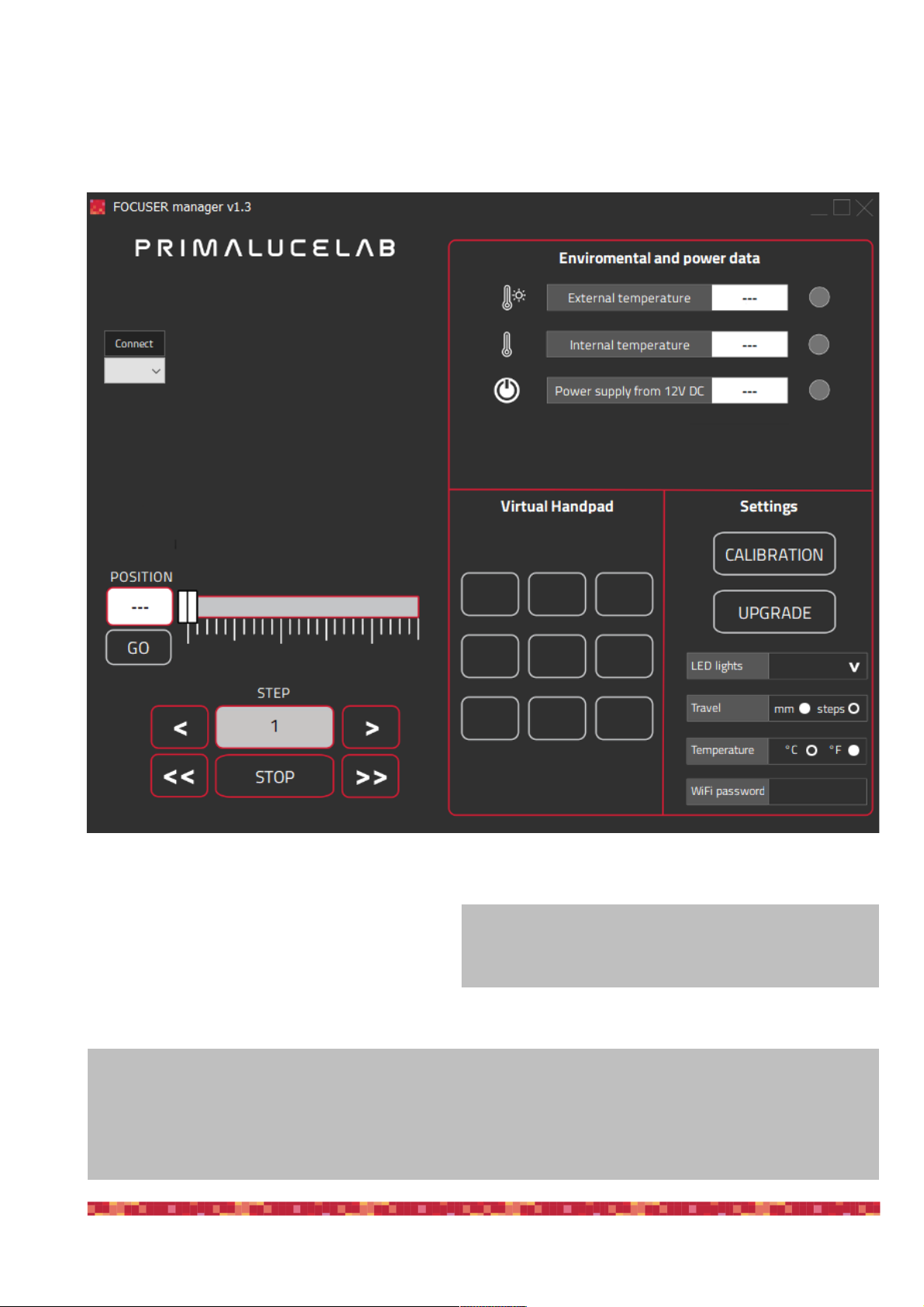
Having connected SESTO SENSO 2 to a USB port of your EAGLE or Windows computer and powered with an
external power source (a 12V battery by using the supplied cigarette plug cable, a 12V AC adapter with at least 1A
and Ø5.5/2.5mm connector or the EAGLE power cable to power it through the EAGLE), pleas select “FOCUSER
Manager” software to start it and you will see this interface:
On the left, select the COM port number your compu-
ter assigned to the SESTO SENSO 2 and click on
the “Connect” button. You will see the lights on the
right become green. If you connected also the op-
tional temperature sensor, you will get the green
light also in correspondence to the “External tempe-
rature” row.
"
page 8
What happens if I can’t connect by pressing the “Connect” button?
At this stage, if you can’t connect to SESTO SENSO 2 by pressing the “Connect” button, please check the COM
port number that your EAGLE or personal computer assigned to the SESTO SENSO 2. In order to do that, please
go to Control Panel -> Device Manager and search for the SESTO SENSO 2 COM port number. This is the num-
ber you have to select in the FOCUSER Manager software, before starting the connection.
When you press “Connect” button, if you get a message
stating that SESTO SENSO 2 firmware is wrong, please
update its firmware before continue. Please read page 24.

PrimaLuceLab SpA SESTO SENSO 2 user manual
Before moving SESTO SENSO 2, you have to start the calibration. Please click on the CALIBRATION button and
you will see a new window:
a) if you installed SESTO SENSO 2 on an external focuser (for example a Crayford or Rack and Pinion focuser),
please select“Telescope with external focuser”.
"
page 9
NOTE
If your focuser requires the motor
to move in the opposite direction,
please select the “Reverse motor”
before pressing the NEXT button.
Otros manuales para SESTO SENSO 2
2
Tabla de contenidos
Otros manuales de Motor de PrimaLuceLab