
PPI Zenex Plus Manual de usuario

Zenex Plus User Manual
User Manual
Multi-Purpose Temperature Controller
with Graphic Display
Zenex Plus

Zenex Plus User Manual
CONTENTS
1. FRONT PANEL LAYOUT 1
2. BASIC OPERATION 2
3. OPERATOR PARAMETERS 5
4. SUPERVISORY PARAMETERS 7
5. FACTORY PARAMETER 12
6. PANEL MOUNTING AND ELECTRICAL CONNECTIONS 21

1
Zenex Plus User Manual
GRAPHIC READOUT
The Graphic Readout is a X Pixel Monochrome LCD Display. In Normal operation mode the Readout shows 128 64 measured
Temperature Value, Set Temperature Value, Alarm / Process Status & Balance Time (if enabled & running). The Process
Status Information can be viewed using screen scroll feature.
In Mode, the Readout displays parameter names and values that can be edited using front keys.Set-up
KEYS
There are six tactile keys provided on the front panel for configuring the and setting-up the parameter values. controller
The Table 1. below lists each key (identified by the front panel symbol) and the associated function. 1
Section 1
The Controller front panel comprises of Graphic Readout and Membrane Keys as shown in Figure 1.1 below.
FRONT PANEL LAYOUT
Table 1.1
Figure 1.1
Symbol
Key Function
DOWN
UP
ENTER
SET-UP Press to enter or exit set-up mode.
Press to store the set parameter value and to scroll to the next
parameter.
Press to increase the parameter value. Pressing once
increases the value by one count; keeping pressed speeds up
the change.
Press to decrease the parameter value. Pressing once
decreases the value by one count; keeping pressed speeds up
the change.
Press to scroll through various Process Information Screens in
Normal Operation Mode.
Scroll
Press to acknowledge and mute (if active) alarm output.
Alarm
Acknowledge
Zenex Plus
PPI
°C
25.8
25.0
0:10:00 SP
TEMP HIGH
Graphic
Readout Keys

2
Zenex Plus User Manual
POWER-UP DISPLAY
Upon power-up the controller displays model name, Hardware Version
and Software Version for 2 seconds as shown in figure 2.1.
BASIC OPERATIONS
Section 2
RUN MODE
After the Power-up display the controller enters into RUN Mode. This is the normal operation mode wherein the controller
starts PV measurements, Alarm monitoring and Control Loop execution.
Main Screen
This is the default screen and its appearance depends upon whether a timer function is enabled or disabled as shown in the
figures 2.2 (a) & 2.2 (b) respectively.
Figure 2.2(a) : Timer Disabled
Figure 2.1
Figure 2.2(b) : Timer Enabled
°C
25.0
25.0
TEMP HIGH SP
Measured Temperature
Alarm / Process
Status Set Temperature
°C
25.0
25.0
0:10:00 SP
TEMP HIGH
Set Temperature
Measured
Temperature
Alarm / Process
Status
Balance Time
In case of measured value errors, the messages listed in Table 2.1 flash in place of process value as illustrated in Figure 2.3.
Message Error Type Cause
Sensor Open
Under-range
Over-range
RTD Pt100 / Thermocouple is Broken / Open
Temperature above Max. Specified Range
Temperature below Min. Specified Range
OPEN
Table 2.1
OVR
UNR
Figure 2.3
Note :
The Balance Time is shown in either HHH:MM or H:MM:SS
depending upon the remaining time counts as under :
HHH:MM for 249:59 to 10:00
H:MM:SS for 9:59:59 to 0:00:00
°C
OPEN
25.0
TEMP HIGH SP
H/W Version
S/W Version
02
07

3
Zenex Plus User Manual
The Alarm / Process Status space on the screen may show one or more of the several messages listed in Table 2.2 depending
upon the existence of active alarms or process events. In case of co-existence of multiple active alarms or process events, the
messages are scrolled one after the other with an approximate time interval of 3 seconds. Also if there is no active alarm or
process event, the message space is blank.
Table 2.2
Process Status Screen
The Process Status Screen is shown upon pressing (Scroll) key from Main Screen or upon acknowledging a new Alarm by
pressing (Acknowledge) key. As depicted in Figure 2.4(a) for Old Version & 2.4(b) for New Version; the screen shows
Temperature Alarm Status, Door Open / Close Status, the Heater Output Status (ON / OFF or % Power) & Compressor ON /
OFF Status.
Figure 2.4(a) :
Old Version
Message String Alarm / Process Status
The Controller is Self Tuning.
Temp High
Temp Low
Tuning
The measured temperature is in Process High
Alarm State.
The measured temperature is in Process Low
Alarm State.
Door Open The Equipment / Chamber door is open for a time
longer than the set ‘DOOR ALRM DLY’ time.
Timer Hold The Countdown Timer is paused since the PV is
outside Hold Band.
°C
PROCESS STATUS
High
Door
Close
Compressor
OFF
Heating
0.0%
Heating Control
Output Power
Compressor
Output Status
Temperature
Alarm Status Door Status
Process Status
High
Door
Close
Compressor
OFF
Heater
0.0%
Heating Control
Output Power
Compressor
Output Status
Temperature
Alarm Status Door Status
Temp
Figure 2.4(b) :
New Version

4
Zenex Plus User Manual
The Controller provides programmable Low & High deviation
limits around the temperature control setpoint to monitor Alarm
conditions. The screen shows either Normal or Low or High
Status, as shown in Figure 2.5 (a) depending upon the
deviation of measured temperature value from the control
setpoint and set limits.
The Controller provides a Digital Input for interfacing Door
switch that senses the door position, Open or Close. The
screen indicates the door status as shown in Figure 2.5 (b).
Door
Open
Door
Close
Door Status
Figure 2.5 (b)
Figure 2.5 (a)
Temp
Normal
Temperature Alarm Status
Within
Limits
Below
Low Limit
Above
High Limit
Temp
Low
Temp
High

5
Zenex Plus User Manual
OPERATOR PARAMETERS
Section 3
Parameter Description Settings
(Default Value)
Table 3.1
Yes
No
(Default : No)
The Table 3.1 below described the Operator Parameters in detail.
Figure 3.1
°C
25.0
25.0
TEMP HIGH SP
or
Next Parameter
HI DEVIATION >>
2.0
LO DEVIATION >>
2.0
Desired Parameter
LO DEVIATION >>
5.0
Desired Value
Press UP/DOWN Keys
to adjust Parameter Value
Press ENTER Key
to store the New Value
& to move to Next Parameter
ENTER PASSWORD >>
0
CTRL SET VALUE >>
25.0
RUN Mode
Main Screen
Default Password
for Operator Parameters
First Parameter
Press SET-UP Key
for Password Entry
Press ENTER Key
To open Operator
Parameter List
Press & Release
ENTER Key until Desired
Parameter appears
(Available only if Timer is Enabled)
These two commands are mutually exclusive.
Set to Yes to start Timer, if not already started.
Set to Yes to abort a running timer.
TIME START COMMAND >>
TIME ABORT COMMAND >>
0.01 to 249.59
(HH:MM)
(Default : 0.10)
TIME INTERVAL (H:M) >>
(Available only if Timer is Enabled)
The set time value for the timer in Hours : Minutes.
The Operator Parameters are accessible under PASSWORD 0. The list includes parameters for adjusting Control Setpoint,
Alarm Setpoints & Zero-offset. If Timer is enabled then Time Interval value & Timer Start / Abort commands are also available.
The Figure 3.1 shows how to access Operator Parameters. The Example illustrates changing the Low Deviation alarm value
from 2.0 to 5.0. (The Example is shown with Timer disabled).

6
Zenex Plus User Manual
Parameter Description Settings
(Default Value)
Setpoint LO limit to
Setpoint HI limit
(Default : 25.0)
CTRL SET VALUE >>
This parameter sets the value at which the controller atte to mpts
maintain the measured temperature value.
0.2 to 99.9
(Default : 2.0)
LO DEVIATION >>
This Parameter sets a negative deviation (offset) limit with respect
to the ‘ ’. The Alarm is activated if the measured Control Set-point
temperature value falls below this limit.
0.2 to 99.9
(Default : 2.0)
HI DEVIATION >>
This Parameter sets a negative deviation (offset) limit with respect
to the ‘Control Set-point’. The Alarm is activated if the measured
temperature value exceeds this limit.
CHANGE PASSWORD >>
The Controller is shipped from the factory with a default password
(0) for accessing the parameters reserved for Operator. However,
if required the password can be changed by setting the new value
for this parameter.
(The new password replaces the old password. That is, the old
password is no longer valid. it is user’s responsibility to memorize
the password.)
1 to 100
(Default : 0)

7
Zenex Plus User Manual
SUPERVISORY PARAMETERS
Section 4
Accessing Group & Parameters
The Figure 4.1 below illustrates how to access the group and parameters. The example shows changing the value for the
parameter ‘Setpoint High Limit’ from 600.0 to 100.0 that is located under group ‘Control’.
Figure 4.1
The various parameters have been assembled in different groups under the default factory password 123.
Refer Table 4.1 below for a quick summary of parameters under different groups. Each parameter has been described in
subsequent sections.
Table 4.1
Password Change Password
Parameters
Group
Control
Tune, Setpoint Low Limit, Setpoint High Limit,
Compressor Set-point, Compressor Hysteresis,
Heat Control Action, Heat Hysteresis,
CZ Proportional Band, CZ Integral Time, CZ Derivative Time,
HZ Proportional Band, HZ Integral Time, HZ Derivative Time,
Cycle Time, Overshoot Inhibit, Cutoff Factor
Device ID, Baud Rate, Parity, Serial Write
Serial Parameter
Zero Offset
Sensor Input
ENTER PASSWORD >>
0
RUN Mode
Main Screen
Default Password
for Operator Parameters
Press SET-UP Key
for Password Entry
Press UP/DOWN Keys
To adjust Password Value
Press & Release
ENTER Key for the
First (Desired) Group
ENTER PASSWORD >>
123
or
Password for
Supervisory Parameters
First Group
Press ENTER Key
to Access Parameters
First Parameter in
selected Group
SELECT GROUP>>
SERIAL
TUNE >>
NO
Desired Parameter
SETPOINT HI LIMIT >>
600.0
or
Press UP/DOWN Keys
to Select Desired Parameter
°C
25.0
25.0
TEMP HIGH SP
or
Press UP/DOWN Keys
to adjust Parameter Value
Next Parameter
Press ENTER Key to
store the Value
and move to Next
Parameter
HEAT CTRL ACTION >>
PID
Desired Parameter
Value
SETPOINT HI LIMIT >>
100.0
Desired Group
SELECT GROUP>>
CONTROL
or
Press UP/DOWN Keys
to Select Desired Group
Exit Exit Setup Mode

8
Zenex Plus User Manual
Notes
The Last Parameter in the selected Group rolls back to the ‘SELECT GROUP’ screen again to avoid re-entering the password in case
parameters under multiple groups need to be set.
Parameter Descriptions
The various Supervisory Parameters have been described with their respective group & sub-group.
SUPERVISORY SERIAL PARAMETERS
Unique numeric code assigned to the for identification by indicator
the host. Set the value as required by the host.
DEVICE ID >>
Communication speed in ‘Bits per Second’. Set the value to match
with the host baud rate.
BAUD RATE >> 2400
4800
9600
19200
38400
57600
(Default : )9600
(Default : 1)
1 to 127
Parameter Description Settings
(Default Value)
PARITY >>
One of the communication error trapping features. Select the data
packet parity as implemented by the host protocol.
None
Even
Odd
(Default : Even)
SERIAL WRITE PERMISSION >>
Setting to ‘No’ disallows the host to set / modify any parameter
value. The host, however, can read the value. (Default : No)
No
Yes
SUPERVISORY SENSOR INPUT
Parameter Description Settings
(Default Value)
This value is algebraically added to the measured Temperature
Value at control channel to derive the final value that is displayed
and compared for alarm / control. Use this value to nullify any
known constant error.
Final Value = Measured Value + Offset
ZERO OFFSET >>
-50.0 to 50.0
(Default : 0.0)
Tabla de contenidos
Otros manuales de Controladores de PPI

PPI
PPI neuro 102Plus Manual de usuario

PPI
PPI neuro 105 Manual de usuario

PPI
PPI Epsilon 48 Manual de usuario

PPI
PPI neuro 105 Manual de usuario
PPI
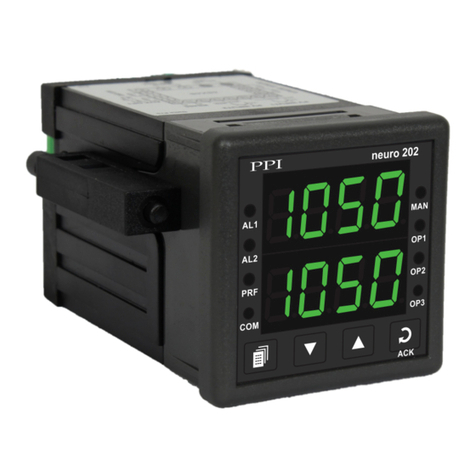
PPI neuro 202 Manual de usuario

PPI
PPI HumiTherm-c Series Manual de usuario

PPI
PPI Neuro 102EX Manual de usuario

PPI
PPI neuro 102 Manual de usuario

PPI
PPI neuro 102 EX Manual de usuario

PPI
PPI claveX Series Manual de usuario


