
PowerLocus P2 Unicorn Manual de usuario

USER’S MANUAL
PowerLocus P2 Unicorn
Facebook: @PowerLocus
E-mail: info@powerlocus.com
Whatsapp: +31 643824122
US Phone Support: 646-844-2665
UK Phone Support: +44 2036085808
2
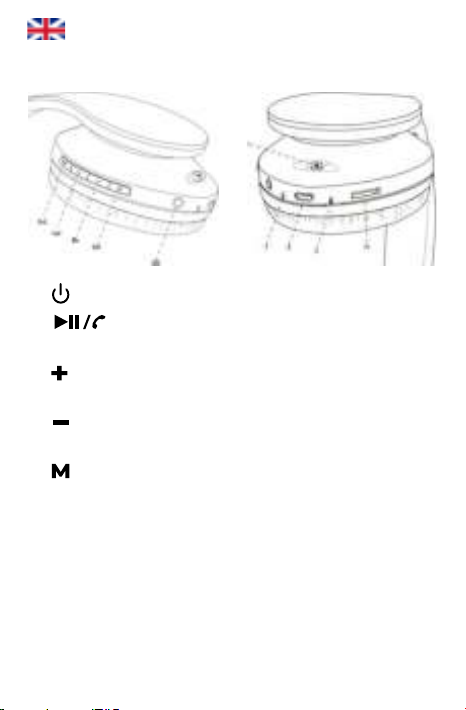
(1) Product indication
1- Power on /off
2- play/pause, answer/end calls, reject call,
last number redial
3- Volume up (Short Press)/ Next song (Long
Press)
4- Volume down(Short Press)/ Last song (Long
Press)
5- Multi-function button(pairing,auto search
radio)
6- Headset jack
7- LED indicator
8- Micro USB charging port 9- Microphone
9- Microphone
10- Micro SD/TF card slot
EN

3
(2) Power on/off the headse
◆Power on: Slide the switch right and the blue
and red indicator light will ash (the headset
said:the wireless is ready to pair).
◆Power off: Slide the switch left and blue
indicator light will go off.
(3) Pair to your mobile phone or other
products
◆Slide the switch right and the blue and red
indicator light will ash (the headset said:the
wireless is ready to pair).
◆Turn on the bluetooth function of your phone or
other products.
◆Search for the bluetooth devices and select”P2
Unicorn”.
◆If paring is successful,the blue light indicator
starts ashing (the headset said:the wireless is
connected successfully).
◆Please make sure the headphone is working
before pairing.
◆It will connect to the pre-set phone
automatically when turns on (Please make sure
the bluetooth function of your phone is working).
◆If the pairing is not successful, please switch off
headset rstly, and then re-pair again.

4
(4) MP3/FM
In power-on mode, insert the TF card, short press
button, MP3 will play automatically.
If have not TF card, short press button, FM
radio will play automatically.
◆(1) In power-on mode, short press button,
FM radio will play automatically.
◆(2) Long press the Play/Pause button
to auto search all radio station.
◆(3) Wait for 40sec to 1min for the stations to be
memorized.
◆(4) Then long press you will listen to any
radio station you like..
◆If you are listening to FM radio, short press
button, it will be converted to the bluetooth
mode. And auto connected to your phone or other
products.
(5) Answer/end calls, reject call, last
number redial, Siri/Google Assistant
(In the bluetooth mode)
◆When there is a call,short press button can
answer the call. After the call, press button can
hang up. If the other side hang up, no need to
press the button.
◆Reject call: long press button about 2-3

5
seconds
◆Last number redial: press fast button
2 times
◆When the phone call out or answer the call, if
the bluetooth headphone are playing the music,
the music will pause automatically and enter
the waiting state. After hang up, the music will
continue to play automatically.
◆Activate the Siri/Google Assistant: long press
button about 3-5 seconds
(6) Charging the headset
◆Insert USB charging cable into USB port
which have support 5V power (such as AC/DC USB
adapter or PC USB port). When the red light is on,
the headset is in charging. When the red light will
be off, the headset is fully charged. It takes about
2-2.5 hours to charge the headset fully.
◆The battery is rechargeable.Low-Voltage
alert: When the alert tone ‘low battery’ sounds
and the indicator turns into red indicate that the
battery has run out,need to be charged as soon
as possible. First time charging: please be sure the
battery has been charged fully before use.
(7) Wired headphone function
For any mode of headphone,you can connect one

6
side of 3.5 stereo sound supply extension line to
headphone audio jack, the another side connect to
Audio jack(such as mobile phone, computer, iPad
etc.). Then you will hear songs from other devices.
(8) Precautions
◆Please be gentle when using headphone.
The Maximum tolerance of the button is 250g.
Excessive force or be stroked by something all will
damage buttons.
◆Please do align the USB port when plug or pull
USB cable in case that damages the USB cable fail
to charge the headphone.
◆When encounter something similar to
interference.please rst delete the Bluetooth
devices that connected with headphone
before,then restart your phone, at last please repair
with the Bluetooth headphone.
◆If long time without using headset, it is
recommended to turn off the headset, in case that
the battery is in a low voltage state, causing the
charging problems.
◆Please don’t put the headset in hot
temperature area.
◆Please don’t vibrate or shock the headset
violently, and do not let it fall down from high
place.
7
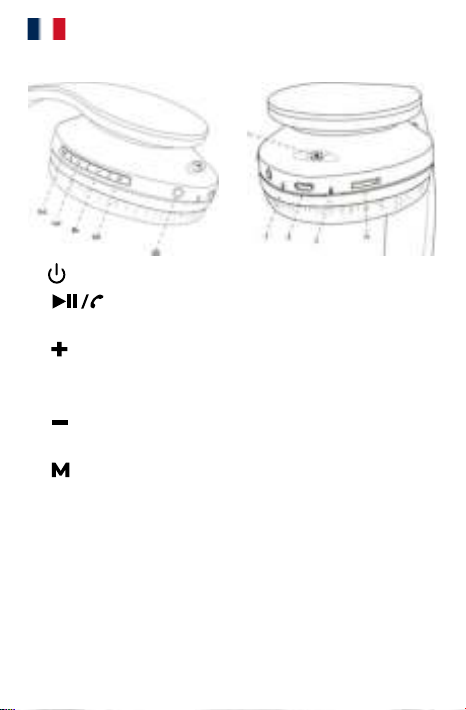
(1) Description du produit
1- Marche / Arrêt
2- Marche / Pause, Répondre / Raccrocher,
Rejeter un appel, Composer le dernier numéro
3- Augmenter le volume (appuyer brièvement)
/ Passer à la musique suivante (appuyer longue-
ment)
4- Réduire le volume (appuyer brièvement) / Pas-
ser à la musique précédente (appuyer longuement)
5- Bouton multifonction (appairage, recherche
automatique des stations radios)
6- Prise jack
7- Indicateur LED
8- Port de chargement micro USB
9- Micro
10- Emplacement pour carte micro SD/TF
FR

8
(2) Marche/Arrêt du casque
◆Marche: Faites glisser le commutateur à droite
et une lumière bleue et rouge clignotera (vous en-
tendrez le message: la connexion sans l est prête
à être appairée).
◆Arrêt: Faites glisser le commutateur à gauche
et la lumière bleue s’éteindra.
(3) Appairage avec votre téléphone ou
d’autres appareils
◆Faites glisser le commutateur à droite et une
lumière bleue et rouge clignotera (vous entendrez
le message : la connexion sans l est prête à être
appairée).
◆Activez la fonction Bluetooth de votre télé-
phone ou de votre appareil.
◆Recherchez des appareils connectés en Blue-
tooth et sélectionnez “P2 Unicron”.
◆Si l’appairage est réussi, une lumière bleue
va clignoter, (vous entendrez le message: la
connexion a été réalisée avec succès)
◆Assurez-vous que le casque fonctionne avant
l’appairage
◆A chaque démarrage, le casque se connectera
automatiquement à votre téléphone (veillez à ce
que la fonction Bluetooth du téléphone soit acti-
vée au préalable)

9
◆Si l’appairage n’a pas fonctionné, éteignez le
casque, puis recommencez la procédure d’appai-
rage.
(4) MP3/FM
En mode marche, insérez une carte TF puis ap-
puyer sur le bouton , les musiques MP3 seront
jouées automatiquement.
Si vous n’avez pas de carte TF, appuyez brièvement
sur le bouton , la radio FM démarrera automa-
tiquement.
◆(1) En mode marche, appuyez brièvement sur
le bouton la radio FM démarrera automatique-
ment.
◆(2) Appuyez longuement sur le bouton
marche/arrêt pour rechercher toutes les stations
radios.
◆(3) Attendez entre 40 secondes et une minute
pour que les stations soient mémorisées.
◆(4) Ensuite, appuyez longuement sur le bouton
, vous pourrez écouter toutes les stations
radios que vous souhaitez.
◆(5) Si vous écoutez la radio FM, appuyez briè-
vement sur le bouton , cela permettra de
basculer en mode Bluetooth et de se connecter
automatiquement à votre téléphone ou à vos
autres appareils.

10
(5) Siri/Google Assistant, Prendre un
appel / Raccrocher, rejeter un appel,
composer le dernier numéro (en mode
Bluetooth)
◆Lorsque que vous recevez un appel, appuyez
brièvement sur le bouton pour prendre
l’appel. A la n de l’appel, appuyez sur le bouton
pour raccrocher. Si votre interlocuteur
raccroche, vous n’avez pas besoin d’appuyer sur
le bouton Reject call: long press button about 2-3
seconds.
◆Rejeter un appel : Appuyez sur le bouton
pendant 2 à 3 secondes.
◆Rappeler le dernier numéro composé: Appuyez
deux fois sur le bouton
◆Lorsque vous appelez ou recevez un appel, si
le casque Bluetooth est en train de diffuser de la
musique, celle-ci s’arrêtera automatiquement et
se mettra en pause. Lorsque vous raccrocherez, la
musique reprendra automatiquement.
◆Utiliser l’Assistant Google/Siri: Appuyez longue-
ment sur le bouton pendant 3-5 secondes.
(6) Recharger le casque
◆Insérez le câble USB de chargement dans un
port USB 5V (par exemple, AC / DC de l’adaptateur
Tabla de contenidos
Idiomas:
Otros manuales de Auriculares inalámbricos de PowerLocus


