Polaroid IP350 Manual de usuario

Questions?
Need some help?
This guide will help you
enjoy your new product
or visit
www.polaroid.com
For more information
consult the user
manual on the
included CD-ROM
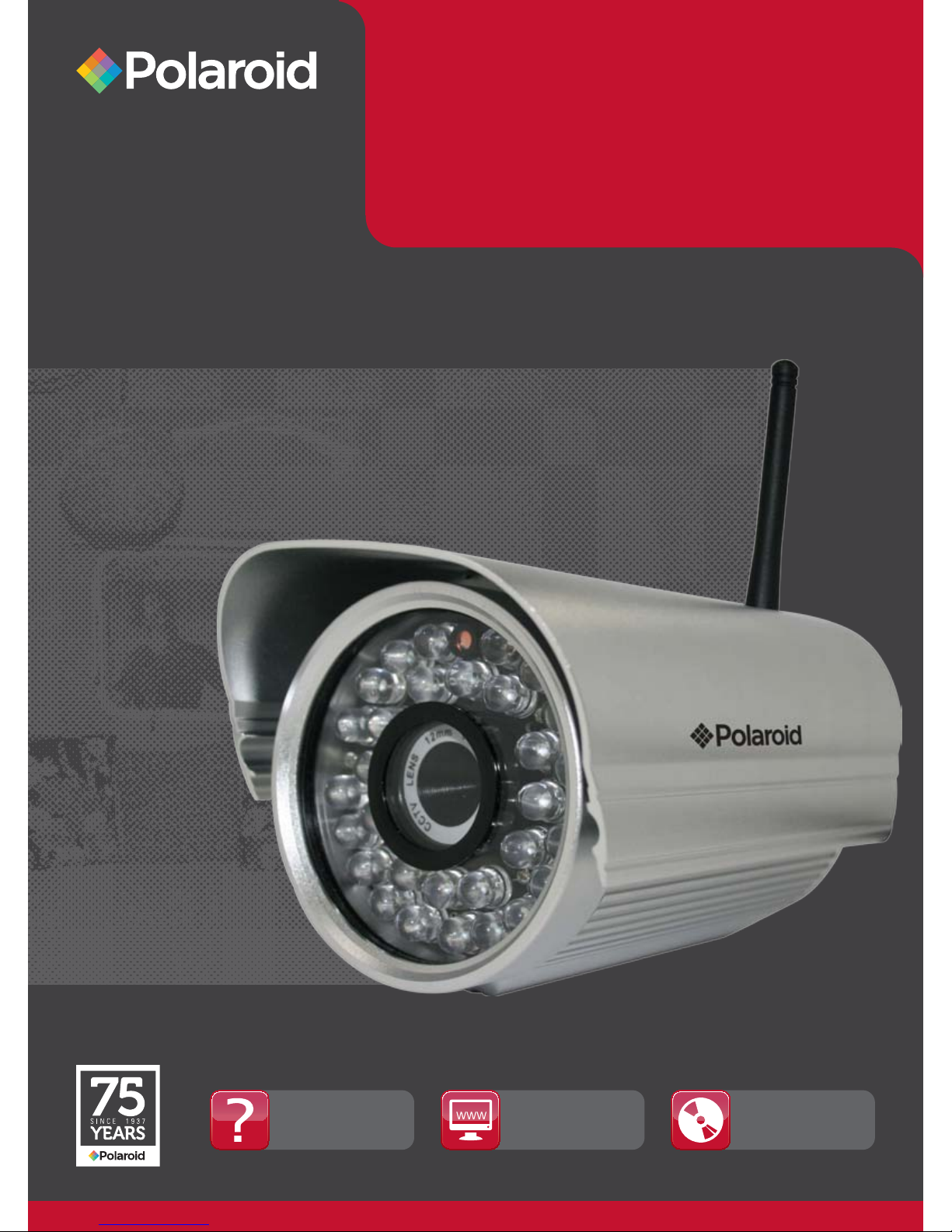
Wireless Surveillance
Camera
IP350
USER MANUAL

2 3
IP350 Manual
Table of Contents
Welcome 3
1.1 Features 3
1.2 Packing List 4
1.3 Product Views 4
1.4 PC System Requirements 6
1.5 Hardware Instruction 7
1.6 Software Installation 8
2 Sofware Operationl 10
2.1 IP Camera Tool 10
2.2 CAMERA LOGIN 14
2.3 TO USE IE BROWSER TO GAIN ACCESS 17
2.4 SAFARI, FIREFOX, GOOGLE CHROME BROWSER ACCESS 20
2.5 MOBILE PHONE ACCESS 21
2.6 ACTIVEX MODE FOR IE BROWSER ACCESS 22
2.7 VISITOR STATUS 22
2.8 OPERATOR ACCESS 25
ADMINISTRATOR ACCESS 28
3 ADMINSTRATOR SETTINGS 27
3.1 MULTI-DEVICE SETTINGS 28
3.2 Network Settings 31
3.3 Basic Network Settings 32
3.4 Wireless LAN Settings 34
3.5 ADSL Settings 36
3.6 UPnP Settings 36
3.7 DDNS Service Settings 36
3.8 System Settings 42
3.9 Alias Settings 43
3.10 Date & Time Settings 43
3.11 User Settings 43
3.12 PT Settings 44
3.13 Indicator Settings 45
3.14 Backup and Restore 45
3.15 Other Settings 47
3.16 Mail Service Settings 47
3.17 FTP Service Settings 49
3.18 Alarm Settings 50
3.19 Send Mail on Alarm 54
3.20 Path Settings 55
3.21 Server Push Mode (for Safari, FireFox, Google Browser) 57
3.22 Sign in mobile phone 58
FREQUENTLY ASKED QUESTIONS. 59
Welcome
You have purchased the Polaroid IP Camera solution because security is
extremely important to you.
So important, in fact, you have chosen a high quality video camera so easy to
install you can do it yourself. Once you do, you will be able to transmit powerful
clear images into the Cloud and monitor them from any digital device, including
your smart phone. Polaroid IP cameras transmit high quality video content at
30fps on the LAN/WAN utilizing MJPEG hardware compression technology.
Based on TCP/IP standard, every Polaroid IP camera contains a built-in server
which supports popular browser systems. Management and maintenance
of your security device can be done simply right over the network, You can
e-congure, start-up and even upgrade rmware in seconds. The net benet
is you can now monitor your home or business anywhere in the world from
anywhere you happen to be.
Welcome to the new security. Welcome to Polaroid IP Security Camera systems.
PLEASE NOTE: WE MAINTAIN A HOTLINE TO PROVIDE BOTH CUSTOMER
SERVICE AND INSTALLATION GUIDANCE. THE NUMBER IS
1-877-836-1190
1.1 Features
• Powerful high-speed video protocol processor
• High-sensitivity 1/4” CMOS sensor
• 300k pixel picture quality
• Supports PT control; Pan 270 degrees, Tilt 120 degrees
• Optimized MJPEG video compression for transmission
• Multi-level user management and password denition
• Embedded web server to enable IE visitation
• Supports wireless network (WI-FI/802.11/blg)
• Supports Dynamic IP (DDNS) and UPNP LAN and Internet (ADSL, Cable
Modem)
• Motion detection alarm
• Provides image snapshot
• Supports multiple protocols: HTTP/TCP/IP/UDP/SMTP/DDNS/SNTP/DHCP/
FTP
• Supports WEP/WPA/WPA2 encryption
• Supports 3G phone, Smart phone control and surveilance
• Supports Internet Explorer, Firefox, Safari, Google Chrome browsers
Polaroid • Table of Contents Polaroid • Introduction

4 5
IP350 Manual
1.2 Packing List
After unpacking, check that the following items are in your possession:
ITEM: QUANTITY
* IP Camera (1)
* WI-FI Antenna (1) (only available for wireless models)
* User Manual (1)
* DC Power Supply (1)
* CD (1)
* Network Cable (1)
NOTE: If any items are missing, contact Polaroid immediately at 1-877-836-1190
1.3 Product Views
1.3.1 Front View
1
2
4
5
3
Figure: 1.1
1. Sensitive Hole
2. Infrared LED
3. LENS
4. Antenna
5. Shell
1.3.2 Rear Panel
Figure: 1.2
Network Indicator LED: The green LED will on when connect to the network,
the yellow LED will blink when data transferred
RJ45 Port: RJ-45/10-100 base T, connect the network cable here.
Power Jack: DC 5V/2A power supply
RESET BUTTON: Press and hold the RESET BUTTON for 15 Seconds, then
the IPCAM will be reset back to the factory default Parameter. (Please keep the
power on when doing RESET)
Polaroid • Introduction Polaroid • Introduction

6 7
IP350 Manual
1.3.3 Bottom View
Figure 1.3
Beware: If your camera does not include several stickers, such as MAC address
and QC sticker, it could be a fake IPCAM and will not work with original
rmware or be able to be serviced by our after sales service. Make sure it has
the MAC address and serial number.
1.4 PC System Requirements
System conguration requirements for viewing multiple IPCAM camera feeds:
CPU: 2.06 GHz or above
Memory capacity: 256M or above
Network card: 10M or above
Display card: 64M or above memory
Recommended OS: Windows 2000/XP/Vista 7
1.5 Hardware Instruction
Figure 1.4
To set up your camera hardware, follow each of the following steps carefully to
ensure optimum camera operation:
1. Install the Wi-Fi antenna
2. Plug the power adaptor into camera
3. Plug the network cable into camera and router/switch
4. It takes approx 30 seconds to boot up the camera, then you will nd the IP
address from
“IP Camera Tool” (Figure: 1.9)
5. When the power on and network cable connected, the green led of the real
panel will keep on,
The yellow led will keep ash, and the Indicator led at the front of the camera
will ash. (The indicator LED can be controlled by software)
Polaroid • Introduction Polaroid • Introduction

8 9
IP350 Manual
1.6 Software Installation
ATTENTION: In order to make the installation correctly, we suggest that turn off
your Firewall and Antivirus before install the ActiveX, Don’t worry, it is safe.
Software installation is the key to the successful use of this product.
Install the follow software:
1. IP Camera Tool: Open the CD, dbclick “IPCamSetup.exe”, only click next, you
will complete the software installation.(gure1.6/ 1.7/ 1.8)
2. ActiveX: Double click “Appinstall.exe”—“Next”—“Install”—“Finish”.
Figure 1.5
Figure 1.6
Figure 1.7
Figure 1.8
Polaroid • Introduction Polaroid • Introduction

10 11
IP350 Manual
After this done, the icon “IP Camera Tool” will be displayed on desktop
automatically.
CAUTION: Before installing and using the product, please read the following
precautions carefully and make sure they are fully understood.
Use only the power adaptor attached with the product. Use unauthorized power
adapter may cause damage to your IP Camera.
IP Camera terminal could be installed in an outdoor environment.
Do not touch the lens of the IP Camera at will. The optimum focus range has
been set before it is delivered out of the factory. If you turn the lens, it may
cause incorrect focus and vague images.
For rmware upgrading or connection with an external, refer to detailed
instructions contained in the CD.
2. SOFTWARE OPERATION
2.1 IP Camera Tool
Once you’ve mounted your IP camera, and installed the software, it is time to
see if you can access it remotely.
Start by double clicking on IP Camera Icon on your desktop. A dialog
box will appear on your computer screen
Figure 1.9
Note: The software is designed to automatically search for IP Camera servers
over the LAN. One of the following 3 scenarios will present itself:
1. After about 1 minute, if the software does not nd an appropriate IP camera
server on the LAN, it will indicate “No IP server found” and automatically shut
down the program.
2. After about a minute, the software will detect all the cameras on the LAN and
each camera will be listed on your computer screen as shown in gure 1.9. If
you’re installing your rst camera, it will naturally be the only one listed.
3.You will discover that several of the IP cameras installed on the LAN do not
share the same subnet with the monitoring PC. This will be indicated by a
prompt that will tell you: Subnet does not match, double click to change.
Left click to choose the prompt and then right click to set the static IP address of
the camera to the same subnet as your PC over LAN. (see gure 2.3)
NOTE: If the subnet does not match, remember you can choose “Obtain IP from
DHCP Server”. The default of the camera is set to “Obtain IP from DHCP Server
“which means it will automatically get a dynamic IP for you (see gure 2.2)
SIX OPTIONS ARE AVAILABLE VIA THE IP CAMERA TOOL
Choose the IP Camera list and right click on your mouse for the following
options will appear in a window.
Options are: Basic Properties, Network Conguration, Upgrade
Firmware, Refresh Camera List, Flush Arp Buffer, About IP Camera
tool.
Figure 2.0
Polaroid • Software Polaroid • Software

12 13
IP350 Manual
2.1.1.1 Basic Properties
Under Basic Properties you will nd three options. 1) Device ID 2)System
Firmware Version 3) Web UI version (see gure 2.1)
Figure 2.1
Device ID. This is the same ID as the one found on the sticker on the bottom
of your camera. It is called the MAC ID. If there are many IP Cameras on your
device list, you can cross check which camera is which by matching the sticker
numbers of each camera with the ID numbers on the list. If, however, no ID
number is shown on the IP Camera tool, it might be that it is being blocked
by your rewall. Shut Firewall to allow access to your computer or as ID as a
trusted site.
Note: There are two reference numbers. One is the Device MAC ID, the other is
the WI-FI MAC ID, this too is on the sticker at the bottom of the camera. If this
sticker is ever lost, you can recapture it by logging on to your host router and
check the status, the numbers will be found there listed as the IP Camera WI-FI
MAC ID.
2.1.1.2 NETWORK CONFIGURATION
Figure 2.2
In this Window you can congure your network parameter. If you click in the
window requesting an IP from the DHCP server, your camera will be a dynamic
IP (to do this, your router must have a DHCP function and it must be on)
IP Address. Fill in the IP address assigned and make sure it has the same
subnet as your gateway, your computer and your router. (the rst three sets of
numbers should be the same)
Subnet Mask. The default subnet mask for your equipment is 255.255.255.0
Gateway. Make sure the subnet number correspond to your PC’s IO address.
DNS Server. Should be set with the same subnet numbers as the gateway.
Note: You can get subnet mask, gateway and DNS from your Router. Often the
DNS is optional.
HTTP port. Default port number is 80 but you should plug in the port number
assigned for your equipment (ie, 81.801.8001 etc.)
Password: No password.
NOTE; If prompt tells you “subnet doesn’t match, double click to change,” reset
the IP address, subnet mask, gateway and DNS server numbers once again or
enable “Obtain IP from the DHCP server.
2.1.1.3 UGRADE FIRMWARE
Polaroid • Software Polaroid • Software

14 15
IP350 Manual
Figure 2.4
Begin by entering your correct User and Password to upgrade system rmware
and UI. Please note that you must upgrade the system rmware rst and the
Web UI second or you could sustain damage to the camera.
Before downloading the rmware, make sure it is the correct and appropriate
type for your camera. Follow all the instructions in the Read Me First
instructions that came with your upgrade software.
NOTE: DO not upgrade freely. If your camera is working well, it is better to not
upgrade. If you must upgrade please keep the camera on during the process,
use the best wire mode and make sure you are connected to the network.
2.1.1.4 REFRESH CAMERA LIST
Refresh camera list manually.
2.1.1.5 FLUSH ARP BUFFER
In the event that you can search for the camera but cannot open the camera
web page, try to use the ARP Buffer to open.
2.1.1.6 ABOUT IP CAMERA TOOL
Use to check both IP Camera tool and ActiveX control software versions.
2.2 CAMERA LOGIN
Figure 2.5
Camera access can be made through IP camera tool or using Internet Explorer,
Safari, Firefox or Google Chrome browsers. To do so, follow the these
procedures:
1. Double click the IP address of the IP Camera listed on your computer (see
gure 1.9) Once you do this, whatever default browser you ordinarily use will
automatically run and bring up the camera login interface.
Figure 2.6
(Note: Default user name: admin; Password: LEAVE BLANK)
2. If you choose to access the camera using the IE browser directly, simply type
in the camera’s IP address (for example if the address is 192.168.1.123 type that
into the provided window.)
Once the Windows Security box comes up, input your correct user name and
password.
The sign-in interface will pop up. See gure 2.7 to reference which user mode
you’d like to use in order to access the camera. There are three to choose from:
1. Active Mode (for IE browser) available in iE6.0 or above (Please note; Internet
Explorer will give you all options.)
2. “Server push mode” for user who wish to access with either Safari, Firefox or
Google Chrome
3. “sign in mobile phone” for user who wish to access through their mobile
devices.
Polaroid • Software Polaroid • Software

16 17
IP350 Manual
Figure 2.7
2.3 TO USE IE BROWSER TO GAIN ACCESS
Figure 2.8
The rst time you login to a camera, it is possible to get the ActiveX prompt
with a box around it (as seen in g. 2.8). In this case click this prompt rst and
choose Run Add-on. This is telling you to refresh and login the camera again.
Once done, you will receive live video feed in the following windows:
Polaroid • Software Polaroid • Software

18 19
IP350 Manual
Figure 2.9
Figure 3.0
NOTE: If live video stream does not come up, but instead a red cross
such as this appears on the screen or the screen goes black, follow
the following steps:
1. Close your computer’s rewall.
2. Change all the ActiveX settings to enable (including IE BROWSER,Tool,
Internet options, Security, Custom Levels, ActiveX controls and Plug-ins).
Critical to enable are:
Enable: Download unsigned ActiveX controls
Enable: Initialize all ActiveX controls not marked safe
Enable: Run ActiveX controls and plug-ins.
Figure 3.1
Polaroid • Software Polaroid • Software
Tabla de contenidos
Otros manuales de Cámara de seguridad de Polaroid


