Penpower Chinease Expert PCE Standard Manual de usuario

Penpower Chinese Expert
User Manual
Version: V2.3
Release: November, 2009
Edition: 2

Penpower Technology Ltd.
Software User License Agreement
You are licensed to legally use this software program (“the Software”) by Penpower
Technology Ltd (“Penpower”) under this license agreement (“The Agreement”). If you do
not agree with any of the provisions in this Agreement, please do not install, copy or use the
Software. By using the Software, you are deemed to fully understand and accept the provi-
sions of this Agreement.
1. Intellectual Property
All intellectual property rights in the Software, together with all information and docu-
ments included in the packaging for the Software (including but not limited to copy-
rights), are property of Penpower, and are protected by relevant laws and regulations.
2. License to Use
You are authorized to use the Software on one (1) single computer only. You may not use
the Software on any other machines other than the said single computer.
3. Authority to Copy
The Software and all documents included with the Software, and copyright thereof, are
property of Penpower. You are licensed to make one (1) copy of the Software for your
personal backup purposes. All other acts of copying are strictly prohibited.
You may not sell, lease, dissemble, reverse engineer, copy, translate, adapt or derive the
Software, or obtain the source code of the Software by any other means. You may not use
the Software for any purposes other than those permitted under this Agreement.
4. Business Users
If you need to install or use the Software on more than one (1) computer, please contact
Penpower or our local distributor to purchase a license for the additional use.
5. Liability
You agree to indemnify Penpower against all losses, costs, debts, settlement payments or
other expenses (including but not limited to attorneys fees) arising from your breach of
this Agreement, and you agree to compensate Penpower for all of the abovementioned
damages.
6. No Warranty
Effectiveness of a packaged software in handling information is closely related to its
software and hardware environment. The Software is published following careful de-
velopment and product testing by Penpower, but Penpower is not able to conduct tests
based on all possible combinations of software and hardware environment. Therefore,
Penpower is unable to promise nor warrant that there will be absolutely no risk of loss or
damage of information, or any other kind of loss, during installation and/or execution of
the Software. You must be fully aware of your risks in using the Software.

Penpower will provide you with the Software and support services in respect of the Soft-
ware to the maximum extent permitted by law. However, Penpower does not warrant that
the Software and information included in the package of the Software contain no defects
or errors. Penpower is not liable for any indirect, special or incidental loss arising from
the Software, including but not limited to loss of prots, damage to business reputation,
cessation of work, hardware malfunction or damage, or any other commercial damage or
loss arising from commercial use of the Software.
7. Limitation of Liability and Damages
The maximum amount of compensation payable by Penpower, in respect of any damage
incurred by you for any reason under this Agreement, is limited to the amount you have
already paid to Penpower in respect of the Software.
Under no circumstances will Penpower be held liable for the possibility of loss, notwith-
standing Penpower may be aware of the possibility of such loss.
8. Prohibition Against Sublicense
You are prohibited to assign the license in respect of the Software granted to you under
this Agreement, or to grant a sublicense to another person.
9. Jurisdiction
With regards to any disputes arising from this Agreement, Penpower and you agree that
the court having jurisdiction over the business location of Penpower will be the court in
the rst instance.
10. Miscellaneous
In the event that any provision of this Agreement is found to be invalid at law, such
invalidity will not affect the validity of any other provisions, or the legal enforceability of
such other provisions.
In the event that the Software cannot be executed under conditions of normal use, due to
any damage to the original disk/s, Penpower will replace the disk/s free of charge.

Contents
Chapter 1 Product Features .............................................................................. 1-1
1.1 Product Features ................................................................................................. 1-1
1.2 Version Introduction............................................................................................ 1-2
1.2.1 Writing Pad Version .................................................................................. 1-2
1.2.2 Pen Scanner Version ................................................................................. 1-2
1.2.3 Standard Version....................................................................................... 1-2
Chapter 2 Installation ........................................................................................ 2-1
2.1 System Requirements ......................................................................................... 2-1
2.2 Installation .......................................................................................................... 2-1
Chapter 3 Using the Chinese Expert ................................................................ 3-1
3.1 Starting Penpower Chinese Expert ..................................................................... 3-1
3.2 Introduction to the Main Interface ...................................................................... 3-1
3.2.1 Translation Mode ...................................................................................... 3-1
3.2.2 Word Segmentation Mode ........................................................................ 3-3
3.3 File Management ................................................................................................ 3-5
3.3.1 New Article .............................................................................................. 3-5
3.3.2 Opening an Existing File .......................................................................... 3-6
3.3.3 Closing an article ...................................................................................... 3-6
3.3.4 Abstract ..................................................................................................... 3-7
3.3.5 Save File ................................................................................................... 3-8
3.3.6 Save as a New File ................................................................................... 3-8
3.3.7 Close Chinese Expert ............................................................................... 3-8
3.4 Sentence Segmentation ....................................................................................... 3-9
3.4.1 Automatic Sentence Segmentation ........................................................... 3-9
3.4.2 Basic Chinese Learning Functions in the Sentence Segmentation Pane 3-11
3.4.3 Build Phrase Manually ........................................................................... 3-15
3.4.4 Redo Phrase Segmentation ..................................................................... 3-16
3.4.5 Print ........................................................................................................ 3-16
3.5 Auto Insert all Phrases ...................................................................................... 3-17
3.6 Phrase Database Management .......................................................................... 3-19
3.6.1 Phrase Search ......................................................................................... 3-20
3.6.2 Speech Practice ...................................................................................... 3-21
3.6.3 Character Tracing ................................................................................... 3-21
3.6.4 Listen to Pronunciation .......................................................................... 3-22
3.6.5 Recording ............................................................................................... 3-22
3.6.6 Add Phrase .............................................................................................. 3-23
3.6.7 Edit Phrase .............................................................................................. 3-24

3.6.8 Delete Phrase .......................................................................................... 3-24
3.6.9 Export ..................................................................................................... 3-24
3.7 Pronunciation Practice ...................................................................................... 3-26
3.7.1 TTS Speech ............................................................................................ 3-26
3.7.2 Recording ............................................................................................... 3-26
3.8 The Translation Function .................................................................................. 3-27
3.8.1 Phrase Translation Tip Display .............................................................. 3-27
3.8.2 Lookup Phrase Translation in Dictionary ............................................... 3-27
3.8.3 Manual Translation ................................................................................. 3-28
3.8.4 Machine Translation of Whole Sentence or Article ............................... 3-29
3.9 User defined dictionary ..................................................................................... 3-31
3.10 Re-edit Article ................................................................................................. 3-33
3.11 PCE Share ....................................................................................................... 3-34
3.12 About ............................................................................................................... 3-34
Chapter 4 Settings .............................................................................................. 4-1
4.1 PCE Settings ....................................................................................................... 4-1
4.1.1 Language Setting ...................................................................................... 4-1
4.1.2 Font Size Setting ...................................................................................... 4-1
4.1.3 English-Chinese Dictionary Setting ......................................................... 4-1
4.1.4 Converting Tradictional and Simplified Chinese Setting ......................... 4-2
4.1.5 Word Segmentation Setting ...................................................................... 4-2
4.1.6 Speed of Speech Setting ........................................................................... 4-2
4.1.7 Displaying Traditional and Simplified Chinese characters ...................... 4-2
4.2 Language Settings for English Environments .................................................... 4-3
4.2.1 Windows 2000 English Operating System ............................................... 4-3
4.2.2 Windows XP English Operating System .................................................. 4-4
Chapter 5 Writing Pad Version ........................................................................ 5-1
5.1 Hardware Specifications ..................................................................................... 5-1
5.2 Penpower Jr. Introduction ................................................................................... 5-2
5.3 Installing the PCE and Penpower Jr. ................................................................... 5-3
5.4 Starting the Penpower Chinese Expert ............................................................... 5-6
5.5 Touch Pad Operation ........................................................................................... 5-7
5.6 New Handwriting/Mouse Mode ......................................................................... 5-8
5.7 Full Screen Handwriting Mode ........................................................................... 5-9
5.8 Balloon UI ......................................................................................................... 5-11
5.9 Result Correction .............................................................................................. 5-12
5.10 Homophone ..................................................................................................... 5-16
5.11 Related Phrase ................................................................................................. 5-17
5.12 Learning String ............................................................................................... 5-19
5.13 Gesture ............................................................................................................ 5-20

5.14 Mixing Traditional and Simplified Writing .................................................... 5-21
5.15 Switching Versions.......................................................................................... 5-21
5.16 Settings ............................................................................................................ 5-22
5.17 Signature ......................................................................................................... 5-25
5.18 Online Translator ............................................................................................ 5-27
5.19 Using Penpower Jr. in MSN Messenger ......................................................... 5-28
5.20 Input Tools ...................................................................................................... 5-29
5.21 Fast User Switching ........................................................................................ 5-31
Chapter 6 Pen Scanner Version ........................................................................ 6-1
6.1 Hardware Specifications ..................................................................................... 6-1
6.2 WorldPenScan Introduction ................................................................................ 6-1
6.3 Installing the PCE and the WorldPenScan .......................................................... 6-3
6.4 Starting the Penpower Chinese Expert ............................................................... 6-6
6.5 Start the Penpower WorldPenScan ..................................................................... 6-7
6.6 Recognition Language ...................................................................................... 6-10
6.7 Scan Direction ................................................................................................... 6-11
6.8 Speech-While-Scanning .................................................................................... 6-14
6.9 Property Settings ............................................................................................... 6-14
6.10 Translation Website Setup ............................................................................ 6-15
6.11 Interface Language .......................................................................................... 6-15
6.11 Using the Balloon UI ...................................................................................... 6-16
6.12 Penpower Assistant Tools ............................................................................... 6-21
Chapter 7 Penpower Voice Reader ................................................................. 7-1
7.1 Run Penpower Voice Reader............................................................................... 7-1
7.2 Voice Reader Settings ......................................................................................... 7-2
7.3 Exit Penpower Voice Reader............................................................................... 7-2

There may be newer versions of the software that was released during or after this product’s
manufacturing date. If the content in the User Manual differs from the on-screen interface,
please follow the instructions on the on-screen interface instead of the User Manual.

Chapter 1 Product Features 1-1
Chapter 1 Product Features
1.1 Product Features
Penpower Chinese Expert provides a comprehensive Chinese learning environment by
immersing you in a Mandarin listening and speaking environment. Penpower Chinese
Expert lets you learn Mandarin from any source including web sites, books, newspapers
and magazines.
• Listening comprehension.
We employ the latest TTS (Text To Speech), and intelligent syntax technology, so you can
listen to the correct pronunciation of single characters, phrases, or sentences. Penpower
Chinese Expert can also record pronunciation from real people. You can hear real pronun-
ciation at any time.
• Reading
Have trouble reading books, newspapers or magazines on hand? Input them into your PC,
our software will show you everything about the Chinese characters such as the pinyin/
zhuyin, their radicals, their total number of strokes, and their meanings in English.
• Speaking
With our speech recognition technology, you can practice speaking Chinese phrases or
taking quizzes with your PC and be condent that you sound more and more like a native
Chinese speaker after each session.
• Writing
We will show you how to write any Chinese character in the correct stroke order. We also
provide you with several different inputting methods for your composing pleasure: hanyu
pinyin, zhuyin or strokes.
• Translation
We use a state-of-the-art machine translation module for your exploration of Chinese
and English. You can translate between Chinese and English by word, phrases or whole
sentences.

1-2 Chinese Expert
1.2 Version Introduction
1.2.1 Writing Pad Version
With the writing pad, you can write or modify any Chinese text easily and use Penpower
Chinese Expert for listening comprehension, reading, speaking, writing, and translation.
For East Asian languages, handwriting is the most natural way to enter characters into a
computer. If you do not know any keyboard-based input methods, such as hanyu pinyin,
or zhuyin, then inputting by handwriting is denitely for you. Please refer to Chapter 5
Writing Pad Version.
1.2.2 Pen Scanner Version
By integrating WorldPenScan(pen scanner), you can fast scan any document into Penpow-
er Chinese Expert and utilize all the listening, reading, speaking, writing, and translation
features this software has to offer.
The included WorldPenScan can scan and recognize Traditional Chinese, Simplied
Chinese and English into your computer via the USB interface. Effortlessly scan in with
the transparent scan tip. Whatever you see, you can scan. Please refer to Chapter 6 Pen
Scanner Version.
1.2.3 Standard Version
Penpower Chinese Expert Standard Version is a complete Chinese learning tool. You
can utilize all the listening, reading, speaking, writing, and translation features and learn
Chinese fast and easy. It also provides online and ofine activation. Let you learn Chinese
anytime and anywhere.
Penpower Chinese Expert Standard Version is pure software. You can buy it in our online
store or download the software and buy the “Product ID” to nish activation procedure.
2-1
Chapter 2 Installation
Chapter 2 Installation
2.1 System Requirements
1. Intel Pentium CPU or above
2. 64MB RAM (128MB RAM recommended)
3. 150MB disk space
4. Windows 7/Vista/XP/2000
5. USB port
2.2 Installation
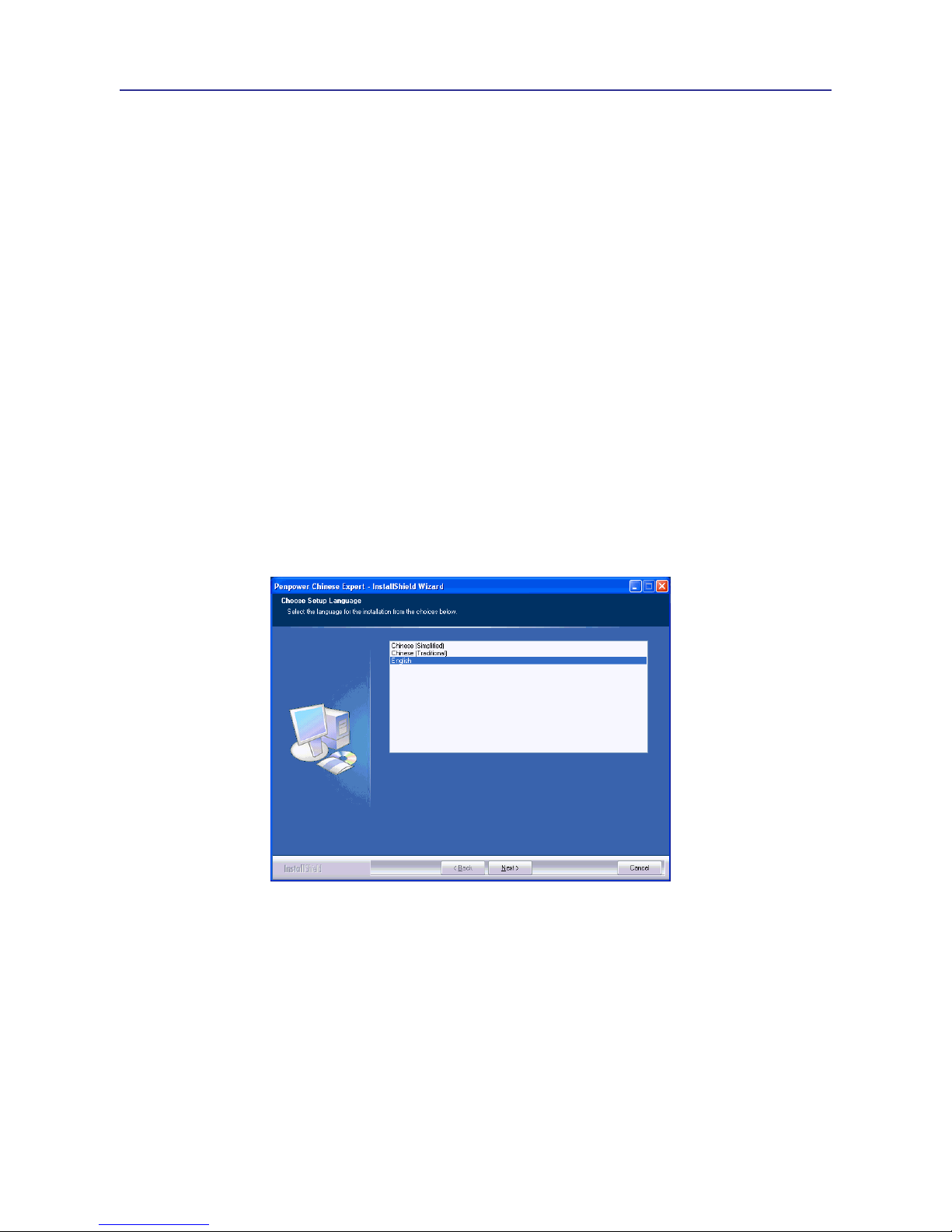
1. Insert Penpower Chinese Expert setup CD into the CD-ROM drive. The installation
program will start automatically. Please select an installation language and click [Next] to
install.
Note: Before installing the Penpower Chinese Expert on the Windows 2000/XP English
operating system, you must enable the Traditional or Simplied Chinese encoding
support under Regional and Language Options on the Control Panel. The process
for setting up Chinese language support is slightly different for Windows 2000 and
Windows XP. See Section 4.2 Language Settings for English Environments for
details.
Este manual sirve para los siguientes modelos
3
Tabla de contenidos
Otros manuales de Escáner de Penpower

Penpower
Penpower WorldCard Color Manual de usuario

Penpower
Penpower Super ScanEYE Manual de usuario

Penpower
Penpower WorldCard Color Manual de usuario

Penpower
Penpower WorldCard Mac Manual de usuario

Penpower
Penpower mini ScanEYE Manual de usuario

Penpower
Penpower WorldCard duet Manual de usuario

Penpower
Penpower WorldPenScan X Manual de usuario

Penpower
Penpower WorldPenScan Go Manual de usuario

Penpower
Penpower WorldCard Series Manual de usuario

Penpower
Penpower WorldocScan Pro Manual de usuario