
Origin Instruments Beam Manual de usuario

www.orin.com
Beam™
User Manual
Wireless Transmitter for
HeadMouse® and Swifty™
(Adaptive switch not included with Beam

Beam Page 2
Table of Contents
Legal Notices.................................................................................3
FCC / CE Notice............................................................................3
Application Disclaimer...................................................................4
Introduction....................................................................................5
Questions and Answers.................................................................7
Configuration.................................................................................9
HeadMouse Nano........................................................................10
Swifty...........................................................................................11
General Care and Maintenance..................................................12
Customer Support........................................................................12
Warranty Information...................................................................13
Notes:..........................................................................................15

Beam Page 3
Legal Notices
Information in this User Guide is provided “as is” by Origin
Instruments, is subject to change without notice, does not
represent a commitment on the part of Origin Instruments, and is
provided without warranty of any kind, either expressed or
implied, including any implied warranties of merchantability or
fitness for a particular purpose. No part of this document may be
reproduced or transmitted in any form or by any means, electronic
or mechanical, including photocopying, recording or information
storage and retrieval systems, for any purpose other than the
purchaser’s personal use, without the express written permission
of Origin Instruments.
Origin Instruments is not responsible for any problems caused by
unauthorized modification of Beam and will not be responsible for
direct or consequential damages associated with any use of the
Beam product.
FCC / CE Notice
Products bearing the CE marking have been tested and are
declared by Origin Instruments Corporation of 854 Greenview
Drive, Grand Prairie, Texas 75050, USA to be in conformity with
the following standards or other normative documents and
following the provisions of the Electromagnetic Compatibility
Directive, 89/336/EEC:
EN 55022 Class B Emissions (Radiated Emission
EN 61000-4-2, Electrostatic Discharge Immunity
EN 61000-4-3, Radiated Immunity
EN 61000-4-4, Fast Transient

Beam Page 4
Origin Instruments Corporation has tested the Beam and found
that it complies with the limits for a Class B digital device,
pursuant to Part 15 of the FCC Rules. These limits are designed
to provide reasonable protection against harmful interference in a
residential installation.
Operation is subject to the following two conditions: (1 this device
may not cause harmful interference, and (2 this device must
accept any interference received, including interference that may
cause undesired operation.
If this product is suspected of causing interference to a radio or
television receiver, remove and apply power to the equipment and
determine whether it is the cause of the disturbance. If a problem
exists, the user is encouraged to try and correct the problem by
one of the following measures:
1. Reorient or relocate the receiving antenna.
2. Increase the separation between the equipment and the
receiver.
3. Reorient the equipment cables.
4. Consult the dealer or Origin Instruments for additional
suggestions.
Information in this document is subject to change without notice
and does not represent a commitment on the part of Origin
Instruments Corporation.
Application Disclaimer
Beam is designed for use by people who have limited or no motor
capability enabling them to operate switch activated devices.
However, it should not be used in an application where personal
injury or property loss could occur if the Beam failed for some
reason. rigin Instruments products are not authorized for
use as surgical aids or as part of a system intended to
support or sustain life. The user assumes full responsibility for
determining the suitability of Beam for the intended application.

Beam Page 5
Introduction
The battery powered Beam transfers the state of up to three
normally-open switches directly to the HeadMouse® (Extreme or
Nano or Swifty™. The Beam is an infrared device, but it doesn’t
require a clear optical path to the HeadMouse or Swifty. The light
can bounce off the ceiling, walls and even the user. However, as
the batteries discharge Beam may require a more direct and clear
line of sight. Always replace the Alkaline AA-cells as a set. With
typical use the batteries should last for several months.
When used with the HeadMouse, adaptive switches emulate the
“LEFT”, “RIGHT”, and “MIDDLE” buttons of a standard desktop
mouse. When used with an Apple Mac, the HeadMouse uses the
“LEFT” input for the primary mouse button and the “RIGHT” input
to generate a Control-Click.
When used with Swifty the buttons are defined by Swifty or by the
software using Swifty.
Figure 1: (a) Beam connector panel (b) 1/8-inch (3.5-mm) Stereo headphone plug. A
ono plug looks the same except it does not have a Ring contact – Sleeve contact
extends to the insulator separating it from the Tip.

Beam Page 6
Beam has three 1/8-inch (3.5-mm headphone jacks and accepts
commonly available adaptive switches.
A photograph of the Beam rear panel and a stereo headphone
plug are shown in the Figure 1. Mono and stereo plugs can be
used in any jack; however, only the J1 socket has the capability to
monitor the second button of a dual switch. If a dual button switch
is plugged into J2 or J3 only one button will be seen, the other will
be ignored.

Beam Page 7
Questions and Answers
Can I use a dual position (stereo) switch with Beam?
Absolutely. Switch combinations such as Sip/Puff or Left/Right
can directly connect using a single stereo cable. Simply plug the
stereo cable into J1. This greatly reduces the complexity of
cabling. Similarly, if you are integrating two switches into an
adaptive mount, we recommend the use of stereo cabling for
connection to Beam.
Can I use Beam to generate the middle mouse button for a
computer?
Yes, plug the adaptive switch for the middle mouse button into J2
or the middle connector on Beam’s connector panel.
Can I use Beam with HeadMouse and Swifty?
Yes. However, in general you cannot use two Beams with
different HeadMouse systems or Swiftys in the same room at the
same time.
Must I point the Beam directly at the receiver?
In general light from the receiver will bounce off the walls, ceiling
and other things in the immediate vicinity of the Beam and make it
to the receiver. Certainly if Swifty is plugged into the back of a
computer under a desk a more direct path may be necessary. In
this situation one should purchase a Swifty Cable Kit and use the
USB extender to remote mount Swifty.
How do I get joystick buttons when using Beam with Swifty?
Even though the label indicates Beam sends mouse buttons it
actually just tells Swifty that one or more of the buttons have been
switched. Swifty in conjunction with its mode setting determines
which buttons it will emulate – mouse, joystick, or keyboard.
How do I get keyboard keys when using Beam with Swifty?
Even though the label indicates Beam sends mouse buttons it
actually just tells Swifty that one or more of the buttons have been

Beam Page 8
switched. Swifty in conjunction with its mode setting determines
which buttons it will emulate – mouse, joystick, or keyboard.
How long will the batteries last?
With typical use the batteries will last for many months. However,
if you notice intermittent behavior or that a more direct line-of-
sight is needed between Beam and the receiver a fresh set of
batteries may improve the situation.
What happens If a switch is held down indefinitely?
After approximately 30-seconds of a constantly held switch Beam
will go to sleep. This will prevent the batteries being accidentally
discharged if a switch is inadvertently held down. Once the switch
is released Beam will function normally again.
Is Beam a Bluetooth device?
No, Beam is a near infrared (IR device like a TV remote control.
Is Beam a WiFi device?
No, Beam is a near infrared (IR device like a TV remote control.
Does Beam emit radio frequency waves?
No, Beam is a near infrared (IR device like a TV remote control.
Beam Page 9
Configuration
Beam has the capability to determine if a mono or stereo plug is
inserted into J1. If a stereo plug is used, see Figure 1(b , both
“Left” and “Right” mouse buttons will be derived from this one
connector. The “Left” button will come from the Tip and the
“Right” button will come from the Ring. If a plug is inserted into J3
the Beam will now use the Tip of J3 as the “Right” button. In all
cases the “Middle” button will use the Tip of J2. For all jacks,
switch common is the Sleeve, see Figure 1.
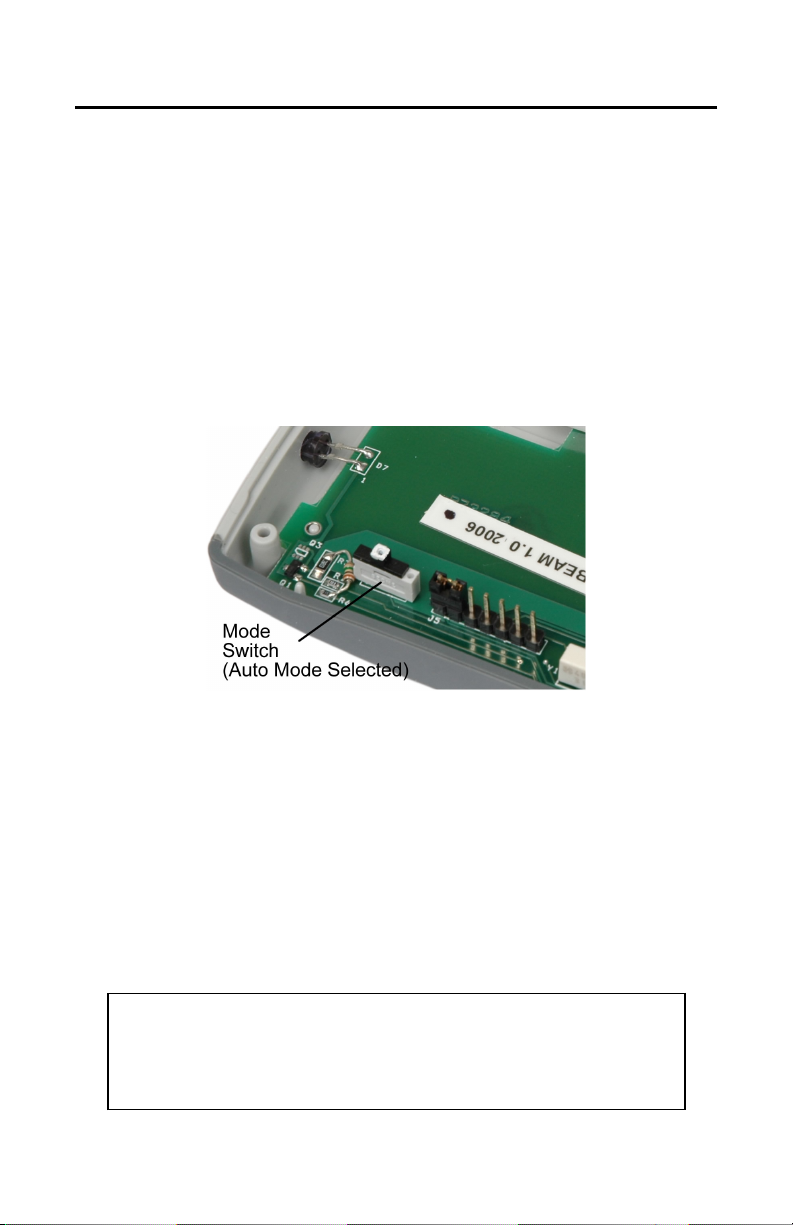
In auto mode, as shown in Figure 2 (factory default Beam will
automatically determine if a stereo or mono connector is plugged
into J1. Slide mode switch to the right for mono mode.
The mode switch is accessed through the round hole under the
battery door. In general, you should never have to change this
switch.
Note: By default the Beam automatically determines whether a stereo or mono
plug has been inserted in J1. However, there may be times after moving plugs
between jacks and changing between mono and stereo plugs that the Beam will
temporarily be confused. During these times the Beam may transmit a
continuous right button for up to 30-seconds. If this is a problem, the internal
mode switch may be used to configure J1 as a mono jack.
Figure 2: The mode switch is used to instruct the
Beam to automatically determine whether a stereo or
mono switch is plugged into J1. Slide mode switch to
the right to manually select mono mode.

Beam Page 10
HeadMouse Nano
The optional HeadMouse Nano is a precise and efficient head-
controlled access device for computers, tablets, smartphones and
speech generating devices. It mounts on the computer and tracks
head position in order to wirelessly control the mouse pointer.
Adaptive switches can be connected to HeadMouse directly or
wirelessly using Beam.
HeadMouse features:
Built-in receiver for Beam for wireless switch input
Wireless head-controlled mouse emulation
Fast and responsive cursor control
USB mouse interface
Very low power
Light weight
Pocket size
Works with computers, tablets and smartphones
Works with speech generating devices
Otros manuales para Beam
1
Tabla de contenidos
Otros manuales de Transmisor de Origin Instruments

Manuales populares de Transmisor de otras marcas


Dejero
Dejero EnGo 3x Manual de usuario

Rosemount
Rosemount 4600 Manual de usuario

Speaka Professional
Speaka Professional 2342740 Manual de usuario

trubomat
trubomat GAB 1000 Manual de usuario

Teledyne Analytical Instruments
Teledyne Analytical Instruments LXT-380 Manual de usuario

Rondish
Rondish UT-11 Manual de usuario


