
OpenChord V1 Manual de usuario

The OpenChord
V1 Guitar
Quick Start Guide
fig 1.
- Button Mapping of the Guitar in Fret Mode
When you first plug in the controller, it defaults to Fret Mode. This means that in
order to press buttons, you'll be pressing the strings on the frets – Any string pressed
against the first fret will register as a Green button press, any string pressed between
the first and second frets as a ed button press, and so on.
In order to strum, press the metallic part of the pick against a string. Touching
any of the top 3 strings with the pick will register a down strum, and touching the any
of the bottom 3 strings will register as an up strum. This way, you can navigate through
the game menus like you would with a normal guitar controller.
First off, thanks for using an OpenChord guitar.
On this page, we're going to show you the basics
of how to use the V1 guitar to get you started
playing. This part covers how to use your guitar in
If you're using the Wii version of the controller,
you'll be connecting the guitar to the Wiimote, so
the first thing to do is find a good spot on your
guitar to hang the Wiimote from. If you're using
the separate box, hanging the Wiimote strap on a
tuning peg tends to work pretty well. If you've got
a version with the electronics built in, then try the
tone selection switch, one of the strap fasteners, or
string your guitar strap through the controller
strap.
Next, load up your chosen guitar game and plug
the guitar into either the Wiimote or the USB port.

The ed button on the controller corresponds
to the Start button. It is used for pausing. The
other button, the White button, is used to
activate Star Power, Overdrive, or whatever
bonus mode your game supports.
The primary manner of activating Star Power/Overdrive is through pressing all the strings
down on the first 4 frets. Due to the way the guitar interprets string presses, you don't
need to press each string against each fret, you only need to make sure that each string is
pressed against the frets and that enough strings are touching each fret to electrially
connect everything together. A good mashing of the strings between the first four frets
should be able to get things to connect well enough.
This way of activating Star Power/Overdrive is constant over all the guitar's modes/
fig 2.
- Mash the Guitar Strings Across This Area to
Activate Star Power/ verdrive

The OpenChord.org
V1 guitar
Playing in Fret Mode
When plugged in, the guitar always begins in
Fret Mode. Fret Mode is the simplest play
mode, and the closest approximation of playing
Guitar Hero/ ock Band with a real guitar. In
this mode, the spaces between the first 5 frets
of the guitar act like the standard buttons in the
game. When you press on a string between any
of the frets, it records a button hit. In this
mode, it doesn't matter which string you press.
In the diagrams, the red circles represent finger
presses, while the red strings and frets are the
strings and frets the controller sees as "active".
▲Only Yellow Note Played▲Blue and Red Notes Played
▲Orange and Blue Notes Played
In order to play multiple buttons at once, press
different strings between multiple frets. Note
that in order to play multiple notes, you're
required to press multiple strings. Just like a real
guitar, when you press multiple frets on the
same string, the guitar will only register on the
fret that's closest to the body of the guitar.
fig 3. - Holding Each of the 5 Notes
fig 4. - Pressing Multiple Notes at nce
Caution should be taken when pressing
multiple strings on the same note, however.
While in most cases, you can do so without
any trouble, due to the way the V1 records
string presses, there are some cases where
two different fingerings are indistinguishable
to the guitar. While it is a greater problem in
the other modes, in Fret Mode, this creates a
problem with the green and red buttons.
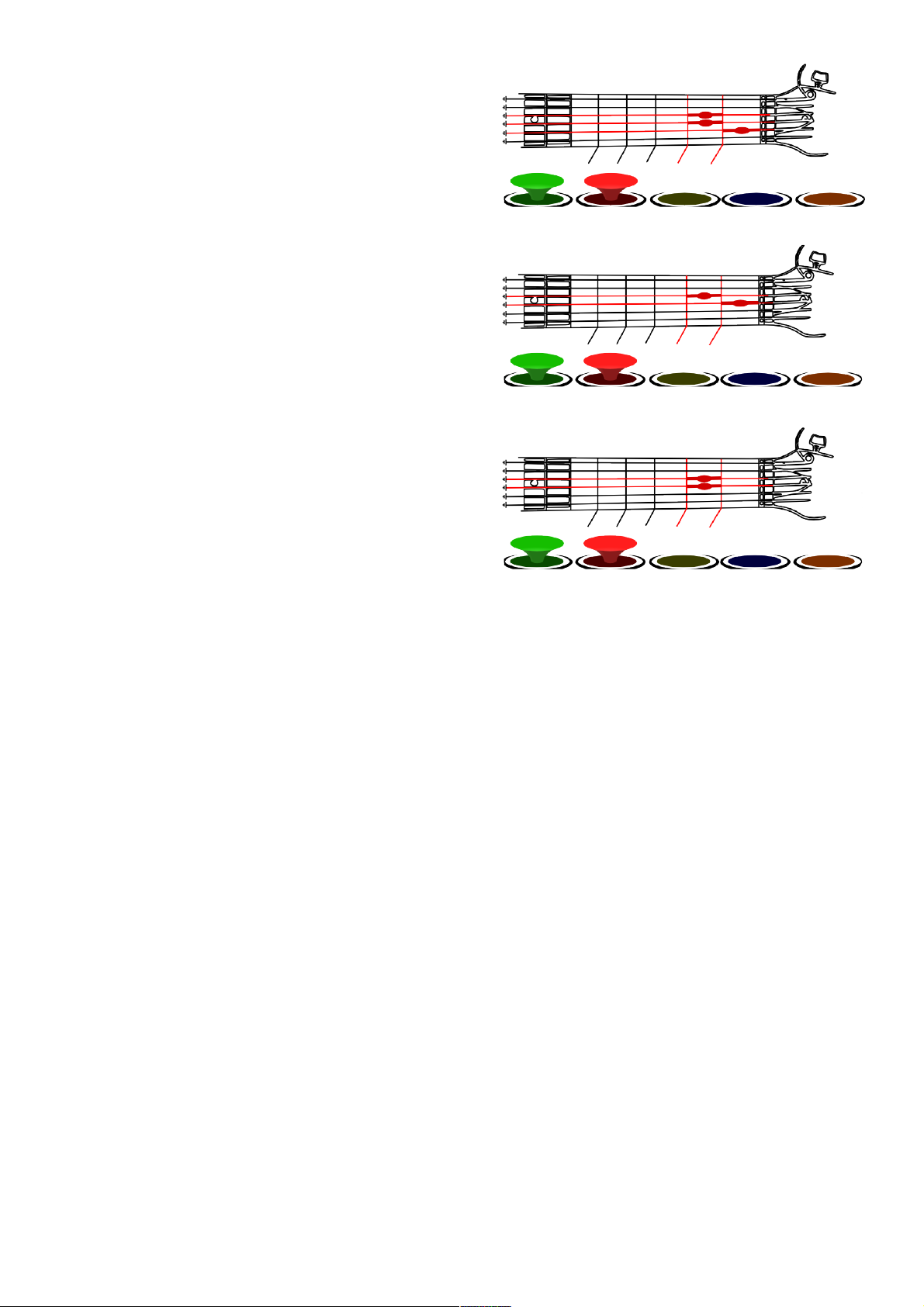
Namely, the controller cannot tell the
difference between two strings being pressed
in the red button zone and one string being
pressed in both the red and the green zones,
so in both, the controller will register both
green and red button presses.
▲Green and Red Notes Still Played
▲Green and Red Notes Played
▲Green and Red Notes Played
fig 5. - Errors in Button Detection in Fret Mode

▲from Chord Mode bac to Fret Mode
▲from Note Mode to Chord Mode
▲Changing from Fret Mode to Note Mode
When switching modes, the
controller will display special
button combinations in the
game to indicate which mode
you are switching to.
Therefore, it is recommended to
switch controller modes during
actual song play in order to see
this feedback.
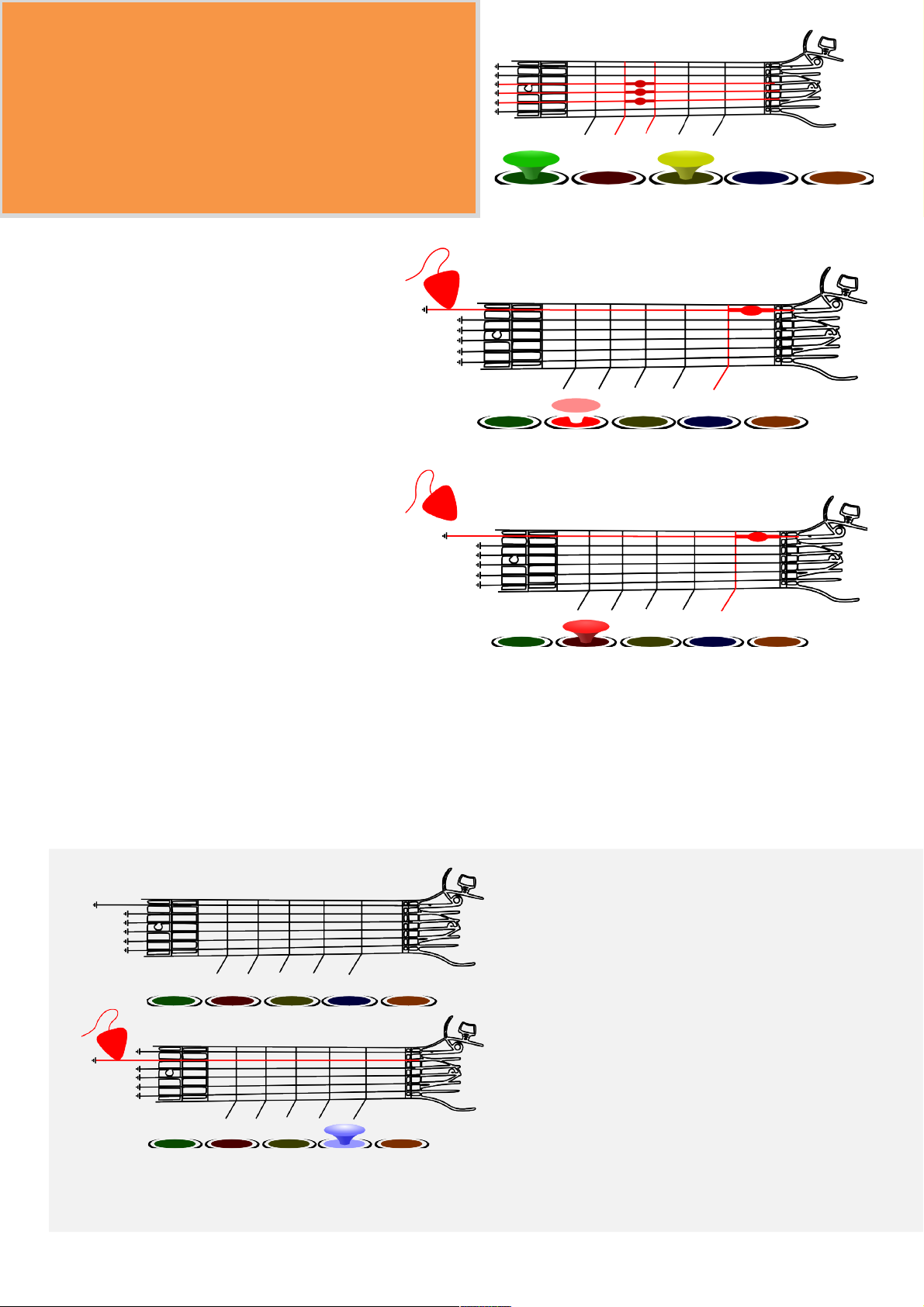
In addition to Fret Mode, the 1 also lets
you play with actual guitar notes (Note
Mode) or chords (Chord Mode). To switch
between these modes, you press the 2nd,
3rd, and 4th strings between the 3rd and
4th frets. Each time you press and release
this special fingering, the guitar's mode
changes, from Fret Mode to Note Mode to
Chord Mode and back to Fret Mode.
The OpenChord.org
V1 guitar
Changing Play Mode
fig 6. - Mode Change Fingering
fig 7. - Mode Change Feedback
Note Mode also introduces open strings,
that is, strings that aren't being pressed.
Open strings won't display when not
strummed, but when strummed, they
will display the color they are mapped to
and record a strum.
▲Button active, but not strummed
▲Button active and strummed
Changing from Fret Mode to Note Mode
In Note Mode, instead of simply being
mapped to the frets of the guitar, the
buttons are mapped to actual guitar
notes. This means that in order to play
a note in the game, you must both fret
the appropriate string in the right place
and strum the same string.
The OpenChord.org
V1 guitar
Playing in Note Mode
fig 8. - Playing Notes in Note Mode
fig 9. - Playing pen Notes

In order to press multiple buttons, you
need to press multiple notes on the
fretboard. You can also take advantage
of the open strings for this purpose.
fig 10. - Pressing Multiple
Buttons in Note Mode
fig11. – Default Mapping of Notes in Note Mode
In Note Mode, the notes are mapped by default to a B-flat scale, with the open
6th string unmapped to allow for easier navigation. The following diagram
shows the mapping, with the color of the open strings given by the color of the
picks.

However, the V1 is not limited to one pre-programmed scale. By accessing the
configuration mode, you can re-map the buttons to any number of notes on the guitar.
This new programming will be preserved even when you unplug the guitar (to restore
the defaults, see the esetting the Guitar section). Again, since the feedback is provided
through the status of the buttons, it is recommended that you configure the guitar during
a song or practice mode.
By pressing the 4th, 5th, and 6th
strings on the 5th fret, the
controller enters into
Configuration Mode. To exit
configuration Mode, simply
press the 3rd, 4th, and 5th
strings on the 5th fret.
▲Entering Configuration Mode
▲Entering Configuration Mode
The OpenChord.org
V1 guitar
Programming in Note Mode
fig12. – Configuration Mode
Upon entering Configuration Mode,
the green button will light up,
signaling that you are currently
programming the green button. Hold
the note you'd like to map to green
and press the "+" button on the 1.
fig 14 – Programming the Green Button
fig 13. – Entering
Configuration Mode

We recommend caution when programming open notes, especially with the
green and red buttons, as they may interfere with your ability to navigate
through menus - You'll be selecting and/or cancelling menu options as you try to
use the up and down strumming to move up and down through menus. Should
you run into trouble, switch into a different mode and use that mode to navigate
until you can re-map the buttons to avoid the problem.
After programming the orange button, the V1 will return to the green button.
This allows you to program multiple notes on each button. It is also possible to
program multiple notes at once by holding down multiple notes when you press
"+", but it is not recommended, due to the guitar's inability to determine similar
fingering patterns. For more details, see Appendix A.
fig 15. – Mapping an pen String to the Red Button
If you want to map an open string, hold the pick against
the string and press "+". This will save the 'picked' state
of that string to the button map..

Additionally, since the guitar
maps notes across the entire fret
board, multiple button 'chords'
must be manually programmed.
While not included in the default
mapping, the Green+ ed,
ed+Yellow, Yellow+Blue,
Green+Yellow, and ed+Blue
button combinations can be
mapped on the guitar in
Programming Mode.
As you can see, some of the
buttons have multiple chords
assigned to them. Unfortunately,
this is the result of how the V1
works - More information about
the issue can be found in Appendix
A. However, it comes down to the
guitar being unable to distinguish
between chords with similar
fingerings.
The default mapping is:
Green = G Major/G7
ed = C Major
Yellow = E Major
Blue = A Major/Minor
Orange = D Major
In Chord Mode, instead of pressing
one note on the guitar to play one
note in the game, you'll need to
press full chords to play one note.
Changing from Note Mode to Chord Mode
The OpenChord.org V1
guitar
Playing in Chord Mode
fig 16. – Default Button Map
for Chord Mode
Tabla de contenidos


