ooma Home Telo Manual de usuario

Quick Start Guide
700-0198-100
525 Almanor Ave | Suite 200 | Sunnyvale, CA 94085
Learn more at www.ooma.com or call 1-877-629-1284
© 2018 Ooma, Inc. All rights reserved. Patent Pending. Buttereye, Ooma, Ooma Base Station, Ooma Home Security, and the Ooma logo are trademarks or service marks
of Ooma, Inc. Other company and product names mentioned herein are trademarks of their respective companies. Mention of third-party products is for informational
purposes only and constitutes neither an endorsement nor a recommendation. Ooma assumes no responsibility with regard to the performance or use of these products.
Have a Question or Need Assistance?
Ooma has a wealth of available resources if you need assistance:
Support articles. Access our comprehensive knowledge base at support.ooma.com
User manuals. Access this guide and all other product manuals at ooma.com/userguide
Forums. Talk with your fellow Ooma customers and our support sta at forums.ooma.com
Live support. Still having trouble? Chat with a service representative at any time
at support.ooma.com
Speak with a support specialist. M–F, 5am–5pm PST, or Sat/Sun 8am–5pm PST
at 1-877-629-1284 (US and Canada)
Ooma-HomeSecQSG-700-0198-100-Oct2018-R4.indd 1-2 10/9/18 2:28 PM

Ooma Telo Base Station Package Contents
02 Ooma Home Security Starter Kit Contents
03 Welcome to Ooma Home Security
04 Step 1: Download the Ooma Home Security App
05 Step 2: Activate Your Ooma Telo Base Station
06 Step 3: Connect Base Station to Router and Power On
08 Step 4: Pair Sensors with your Base Station and
Congure your Home Security Settings
10 Other Sensors for Ooma Home Security
11 Upgrade to Ooma Home Telephone Service
12 Quick Reference
13 Troubleshooting
2 3
Welcome to Ooma Home Security
Installation is easy!
Congratulations on purchasing the Ooma Telo Base Station, your hub for Ooma Home
Security. Installation is easy and will take only about 15 minutes. Follow the steps in this
guide to set up your Base Station, then log into your account to visit our web store and
choose the Home Security sensors that are right for your home.
Have a Question or Need Assistance?
Here is where you can look for help:
Knowledge base: www.ooma.com/support
User manuals: www.ooma.com/userguide
Community forum: www.ooma.com/forums
Live Customer Care:1-877-629-1284
Ooma Telo Base Station AC AdapterEthernet Cable
Ooma-HomeSecQSG-700-0198-100-Oct2018-R4.indd 3-4 10/9/18 2:28 PM

The Ooma Home Security app will be the main tool you use
to control your home security system. You will use it now to
complete the setup process for your Base Station. Later, you
can use the app to pair your Ooma sensors to your Base
Station, to congure your setup, to receive notications about
your sensors, to manage the system’s active mode, and more.
To download the app, search for Ooma Home Security in the
Apple App Store or the Google Play Store. Once the app is
installed on your device, open it up to move on to the next step
in the installation process.
Download the Ooma Home Security App
Step 1
45
The Ooma Home Security app will guide you through the process of activating your
Ooma Telo Base Station. You will need to provide your 911 address and billing information.
At the end of the activation process you will be assigned an Account ID that you will
use to log into the Home Security app.
Activate your Ooma Base Station
Step 2
Ooma-HomeSecQSG-700-0198-100-Oct2018-R4.indd 5-6 10/9/18 2:28 PM

Use the provided Ethernet cable to connect the INTERNET port of the
Base Station to an open Ethernet port on your router.
Plug the provided AC adapter into the POWER port on the back of the Base Station. It is normal for
the lights on the Base Station to blink for a couple of minutes while it boots up. The Ooma logo will
light up blue once the device is ready to be used.
Connect Base Station to Your Router and Power It On
Step 3
6 7
If your Base Station needs a software upgrade, the Ooma logo will blink purple while
it is downloading the newest version. This may take 5-10 minutes.
Do not unplug the Base Station while it is upgrading. It will automatically reboot
after the upgrade is done.
Power
Outlet
Ooma-HomeSecQSG-700-0198-100-Oct2018-R4.indd 7-8 10/9/18 2:28 PM

8 9
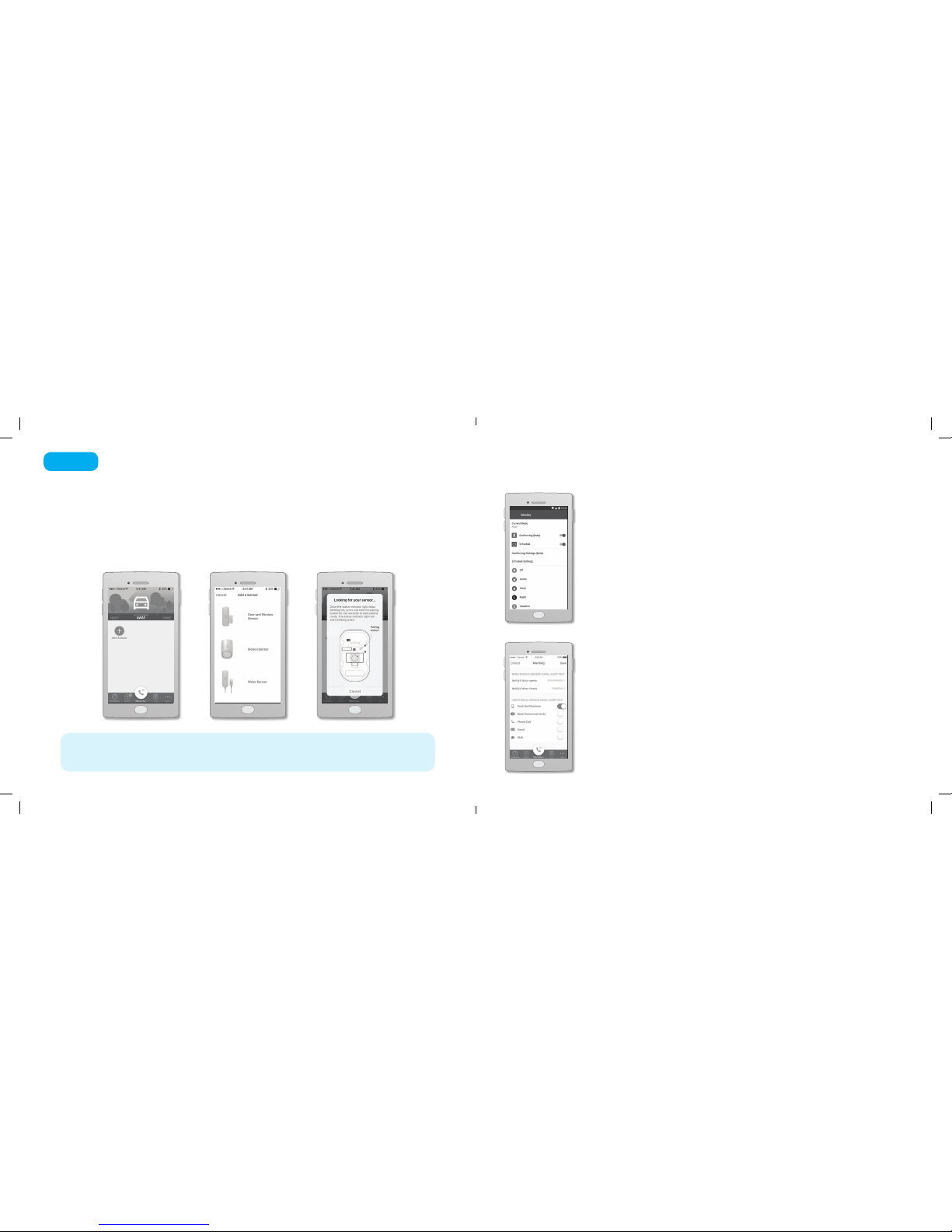
Modes
Modes control when sensors send notications and the types of
notications that are sent.
For example, you may want your motion sensor to alert you to
movement when you are away, but not when you are home.
Modes can switch automatically based on the time of day or through
user location (geofencing). They can also be changed manually by
swiping left and right at the top of the dashboard screen.
Notications
There are several types of Home Security notications, including
a phone call, a text message, a voice announcement on your
Base Station, and more.
You can add one or more Contacts to your account, each of
whom will receive sensor notications based on your preferences,
by going to the More menu and tapping Contacts. You can update
your notication settings by going to the app dashboard, tapping
the sensor you want to update, and tapping Notications.
Home Security Settings
NOTE Each sensor you purchase should include a Quick Start Guide that contains information
that will help with the installation process.
If you have already purchased one or more Ooma Home Security sensors, you can now pair them
with your Base Station.
Use the Account ID and password you created during the activation process to log into the app.
Tap Add Sensor on the main dashboard and select the type of sensor you wish to pair. Follow
the on-screen instructions to complete the pairing process. You may repeat this process for
each sensor you have purchased.
Pair Sensors with your Base Station and Configure
Step 4
Ooma-HomeSecQSG-700-0198-100-Oct2018-R4.indd 9-10 10/9/18 2:28 PM

10 11
Here is a brief overview of the sensors that are currently available.
You can visit www.ooma.com/home-security to learn more.
Ooma Home Security sensors connect to the Base Station wirelessly from up to 200 feet away (depending on
the thickness of your home’s walls and oors). The sensors can be easily mounted using the included fasteners.
All sensors include a tamper sensor that triggers when the sensor is removed from its mounting plate.
You can choose to upgrade your Ooma account to
include Internet based home phone service at any time.
Ooma oers crystal clear calling to domestic
landlines and cell phones for only the cost of
applicable taxes and fees. For a small additional
monthly fee, basic telephone service can be
upgraded further to Ooma Premier, which includes
unlimited access to over 25 premium calling features
like telemarketer blocking, a second phone number,
enhanced voicemail, and more.
To learn more or to initiate the upgrade process,
please contact our Customer Care team
at 1-877-629-1284 (US and Canada)
Motion Sensor
• Alerts you when motion is
sensed in your home
• Uses passive infrared
(PIR) sensor and lens
• 85° eld of view and 30 to
35-foot detection range
• Includes optional standing
mount
Door/Window Sensor
• Alerts you if your door
or window opens or is
left ajar
• Works using magnetic
activation tab and
main sensor
• Includes spacers to
raise the magnet tab for
dierent congurations
Water Sensor
• Provides alerts before
water damage
• Triggered when water is
detected between the two
sensor probes
• Gold-plated probe tips to
prevent corrosion
Garage Door Sensor
• Alerts you when your
garage door is opened
• Detects the garage door’s
tilt to determine whether
it’s open (vertical) or
closed (horizontal)
• Includes mounting
equipment for any garage
door setup
Ooma Siren
• Emits an audible alarm
when unexpected activity
triggers the system
• Compatible with all
Ooma Home Security
sensors
• Plugs into any available
electrical outlet for
simple installation
Buttereye Camera
• Provides a real-time,
24/7 instant video feed of
your home
• Uses facial recognition to
reduce false alarms
• Works during Internet
and power outages
• Listen through the
camera and respond
from anywhere
Other Sensors for Ooma Home Security Upgrade to Ooma Home
Telephone Service
Ooma-HomeSecQSG-700-0198-100-Oct2018-R4.indd 11-12 10/9/18 2:28 PM

12 13
Troubleshooting
logo is blinking red
A blinking red logo indicates that your Ooma Telo
Base Station is not operational. It is normal for the
Ooma logo to blink red for a couple of minutes during
boot up. Otherwise, check the following to make sure
everything is set up correctly:
• Verify that you have activated your device as
described on Page 4. If you plugged in your device
before going through the activation process, try
rebooting it now.
• Check that your network cables are plugged in
securely. Verify that the INTERNET port is connected
to your router (or modem). The LED at the bottom
right of the connector will be lit green if the cable is
connected properly.
• Check that your Internet connection is working.
• Try rebooting your Base Station, modem, and router
by pulling out the power and plugging them back in.
App shows “Home Security is Oine on
your Base Station” message
Try the following troubleshooting steps to make sure your
your Ooma Telo Base Station is connected to the Internet:
• Make sure the Base Station is powered on and connected
to the Internet so the Ooma logo is solid blue.
• If the Ooma logo on the Base Station is blue, try rebooting
the Base Station by unplugging the power, waiting
10 seconds, then reconnecting the power.
Sensor shows “Disconnected” in the app
Try the following troubleshooting steps to determine why
the sensor is not connecting to the Home Security app:
• Generate activity on the sensor. If the disconnected sensor
is a Door/Window sensor you may try opening and closing
the door a few times. If the sensor is a motion sensor,
generate motion in front of the sensors.
• Ensure the sensor is not mounted on or near a large metal
surface, which can interfere with the radio signal necessary
for the sensor to connect to the Base Station.
• Replace the batteries in the sensor.
• Try unpairing and re-pairing the sensor. To unpair the sensor,
open the mobile app, visit the dashboard, and tap on the
sensor that is disconnected. Choose “Unpair Sensor.” After the
sensor has disappeared from the dashboard, tap “Add Sensor”
on the dashboard and follow the instructions to pair it again.
logo does not light up
Check that the AC adapter is plugged in and power
is being supplied to the device.
Quick Reference
USB
POWER
HOME
INTERNET
PHONE
Page
Key
System
Status
Volume
Dim or Brighten
System Status Light
Solid Blue System Status
Indicates your Ooma service is working.
All services are operational.
Blinking Red System Status
Indicates your Ooma service is not working.
All services are unavailable.
White System Status
Indicates your Ooma Telo Base Station
is not powered on or that brightness is
turned all the way down.
Dim or Brighten System Status
Press the Rewind key to dim or brighten
the System Staus LED.
Ooma-HomeSecQSG-700-0198-100-Oct2018-R4.indd 13-14 10/9/18 2:28 PM

Guide de démarrage rapide
700-0198-100
525 Almanor Ave | Suite 200 | Sunnyvale, CA 94085
Pour en apprendre davantage, allez sur www.ooma.com
ou composez le 1-877-629-1284
© 2018 Ooma, Inc. Tous droits réservés. Brevet en instance. Buttereye, Ooma, l’unité de base Ooma, Sécurité à domicile Ooma et le logo Ooma sont des marques de
commerce ou des marques de service d’Ooma, Inc. Les noms d’autres entreprises et d’autres produits mentionnés dans le présent document sont des marques
de commerce de leurs entreprises respectives. Toute référence à des produits de tiers est faite à des ns d’information uniquement et ne constitue ni une approbation
ni une recommandation. Ooma n’assume aucune responsabilité quant à la performance ou à l’utilisation de ces produits.
Vous avez une question ou besoin d’aide?
Ooma vous ore une foule de ressources si vous avez besoin d’aide :
Articles de soutien. Accédez à notre base de connaissances complète sur support.ooma.com
Manuels de l’utilisateur. Accédez à ce guide et à tous les autres manuels
de produit sur ooma.com/userguide
Forums. Parlez avec d’autres clients d’Ooma et avec notre personnel de soutien
sur forums.ooma.com
Soutien en direct. Le problème persiste? Clavardez avec un représentant du service
à la clientèle à tout moment sur support.ooma.com
Parlez avec un spécialiste du soutien technique. Du lun. au vend., de 5 h à 17 h (HNP),
et le sam./dim. de 8 h à 17 h (HNP) au 1-877-629-1284 (Canada et États-Unis)
Ooma-HomeSecQSG-700-0198-100-Oct2018-R4.indd 15-16 10/9/18 2:28 PM

Contenu de la trousse de départ de sécurité
à domicile Ooma
02 Contenu de la trousse de départ de sécurité à domicile Ooma
03 Bienvenue à la sécurité à domicile Ooma
04 Étape 1 : Téléchargez l’application de sécurité à domicile Ooma
05 Étape 2 : Activez votre unité de base Ooma Telo
06 Étape 3 : Branchez l’unité de base au routeur et mettez sous tension
08 Étape 4 : Jumelez les détecteurs à votre unité de base et
Congurez les paramètres de sécurité à domicile
10 Autres détecteurs de sécurité à domicile Ooma
11 Mise à niveau au service téléphonique à domicile Ooma
12 Référence rapide
13 Dépannage
2 3
Bienvenue à la sécurité à domicile Ooma
Installation facile!
Félicitations pour l’achat de l’unité de base Ooma Telo, votre pivot pour la
sécurité à domicile Ooma. L’installation est facile et ne vous prendra que
15 minutes environ. Suivez les étapes du présent guide pour congurer votre
unité de base, puis ouvrez une session sur votre compte pour aller sur notre
magasin Web et choisir les détecteurs de sécurité à domicile qui conviennent
le mieux à votre maison.
L’unité de base Ooma Telo Adaptateur CACâble Ethernet
Ooma-HomeSecQSG-700-0198-100-Oct2018-R4.indd 17-18 10/9/18 2:28 PM

L’application de sécurité à domicile Ooma sera le principal
outil que vous utiliserez pour contrôler votre système de
sécurité à domicile. Vous allez l’utiliser maintenant pour
terminer le processus de conguration de votre unité de
base. Plus tard, vous pouvez l’utiliser pour jumeler vos
détecteurs Ooma à votre unité de base, pour congurer
votre installation, pour recevoir des avis concernant vos
détecteurs, pour gérer le mode actif du système et bien plus
encore.
Pour télécharger l’application, recherchez Sécurité à domicile
Ooma dans l’App Store d’Apple ou le Play Store de Google.
Une fois l’application installée sur votre appareil, ouvrez-
la pour passer à l’étape suivante dans le processus
d’installation.
Téléchargez l’application de sécurité
à domicile Ooma
45
L’application de sécurité à domicile Ooma vous guidera dans le processus d’activation de
votre unité de base Ooma Telo. Vous devrez fournir votre adresse 911 et vos informations de
facturation. À la n du processus d’activation, on vous attribuera un identiant de compte que
vous utiliserez pour ouvrir une session sur l’application de sécurité à domicile.
Activez votre unité de base Ooma
Étape 1 Étape 2
Ooma-HomeSecQSG-700-0198-100-Oct2018-R4.indd 19-20 10/9/18 2:28 PM
Tabla de contenidos
Idiomas: