
NexxTech 8021910 Manual de usuario

8021910
OWNER’S MANUAL
Data Link Dongle

2
CONTENTS
INTRODUCTION .......................................3
Functions ......................................3
QUICK START .........................................3
3 Ways to Setup ................................3
After the driver is installed: ........................4
DRIVER INSTALLATION .................................6
1 Dongle for 2 computers at the same time............6
Step 1 ........................................6
Step 2 ........................................7
Step 3 ........................................8
MANAGEMENT TABLE, EXIT OR UNINSTALL THE DRIVER ....9
P2P: WiFi direct mode for WIN 7/8/8.1 ..............10
FUNCTIONS..........................................11
Keyboard and mouse control switching settings .......11
Note .........................................12
CLIPBOARD SHARING .................................12
FILE TRANSFERRING..................................12
Copy and paste ................................12
Keyboard’s hotkeys .............................13
Hotspot to share internet with another device .........13
PREFERENCE SETUP .................................13
Turn off ......................................13
Use mouse middle button ........................13
Use mouse move off the edge of the screen..........13
CONNECTION LIST....................................14
Search .......................................14
PC Lock ......................................14
SYSTEM REQUIREMENTS..............................15
TRANSFER SPEED....................................15
TROUBLESHOOTING ..................................15
If this dongle is not working .......................15
P2P is not working - WIN 7/8/8.1...................16
How to Uninstall the Driver .......................17
THE FCC WANTS YOU TO KNOW ........................18
Industry Canada Notice RSS210...................19
WARRANTY ..........................................19
3
INTRODUCTION:
The Data Link Dongle allows you (via the internet) to share documents, slides
and photos between two computers, such as a PC or laptop. You can also
lock your screen while you are away.
WIN 7/8/8.1 supports smart P2P to connect two tablets or laptops directly
without any intranet or internet. If you are able to connect to the internet,
WIN7/8/8.1 also supports “Hotspot” (“YouLink Wi-Fi” ) for mobile phones,
tablets and laptops to share internet through the Data Link Dongle.
FUNCTIONS:
All you have to do is to plug the dongle to the USB port of each computer
respectively and install the driver.
QUICK START
3 WAYS TO SETUP:
Make sure that two computers have been connected to the same local
network segment. (The same network or using the same Wi-Fi AP)
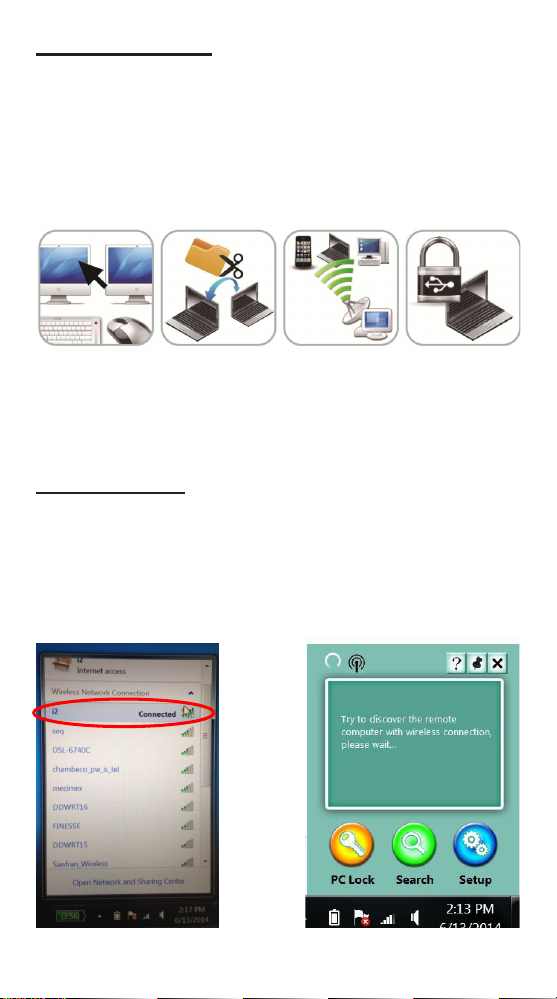
A. Two computers are connected to the same Wi AP. After the driver is
installed, you will see that computers are connected to “wireless
connection” as below:
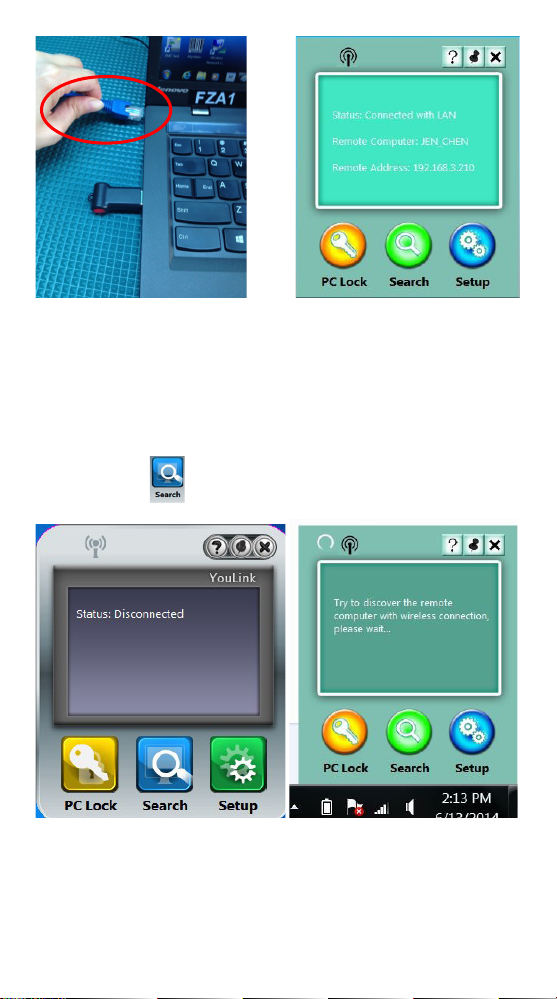
B. Two computers are using RJ-45 or Ethernet cables to connect to the
internet at the same intranet.
Toggle keyboard and
mouse between two
computers.
Drop, drag, copy
les and clipboard
sharing between two
computers.
Hotspot sharing
between a computer
and a device.
Works as a USB
key to lock your
computer.
4
AFTER THE DRIVER IS INSTALLED:
If you nd that the two computers are not using the same network segment,
you can unplug the dongle, check the Troubleshooting section B. on page 15
of this manual.
1. You will see an icon on the screen. Please keep this dongle on computer
B, it will start to auto detect computer A.
Or click this icon “ ” to search for computer A.
2. Once the application is launched, Data Link will start connecting with the
rst computer.

5
3. Data Link is requesting you to permit the connection from the rst
computer. Click “Conrm” to permit the connection.
Now, you can start to use Data Link functions.
C. Peer-to-Peer (P2P): WiFi direct Mode For WIN 7/8/8.1
Peer-to-Peer connects two computers’ through WiFi for Windows 7/8/8.1.

6
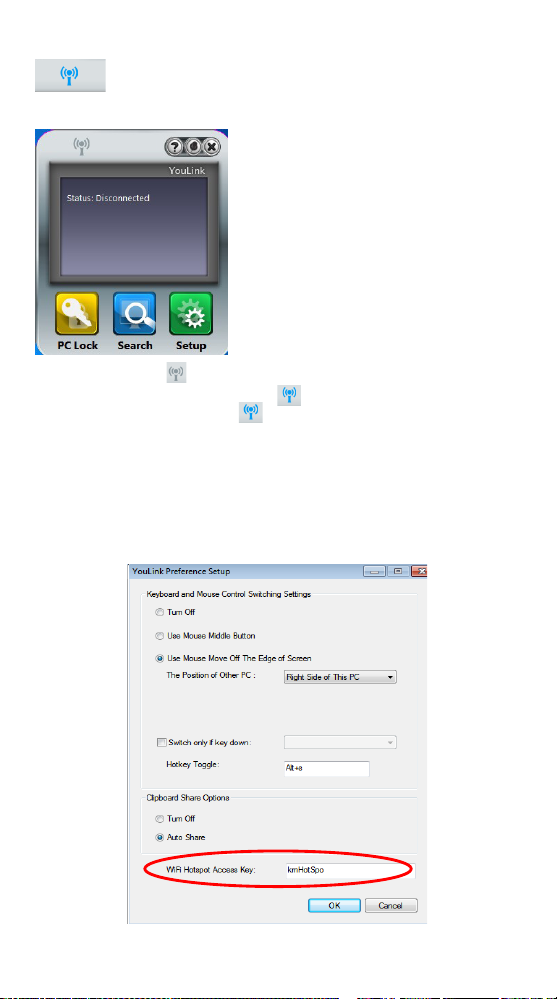
1. Click the button “ ” on the left top of the screen on Computer A. When
the icon becomes blue as shown “ ”, you can start to use hotspot
sharing.
The computer with “ ” will automatically become a virtual hotspot and
you will see “KMHotSpot_XXXXX” (XXXXX is your computer’s name) on
your WiFi list. Remove the Data Link Dongle from computer A and plug the
Data Link dongle into Computer B, then it will automatically link to the virtual
Hotspot.
The Password is: kmHotSpo
(If you want to change the password, it will need 8 digits. For example new
password is 12345678.)
*If it does not link to computer A, make sure that WiFi link of computer B
is connected to “KMHotSpot_XXXXX”.
DRIVER INSTALLATION
1 DONGLE FOR 2 COMPUTERS AT THE SAME TIME.
Use one dongle to install driver for computer A and B
For Example: Computer A and B will be connected.
STEP 1:
Plug the dongle into computer Aand follow the driver installation as below:
Launch “YouLinkLd.exe” in the drive of local computer and click
“YouLinkLd.exe” to start the installation.

7
You will see the “User Account Control” window appear on the screen, click
“Yes” to continue.
When the process is nished, you will see an icon on the screen.
Then, you will see the following window appear on the screen.
STEP 2:
Please remove the dongle from computer A. After removing the dongle from
computer A, please plug the dongle into computer Band repeat the “Driver
Installation” to install the driver into computer B.

8
STEP 3:
When the process is nished, you will see an icon on the screen. Please keep
this dongle on computer B, it will start to auto detect computer A. Or you could
click “ ” this icon to search for computer A.
Once the application is launched, Data Link will start connecting with the rst
computer.
*There may be different computers that have been found. You can only
connect one computer at a time.
Data Link is requesting you to permit the connection from the rst computer.
Click “Conrm” to permit the connection.

9
You can start to use Data Link functions.
MANAGEMENT TABLE, EXIT OR UNINSTALL
THE DRIVER
Place your cursor on the “ ” icon located on your desktop and right click
on your mouse. Then, you will see the management table as below:
Exit from this software, you could “Exit” from this software or “Uninstall” the
driver. When the driver is uninstalled, you will see a icon indicating “You have
successfully uninstalled the driver”.
10
P2P : WIFI DIRECT MODE FOR WIN 7/8/8.1
Peer-to-Peer connects two computers using WiFi directly for Windows 7/8/8.1.
2. Click the button “ ” on the top left of the screen on Computer A. When
the icon becomes blue as shown, “ ”, you can start to use hotspot
sharing. The computer with “ ” will automatically become a virtual
hotspot and you will see “KMHotSpot_XXXXX” (XXXXX is your
computer’s name) on your WiFi list. Remove the Data Link Dongle from
computer A and plug the Data Link dongle into Computer B, then it will
automatically link to the virtual hotspot.
The Password is: kmHotSpo
(If you want to change the password, it will need 8 digits for the password)
*If it does not link to computer A, please make sure that WiFi link of computer
B is connected to “KMHotSpot_XXXXX”.
3. Once the application is launched, Data Link will start connecting with the
rst computer.
Tabla de contenidos
Manuales populares de Hardware de computadora de otras marcas

EMC2
EMC2 VNX Series Manual del propietario

Panasonic
Panasonic DV0PM20105 Manual de usuario

Mitsubishi Electric
Mitsubishi Electric Q81BD-J61BT11 Manual de usuario

Gigabyte
Gigabyte B660M DS3H AX DDR4 Manual de usuario

Raidon
Raidon iT2300 Manual de usuario

National Instruments
National Instruments PXI-8186 Manual de usuario


