MuxLab 500785 Manual de usuario

94-000950-A / SE-000950-A Page 1
Multi-Camera
Live Streaming Solution
500785
User Manual

94-000950-A / SE-000950-A Page 2
Table of Contents
1Product Overview ..................................................................................................3
2Installation..............................................................................................................4
3Using the MuxStream App ....................................................................................6
3.1 Configuring the App............................................................................................6
3.1.1 Creating an account.......................................................................................6
3.1.2 Auto discover and configure your kit. ..........................................................7
3.2 Control interface ................................................................................................10
3.2.1 Broadcast tab...............................................................................................10
3.2.2 Settings tab..................................................................................................13
3.2.3 Create Stream tab........................................................................................14
3.2.4 Start Streaming tab......................................................................................18
3.2.5 Control interface for iOS and Android. ......................................................20
4Troubleshooting...................................................................................................22

94-000950-A / SE-000950-A Page 3
1Product Overview
The MuxLab “Multi-Camera Live Streaming Solution” (model 500785) includes the
main components needed to broadcast live content to mass recipients spread out
across the globe. The solution allows live presentations to effectively be streamed
over the Internet up to 1080p/60 and can work with industry-standard broadcast
streaming services such as YouTube, Facebook, Wowza, to name a few, and also
works with popular Audio/Video content production software tools such as OBS,
Wirecast, and others.
The kit comes complete with an AV over IP H.264/H.265 4K Streamer/Transmitter to
stream content to Broadcasting Services, an HDMI 4x1 Switcher, an HDMI/IP PTZ
camera @ 1080p/60, an IR Emitter, a Wireless Lavalier Microphone, an intuitive
control application (MuxStream App) to manage the system, and two 6.6ft (2m)
Premium Certified HDMI 2.0 cables.
The MuxLab MuxStream Control App is free to download from the MuxLab website
(for Windows PC), and the iOS and Android App Stores (for tablet and smartphone).
The Control App manages the system setup, configures the Transmitter to stream to
various broadcast services such as YouTube, Facebook, and Wowza, manages the
cameras switching, camera settings including pan/tilt/zoom (PTZ), and the
Stream/Transmitter volume. The AV over IP H.264/H.265 4K Streamer/Transmitter
supports up to 4K video @ 30Hz and may be located up to 330ft (100m) from an
Ethernet network switch and supports PoE (but a PSU is included) and supports low
bandwidth for streaming the HDMI switcher video and mic audio over the Internet.

94-000950-A / SE-000950-A Page 4
2Installation
1. Please validate that you received all contents listed below.
2. Download the MuxStream App.
3. Make sure you have an internet connection.
4. Connect the Camera to the HDMI 4x1 Switcher.

94-000950-A / SE-000950-A Page 5
5. Connect the HDMI 4x1 Switcher to the Streamer/Transmitter.
6. Connect the Mic Wireless Receiver to the Streamer/Transmitter.
7. Connect the IR Emitter to the Streamer/Transmitter.
8. Connect the Cameras to your Router.

94-000950-A / SE-000950-A Page 6
9. Connect the Streamer/Transmitter to your Router.
10. Power On all devices.
11. Open the MuxStream App.
3Using the MuxStream App
3.1 Configuring the App.
3.1.1 Creating an account.
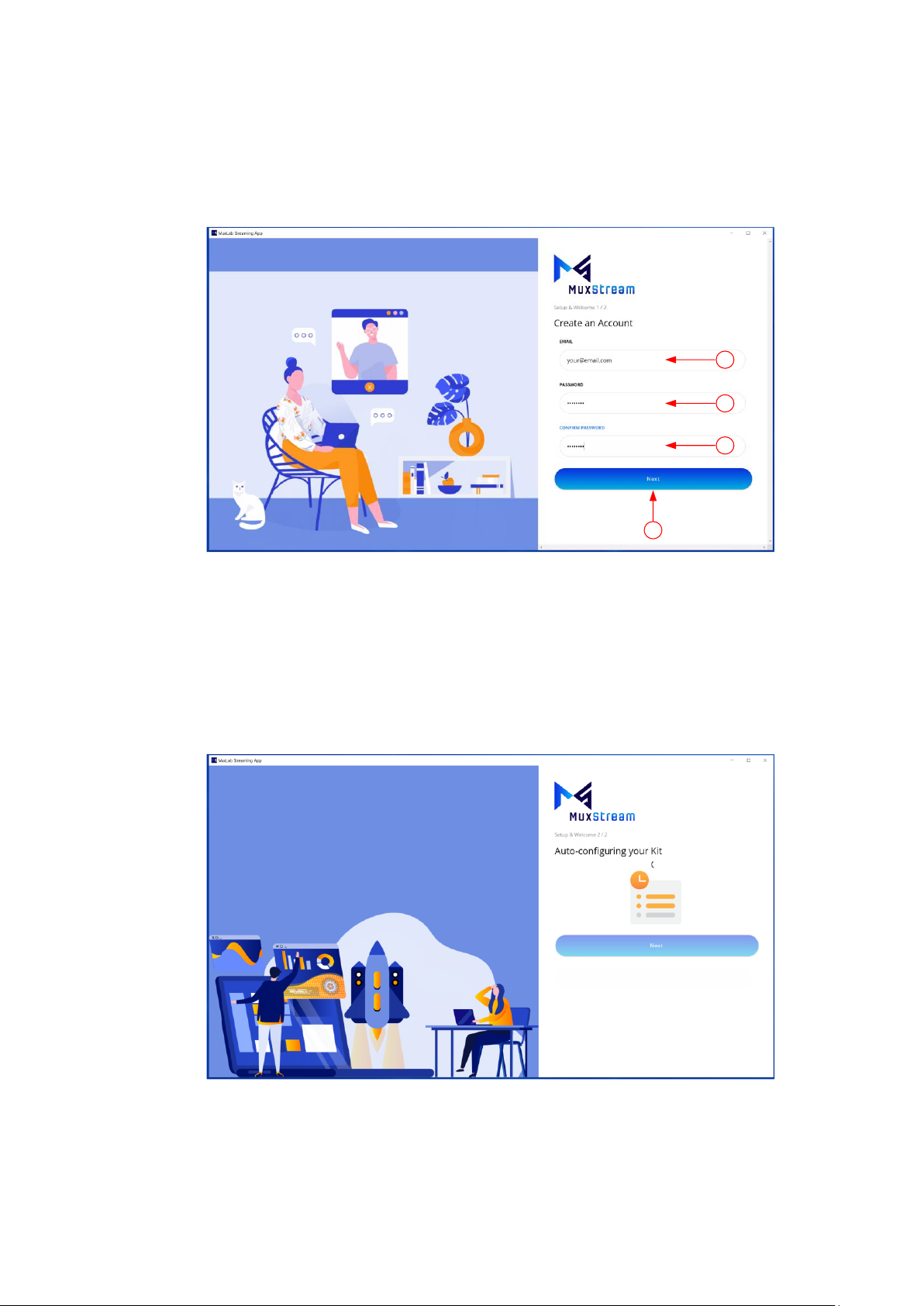
If this is the first time you are running the MuxStream App, a new user
must be created, see figure below.
To create a new user, following these steps:

94-000950-A / SE-000950-A Page 7
1. Enter your email address.
2. Enter your password.
3. Confirm your password.
4. Press the “Next” button.
1
2
3
4
3.1.2 Auto discover and configure your kit.
After creating an account, the application will search for and discover the
devices on the network (PTZ Cameras and Streamer/Transmitter) and will
configure them automatically.
Once the application has configured the devices, it will display the previews
of the found cameras (see figure below).

94-000950-A / SE-000950-A Page 8
Select the ports on the HDMI 4x1 Switch that your cameras are connected to
and then press the “Continue” button (see figure below).
After select the ports on the HDMI 4x1 Switch, click the "Next" button to
begin (see figure below).

94-000950-A / SE-000950-A Page 9
To start using the application, the user must re-enter their email address and
password and then press the “Sign in” button.
By pressing the "Sign in" button, the system control interface will start
automatically.

94-000950-A / SE-000950-A Page 10
3.2 Control interface
Once logged in, the User can see three main tabs: Broadcast, Settings and
Create Stream (+Stream), see figure below.
1
2
3
3.2.1 Broadcast tab
If you are logging in for the first time, when the "Broadcast" tab is selected, in
the middle of the window the application displays a table with the basic
instructions, please read them carefully. On the left side, the application will
show the small-format previews of configured cameras and on the right side,
the application will show all the buttons to control the PTZ options for the
cameras, mic volume, and pre-sets (see figure below).
Table of basic instructions for using the application.
Small-format previews of configured cameras.
Buttons to control the PTZ options for the
cameras, mic volume, and pre-sets.
Tabla de contenidos
Otros manuales de Cámara digital de MuxLab