
Modecom MC-4220 Manual de usuario

1
MODECOM
user’s manual
MC-4220
802.11n WLAN ADSL2+ Router

www.modecom.eu
2
802.11n WLAN ADSL2+ Router
Contest
Introduction 5
Device Requirements 5
Using this Document 6
Special messages 6
Getting to know the device 6
Parts Check 6
Front Panel 7
Rear Panel 9
Connecting your device 10
Conguring Ethernet PCs 11
Connecting the Hardware 11
Easy Setup 12
WAN Conguration: 12
Getting Started with the Web pages 17
Accessing the Web pages 17
Testing your Setup 19
Default device settings 19
Overview 20
Internet access settings 21
About Wireless ADSL2+ Router 22
Wireless Network 22
Basic Settings 22
Advanced Settings 24
Security 26
Access Control 31
Allow Listed 32
WPS 34
Operations of AP - AP being an enrollee 37
Operations of AP - AP being a registrar 44
Internet Access 49
Types of Internet Access 50
Conguring your PPPoE DSL connection 50
Conguring your PPPoA DSL connection 52
Conguring your Bridged DSL connection 53
Conguring your 1483 MER by DHCP 54
Conguring your 1483 MER by Fixed IP 55
ATM Settings 56
ADSL Settings 57
Local Network Conguration 58
Changing the LAN IP address and subnet mask 58
Adding the Secondary LAN IP address and subnet mask 61

3
802.11n WLAN ADSL2+ Router
DHCP Settings 63
DHCP Server Conguration 63
DHCP Relay Conguration 65
DHCP None Conguration 67
DNS Conguration 69
DHCP Server Conguration - Attain DNS Automatically 69
DHCP Server Conguration - Set DNS Manually 71
Overview of Dynamic DNS 73
Dynamic DNS Conguration – DynDNS.org 74
IP/Port Filtering 78
IP/Port Filtering 78
MAC Filtering 79
Conguring MAC ltering to Deny for outgoing access 79
Port Forwarding 81
Conguring Port Forwarding 81
Conguring custom applications 82
URL Blocking 89
Conguring URL Blocking of FQDN 89
Conguring URL Blocking of Keyword 91
Domain Blocking 93
Conguring Domain blocking 93
DMZ 95
Conguring DMZ 95
UPnP 97
Conguring UPnP 97
UPnP Control Point Software on Windows ME 99
UPnP Control Point Software on Windows XP with Firewall 99
RIP 101
ARP Table 103
ARP Table 103
Bridging 103
Bridging 103
Routing 104
Routing 104
SNMP 106
SNMP 106
Port Mapping 107
Port Mapping 107
IP QoS 109
IP QoS 109

www.modecom.eu
4
802.11n WLAN ADSL2+ Router
Remote Access 110
Others 111
Diagnostic 111
Ping 111
ATM Loopback 113
ADSL 114
Diagnostic Test 115
Commit/Reboot 116
Commit/Reboot 116
Backup/Restore 117
Backup settings 117
Restore settings 118
Resetting to Defaults 118
Software Reset: 119
Password 120
Setting your username and password 120
Firmware Update 122
About rmware versions 122
Manually updating rmware 122
ACL Conguration 125
ACL Cong 125
Time Zone 127
SNTP Server and SNTP Client Conguration settings 127
TR-069 Cong 132
TR-069 Conguration 132
Statistics 133
Interfaces 133
ADSL 134
Conguring your Computers 135
Conguring Ethernet PCs 135
Assigning static Internet information to your PCs 138
IP Addresses, Network Masks, and Subnets 139
IP Addresses 139
Subnet masks 141
Troubleshooting 141
Troubleshooting Suggestions 142
Diagnosing Problem using IP Utilities 143
Glossary 145

5
802.11n WLAN ADSL2+ Router
Introduction
Congratulations on becoming the owner of the Wireless ADSL2+ Router. You will
now be able to access the Internet using your high-speed DSL connection.
This User Guide will show you how to connect your Wireless ADSL2+ Router, and
how to customize its conguration to get the most out of your new product.
Features
The list below contains the main features of the device and may be useful to us-
ers with knowledge of networking protocols. If you are not an experienced user, the
chapters throughout this guide will provide you with enough information to get the
most out of your device.
Features include:
Internal DSL modem for high-speed Internet access•
10/100Base-T Ethernet Router to provide Internet connectivity to all comput-•
ers on your LAN
Network address translation (NAT) functions to provide security for your LAN•
Network conguration through DHCP Server and DHCP Client•
Services including IP route and DNS conguration, RIP, and IP and DSL per-•
formance monitoring
User-friendly conguration program accessed via a web browser•
User-friendly conguration program accessed via EasySetup program•
Device Requirements
In order to use the Wireless ADSL2+ Router, you must have the following:
DSL service up and running on your telephone line•
Instructions from your ISP on what type of Internet access you will be using,•
and the addresses needed to set up access
One or more computers each containing an Ethernet card (10Base-T/100Base-•
T network interface card (NIC))
For system conguration using the supplied a. web-based program: a web •
browser such as Internet Explorer v4 or later, or Netscape v4 or later. Note
that version 4 of each browser is the minimum version requirement – for opti-
mum display quality, use Internet Explorer v5, or Netscape v6.1 b. EasySetup
program: Graphical User Interface
Note
You do not need to use a hub or switch in order to connect more than one
Ethernet PC to your device. Instead, you can connect up to four Ethernet PCs
directly to your device using the ports labeled Ethernet on the rear panel.

www.modecom.eu
6
802.11n WLAN ADSL2+ Router
Using this Document
Notational conventions
Acronyms are dened the rst time they appear in the text and also in the •
glossary.
For brevity, the Wireless ADSL2+ Router is referred to as “the device”.•
The term• LAN refers to a group of Ethernet-connected computers at one site.
Typographical conventions
Italic• text is used for items you select from menus and drop-down lists and the
names of displayed web pages.
Bold• text is used for text strings that you type when prompted by the program,
and to emphasize important points.
Special messages
This document uses the following icons to draw your attention to specic instruc-
tions or explanations.
Note
Provides clarifying or non-essential information on the current topic.
Denition
Explains terms or acronyms that may be unfamiliar to many readers. These
terms are also included in the Glossary.
Warning
Provides messages of high importance, including messages relating to per-
sonal safety or system integrity.
Getting to know the device
Parts Check
In addition to this document, your package should arrive containing the following:
1. Wireless ADSL2+ Router
2. CD-ROM containing the online manual and Easy Setup software
3. Power Supply
4. Ethernet Cable
5. Standard Phone Cable
6. Quick Installation Guide

7
802.11n WLAN ADSL2+ Router
Front Panel
The front panel contains lights called Light Emitting Diodes (LEDs) that indicate
the status of the unit.
FrontPanelandLEDs
Label
Color
Function
POWER
green
On: device is powered on
Off: device is powered off
DSL
green
On: DSL link reaches showtime, which means that your
device has successfully connected to your ISP’s DSL
network.
Off: DSL link not in showtime, your device has not suc-
cessfully connected to your ISP’s DSL network.
Blink: Data being transmitted
INTERNET
green
On: PPP link established and active, which means that
your device has successfully connected to your ISP’s
network.
Off: No PPP link, your device has not successfully con-
nected to your ISP’s network.
Blink: PPP link established and active
LAN
4/3/2/1
green
On: LAN link established and active
Off: No LAN link
Blink: Valid Ethernet packet being transferred
WLAN
green
Press this button for 5 seconds to Disable or Enable
Wireless LAN.
WPS
green
Press this button for 3 seconds to Enable WPS function.
www.modecom.eu
8
802.11n WLAN ADSL2+ Router
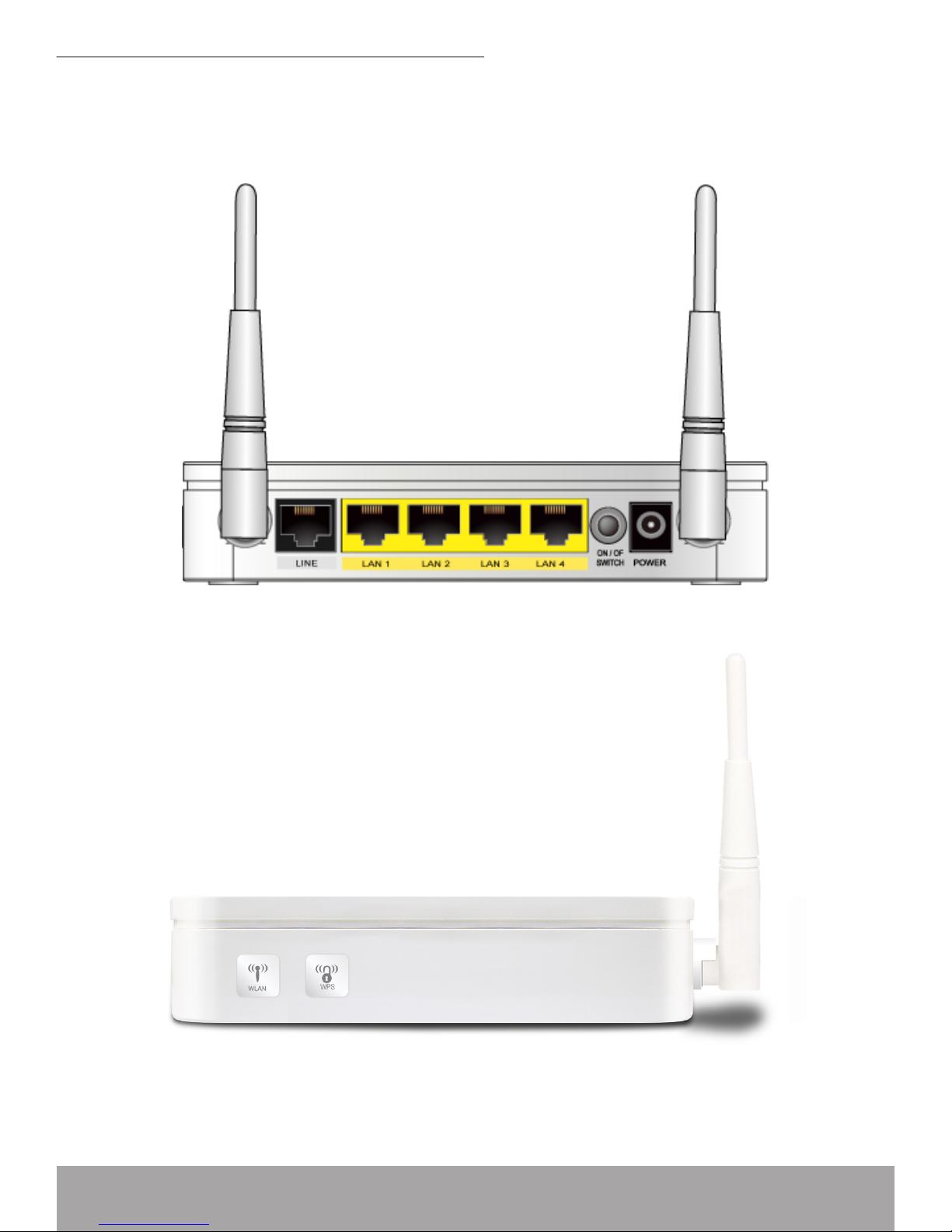
Rear Panel
The rear panel contains a RestoreDefaults button, the ports for the unit’s data and
power connections.
RearPanelConnections
RightPanelConnections

9
802.11n WLAN ADSL2+ Router
BottomSideforResetbuttonFigure1:
Label Function
LINE Connects the device to a telephone port in the wall of your home/
ofce for DSL communication
RESET Pressing this button restores the factory default conguration on
your device
LAN 4/3/2/1 Connects the device via Ethernet to up to four PCs on your LAN
ANETENNA ANETENNA
POWER Connects to the supplied power cable
ON/OFF
SWITCH
Power on/off the device
WLAN Press this button for 5 seconds to Disable or Enable Wireless
LAN.
WPS Press this button for 3 seconds to Enable WPS function.
Connecting your device
This chapter provides basic instructions for connecting the Wireless ADSL2+
Router to a computer or LAN and to the Internet.
In addition to conguring the device, you need to congure the Internet properties
of your computer(s). For more details, see the following sections:

www.modecom.eu
10
802.11n WLAN ADSL2+ Router
Conguring Ethernet PCs
This chapter assumes that you have already established a DSL service with your
Internet service provider (ISP). These instructions provide a basic conguration that
should be compatible with your home or small ofce network setup. Refer to the sub-
sequent chapters for additional conguration instructions.
Connecting the Hardware
This section describes how to connect the device to the wall phone port, the power
outlet and your computer(s) or network.
WARNING
Before you begin, turn the power off for all devices. These include
your computer(s), your LAN hub/switch (if applicable), and the Wireless
ADSL2+ Router.
The diagram below illustrates the hardware connections. The layout of the ports
on your device may vary from the layout shown. Refer to the steps that follow for
specic instructions.
OverviewofHardwareConnections
Tabla de contenidos
Otros manuales de Enrutador de red de Modecom


Manuales populares de Enrutador de red de otras marcas


NETGEAR
NETGEAR FS526T - Switch Manual de usuario

Korenix
Korenix JetNet 5710G Series Manual de usuario

Automated Logic
Automated Logic ZN551 Manual del propietario

Cisco
Cisco ASR 1000 Series Manual del operador

EnGenius
EnGenius ESR-9710 Manual de usuario

Cisco
Cisco 805 Series Instrucciones de funcionamiento y seguridad