www.milesight.com
14 15
www.milesight.com
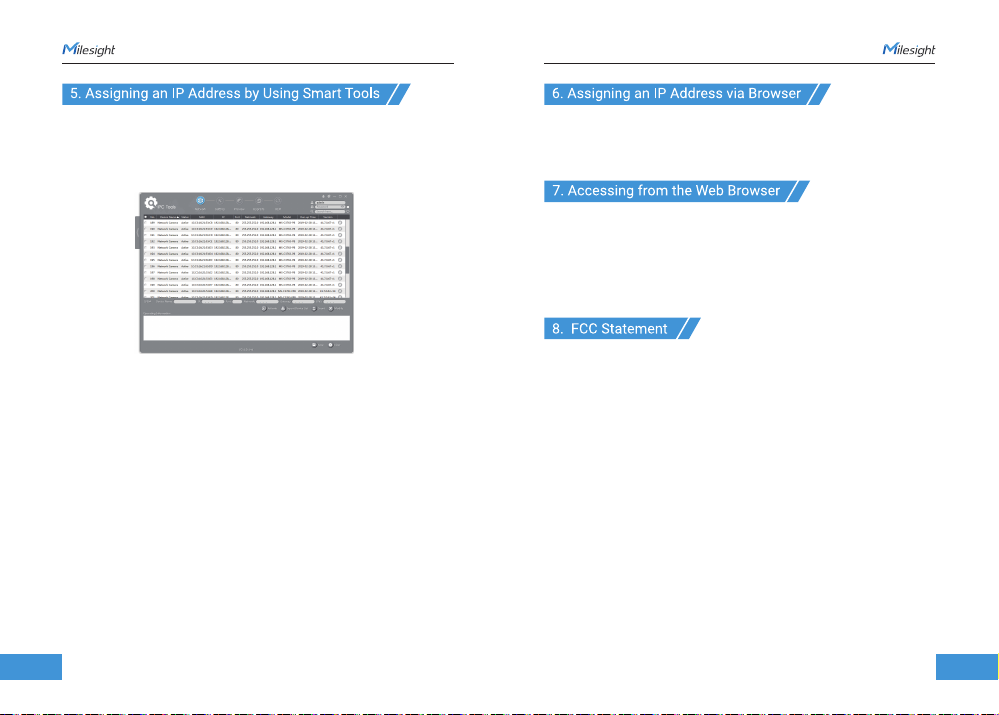
The steps to change the IP of cameras are as below:
1) Start Smart Tools, click the IPC Tools page, then enter the device information,
such as IP address, MAC address, Port number, Netmask, and Gateway, then
all related Milesight network cameras in the same network that will be shown.
2) Select a camera or multiple cameras according to the MAC addresses.
3) Click “Activate” to set the password when using the cameras for the first time
(Password must be 8 to 32 characters long, contain at least one number and one
letter), and set three security questions (If you forget the password, you can reset
the password by answering three security questions correctly).
4) Type the user name and password you set, change the IP address or other
network values, and then click “Modify” button.
5) By double clicking the selected camera or the browser of interested camera,
you can access the camera via web browser directly.
More usage of Smart Tools, please refer to the “Smart Tools User Manual”.
Smart Tools is a software tool which can automatically detect multiple online
Milesight network cameras in the LAN, set IP addresses, and manage firmware
upgrades. It’s recommended to use when assigning IP addresses for multiple
cameras.
19
If the network segment of the computer and that of the camera are different,
please add some 192.168.5.xx(255.255.255.0) for your PC to get access to your
cameras, more details can be found on “Milesight Network Camera Quick Start”.
The camera can be used with the most standard operating systems and
browsers. The recommended browsers are Firefox, Chrome, Safari. More
information about the plugin installation, please refer to the troubleshooting:
5. Milesight-Troubleshooting-Plugin Installation on Windows-IPC
6. Milesight-Troubleshooting-Plugin Installation on MAC
Any changes or modifications not expressly approved by the party responsible
for compliance could void the user’s authority to operate the equipment.
This device complies with part 15 of the FCC Rules. Operation is subject to the
following two conditions:
1. This device may not cause harmful interference.
2. This device must accept any interference received, including interference that
may cause undesired operation.
Note: This equipment has been tested and found to comply with the limits for a
Class B digital device, pursuant to part 15 of the FCC Rules. These limits are
designed to provide reasonable protection against harmful interference in a
residential installation. This equipment generates, uses and can radiate radio
frequency energy and, if not installed and used in accordance with the
instructions, may cause harmful interference to radio communications. However,
there is no guarantee that interference will not occur in a particular installation.
If this equipment does cause harmful interference to radio or television
reception, which can be determined by turning the equipment off and on, the
user is encouraged to try to correct the interference by one or more of the
following measures: