
Microsoft Perceptive Pixel Manual de usuario

©2013 Microsoft Corporation
1
Perceptive Pixel by Microsoft
55” Touch Device user guide
Perceptive Pixel by Microsoft

©2013 Microsoft Corporation
2
Notice
Perceptive Pixel by Microsoft and the Perceptive Pixel by Microsoft logo are trademarks of the
Microsoft group of companies.
The Perceptive Pixel by Microsoft 55” Touch Device is assembled in the USA.
FCC Class A Notice
This device complies with Part 15 of the FCC Rules. Operation is subject to the following two
conditions: (1) this device may not cause harmful interference, and (2) this device must accept any
interference received, including interference that may cause undesired operation.
NOTE This equipment has been tested and found to comply with the limits for a Class A digital device,
pursuant to Part 15 of the FCC Rules. These limits are designed to provide reasonable protection
against harmful interference when the equipment is operated in a commercial environment.
This equipment generates, uses, and can radiate radio frequency energy and, if it is not installed and
used in accordance with the instruction manual, may cause harmful interference to radio
communications. Operation of this equipment in a residential area is likely to cause harmful
interference, in which case the user will be required to correct the interference at his own expense.
Caution: LED inside. Class 1M laser (LEDs) radiation can be emitted if the LCD display module is
disassembled and operated. The display should never be opened by the user.
Low power, Radio LAN type devices (radio frequency (RF) wireless communication devices), operating
in the 2.4 GHz Band, may be present (embedded) in your display system. This section is only
applicable if these devices are present. Refer to the system label to verify the presence of wireless
devices. Wireless devices that may be in your system are only qualified for use in the United States of
America if an FCC ID number is on the system label.

©2013 Microsoft Corporation
3
The power output of the wireless device (or devices), which may be embedded in your display, is well
below the RF exposure limits as set by the FCC.
Changes or modifications not expressly approved by Microsoft may void authority to operate the
equipment under these FCC regulations.
This Class A digital apparatus complies with Canadian ICES-003.
Cet appareil numerique de la classe A est conforme a la norme NMB-003 du Canada.
This device complies with IEC 60950-1 2nd Ed. EN 60950-1:2006/A11:2009/A1:2010/A12:2011, and UL
Standard CSA C22.2 NO. 60950-1-07 INFORMATION TEC.

©2013 Microsoft Corporation
4
Contents
Introduction
System requirements
List of materials
Installation
Using the PPI Touch Device
Troubleshooting
Specifications
Safety and handling information
Maintenance
5
6
7
8
17
18
26
27
27
©2013 Microsoft Corporation
5
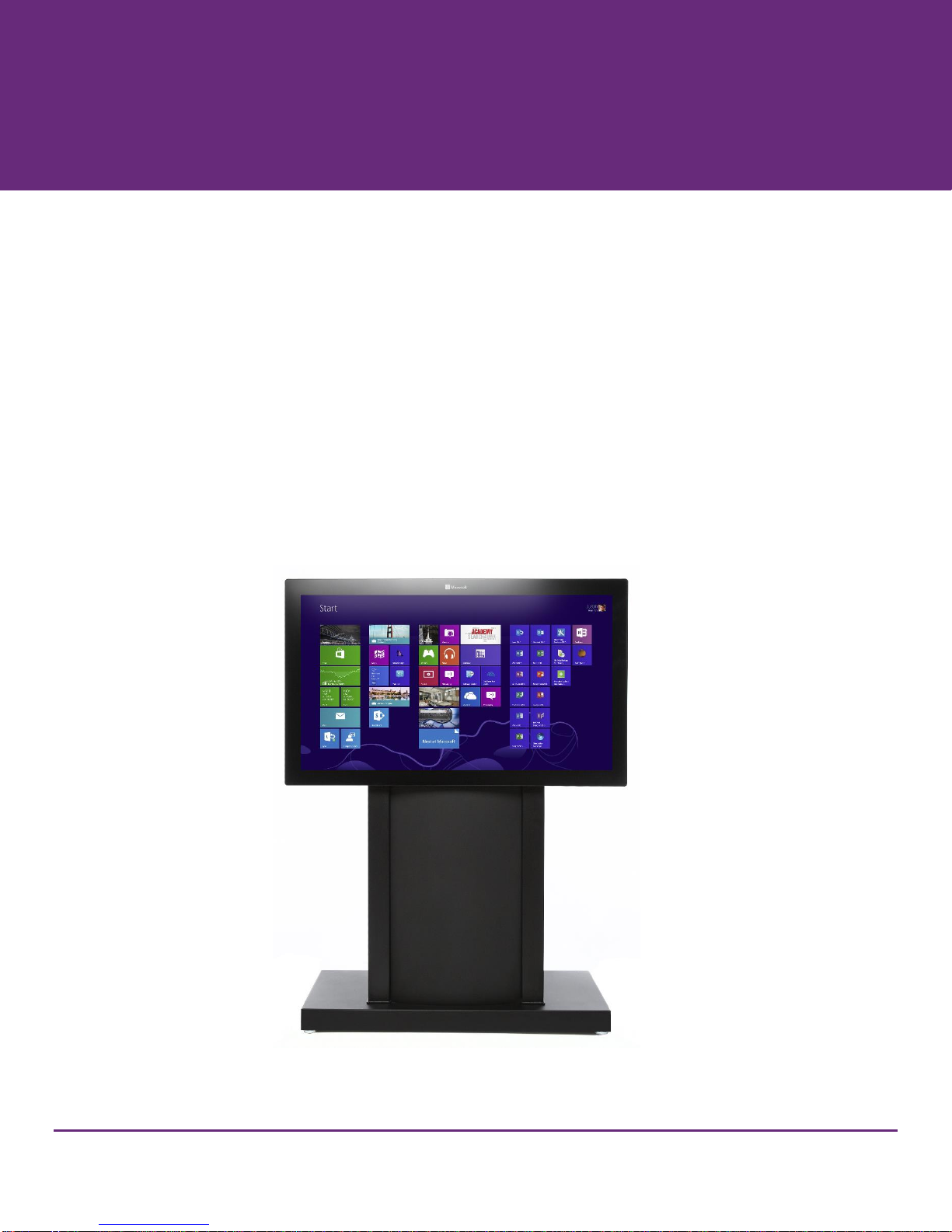
The PPI by Microsoft 55” Touch Device
The Perceptive Pixel (PPI) by Microsoft 55″ Touch Device is a touch-sensitive computer monitor
capable of detecting and processing a virtually unlimited number of simultaneous on-screen touches.
It has 1920 x 1080 resolution, adjustable brightness of up to 400 nits, a contrast ratio of up to 1000:1,
and a display area of 47.6 x 26.8 inches. An advanced sensor distinguishes true touch from proximal
motions of palms and arms, eliminating mistriggering and false starts. With optical bonding, the PPI
by Microsoft 55” Touch Device virtually eliminates parallax issues and exhibits superior brightness and
contrast. And it has built-in color temperature settings to accommodate various environments and
user preference
Figure 1. PPI by Microsoft 55” Touch Devices.
Introduction

©2013 Microsoft Corporation
6
Use the following guidance when configuring the computer that will power the PPI 55” Touch Device.
Minimum System Requirements
Windows 8 for best experience
-Windows 7 is supported but with reduced OS touch features
1GHz dual-core processor or better
2GB system RAM
Display resolution supporting 1920x1080 (55” & 82”) or 2560x1440 (27”)
-120Hz refresh rate recommended for best performance (55” only)
Digital video output to connect to DVI input (55”, 82”) or DisplayPort input (27”)
-Dedicated DirectX 11-capable video adapter recommended for best performance
Dedicated USB 2.0 or greater port (not a shared port via USB hub)
-Dedicated USB 3.0 port recommended for best performance
See http://support.microsoft.com/kb/2819660 for the most up-to-date system requirements
information.
System requirements

©2013 Microsoft Corporation
7
The following items ship with the PPI 55” Touch Device:
604-0021: Dial-link DVI cable 10 ft. (1) - see figure 2
604-0046: USB cable 3 m. (Type-A, Type-B connectors) -see figure 2
604-0045: Power cable (IEC) 10 ft. - see figure 2. A localized power kit is available for regions outside
North America. Contact PPI technical support for details.
Figure 2. Device cables, clockwise from lower left: USB, power, dual-link DVI
101-0135: Device cleaner (80ml) with microfiber cloth
101-0189: Wall mount kit
Perceptive Pixel by Microsoft 55″ Touch Device user guide
List of materials

©2013 Microsoft Corporation
8
Parts
In addition to the PPI 55” Touch Device, you will need the following parts to perform this procedure:
201-0186: Wall bracket - see figure 3
Screws and washers may be needed depending on wall construction (not shipped)
Figure 3. Wall bracket
Installation

©2013 Microsoft Corporation
9
Tools
Optional
These tools are likely to be necessary depending on prior accommodations for the wall bracket:
Pencil
Level
Drill
Screwdriver
Socket set
Required
The following tool is needed for tightening the brackets on the wall mount:
4mm hex Allen wrench tool (ideally of the T-handle variety to apply the necessary torque)

©2013 Microsoft Corporation
10
Preparation for mounting the PPI 55″ Touch Device
Each installation is unique and it is the responsibility of the installer to ensure that the wall bracket
location and wall construction are adequate for mounting the device. Microsoft is not responsible for
any personal injury or physical damage due to the wall not supporting the installation.
Use the following guidelines to attach the wall bracket to a wall:
1. Determine if the wall is sturdy enough to support the device. The device plus mounting hardware will
weigh up to 90 lbs. Due to the number of different wall construction methods, the PPI 55” Touch Device
does not have specific mounting procedures to attach the wall bracket. Therefore the wall bracket must
be installed with sufficiently robust hardware (5/16″ or 8 mm diameter bolts are generally sufficient,
depending on length) and make optimum use of wall studs or equivalent.
2. It is recommended that the center of the bracket be 55″ from the floor; measure and mark this
dimension. Note that the center of the bracket (the “cross hair” as seen in figure 4) aligns with the
vertical center of the device. Also ensure that the wall bracket is level before hanging the device.
Figure 4. Wall bracket dimensions
Tabla de contenidos
Manuales populares de Pantalla táctil de otras marcas

Elecro Engineering
Elecro Engineering Poolsmart Plus Instrucciones de instalación

Johnson Controls
Johnson Controls IQ4 HUB Manual de usuario

Elo TouchSystems
Elo TouchSystems ET2270L Manual de usuario

Elo TouchSystems
Elo TouchSystems ET1002L Manual de usuario

Elo TouchSystems
Elo TouchSystems 3201L Manual de usuario

Duratec
Duratec S15 Manual de usuario


