Maxon MX-C110 Manual de usuario

1
TABLE OF CONTENTS
WELCOME ..................................4
ABOUT THIS USER GUIDE ........5
CHAPTER 1 BEFORE USING YOUR
PHONE
Package Includes ............................8
Handset Description ........................9
Main Display...................................10
Icons..............................................10
Function Keys.................................11
Use of SIM Card.............................12
Navigation Key...............................13
Using The Battery..........................14
Installing The Battery ....................14
Removing The Battery ..................14
Charging The Battery ....................15
Power Connection .........................15
Charging Status .............................15
Removing The Charger ................16
Important Battery Information .....17
CHAPTER 2 BASIC OPERATION
Turning The Phone On and Off ....20
Turning The Phone On .................20
Turning The Phone Off .................20
Installing SIM Card........................21
Basic Functions..............................23
Making a Call ................................23
Receiving Calls .............................24
International Call, Call to an Extension,
Emergency Call.............................25
Entering Letters and Numbers .....26
Key features..................................28
Chapter 3 Menu
Messages........................................30
SMS ..............................................30
MMS..............................................38
CB .................................................45
c-110(0110) 2004.1.10 12:54 PM Page 1

TABLE OF CONTENTS
Internet ...........................................48
Home.............................................48
Bookmarks ....................................49
Push Inbox & Push Settings .........50
Wap Profiles..................................51
Empty Cache ................................56
Organizer ........................................57
Calendar........................................57
Tasks.............................................61
Alarm.............................................62
Calculator ......................................63
GAMES ...........................................64
JAVA..............................................64
Game ............................................66
MyPhone.........................................69
Audio .............................................69
Wallpaper ......................................72
Greeting ........................................73
Caller groups.................................75
LCD & LED ...................................77
Settings ..........................................79
Time & Date ..................................79
Language ......................................81
Data...............................................82
Security .........................................83
Network .........................................87
Call Settings..................................90
Reset Setting ................................96
Camera............................................97
Preview .........................................98
My Photos .....................................88
Memory Status..............................99
TABLE OF CONTENTS
CHAPTER 4 PHONEBOOK
Look Up.......................................102
New .............................................104
PB Settings .................................106
Voice Mail NO .............................109
CHAPTER 5 MISCELLANEOUS
Menu Summary ..........................112
Cellular Phone in Brief ................117
Abbreviations and Acronyms ......118
Questions and Answers ..............121
Technical Data ............................124
CHAPTER 6 SAFETY
Safety Information for Wireless Hand-
held Phone..................................126
Cell Phone Care..........................128
Driving Safety..............................130
Electronic Devices ......................131
Other Safety Guidelines..............133
Cautions ......................................134
Warning.......................................135
FCC RF Exposure.......................136
2 3
c-110(0110) 2004.1.10 12:54 PM Page 2

WELCOME
Thank you for choosing a cellular phone from Maxon Telecom, Korea’s second-
largest IT company and a manufacturer with more than two decades of experience in
the electronic communication industry.
Your new communication device represents the cutting edge technology of the 21st
century, featuring 64k brilliant color display, enhanced messaging service (EMS),
polyphonic ring tones and stunning games along with extensive Organizer and
Phonebook properties.
Uplink to the Mobile Internet facilitated with WAP 1.2 and GPRS data connection.
The phone size has always been a Maxon focuspoint,and the MX7970-series have
very modest exterior dimensions and will fit into any shirt pocket or purse.
40 different ring signals, SMS alert signals, and wallpapers along with renameable
profiles and caller groups facilitates a high degree of personalization.
You have acquired a phone and a communications companion that will enable you to
stay tuned wherever you go.
WELCOME
Thank you for choosing a cellular phone from Maxon Telecom, Korea’s second-
largest IT company and a manufacturer with more than two decades of experience in
the electronic communication industry.
Your new communication device represents the cutting edge technology of the 21st
century, featuring 64k brilliant color display, enhanced messaging service (EMS),
polyphonic ring tones and stunning games along with extensive Organizer and
Phonebook properties.
Uplink to the Mobile Internet facilitated with WAP 1.2.1 and GPRS data connection.
The phone size has always been a Maxon focuspoint,and the MX-C110-series have
very modest exterior dimensions and will fit into any shirt pocket or purse.
40 different ring signals, SMS alert signals, and wallpapers along with renameable
profiles and caller groups facilitates a high degree of personalization.
You have acquired a phone and a communications companion that will enable you to
stay tuned wherever you go.
ABOUT THIS USER GUIDE
This user guide is written only for the MX-C110-series cellular handsets.
The contents of the user guide follow the same order as the phone menu system
goes.
Please note that some optional functions may not be shared by all models.
Inquiries regarding the user guide or phone handling can be addressed to:
Maxon Technical Marketing
4 5
c-110(0110) 2004.1.10 12:54 PM Page 4

MEMO
6
CHAPTER 1
Package Includes
Handset Description
Main Display
Function Keys
Use Of SIM Card
Navigation Key
Using The Battery
Charging The Battery
Important Battery Information
BEFORE USING YOUR PHONE
c-110(0110) 2004.1.10 12:54 PM Page 6

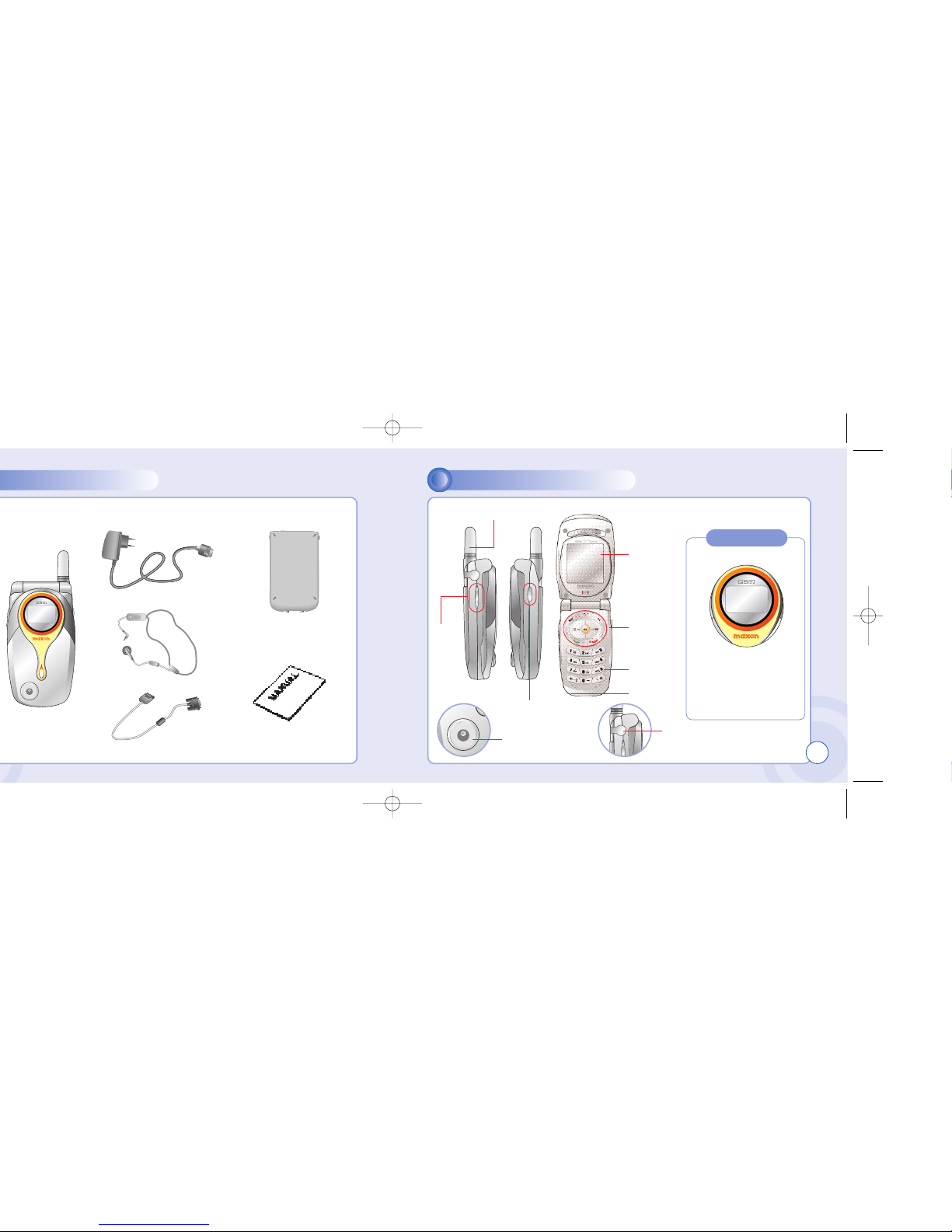
PACKAGE INCLUDES
Thank you for purchasing this product.
Please check the product contents to see if you have all the available items as below.
HANDSET DESCRIPTION
Handset
Charger
Hands Free Kit
Data Cable (Optional)
8
Standard Battery
Earphone jack
Side
Key
Sub-Cam key
Camera
Antenna
User Manual
9
Display
Function
key
Key Pad
Microphone
Sub LCD
Displays a icon and a status
when you have a call or a
message or when you select
Bell/ Vibration/ Mute.
256OLED makes the screen
turn off.
c-110(0110) 2004.1.10 12:54 PM Page 8

MAIN DISPLAY FUNCTION KEYS
10
Main Display Icons
Icon display – Shows
the current status of
phone
Signal Strength – The number
of bars shows signal strength.
[Soft1] – To place a call or redial a number.
Send/Redial Key.
[Soft2]
– To turn on and off the phone, and back key.
– To end of call.
Menu Key
– To browse the main menu.
Camera Key – To move directly to camera menu.
Clr Key – Clear and back key.
4-Direction navigation key
– To browse the SMS memu and phonbook menu.
OK Key - To select an option.
Keypad Keys - To enter letters and numbers.
*Key
- To place an international call.(+)
- To set a manner mode. (press and hold)
# Key
–Toggle between #.,;:”’? and !in standby. Controls “.(period)” in text editors.
Battery – Current battery charg-
ing level.
Alarm –Appears when an alarm
is set.
Call forwarding – Appears
when call forwarding is set.
Manner mode – Appears when
manner is set as a ring mode.
Vibration mode – Appears
when Vibration is set as a ring
mode.
Text message – Appears when
you have a new text message.
GPRS Signal – The phone
enters a GPRS service area.
Graphic display – Shows
phone numbers, text lines,
animations, pictures
Function display – Shows
each function of [soft1] and
[soft2] to help browse
through main menu.
11
c-110(0110) 2004.1.10 12:54 PM Page 10

USE OF SIM CARD NAVIGATION KEY
12
SIM card is always needed to use the phone. “Please insert SIM card” appears when
the SIM card is not installed since it contains information about phone and network.
Messages and phonenumbers stored in the phone can be transferred to other GSM
terminal if both SIM cards are the same size.
Please take note that you don’t lose SIM card and that you don’t keep it near magnetic
and electronic devices to prevent loss of information and hitch in networking.
When you take SIM card and battery apart, you should always turn off the phone.
The insertion of SIM card while charger is in use can be a contributing factor to the
damage of SIM card.
The navigation key is
used to search through
the menu.
13
[UP] –
To scroll up
and access
the look up
directly from
idle mode.
[LEFT] –
To access
the phone-
book directly
from idle
mode.
[RIGHT] –
To access
the messages
menu directly
from idle
mode.
[DOWN] –
To scroll
down and
access the
dial list from
idle mode.
c-110(0110) 2004.1.10 12:54 PM Page 12

15
USING THE BATTERY CHARGING THE BATTERY
INSTALLING THE BATTERY REMOVING THE BATTERY
14
1
1Insert the bottom of battery into the
groove at the bottom of the handset.
Then push down the battery until it
locks into place.
POWER CONNECTION CHARGING STATUS
1
1Insert the contactor of charger into slot and plug
the charger into the outlet.
* Please note that the contactor should be placed
into slot, a certain side up.
When its battery is charged
in power off mode, the phone
shows an animation in LCD.
1
1Pull down the tab with one hand
and lift the top of the battery to
separate from handset.
The battery must be securely placed in the battery com-
partment. If battery is improperly inserted, the handset
will not turn on or the battery may slip off during use. Be sure to charge the battery for at least four hours prior to the
first time use. For extended battery life time, charge the battery
fully for a long time rather than frequently for a short time period.
c-110(0110) 2004.1.10 12:54 PM Page 14

CHARGING THE BATTERY IMPORTANT BATTERY INFORMATION
REMOVING THE CHARGER
16
1
1Press down the release latch and pull out the contactor of charger.
lDon’t keep a battery near a fire and attempt to disassemble it.
Use only the battery approved by manufacturer.
lNever touch battery contactors with any metallic object, which lead to battery short
circuiting especially when carrying a battery in a pocket.
- Possible to cause burns due to blasting and hot temperature.
lDon’t drop a battery and apply any physical shock to the battery.
- Malfunction and fire are feasible.
lPlease keep a battery out of children’s reach and in a dry and cool area.
lCharge a battery and keep it in a room temperature.
- Extreme temperature prevents full charging and affects battery capacity in a
negative way.
lSince a battery is an expendable product, the battery operating time decreases
through frequently repeated charge and discharge.
- A new battery to be purchased when the operating time is reduced halfway.
lKeep the contactors of battery clean and dry.
lPlug out a charger in order to protect the phone when a lightning strikes.
Don’t remove the charger by pulling its cable.
17
c-110(0110) 2004.1.10 12:54 PM Page 16

MEMO
18
CHAPTER 2
Turning The Phone On and Off
(With SIM Card Installed.)
Installing SIM Card
Basic Functions
Entering Letters and Numbers
BASIC OPERATION
c-110(0110) 2004.1.10 12:54 PM Page 18
Tabla de contenidos
Otros manuales de Teléfono móvil de Maxon

Maxon
Maxon MX-6804 Manual de usuario

Maxon
Maxon MX-3204 Manual de usuario

Maxon
Maxon MX-6880 Manual de usuario

Maxon
Maxon MX-1111 Manual de usuario

Maxon
Maxon MX-6810 Manual de usuario

Maxon
Maxon MX-6869 Manual de usuario

Maxon
Maxon MX-7930 Manual de usuario

Maxon
Maxon PC-50 Manual de usuario

Maxon
Maxon MX-6814 Manual de usuario

Maxon
Maxon 49-FX Manual de usuario