Maxis MF60 Guía de referencia

WIRELESS
BROADBAND
Self-Help Guide
MiFi Modem (MF60)
PortaFi Modem (MF70)
maxis.com.my/broadband
1800 82 2000

contents
understanding the LED light on the modem
how to measure the current download and upload internet speeds
how to manage your account
wireless internet online account
MyAccount Portal
troubleshooting guide
Scenario 1: How to change my MiFi key/password
Scenario 2: No network or Unable to connect to Network
Scenario 3: Connected but unable to browse
Scenario 4: Slow browsing
understanding your bill
how to read your Wireless Broadband bill
how to request for online bill
how to request for bolt-on
safety tips
3 - 4
5 - 6
7
8 - 11
12 - 20
21 - 35
21 - 25
26 - 28
29 - 30
31 - 35
36 - 41
36 - 39
40
41
42

wireless broadband self-help guide I 3
understanding the LED lights on modem
1. Power
2. Memory card slot
(microSD card)
3. WPS
4. LED screen
5. External Antenna
Connector
6. Charger / USB port
Hold down the Power button to switch on/off the
device.
Where you insert the memory card (microSD card).
Press it to enable / disable WiFi function.
Indicates the signal type, signal strength, battery life,
WiFi status etc.
Used to connect an external antenna to enhance the
signal strength.
Charge your device and connect your PC / laptop to
your device via USB cable.
1
1MiFi Modem
Model MF60
Red solid
Green solid
Green blinking
Blue solid
Blue blinking
Blue blinking
Blue solid
LED off
Turned on and not registered
Registered to 2G
Connected to 2G and data is being transferred
Registered to 3G.
Connected to 3G and data is being transferred
WiFi is Active
WPS is Active
WiFi is off
Status Description
3G
2G
WiFi
Indicator
Network signal strength
Network type 2G or 3G icon will appear on the LED screen
according to the network being connected
Roaming network
Connect to the Internet automatically
Connect to the Internet manually
WiFi status and number of the connected users
New incoming message
Battery life
DescriptionIndicator
R
A
M
5

4 I wireless broadband self-help guide
1. Device cap
2. Indicator
3. Front Cover
1
2PortaFi Modem
Model MF70
Red solid
Green solid
Green blinking
Blue solid
Blue blinking
Blue blinking
Blue solid
LED off
Turned on and not registered
Registered to 2G
Connected to 2G and data is being transferred
Registered to 3G.
Connected to 3G and data is being transferred
WiFi is Active
WPS is Active
WiFi is off
Status Description
3G
2G
WiFi
Indicator
Network signal strength
Network type 2G or 3G icon will appear on the LED screen
according to the network being connected
Roaming network
Connect to the Internet automatically
Connect to the Internet manually
WiFi status and number of the connected users
New incoming message
Battery life
DescriptionIndicator
R
A
M
5

wireless broadband self-help guide I 5
how to measure the current download
and upload internet speeds
Note
The speed measured here is the speed between your device (PC, notebook or handphone) and Maxis’ network. These speeds may exceed
the capabilities of many content servers and individual PCs. The actual Internet connection speeds may vary due to a number of factors
including customer hardware, equipment and software, server limitations, type of content being accessed, the number of users online
and distance from modem.
This handy tool will help you measure the current download and upload speeds of your internet connection.

6 I wireless broadband self-help guide
Go to speedtest.maxis.com.my and click on Begin Test button
to perform speed test.
step 5
Close all browser windows you may have opened.
Close any applications that may be connected to the internet.
Perform the speed test by using your modem connected to
your PC or your SIM placed in your tablets/other devices and
get connected to Maxis Wireless Broadband.
Clear your browser cache.
To clear you cache:
1. On the Internet Explorer 6 Tools menu, click Internet
Options. The Internet Options box should open to the
General tab.
How to get an accurate result using speedtest?
Your internet connection speed can be affected by many factors. To help achieve the most accurate test results,
please follow these simple steps:
step
step
step
step
1
2
3
4
2. On the General tab, in
the Temporary Internet
Files section, click the
Delete Files button.
This will delete the
files that are currently
stored in your cache.
To clear cache for other
browser, please call
Wireless Broadband
hotline at 1 800 82 2000.

wireless broadband self-help guide I 7
how to manage your account
MyAccount Portal
You may access MyAccount Portal anytime, anywhere
through any available internet access. You will need to
register and login to manage your Wireless Broadband
at this portal.
It is now easier for you to manage your Account, track your quota usage, purchase quota top up and pay your bills.
You can do it either via myAccount Portal or Wireless Internet Online Account Portal.
Wireless Internet Online Account
Wireless Internet Online Account portal allows you
to manage your Wireless Broadband when you are
connected directly with your Wireless Broadband SIM.
You do not need to provide any login credentials to
check your quota balance and usage patterns.
http://myaccount.maxis.net.my/wbb/http://mywireless.maxis.net.my

8 I wireless broadband self-help guide
View your quota usage
View how much data you have left
Go to mywireless.maxis.net.my using your Maxis Wireless Broadband SIM card. Click verify and enter your IC to
proceed to manage your account.
Topping up your data volume
What to do when you have exceeded your quota
(Quota Purchase > Purchase quota)
wireless internet online account

wireless broadband self-help guide I 9
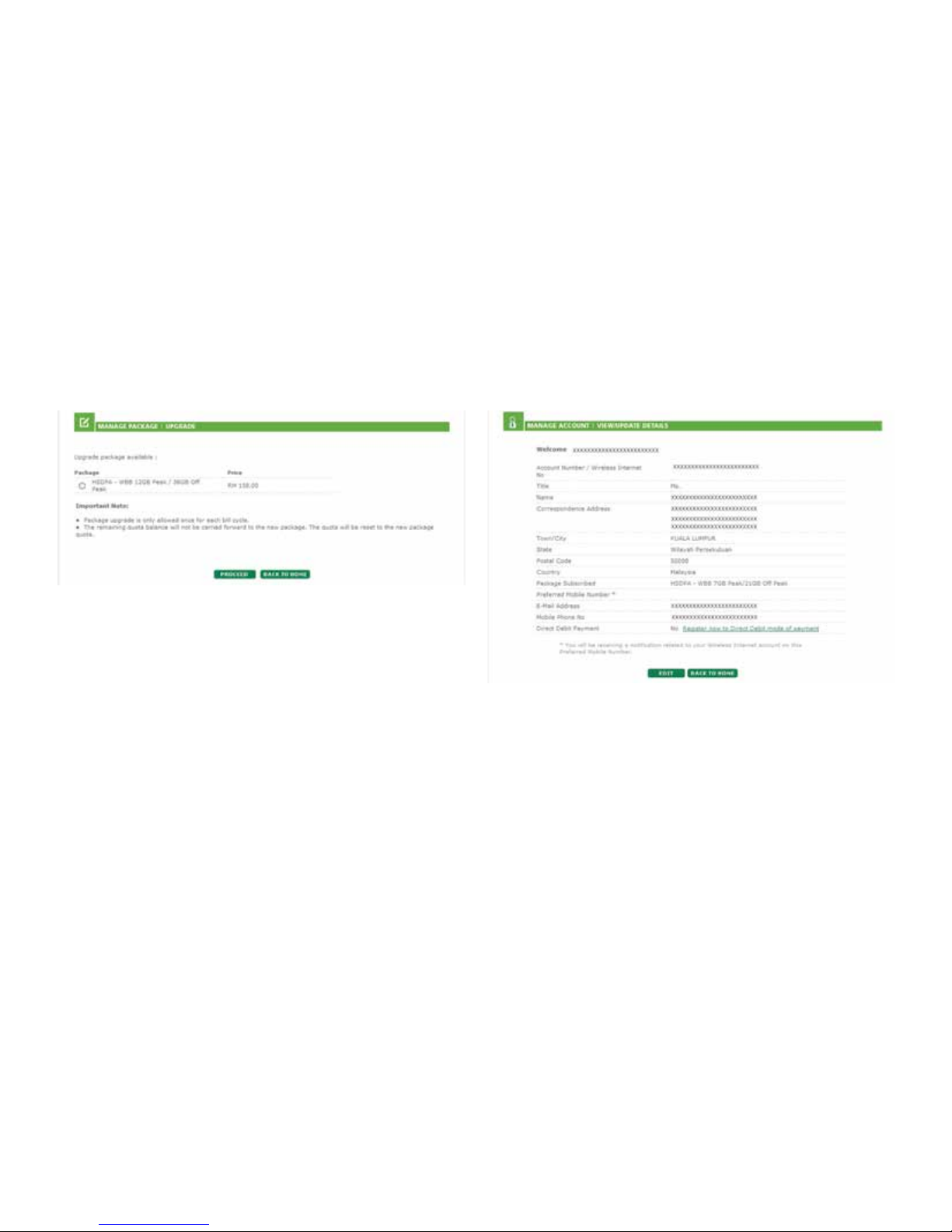
Managing your package
Upgrade or downgrade your package
(Manage Package > Upgrade/Downgrade)
Managing your profile
Managing your account
(Manage Account > View / Update Details)
Manage Package lets you select any plan which suits your needs.
Upgrade My Package allows you to upgrade your plan.
Transaction History permits you to view your transaction history.
Manage Profile enables you to view your account details and
update your phone number.
Note: Update your preferred contact details in order to get your
quota notification and billing information.

10 I wireless broadband self-help guide
View your invoices
Keep track of your past invoices
(Bill Payment >View My Bills)
View your payment history
Keep track of your transaction history
(Bill Payment >Payment >View Payment History)
View My Invoices lets you keep track of your current and
historical invoices.
View My Payment History enables you to view your payment
details without any hassle.
View My Invoices lets you view your payment records.
Este manual sirve para los siguientes modelos
1
Tabla de contenidos
Otros manuales de Módem de Maxis
Manuales populares de Módem de otras marcas

US Robotics
US Robotics 3453C Manual de usuario

MaxTech
MaxTech Plug & Play Internal Voice/FAX/Data/SVD... Manual de usuario

Zte
Zte MF823 Manual de usuario

Four-Faith
Four-Faith F1403 Manual de usuario

Sierra Wireless
Sierra Wireless AIRLINK MP595W Manual de usuario

Gemtek
Gemtek WiMAX WIXFBR-103 Manual de usuario