Marshall Amplification VMV-402-SH Manual de usuario

Broadcast A/V Division
VMV-402-SH
User Manual
July 2022
4-Input 3G SDI Switcher with
Quad Mode and Ethernet Control
www.marshall-usa.com

1
Table of Contents
2. Features
3. Applications
4. Package Contents
5. Specifications
6. Panel Descriptions
7. Hardware Installation
8. IR Remote Control
9. Configuration and Remote Operation
9.1 Installing the Application
9.2 Updating the Firmware
9.3 Setting Up the VMV-402-SH for the First Time
9.4 Most Common Settings
9.5 Select the Outputs Tab
9.7 Quad Mode Settings
9.8 Using an Ethernet Connection with the Default Address
9.9 Establishing a new Static IP Address
9.10 Setting DHCP Mode
9.11 Using 3rd Party Controllers
Warranty
1. Introduction
02
02
02
03
04
05
05
06
06
06
10
10
11
12
13
14
15
15
16
02

VMV-402-SH Manual
2www.marshall-usa.com
The Marshall VMV-402-SH is ideal for presentation systems, control rooms, and remote productions
by providing seamless switching between four selectable inputs. Inputs can be a combination of
mixed formats and frame rates. Simultaneous output is provided via 3G SDI and HDMI. The SDI
output supports up to 1080p while the HDMI output may be scaled up to UHD. The Robust design
makes the 402 at home on any rack mount or “throw-down box” application.
Inputs are automatically scaled / rate converted to match the selected output format. Mixed input
formats and frame rates are easily accommodated. Output formats up to 1080p50/60 for SDI and
UHD 50/60 (4:2:0 sampling) for HDMI are available.
• Four 3G/HD/SD-SDI Inputs
• One 3G/HD/SD-SDI Output
• One HDMI Output
• Select each channel full screen or all four as quad display
• Seamless switching between inputs
• Audio bar overlay in full screen mode
• Tally function in quad mode
• Remote operation via Ethernet, IR or USB
• Supports Static or DHCP addressing
• Firmware upgradeable via USB
• 4 x 1 switcher for remote productions or AV applications
• Format “fixer/converter”. Accepts mixed formats and conforms to a selected output format
• Monitor four sources in ‘quad’ mode. Take any quadrant “full” instantly.
• Use HDMI Output for local monitoring while SDI output transmits images up to 100 meters.
• Use as Mini Multi-viewer with active tallies. Tallies triggerable by GPI.
• 1x VMV-402-SH
• 2x 1U rack mounting-ears
• 1x 24V 5A power adapter
• 1x UL AC power cord
• 1x IR Remote Control
• 1x IR Receiver
1. Introduction
2. Features
4. Package Contents
3. Applications

3
Model Name VMV-402-SH Quad-viewer/Switcher
Role of Usage Quad-viewer or 4x1 Video Switcher
Video Input Support
[3G] 1080p @50/59.94/60Hz (4:2:2)
[HD] 720p @50/59.94/60Hz, 1080i @50/59.94/60Hz, 1080p
@24/30/60Hz
Audio Pass Through Embedded surround sound (up to 7.1ch) or stereo digital audio
Input 4x BNC [SDI]
Program Output 1x HDMI + 1x BNC(SDI)
HDMI connector Type A [19-pin female]
RJ-45 connector WE/SS 8P8C
ESD Protection Human body model — ±12kV [air-gap discharge] & ±8kV
[contact discharge]
Mechanical
Housing Metal enclosure
Mounting 1U rack-mounting case with ears
Dimensions [L x W x H] 8.25” X 7” X 1.75”
209mm X 178mm X 44.5mm
Weight 1Kg (2.2 lbs) with rack ears
Power supply 12 - 24 Volts DC
Power consumption 12 Watts nominal
0.5 amp at 24 volts 1 amp at 12 volts
Operation Temperature 0~40°C [32~104°F]
Storage Temperature -20~60°C [-4~140°F]
Relative Humidity 20~90% RH [no condensation]
5. Specifications

VMV-402-SH Manual
www.marshall-usa.com 4
6. Panel Descriptions
1. 4K Signal LED: Lighted when output is set for 4K when HDMI output is set to UHD format
(HDMI output).
2. Quadview Button: Changes output to quad view mode.
3. 3. Input Select Buttons: Selects between sources. The button will illuminate when source is
selected.
4. Stereo out: Stereo audio output.
5. IR Extension: 3.5mm jack for IR extension cable.
6. IR Sensor: IR sensor for receiving commands from IR remote.
7. DC 24V Input: Connects to the +12V or +24V DC power supply unit.
8. Source 1-4: 3G-SDI inputs.
9. Ethernet: Ethernet control port.
10. Mini-USB Input: USB control / update port.
11. HDMI Output: Program Out.
12. SDI Output: Program Out.
13. Tally GPI connector

5
7. Hardware Installation
8. IR Remote Control
1. Connect display, recorder, etc. to SDI or HDMI output of the VMV-402-SH
2. Connect the SDI input sources to the inputs of VMV-402-SH
3. Securely attach the provided supply unit to the locking power jack
4. Use IR remote or computer software to switch between input channels
Button Function
1SDI input 1
2SDI input 2
3SDI input 3
4SDI input 4
Quad-View Select quad mode output
Audio Meter Toggles audio meters on/off
(Not on quad output)
Mute Toggles audio pass through on/off
Border Toggles quad mode border on/off
Label Toggles quad mode labels on/off
Info
Show current status on program
output Hold 5 seconds to change
DHCP mode
Quad Layout 1
Quad Layout 2
Quad Layout 3
Quad Layout 4
Quad Layout 5

VMV-402-SH Manual
www.marshall-usa.com 6
9. Configuration and Remote Operation
A control application is available for download from the Marshall-USA website at:
http://www.marshall-usa.com/software/VMV-402-SH-V4_4.zip
This application runs under Windows OS and provides several functions:
• Firmware Update
• Setup and Configuration
• Remote Operation via USB
• Remote Operation via Ethernet
9.1 Installing the application
Please follow the steps in order below.
1. Download the VMV-402 update file from the Marshall-USA website to a folder you can easily find
on your computer. Unzip the file there.
2. If there is a previous version of the VMV-204-SH Control App installed on this computer, please
uninstall it before continuing.
3. Connect a “USB type A to USB mini cable” between the computer and the switcher (USB micro
cables will not fit)
4. Double click on the file that was unzipped to begin the installation.
Important: Make sure to check the box “Create a Desktop Icon” during the installation
9.2 Updating the Firmware
It is strongly recommended that the firmware in the VMV-402-SH be updated before using the product.
1. Double-click on the new desktop icon.
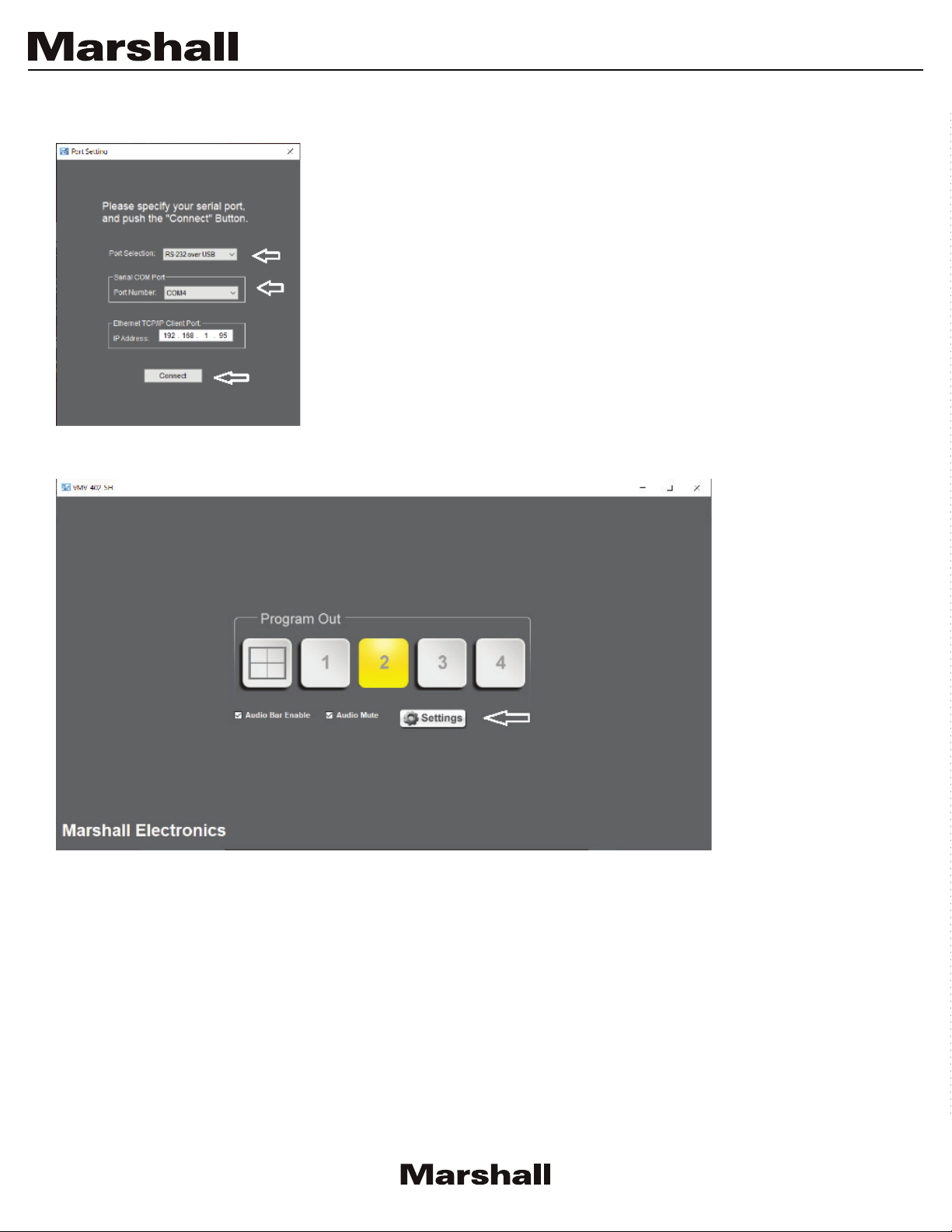
2. The Port Setting page will appear.
3. Check that “RS-232 over USB” is selected and that a COM Port number is available.
4. If no COM port appears it is likely that Windows has not installed the latest drivers.
5. They are available from Prolific at this address; https://www.prolific.com.tw/US/ShowProduct.
aspx?p_id=223&pcid=126.
6. Select PL2303 Driver Installer. When there are several COM Ports available, the one at the bottom
of the list is the most likely one.

7
7. Select the COM Port. Ignore the IP Address, it has no function in this process.
8. Click on the Connect button.
9. The Main page will appear. Click the Settings button.

VMV-402-SH Manual
www.marshall-usa.com 8
10. Click on the Utilities Tab on the Settings page
11. Then click on Firmware Update
The Update Page will appear.
12. Please confirm that the Update Version is
newer or the same as the existing Device
Version
13. Click on the Update button to begin the
update process.
14. A short countdown will appear.
The NOTE at the bottom of the page means
that user preferences like IP address, Quad
mode labels, etc. will not be changed during
the update process.
The Update process page will appear next

9
Important: The VMV-402-SH will restart at least twice during the update process.
Please allow at least 3 minutes from the time the process starts until you use the switcher as background
processes may still be completing.
Select Yes to set a static IP address for the VMV-402-SH ethernet connection.
Select No to skip this step at this time.
Manually restart the VMV-402-SH (remove power) also close restart the control app.
Refer to the Operations Manual to configure the VMV-402-SH.
Otros manuales para VMV-402-SH
1
Tabla de contenidos
Otros manuales de Cambiar de Marshall Amplification