
Keyspan VP-24A Manual de usuario
The Easiest Way to Make Calls with SkypeTM
Keyspan
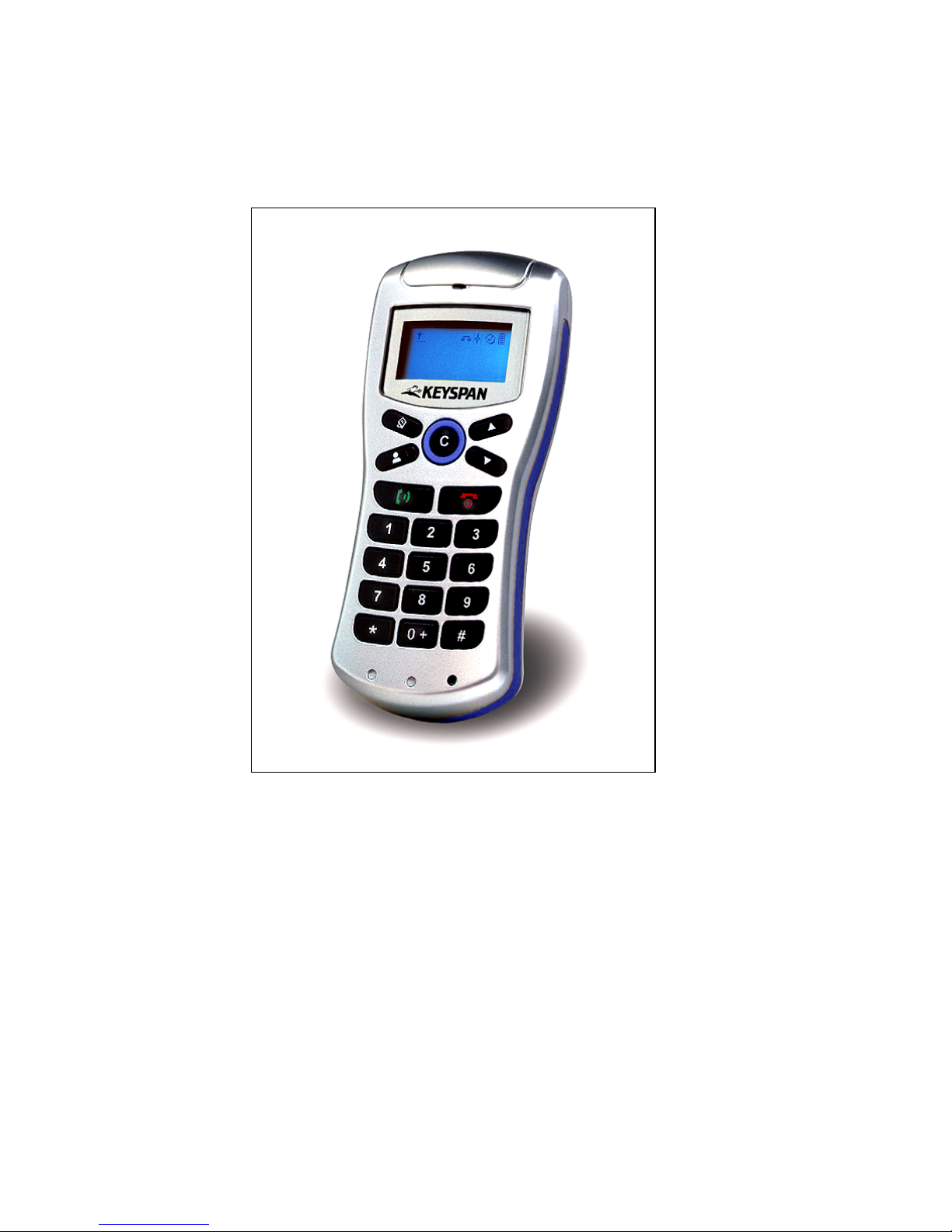
Cordless VoIP Phone
User Manual
version 1.0, April 2006

TRADEMARKS
Skype, SkypeOut, the Skype Logo and the S logo are trademarks of Skype Limited
Windows and Microsoft are registered trademark of Microsoft Corporation
Mac is registered trademark of Apple Computer, Inc.
Other trademarks and registered trademarks are used herein for identification purpose only and belong to
their respective companies.
FEDERAL COMMUNICATIONS COMMISSION (FCC) INFORMATION
Product Name : Cordless VoIP Phone
FCC NOTICE “DECLARATION OF CONFORMITY INFORMATION”
This equipment has been tested and found to comply with the limits for a Class B digital device, pursuant to
Part 15 of the FCC Rules. These limits are designed to provide reasonable protection against harmful
interference in a residential installation. This equipment generates, uses, and can radiate radio frequency
energy and, if not installed and used in accordance with the instructions, may cause harmful interference to
radio communications. However, there is no guarantee that interference will not occur in a particular
installation. If this equipment does cause harmful interference to radio or television reception, which can be
determined by turning the equipment off and on, the user is encouraged to try to correct the interference by
one or more of the following measures:
Reorient or relocate the receiving antenna.
Increase the separation between the equipment and the receiver.
Connect the equipment onto an outlet on a circuit different from that to which the receiver
is connected.
Consult the dealer or an experienced radio/TV technician for help.
EU DECLARATION OF CONFORMITY
This product: is carrying the CE-Mark in accordance with the related European Directives.

Table of Contents
Chapter 1 Introduction
1.1 Features
1.2 System Requirements
1.3 Package Contents
1.4 Safety and General Information
Chapter 2 Getting Started
2.1 Installing the Driver for Windows® 2000/XP
2.2 Installing the Driver for Mac OS® X 10.3 or Higher
2.3 Connecting the USB Dongle to your Computer
2.4 Inserting the Batteries
2.5 Pairing the Phone and the USB Dongle
2.6 Setting SkypeTM Ringtone (Optional)
Chapter 3 Getting to Know Your Cordless VoIP Phone
3.1 The Buttons on the Phone
3.2 Indicators Shown on the Display
3.2.1 LCD Main Screen
3.2.2 History Mode
3.2.3 Contacts Mode
3.2.4 SkypeOutTM Mode

4
Chapter 4 Using the Cordless VoIP Phone
4.1 Answering/Ending a Call
4.1.1 Answering/Ending a Call
4.1.2 Receiving Second Incoming Call
4.2 Making Calls
4.2.1 Making PC-to-PC Calls
Calling from SkypeTM Window
Calling “Contacts” from the Phone
Calling “History” from the Phone
Making Second Outgoing Call from Contacts
4.2.2 Calling an Ordinary Phone Number from SkypeOutTM
4.3 Volume Control
4.4 Setting Speed Dial
4.5 Powering the Phone on and off, Standby and Sleep Mode
4.6 Charge the Batteries
Appendix A: Troubleshooting
Appendix B: Specifications

Chapter 1 Introduction
Congratulations on purchasing the Cordless VoIP Phone! Now you have all the
benefits of using SkypeTM without being tied to your computer.
1.1 Features:
Fully compatible with SkypeTM
Make/receive PC-to-PC and PC-to-Phone calls (SkypeOutTM)
Outdoor up to 100 meters/Intdoor up to 30 meters
Standby time up to 1200 hours/Talk time up to 15 hours
LCD screen displays battery level, signal strength, SkypeTM and phone status
Keypad buttons 0~9, *, #, +
Dial from Contacts and History
Caller ID
Support speed dial
Real-time volume up and down
One button to open/close SkypeTM
Volume booster and mute
1.2 System Requirements:
Windows® 2000/XP, Mac OS®10.3 or higher
And available USB Port on PC
1.3 Package Contents:
Carefully unpack your Cordless VoIP Phone, and check that along with this user manual, the
following items are included:
Cordless VoIP Phone 1
USB Dongle 1
Ni-MH Rechargeable AAA Battery 3
USB Charging Cable 1

6
Installation CD 1
Quick Installation Guide 1
1.4 Safety and General Information:
Your phone is designed to use only AAA Ni-MH rechargeable batteries.
Warning! Never attempt to charge non-rechargeable batteries.
The battery can be charged and discharged hundreds of times, but it will gradually
wear out, when the operation time (standby time and talk time) is noticeably
shorter than normal, then it is probably time to purchase batteries.
Replace all the batteries at the same time.
The rechargeable batteries must be disposed of properly and may need to be
recycled. Dispose of used batteries in accordance with local regulations.
Don’t drop or knock the phone, rough handling may damage the internal circuit.
Don’t leave the phone in hot or cold places.
Don’t expose your device to moisture, dust or corrosive liquids.
Don’t attempt to open the device, only qualified personnel may repair this product.
Digit encryption scrambles all communications transmitted between the phone and
the USB dongle to keep them private.
Keep the phone and all its parts out of the reach of children.
For cleaning, use a soft, slightly moistened cloth, avoid using solvents or abrasive
substances.

Chapter 2 Getting Started
Note: Before you can use the phone with your computer, you must install the driver.
Before installation, please ensure that:
You do not connect the USB dongle to your computer until driver installation has finished.
You have the latest version of SkypeTM installed on your computer.
Your computer is connected to Internet.
2.1 Installing the Driver for Windows®2000/XP
Turn on your PC, and insert the CD that came in your package into the PC’s CD-ROM drive, an
installation menu will appear. Refer to the following steps to install the driver:
Step 1 Click the Install Driver button:
Step 2 Click Next to continue:

8
Step 3 Select Complete and click Next:
Step 4 Click Install to begin the installation:

9
Step 5 Click Finish to complete the installation:
Step 6 Click OK to run the Wireless USB Phone driver.
Note: Please check the driver icon and SkypeTM icons are shown in the bar at the

10
bottom right of your screen.
Note: Once the driver is installed on your PC, the driver will be activated automatically whenever
you start the PC.
Proceed to Section 2.3 (Connecting the USB Dongle to your Computer)
2.2 Installing the Driver for Mac OS®X 10.3 or Higher
Note: Before you can use the phone with your computer, you must install the driver.
Before installation, please ensure that:
You do not connect the USB dongle to your computer until driver installation has finished.
You have the latest version of SkypeTM installed on your computer.
Your computer is connected to Internet.
Turn on your Mac, and insert the CD that came in your package into the Mac’s disc drive. Refer to
the following steps to install the driver:
Step 1 Browse to the Install Driver for MAC.dmg folder:
Otros manuales para VP-24A
1
Tabla de contenidos
Otros manuales de Teléfono IP de Keyspan


