
König Electronic DVB-T USB30 Manual de usuario

DVB-T USB30
USB DVB-T &
ANALOGUE TV STICK
INTRODUCTION
Features:
This user manual covers the installation of the König USB stick DVB-T receiver and the necessary
steps to operate various features. This manual also explains special features available only in this
receiver.
Package Contents:
• König USB Stick
• DVB-T antenna
• Installation quick guide
• Installation CD
• Remote Control Unit (RCU)
System Requirements:
• Intel Pentium 4 1.6GHz or equivalent AMD Athlon
• 256MB RAM of system memory or above
• 1 available USB 2.0 port
• Graphics Card (Must Support DirectX 9.0)
• Sound Card (AC97 Compatible Sound Card)
• 1GB Free HD Space
• CD-ROM Drive (For software installation)
• Microsoft Windows
®
XP SP2 / XP MCE / Vista
QUICK INSTALLATION
Please follow the steps shown below for installation of your USB Stick.
Connect the antenna or cable into the TV INPUT connector.
Plug the USB Stick into the USB 2.0 port of your system.
The package comes with complete Windows software utilities. These utilities can be found on the
CD-ROM in this package. During installation, it is highly recommended to disable any sub-programs.
These include applications such as antivirus software
and system monitoring applications.
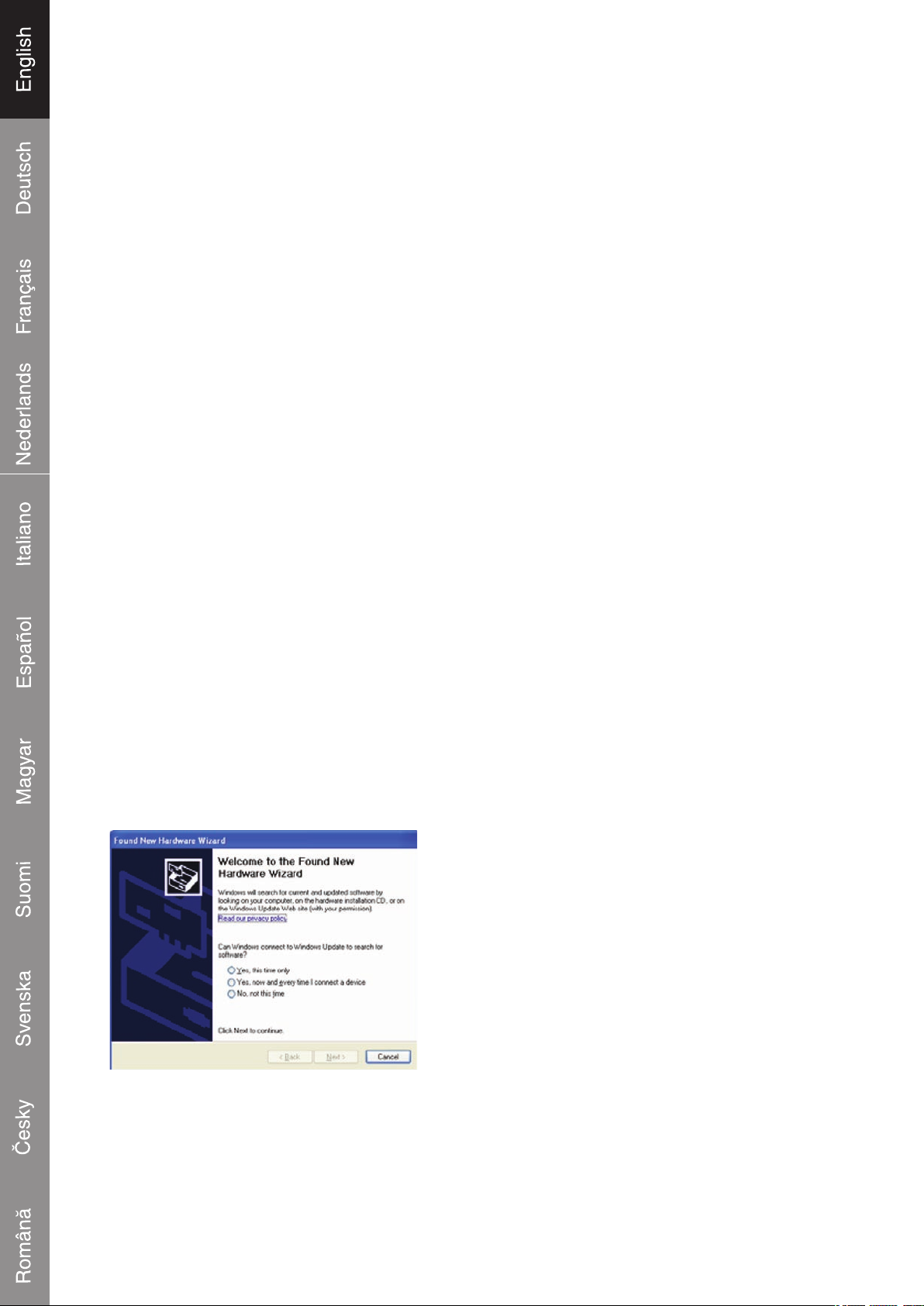
When you nish the hardware installation and start your
system, the “Found New Hardware Wizard” window will
pop up. Please click “Cancel” and you can make use
of Konig DVB-T USB30 Quick Installation for proper
installation.
1

Insert the installation CD into the CD ROM device.
The autorun page will appear as the left image. Please
choose “Quick Installation”.
Note: Your device must be plugged in/installed before
installation.
The Quick Installation provides you with two choices to
install. If you want to install device driver and software
utility completely, please choose “Typical Installation”.
Or if you want to install them partially, please choose
“Custom Installation”. Finally click “Install” to continue.
Click “Start” to install the BDA driver. Please wait, while
the installation is in process
Now the driver has been installed successfully on your
computer and click “OK” to nish driver installation and
go to next step.
The steps below will instruct you to install HyperMedia Center Application. Please follow the steps
below for installation.
The InstallShield Wizard will guide you through
installation of HyperMedia Center application. Click
“Next” to continue.
2

Please choose the destination folder where you want
to install the les. You can click “Browse” to change
the destination folder. Finally click “Next” to go to next
step.
Setup will add program icons to the Program Folder’s
list. You may type a new folder name, or select one from
the existing folders list. Click “Next” to start installing.
Please wait while installation in process.
When the message as the one on the left image, click
“Finish” to end the installation.
The next steps will instruct you to install the remote utilities of the PCI card only.
The InstallShield Wizard will guide you through
installation of the remote utilities. Click “Next” to
continue.
Please click “Finish” when the utility has been
installed.
All the drivers have been installed successfully.
Please choose “Yes, I want to restart my computer
now” to restart your computer (Recommend) and click
“Finish” to end the installation.
3

HYPERMEDIA CENTER
HyperMedia Center is an integrated multimedia application that allows you to enjoy all of your digital
entertainment — TV, home videos and photos. HyperMedia Center application turns your PC/Laptop
into an entertainment center.
Player Controls
You can use several methods to control HyperMedia
Center
• Keyboard
Control the application by using the Arrow keys, ESC,
and Enter keys.
• Mouse
You can do left-clicks to select items and use the scroll
wheel to scroll items.
• Remote Control
Navigation Bar
Return to Home page
Return to previous page
Minimize HyperMedia Center to the task bar.
Switch between full screen and window mode.
Exit HyperMedia Center.
4

TV
You can watch and record TV programs. The rst time you open HyperMedia Center, the setup
wizard will guide you to congure the TV settings.
There are a series of settings for TV function including
TV tuner, Region and automatic scan of TV channels
Recording Setting: Set the recording quality.
Display Setting: You can adjust the display settings
(Brightness, Contrast, Saturation, Hue, Sharpness or
default setting)
Extra Display Settings: You can adjust the display aspect
ratio (4:3, 16:9, 16:10)
Source Input: You can choose your TV signal source.
Channel List: You can get a channel list and select the
TV program.
Schedule: You can set a new schedule to record the TV
program. If you want to delete a schedule, select the
schedule and delete it.
Settings: You can change the TV signal, recording and
display settings here.
Scheduled recording:
Input Source: Select your TV signal source.
Channel: Select the channel you want to record
Scheduling interval: Select the recording rules. The
default value is „Once only“.
Starting Date: Set the recording date.
Starting/Ending Time: Set the Time to start/end recording
(hour/minute).
5

TV Control Bar
Stop Pause Backward
Forward Channel Down Channel Up
Snapshot Switch Source Time-Shifting
Capture SAP Channel Preview
Volume Down Mute Volume Up
Videos
In the Videos page you can play video les stored on your computer.
Recording Videos:
Play the video les in a specic folder.
More Videos
Play more video les in other folders.
Settings
Set a specic folder to save the recorded video les.
Video Control bar
Backward
Pause
Forward
Stop
6

Pictures
In the Pictures page you can show pictures stored in any folder on your computer.
Snapshot Pictures
Click Snapshot Pictures button to show picture les
you captured. In addition, you can show pictures by a
slideshow.
More Pictures
Show more picture les in other folders.
Settings
Set a specic folder you want to save pictures and set
the timeframe of SlideShow.
Picture Control bar
Stop
Backward
Forward
Filmstrip
Settings
There are settings in HyperMedia Center to ne-tune its performance to your PC and your personal
preferences. The settings page is reached with the Settings button on the Home Page or through
the individual content pages.
TV
There are Run Setup Wizard, Recording Settings and Display Settings shown on TV settings page.
In the Run Setup Wizard page there are a series of settings for TV function including TV tuner,
Region and automatic scanning TV channels. Enter the Recording settings page to set the recording
rules. Move to Display settings to adjust some display characters such as Brightness, Contrast,
Saturation, Hue, Sharpness.
7

Videos
Set a specic folder to save the recorded video les.
Pictures
Set a specic folder to save pictures and set the timeframe of SlideShow.
Others
Click General Settings button to set Languages, background color and click About HyperMedia
Center button for more information.
Declaration of conformity
We,
Nedis B.V.
De Tweeling 28
5215MC ’s-Hertogenbosch
The Netherlands
Tel.: 0031 73 599 1055
Email: info@nedis.com
Declare that product:
Name: König
Model: DVB-T USB30
Description: USB DVB-T & Analogue TV stick
Is in conformity with the following standards
EMC: EN55013:2001+A1:2003;EN55020:2002+A1:2003
Following the provisions of the 89/336/EEC directive.
‘s-Hertogenbosch, 24-08-2007
Mrs. J. Gilad
Purchase Director
8

Safety precautions:
To reduce risk of electric shock, this product should ONLY be opened by an authorized technician
when service is required. Disconnect the product from mains and other equipment if a problem
should occur. Do not expose the product to water or moisture.
Warranty:
No guarantee or liability can be accepted for any changes and modications of the product or damage
caused due to incorrect use of this product.
General:
Designs and specications are subject to change without notice.
All logos brands and product names are trademarks or registered trademarks of their respective
holders and are hereby recognized as such.
Attention:
This product is marked with this symbol. It means that used electrical and electronic
products should not be mixed with general household waste. There is a separate
collections system for these products.
Copyright ©
9
Tabla de contenidos
Idiomas:
Otros manuales de Módem de König Electronic


Manuales populares de Módem de otras marcas


US Robotics
US Robotics 3453C Manual de usuario

MaxTech
MaxTech Plug & Play Internal Voice/FAX/Data/SVD... Manual de usuario

Zte
Zte MF823 Manual de usuario

Four-Faith
Four-Faith F1403 Manual de usuario

Sierra Wireless
Sierra Wireless AIRLINK MP595W Manual de usuario

Gemtek
Gemtek WiMAX WIXFBR-103 Manual de usuario