Johnson Controls CWCVT Manual de usuario

Building Technologies & Solutions
www.johnsoncontrols.com
2023-03-21
CWCVT Wireless MS/TP Converter User
Guide
LIT-12014120
Release 1.0

2 CWCVT Wireless MS/TP Converter User Guide

Contents
ContentsIntroduction...................................................................................................................................................... 5
Overview............................................................................................................................................................5
Screen layout..........................................................................................................................................6
Display rotation......................................................................................................................................6
CWCVT pages......................................................................................................................................... 7
At-a-glance page.......................................................................................................................................... 7
Overview page..............................................................................................................................................7
Connect Info and Pairing Info page...........................................................................................................8
System Info page......................................................................................................................................... 8
MS/TP Stats page......................................................................................................................................... 8
Detailed procedures.........................................................................................................................................8
Connecting to a Johnson Controls controller.....................................................................................8
Mode selection.......................................................................................................................................8
Working with Johnson Controls BAS Tools......................................................................................... 9
Connecting a computer to the CWCVT in Wi-Fi AP Router Mode...........................................................9
Using Wi-Fi AP Router mode with Johnson Controls BAS Tools (SCT example)................................... 9
Working with CWa............................................................................................................................... 10
Connecting the CWa to the CWCVT..........................................................................................................10
Using the CWCVT from the CWa...............................................................................................................10
Working with third-party MS/TP devices.......................................................................................... 10
Configuration Settings and Diagnostics........................................................................................... 11
Viewing settings and diagnostics from a browser.......................................................................... 12
BACnet settings.......................................................................................................................................... 12
BLE settings.................................................................................................................................................14
Wi-Fi settings.............................................................................................................................................. 15
MS/TP diagnostics......................................................................................................................................16
Device diagnostics......................................................................................................................................16
Wi-Fi diagnostics........................................................................................................................................ 17
BLE diagnostics...........................................................................................................................................17
MS/TP to SD Card Capture..................................................................................................................18
Factory reset................................................................................................................................................... 19
Firmware updates.......................................................................................................................................... 19
Hardware specifications................................................................................................................................19
End-Of-Line Switch.............................................................................................................................. 19
Troubleshooting............................................................................................................................................. 20
Frequently asked questions..........................................................................................................................21
Repair information.........................................................................................................................................22
Product warranty............................................................................................................................................22
Patents.............................................................................................................................................................22
Single point of contact...................................................................................................................................22
Contact information.......................................................................................................................................22
CWCVT Wireless MS/TP Converter User Guide 3

4 CWCVT Wireless MS/TP Converter User Guide

Introduction
The Connected Workflow Wireless MS/TP Converter (CWCVT) is a communications converter that
provides a temporary wireless connection between a laptop that runs Johnson Controls BAS Tools
and BACnet MS/TP controllers wired to an MS/TP bus. For example, you can connect the CWCVT
to the System Configuration Tool (SCT) or a mobile device that runs the Connected Workflow
Application (CWa) mobile application.
The CWCVT supports the following wireless connection modes:
• Bluetooth low energy mode (BLE Router)
• Wi-Fi access point mode (Wi-Fi AP Router)
You can discover devices connected to the MS/TP bus, download applications, and commission the
equipment with both wireless modes.
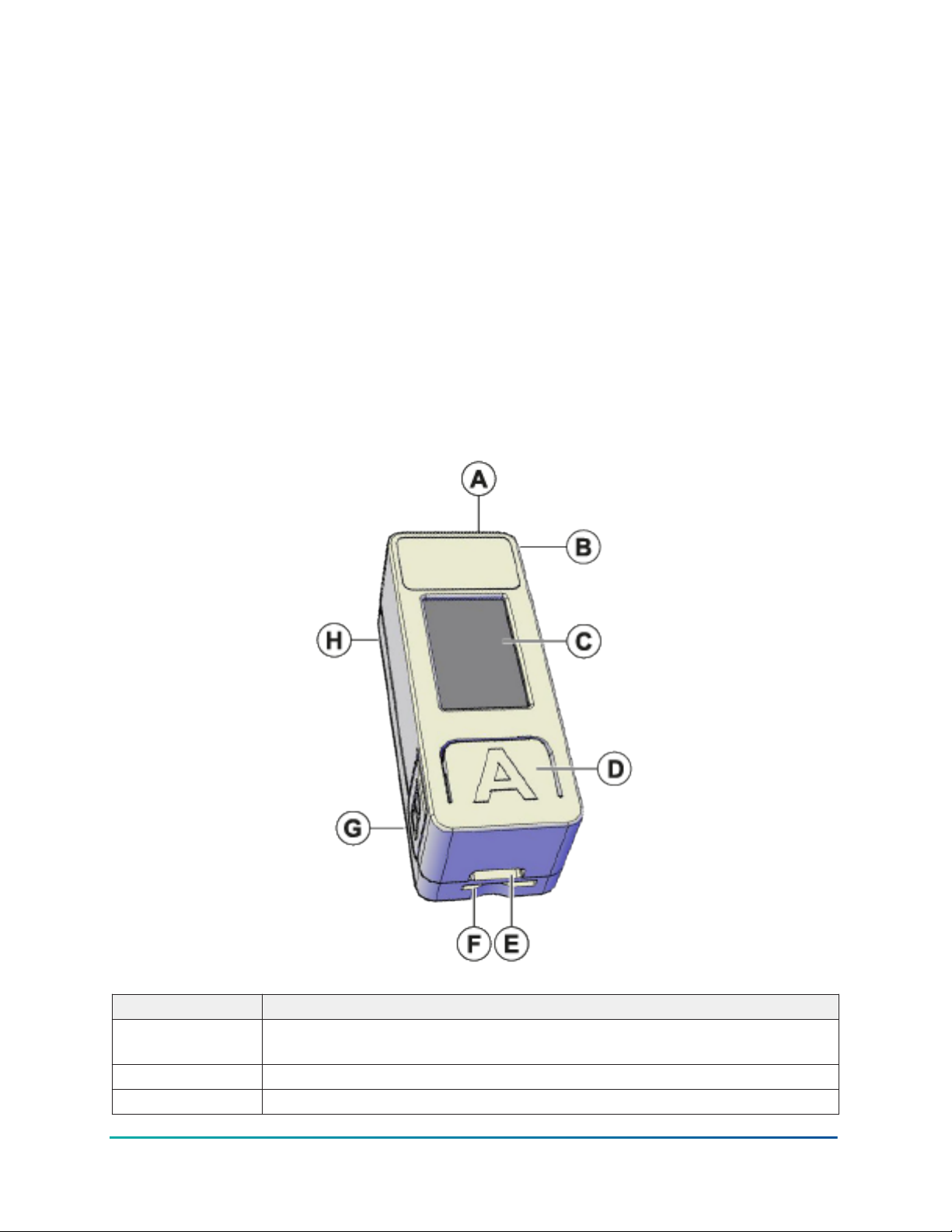
Overview
Figure 1: CWCVT overview
Callout Description
A RJ12 connector. Provides power and MS/TP communications when connected
to the SA bus or the FC bus of a Johnson Controls equipment controller.
B Lanyard connector
C Color graphic display
5CWCVT Wireless MS/TP Converter User Guide

Callout Description
D The A button, for display scrolling
E USB-C port
F Micro SD card slot
G The B button, for mode selecting
H End-of-line switch (bottom side)
Screen layout
The general screen layout consists of the current wireless mode, the heartbeat, end-of-line switch,
and SD card system icons, page information that is specific to that page, and status of the wireless
and MS/TP connections.
Figure 2: CWCVT screen
Callout Description
A Current wireless mode
B System icons
C MS/TP connection status
D Wireless connection status
E Page title and information
Display rotation
The display can rotate 180 degrees to make the CWCVT easier to use for both right- and left-handed
users.
About this task:
To rotate the display, complete the following steps:
1. Press and hold the A button to rotate the display to the opposite orientation.
2. Release the button to lock the display into that view.
CWCVT Wireless MS/TP Converter User Guide6

CWCVT pages
The CWCVT contains several pages of information that you can navigate with the A button. The
CWCVT remembers the last page viewed and re-displays that page on a power cycle.
At-a-glance page
The at-a-glance page displays large colored blocks that indicate the connection status of the
wireless and MS/TP connections. This page makes it easier to view the connection status when you
work on a ladder or at a distance of the controller that the CWCVT is plugged into.
The Wireless Status indicates the following states:
Table 1: Wireless Status states
State Display
background
color
Description
No Conn Black No connection. The CWCVT is not wirelessly connected to a
device.
BLE Conn'd Blue Connected. The CWCVT is wirelessly connected to a mobile
device or computer in BLE Router mode.
Note: The CWCVT supports only one bluetooth connec-
tion at a time.
Wi-Fi Conn'd White Connected. The CWCVT is currently connected to one or
more devices in Wi-Fi AP Router mode.
Note: The CWCVT supports up to four Wi-Fi connections
simultaneously.
The MS/TP Status indicates the following states:
Table 2: MS/TP Status states
State Display
background
color
Description
Auto Black The CWCVT is in an Auto-baud state. The CWCVT listens to the
MS/TP bus and joins the token ring if activity is detected.
Sole Yellow The CWCVT is the sole Manager device and does not detect
any other MS/TP Manager controllers on the bus.
Live Green The CWCVT is actively participating in the MS/TP token loop
and one or more MS/TP Manager controllers are on the bus.
Overview page
The Overview page displays the following general information about the wireless and MS/TP
connections:
• Wireless connection status
• MS/TP connection status
• Active MS/TP Baud Rate
• The active MS/TP device address being used by the CWCVT
7CWCVT Wireless MS/TP Converter User Guide

Connect Info and Pairing Info page
When you connect the CWCVT wirelessly for the first time, you can view the Connect Info or Pairing
Info page to see the CWCVT’s name and the PIN or Password that you need to enter on the host
mobile device or computer to authorize the wireless connection. When the CWCVT is in BLE mode,
the page is named Pairing Info and when the CWCVT is in Wi-Fi mode, the page is named Connect
Info.
When a connection is made to the CWCVT, both the CWCVT and the host device will remember the
connection and security information. You can connect the host device to the CWCVT later without
the need to re-enter the PIN or Password.
System Info page
The System Info page displays the elapsed Uptime since the CWCVT is turned on, the current
Firmware Version, and the build type that runs on the CWCVT.
MS/TP Stats page
The MS/TP Stats page displays information about the MS/TP connection. You can use the data as a
simple overview of the health of the active MS/TP network.
The following data is displayed:
• Token Loop Time: This should be consistent and less than 1000 ms depending on the number of
MS/TP devices connected to the network. A consistent loop time close to 5,000 ms may indicate
possible bus failures.
• Device Count: This is a count of the number of MS/TP Manager devices currently active on the
network. This count does not include the CWCVT itself. If plugged into the SA bus of a controller,
the number of devices on the FC bus side of the controller are not included.
• Framing Errors: This indicates the number of byte errors seen on the MS/TP network. A high or
increasing value could indicate a wiring error, duplicate MS/TP address, or a poorly behaving
MS/TP device.
Note: See the Correcting physical Bus problems section of the Communications Bus Technical
Bulletin, LIT-12011034 for ways to fix installation issues.
Detailed procedures
The following section outlines how to use the CWCVT in different modes, how to view configuration
and diagnostic information, and how to work with Johnson Controls BAS Tools and with CWa.
Connecting to a JohnsonControls controller
1. Connect one end of the RJ12 cable to the CWCVT.
2. Connect the other end of the RJ12 cable to either the SA bus or FC bus jack in any
Johnson Controls compatible field controller. The RJ12 connection supplies both power and
MS/TP communication to the CWCVT.
Note: If the controller is connected to a ZFR18x0 wireless router or if the controller is an
IP controller, use the SA bus only.
Result
The CWCVT is active in approximately 2 seconds after it is connected to a powered field controller.
Mode selection
About this task:
CWCVT Wireless MS/TP Converter User Guide8

After you powered the CWCVT, you must select a wireless mode of operation that is compatible with
the host application or tool being used. Use the B button to change the mode of operation of the
CWCVT.
The CWCVT supports the following modes of operation:
• BLE Router Mode: For use with CWa App (default)
• Wi-Fi AP Router Mode: For use with Johnson Controls BAS Tools and to view configuration
settings. The Wi-Fi AP Router mode is a replacement for the MAP mode or a wired BACnet IP to
MS/TP Router.
To change the mode, complete the following steps:
1. Press and hold the B button until the required mode displays.
2. Release the button and the new mode begins to flash.
3. Press the B button while the selected mode flashes to confirm the mode.
4. The CWCVT resets and starts in the selected mode.
The CWCVT remembers the last selected mode and restores that mode when turned on.
However, if the wireless connection is lost, you may need to re-connect.
Working with Johnson Controls BAS Tools
You can use the CWCVT with Johnson Controls BAS Tools when the CWCVT is in Wi-Fi AP Router
mode.
Connecting a computer to the CWCVT in Wi-Fi AP Router Mode
1. Select Wi-Fi AP Router Mode on the CWCVT. See Mode selection for information about how to
select the mode.
2. From the Show Available Networks function on your Windows computer, search for the
CWCVT-xx:xx:xx SSID and select it.
3. Enter the Passcode if requested.
Note: You can find the Passcode on the Connect Info page of the CWCVT. Use the A button
on the CWCVT to navigate to the Connect Info page.
Note: The Passcode does not show on the CWCVT display if it was manually changed.
Note: The connection process can take several seconds to complete.
Note: Your PC loses connection to the Internet if is it currently connected over Wi-Fi.
Note: Ignore warnings on the PC that the internet connection has been lost or is not
secure. The CWCVT forms a local network that cannot be accessed from the Internet.
Note: Johnson Controls laptops require the Wi-Fi connection to be defined as private
(Secure).
4. On the CWCVT display, verify the connection. If the connection is successful the CWCVT Connect
Status bar indicates Conn'd and turns white.
Using Wi-Fi AP Router mode with Johnson Controls BAS Tools (SCT example)
About this task:
From SCT, complete the following steps:
1. Click Tools > Ethernet Adapter and verify your Wi-Fi adapter is the active connection.
2. Click Tools > Trunk Utilities
9CWCVT Wireless MS/TP Converter User Guide

3. In the new window, select the Action Type. You can choose any of the available action types.
4. Select MAP 4.2+/BACnet Router as the Connection Type and verify your selected devices.
5. Verify the connection parameters. The default parameters are as follows:
a. IP address: 192.168.142.1
b. UDP Port: 47808
c. Network Number: 65001
6. Click Finish.
Working with CWa
You can use the CWCVT with the CWa mobile application when the CWCVT is in the BLE Router
mode.
Connecting the CWa to the CWCVT
1. Select BLE Router Mode on the CWCVT. See Mode selection for information about how to
select the mode.
2. From the CWa app, identify an MS/TP trunk, tap the menu button, then tap CWCVT settings,
and then select the CWCVT-XX:XX:XX device.
a. Connect to the device.
b. Enter the PIN code. You can find the PIN code on the Pairing Info page of the CWCVT. Use
the A button on the CWCVT to navigate to the Pairing Info page.
3. On the CWCVT display, verify the connection.
4. Use the CWa app to discover and commission the controllers on the MS/TP bus.
Using the CWCVT from the CWa
Refer to the Connected Workflow Applications User Guide, LIT-12014106 for details about how to use
the CWCVT from the CWa and to connect to devices on an MS/TP network.
Working with third-party MS/TP devices
If you want to monitor an MS/TP device that does not support the FC or SA bus RJ12 connector, for
example a third-party device, you can make up your own cable and power the CWCVT through a
USB-C cable connected to a USB battery pack or from a USB port on your PC.
CWCVT Wireless MS/TP Converter User Guide10
Este manual sirve para los siguientes modelos
1
Tabla de contenidos
Otros manuales de Convertidor de medios de Johnson Controls

Johnson Controls
Johnson Controls Metasys BTCVT Manual de usuario

Johnson Controls
Johnson Controls Tyco PowerG PG8HRDW8 Manual de usuario

Johnson Controls
Johnson Controls AS-CVTPROx00-1 Manual de usuario

Johnson Controls
Johnson Controls FX-BTCVT Series Manual de usuario

Johnson Controls
Johnson Controls tyco PG8WLSHW8 Manual de usuario

Johnson Controls
Johnson Controls FX-BTCVT Manual de usuario