ITS Telecom Ekselans CPE 1200-O Manual de usuario

ITS Partner O.B.S S.L · Av. Cerdanyola 79-81 Local C
08172 Sant Cugat del Vallés · Barcelona (Spain)
Phone: +34935839543 · info@ek.plus · www.ek.plus
USER MANUAL CPE 1200-O
INDICE
Hardware....................................................................................................................................................................................................................................... 3
Installation diagram.............................................................................................................................................................................................................. 3
Conexión........................................................................................................................................................................................................................................ 4
Web interface. .......................................................................................................................................................................................................................... 5
Wireless setting (Main Window 10 and 11).. ................................................................................................................................................6
LAN setting (Main Window 12). ............................................................................................................................................................................. 7
Location Information (Main Window 13)........................................................................................................................................................8
Assistant.........................................................................................................................................................................................................................................9
Wizard: Gateway Mode.............................................................................................................................................................................................10
Wizard: Repeater Mode............................................................................................................................................................................................ 12
Wizard: WISP Mode. ....................................................................................................................................................................................................14
Wizard: AP Mode ...........................................................................................................................................................................................................15
Advanced settings.........................................................................................................................................................................................................17
Status: .......................................................................................................................................................................................................................................17
2.4G Wireless Status: ...................................................................................................................................................................................................17
LAN status ............................................................................................................................................................................................................................17
Wireless 2.4G and 5.8G....................................................................................................................................................................................................18
Basic Settings. ...................................................................................................................................................................................................................18
Virtual AP. ..............................................................................................................................................................................................................................19
Access Control. ................................................................................................................................................................................................................19
Advanced Settings. ......................................................................................................................................................................................................20
Network........................................................................................................................................................................................................................................ 21
LAN Settings....................................................................................................................................................................................................................... 21
VLAN......................................................................................................................................................................................................................................... 21
Management............................................................................................................................................................................................................................22
System Time.......................................................................................................................................................................................................................22
Logs ...........................................................................................................................................................................................................................................22
System.....................................................................................................................................................................................................................................23
User........................................................................................................................................................................................................................................... 24


ITS Partner O.B.S S.L · Av. Cerdanyola 79-81 Local C
08172 Sant Cugat del Vallés · Barcelona (Spain)
Phone: +34935839543 · info@ek.plus · www.ek.plus
3
USER MANUAL CPE 1200-O
Hardware.
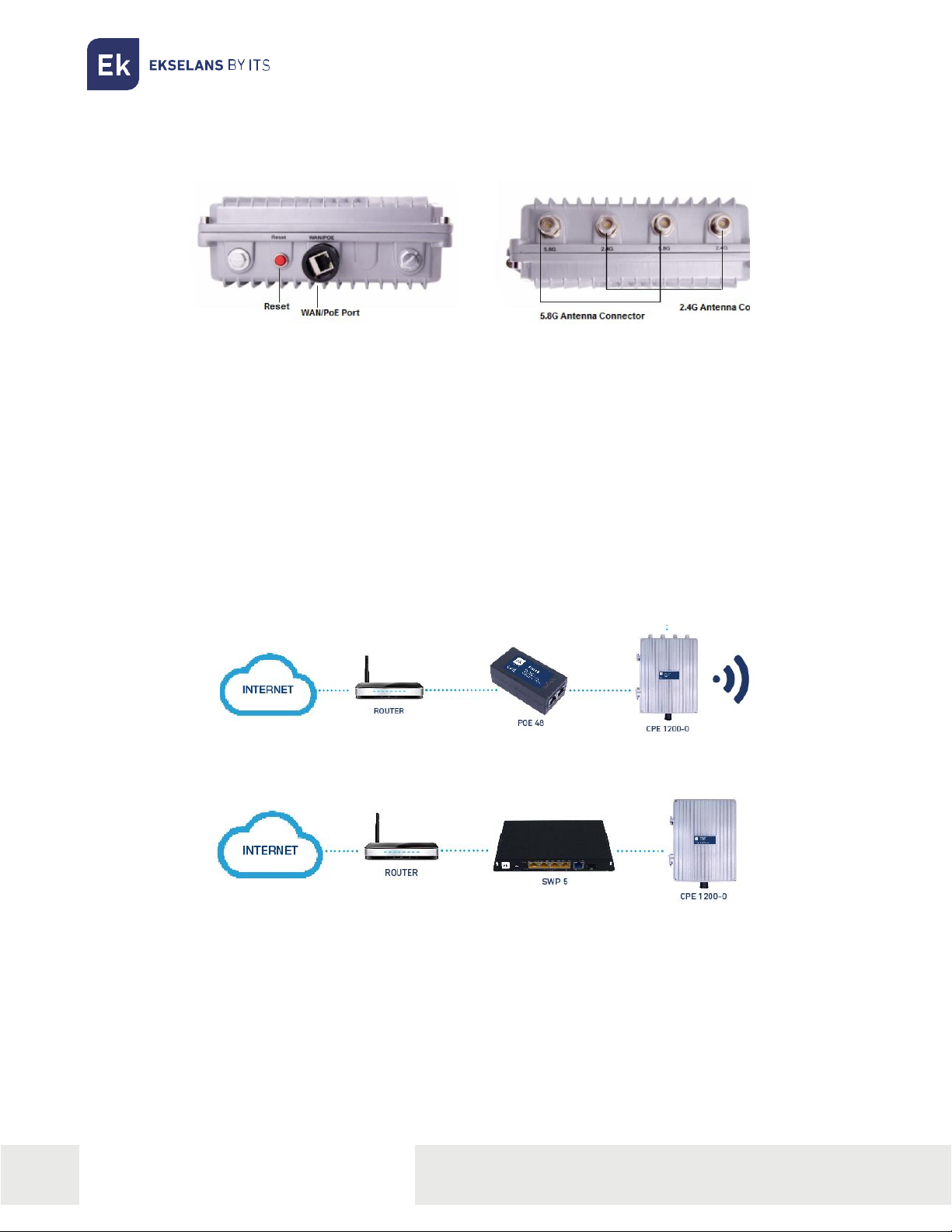
•RESET: Reset Button, it make AP revert to default data after press it 15 seconds.
•WAN: WAN Port, connect with ADSL modem or Internet mainly. It will be LAN port under
Wireless AP and Wireless Repeater operation mode.
•5.8G Connector: Connect 5.8 GHz antenna ANT 58-12
•2.4G Connector: Connect 2.4 GHz antenna ANT 24-12.
ATTENTION: IT IS IMPORTANT TO NOTE THAT TWO ANTENNAS MUST BE USED PER BAND. ONLY
ONE 2.4GHZ OR ONE 5GHZ ANTENNA CANNOT BE INSTALLED, 2 MUST BE ALWAYS INSTALLED.
TWO 2.4GHZ OR 5GHZ ANTENNAS OR BOTH IF WE WANT TO HAVE 2.4GHZ AND 5GHZ.
Installation diagram.
1. PoE Injector Power Supply.
2. Powered by PoE Switch.

ITS Partner O.B.S S.L · Av. Cerdanyola 79-81 Local C
08172 Sant Cugat del Vallés · Barcelona (Spain)
Phone: +34935839543 · info@ek.plus · www.ek.plus
4
USER MANUAL CPE 1200-O
Conexión.
Note: The default SSID is Ek_2.4G with password 12345678.
To connect to CPE 1200-O please follow these steps:
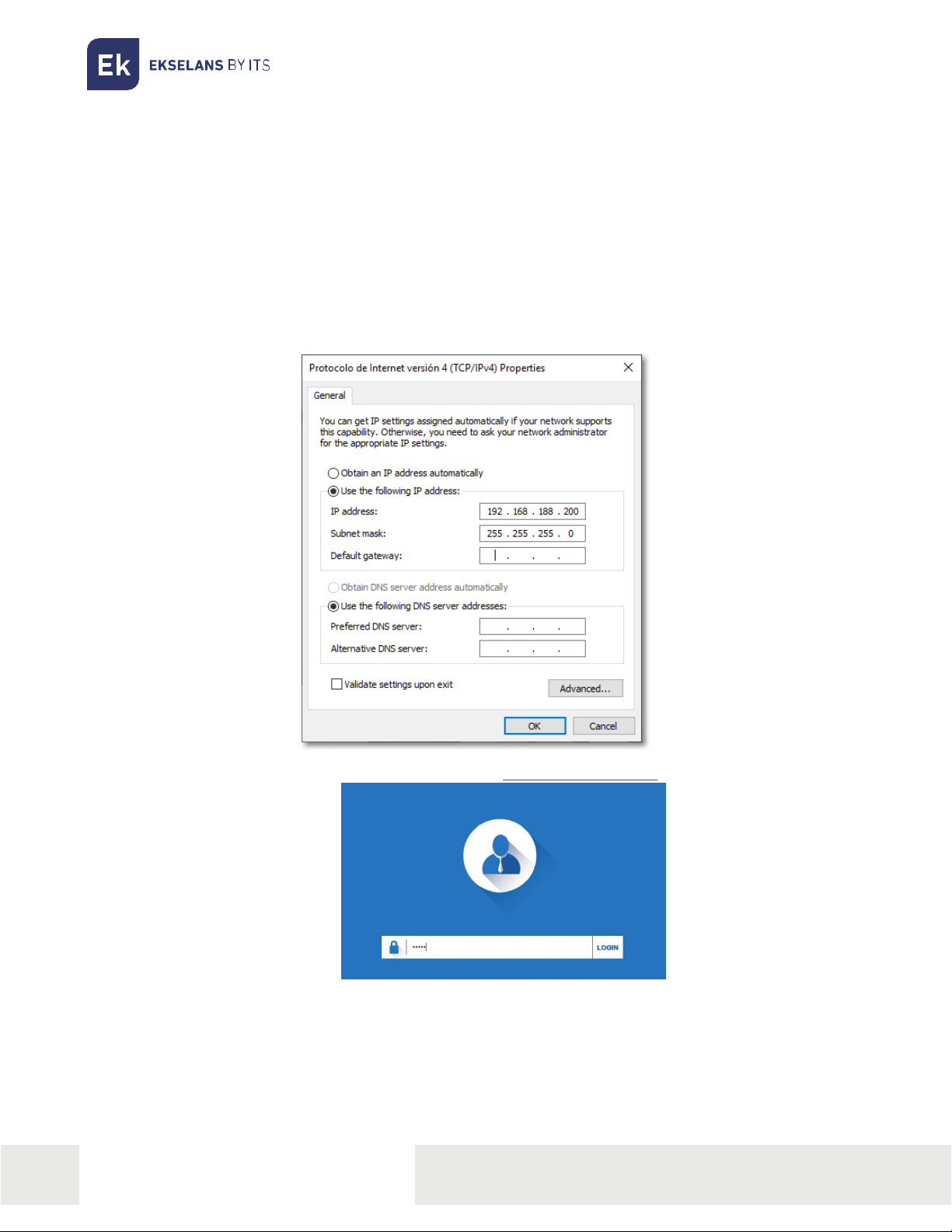
1- Connect to AP 300 with Ethernet cable or wireless.
2- Configure the PC's network adapter with a static IP as shown in the image. To facilitate the
configuration in EK we have the Ek NET Adapter application, with which we can easily configure
the network adapter. It can be downloaded for free from https://ek.plus/software/, in the
section "EK NET ADAPTER”:
3- Open a Web browser and navigate to the URL: http://192.168.188.253
4- To enter use the password: admin.

ITS Partner O.B.S S.L · Av. Cerdanyola 79-81 Local C
08172 Sant Cugat del Vallés · Barcelona (Spain)
Phone: +34935839543 · info@ek.plus · www.ek.plus
5
USER MANUAL CPE 1200-O
Web interface.
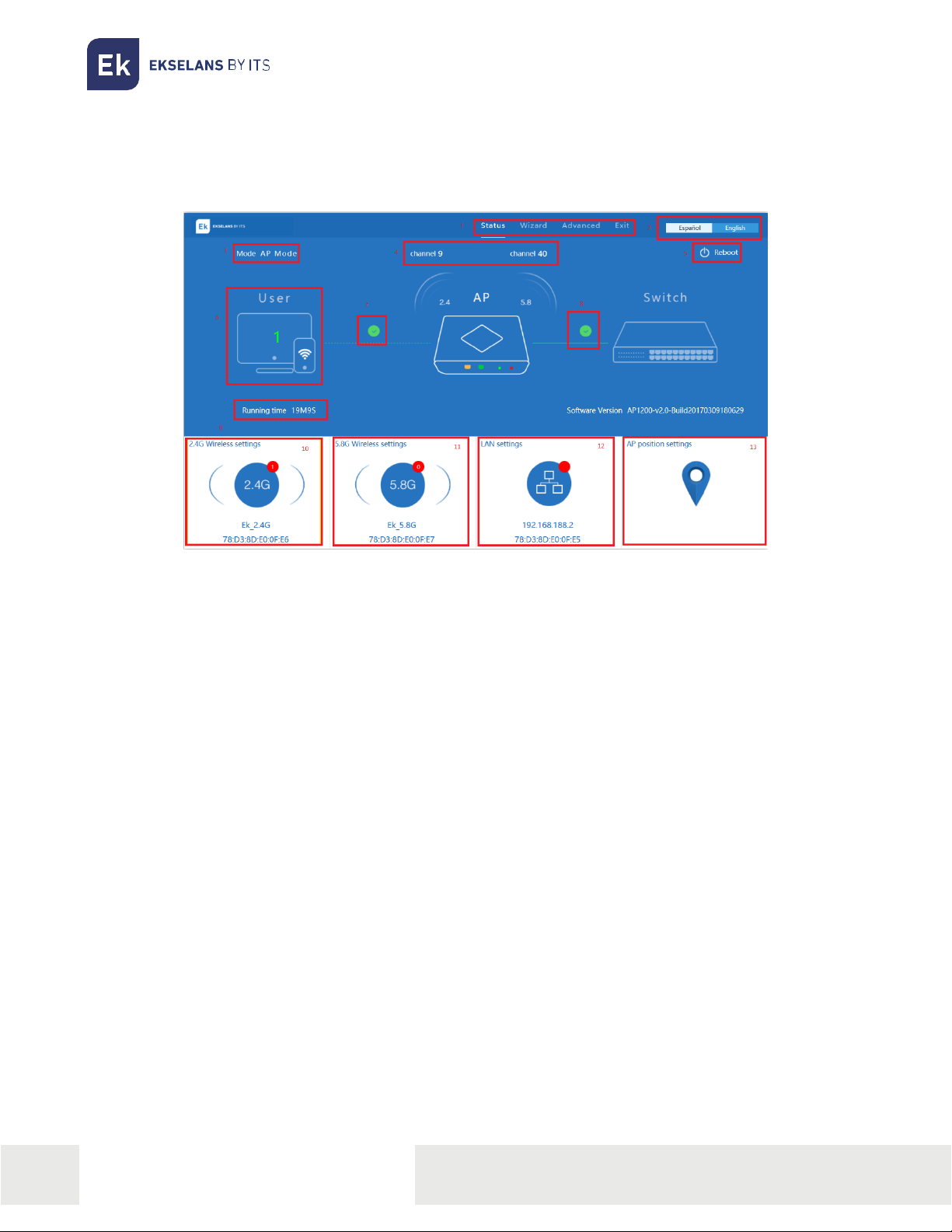
After entering, the password will appear the main interface.
1- Displays the Menu.
2- Language Selector can be English / Spanish.
3- Displays the Operational mode (AP Mode, Gateway Mode, and Repeater).
4- Displays the channel that the wireless is broadcasting.
5- To reboot the device
6- Shows the number of users connected to the device.
7- Displays if the user connection to the device is good or bad.
8- Displays if the device connection to the external network is good or bad.
9- Shows the running time of the device.
10-Displays Wireless information such as Wireless SSID and Wireless MAC for 5.8G. Also by doing
click on it will open the fast configuration menu for Wireless
11-Displays Wireless information such as Wireless SSID and Wireless MAC for 2.4G. Also by doing
click on it will open the fast configuration menu for Wireless
12-Displays LAN information such as device IP and LAN MAC. Also by doing click on it will open
the fast configuration menu for LAN network.
13-Displays the AP position information, by doing click on it will open the fast configuration menu
for AP position.

ITS Partner O.B.S S.L · Av. Cerdanyola 79-81 Local C
08172 Sant Cugat del Vallés · Barcelona (Spain)
Phone: +34935839543 · info@ek.plus · www.ek.plus
6
USER MANUAL CPE 1200-O
Wireless setting (Main Window 10 and 11).
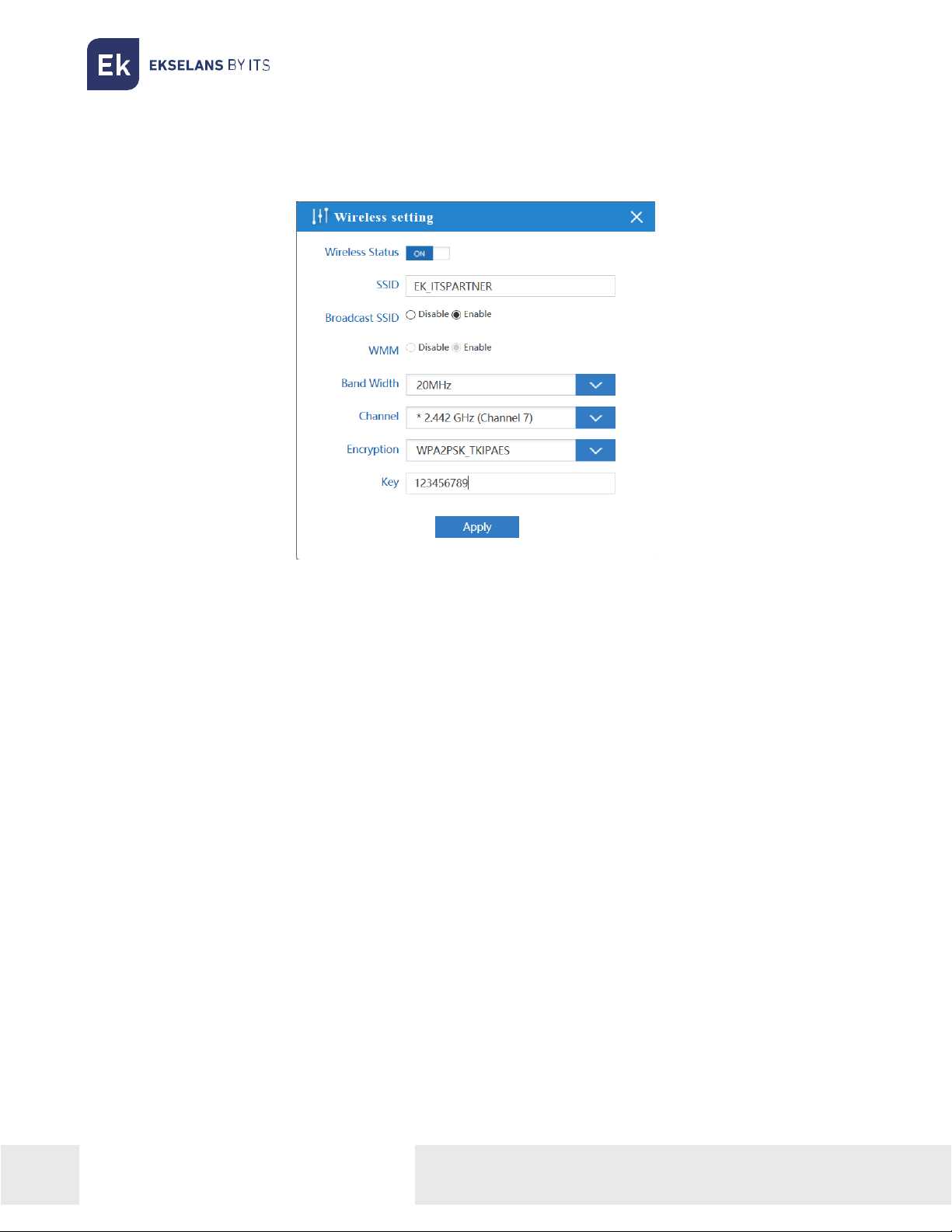
Clicking in the Wireless section will open the fast configuration menu for Wireless.
•Wireless Status: ON / OFF.
•SSID: Name of the wireless.
•Broadcast SSID: Enable - Show SSID, Disable –Hide SSID,
•WMM: Enable or Disable WMM.
•Band Width: The width that Wireless will use 20MHz, 40MHz or 80MHz.
•Channel: The channel that Wireless will use.
•Encryption: Select the encryption wanted for the wireless SSID.
•Key: The password for the SSIDUna vez indicados los valores deseados, pulsar “Aplicar” para
aplicar los cambios.
After filling the above value as we want, we can press “Apply” to save the changes for our Wireless.

ITS Partner O.B.S S.L · Av. Cerdanyola 79-81 Local C
08172 Sant Cugat del Vallés · Barcelona (Spain)
Phone: +34935839543 · info@ek.plus · www.ek.plus
7
USER MANUAL CPE 1200-O
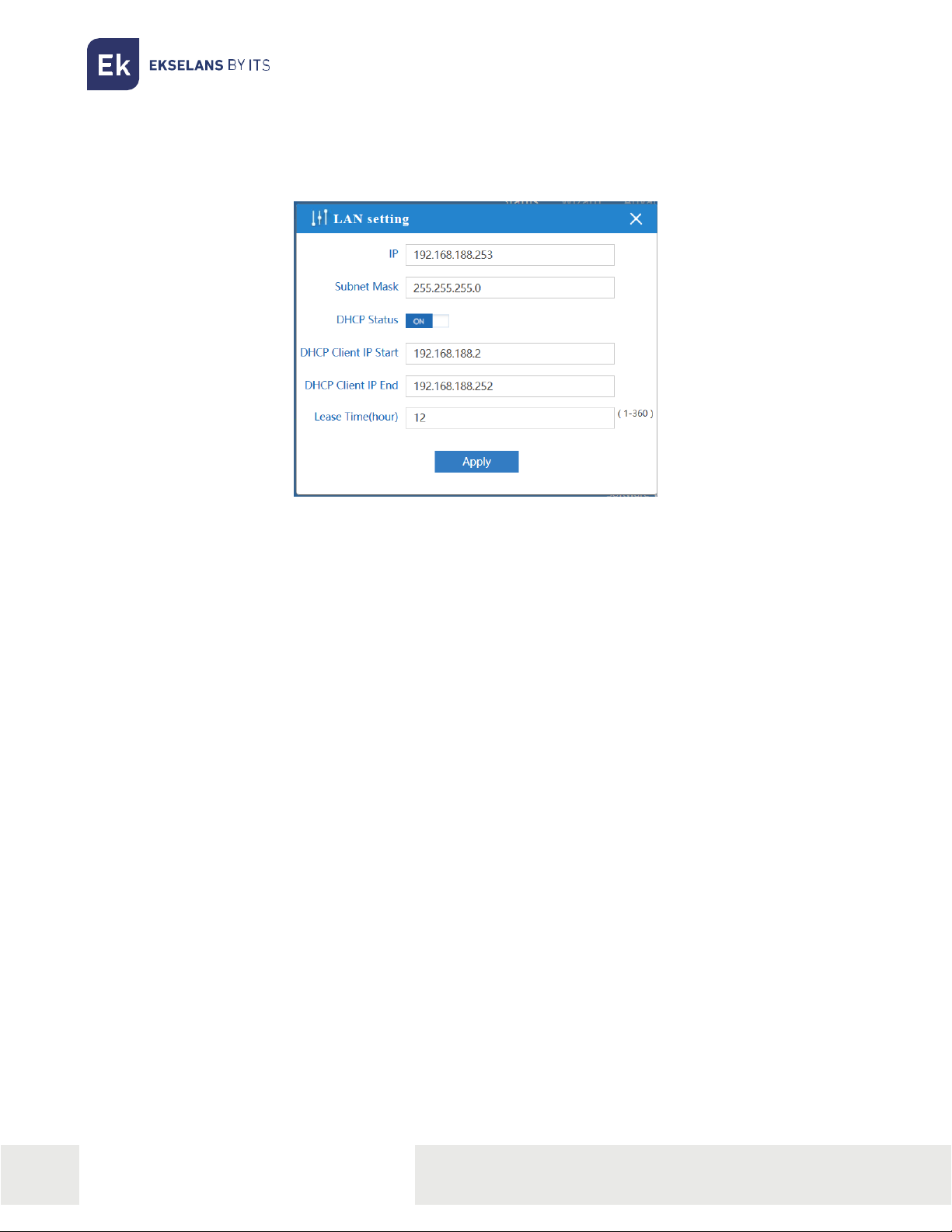
LAN setting (Main Window 12).
Clicking in the Wireless section will open the fast configuration menu for Wireless.
•IP: Set the IP for this device.
•Subnet Mask: Set the Subnet Mask for this device.
•DHCP Status: ON –To enable the DHCP, OFF –To disable the DHCP.
•DHCP Client IP Start: The starting IP for the DHCP range.
•DHCP Client IP End: The ending IP for the DHCP range.
•Lease Time (hour): The time to renew the IP for the connected devices.
After filling the above values as we want, we can press “Apply” to save the changes for our LAN settings.
Note: This window can change based on the Operational Mode our CPE 1200-O is using.

ITS Partner O.B.S S.L · Av. Cerdanyola 79-81 Local C
08172 Sant Cugat del Vallés · Barcelona (Spain)
Phone: +34935839543 · info@ek.plus · www.ek.plus
8
USER MANUAL CPE 1200-O
Location Information (Main Window 13).
Clicking in the Location section will open the fast configuration menu for Location Information.
•AP Location: Set the AP Location, this is just information for the user to know.
•AP Name: Set the identification name for our AP.
After filling the above values as we want, we can press “Apply” to save the changes for our Location
information settings.

ITS Partner O.B.S S.L · Av. Cerdanyola 79-81 Local C
08172 Sant Cugat del Vallés · Barcelona (Spain)
Phone: +34935839543 · info@ek.plus · www.ek.plus
9
USER MANUAL CPE 1200-O
Wizard.
There are four-operation mode available. Putting the mouse over each mode will display a tip explaining
the use of each mode.
•Gateway Mode: Connect to the network through LAN cable and operate CPE 1200-O as router.
•Repeater Mode: Connects to a SSID and broadcast a new SSID.
•WISP Mode: Connect to the provider SSID and get the connection through LAN.
•AP Mode: Connect to the network through LAN cable and operate CPE 1200- O as bridge
mode (the device is transparent).
When you click in the desired operation mode, you will go to the wizard window for the selected
mode. The wizard will guide you systematically to fully set it up.

ITS Partner O.B.S S.L · Av. Cerdanyola 79-81 Local C
08172 Sant Cugat del Vallés · Barcelona (Spain)
Phone: +34935839543 · info@ek.plus · www.ek.plus
10
USER MANUAL CPE 1200-O
Wizard: Gateway Mode.
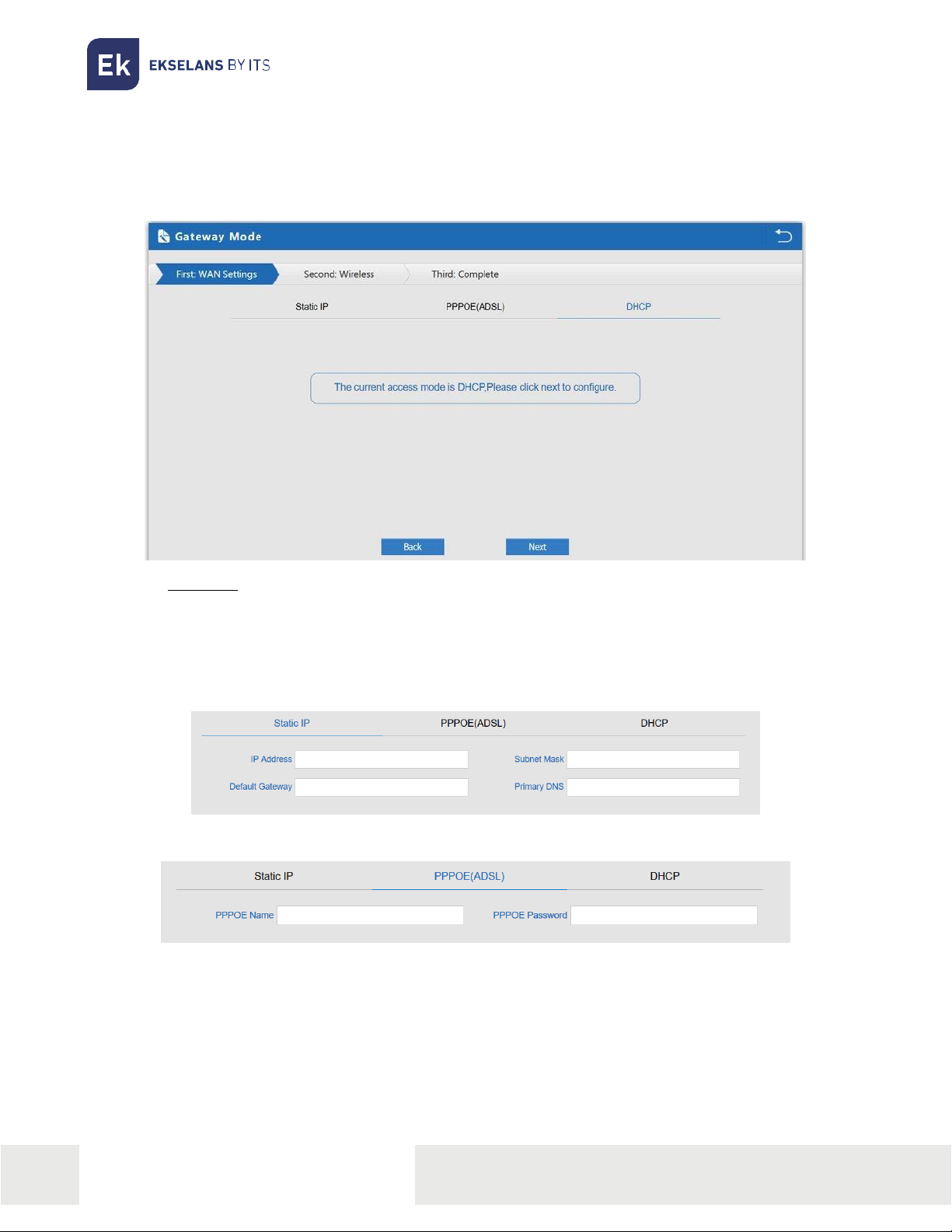
The Gateway Mode wizard will guide you through few step and few options to properly configuring the
device.
1- First Step.
Select the WAN connection mode:
•DHCP: The WAN connection will get the IP value from a DHCP server.
•IP estática: You can set the WAN IP manually; you will need to fill IP Address, Subnet
Mask, Default Gateway and Primary DNS.
•PPPoE: You can also connect through PPPoE it will ask username and password.
When you are done, press Next to continue.
Este manual sirve para los siguientes modelos
1
Tabla de contenidos