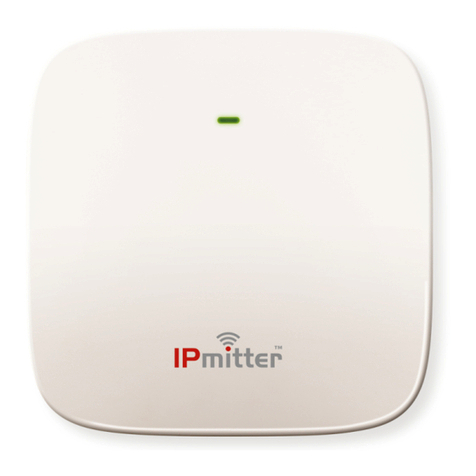
IPmitter IPMIT100 Manual de usuario

IPmitter Wireless Distribution xIPMIT100
IPMIT100 Wireless Distribution
A cost eective, simple and reliable solution to transmitting IP signals
from building to building
Email: support@ipmitter.com Last Revised 30/01/2018 Page 1 of 32

IPmitter Wireless Distribution xIPMIT100
ontents Table
Introduction.............................................................................................. 3
Powering your IPmitter......................................................................... 4
Setup via the Web................................................................................... 5
Home Screen............................................................................................ 6
Setup Wizard............................................................................................. 7
Repeater mode Setup........................................................................... 9
AP Mode Setup........................................................................................ 12
Super WDS Setup.................................................................................... 15
WIFI Settings............................................................................................. 18
Repeater Settings.......................................................................................... 20
WDS Settings................................................................................................... 21
Mac A L............................................................................................................. 22
WiFi Timer......................................................................................................... 23
Advanced.......................................................................................................... 23
Network ong........................................................................................ 24
Device Manage............................................................................................................ 27
Reboot................................................................................................................ 28
Modify Password............................................................................................ 28
Upgrade............................................................................................................. 29
Time.................................................................................................................... 29
Log....................................................................................................................... 30
Troubleshooting...................................................................................... 31
Specication............................................................................................. 32
Email: support@ipmitter.com Last Revised 30/01/2018 Page 2 of 32

IPmitter Wireless Distribution xIPMIT100
Introduction
The IPmitter ceiling and wall access point (IPMIT100) boasts dual band technology and can
simultaneously connect equipment to your LAN on both 5.8GHz and 2.4GHz channels. A fast data rate of
750Mbs means it’s a great Access Point for heavy Wi-Fi uses. Streaming media and video les or linking
TV equipment to a network.
With a maximum of 90 connected concurrent devices it’s aimed at professional, domestic or commercial
installations. Using the common UK PoE voltage of 48V the access point can plug straight into a standard
48V PoE switch or LAN for power and connectivity for neat easy connection. The low prole and
attractive case can be installed on a ceiling or wall for a nice tidy installation. The cables can come down
to the IPMIT100 to help hide and disguise cables going in to it when installed high up on a wall near the
ceiling.
The IPMIT100 works in 3 modes, Super WDS, Repeater mode and AP mode.
IPMIT100 Can be powered using 48V PoE (Not supplied) or can be powered using 12V DC (Not supplied).
IPMIT100
1 12V D 12v D . 2.1mm D Socket.
2 Reset 10 Second press to reset.
3 WAN/POE Network onnection. an be used for 48V PoE power input
4 LAN Network connection socket
LEDs LAN and WAN light to show a network connection and icker to
indicate activity.
Status LED
Powering on/ rebooting
Flashing Normal.
5GHz Wi-Fi turned on.
Email: support@ipmitter.com Last Revised 30/01/2018 Page 3 of 32

IPmitter Wireless Distribution xIPMIT100
Powering Your IPmitter
IPMIT100
Email: support@ipmitter.com Last Revised 30/01/2018 Page 4 of 32

IPmitter Wireless Distribution xIPMIT100
Setup via the WEB Interface
The default settings for the IPmitter
IP Address: 192.168.1.123
Password: ipmitter (lower case)
These are shown on the label on the back of the unit.
The default WiFi key is 66666666.
In order to set-up the IPMIT100 you will need to login to the interface on a browser.
1. Open a web browser, input the IP address of the device.
2. Input the correct username and password, and click Login.
If you connect your IPmitter to a network which is on a dierent subnet you won't be able to login to the
IPmitter.
If your network is not in the IP range of 192.168.1.XXX, you will then need to assign the P /Laptop with a
static IP address in the rang of 192.168.1.XXX. Then you will be able to navigate to the IPmitter browser
interface.
By default the IPmitter isn't set on DH P so it won't obtain an IP address from the D HP server. It also isn't
set as a DH P server so it cannot assign IP address 'as default to devices connected to the IPmitter.
Email: support@ipmitter.com Last Revised 30/01/2018 Page 5 of 32

IPmitter Wireless Distribution xIPMIT100
Home Screen
This screen displays the status information of the IPmitter.
1 Worki g Mode shows which of the 3 modes the IPmitter is set to.
2 Flow shows the data ow from and to the Ipmitter. an display either 2.4GHz or 5GHz depending on
the selection in 6 status.
3 Device I formatio shows the resource usage in the IPmitter.
4 Device Descriptio this allows you to set a name for the IPmitter. This may be seen when connecting
from other WiFi devices. lick on the gear icon to add the name.
5 LAN I formatio this displays information on the wired network.
5 I formatio this shows wireless information for the selected frequency.
Email: support@ipmitter.com Last Revised 30/01/2018 Page 6 of 32

IPmitter Wireless Distribution xIPMIT100
Setup Wizard
This screen is for changing between the dierent modes. Just click on the required mode to start the
setup wizard. If you want to change the setup for the mode you are already in you can click on the wizard
again.
Repeater Mode
This is used to extend the range of your WiFi network. The IPmitter is wirelessly connected to your
existing network to extend the wireless coverage. This requires logging onto the web interface to
setup.
Repeater extending the WiFi coverage and wirelessly adding a camera.
Email: support@ipmitter.com Last Revised 30/01/2018 Page 7 of 32

IPmitter Wireless Distribution xIPMIT100
AP Mode
This is used to add wireless networking to a network without wireless or to add wireless
networking outside the range of your existing wireless. It requires a wired connection to the
existing network.
Adding WiFi to your network
Super WDS Mode
This is used for point to point connection and will work as one-to-one or many-to-one. You can pair
a maximum of 4 clients to one host. This can be set up without the use of a computer using the LED
display.
One – One
Many – One
Email: support@ipmitter.com Last Revised 30/01/2018 Page 8 of 32

IPmitter Wireless Distribution xIPMIT100
REPEATER MODE SETUP
Repeater mode this lets you connect the IPmitter to an existing WiFi network, the IPmitter will then pick
up the existing WiFi network and extend the existing wireless network as second network.
- Select Setup Wizard
- Select Repeater Mode
Step 1 – onnecting settings for existing WiFi
Email: support@ipmitter.com Last Revised 30/01/2018 Page 9 of 32

IPmitter Wireless Distribution xIPMIT100
Select etwork used to select either 2.4GHz or 5GHz.
Repeater SSID is the WiFi network you want the IPmitter to connect. To nd the network you want to
connect to press Scan and then select the WiFi network name.
Lock BSSID is the Mac Address of the device you are connecting the IPmitter to, this eld is completed
automatically.
E cryptio is the type of Wireless Encryption used to access the WiFi network.
Password is the password used to access the WiFi network.
Ba dwidth is the broadcasting bandwidth which your wireless network uses. This needs to set to match
your router/ WiFi Bandwidth.
Pass through is set to o as default, if the IPmitter is only connecting other IPmitter devices then you will
need to set this on, otherwise leave this option o.
Step 2 (2.4GHZ) and Step 3 (5GHz) – WiFi Settings for the repeater
WiFi Status turns the WiFi on or o for the repeater itself.
SSID is the name of the WiFi network you will see when you connect to the repeater. This can be the
same as the existing WiFi network or unique to the repeater.
Hide your WiFi ame? When a wireless device searches the area for the networks it will not be able
detect the WiFi name associated with the router.
E crypt choose encryption if you want to use a password to secure your network.
WiFi Password is the password used to access the Repeater WiFi network. A strong password consists of
at least six characters (and the more characters, the stronger the password) that are a combination of
letters, numbers and symbols. This can be the same as the existing WiFi network or unique to the
repeater.
Timi g allows for a timed reboot or interval for the Ipmitter.
Email: support@ipmitter.com Last Revised 30/01/2018 Page 10 of 32
Otros manuales para IPMIT100
2
Otros manuales de Punto de acceso inalámbrico de IPmitter