
iOptron iMate Manual de usuario
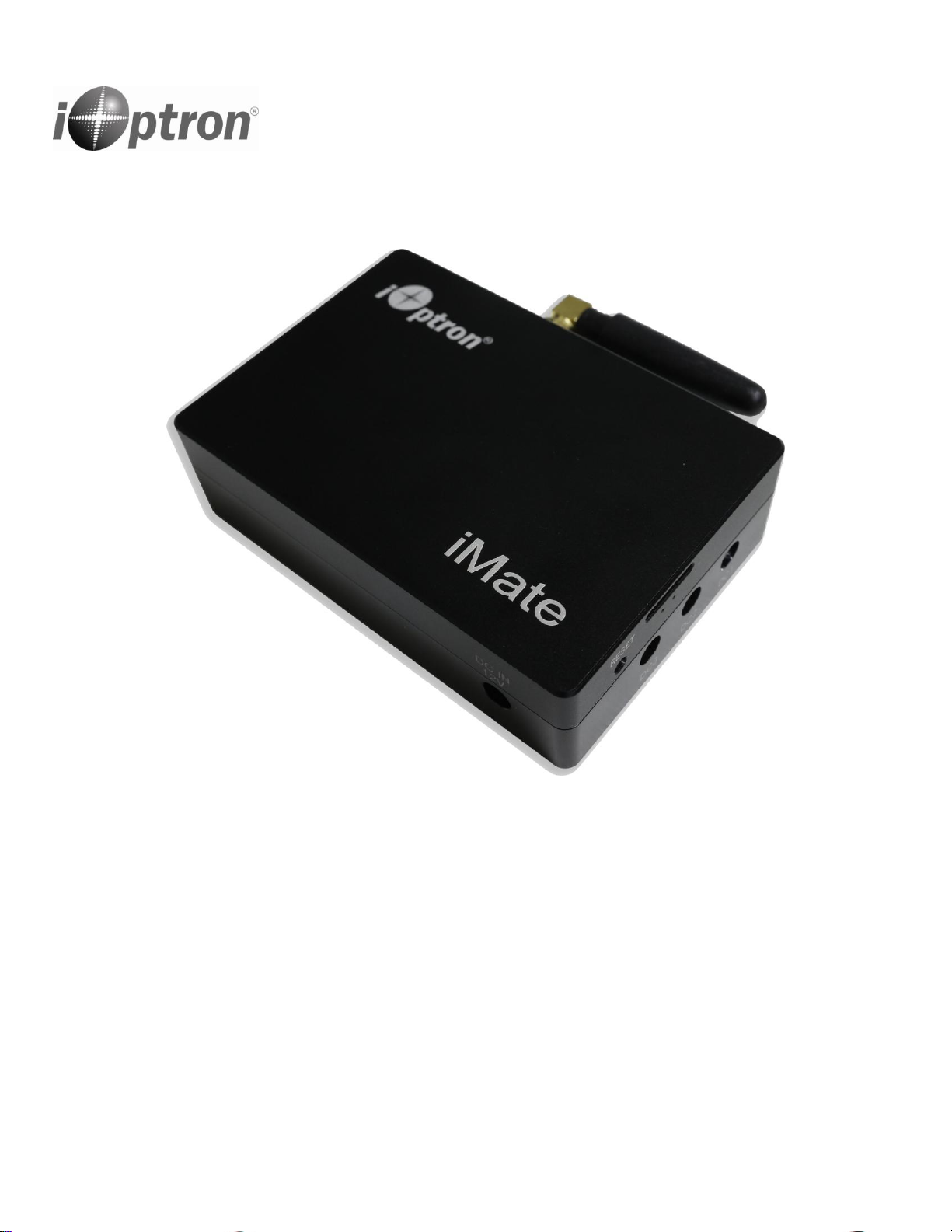
iOptron®iMate Astronomy Control Box
Instruction Manual
Product #8480

2
Table of Content
Table of Content ..................................................................................................................................................... 2
1. iOptron iMate Overview ..................................................................................................................................... 3
2. Connect a Mount to the iMate ........................................................................................................................... 5
2.1. Connect a Mount to iMate .......................................................................................................................... 5
2.2. Initial Set Up iMate ...................................................................................................................................... 5
2.3. Operation the Mount via an iMate and KStars/Ekos................................................................................. 12
2.3.1. Set up iMate Time............................................................................................................................... 13
2.3.2. Set up iMate Site Info (GPS location).................................................................................................. 13
2.3.3. Set up Zero Position............................................................................................................................ 14
2.3.4. Add Other Devices .............................................................................................................................. 15
2.3.5. Polar Alignment .................................................................................................................................. 15
2.4. Other iMate Functions............................................................................................................................... 15
2.4.1. iMate DC Power Output Control......................................................................................................... 15
2.4.2. iPolarServer......................................................................................................................................... 16
2.4.3. Advanced Applications of the iMate................................................................................................... 16
3. Customer Servicing ........................................................................................................................................... 17
3.1. iOptron Customer Service.......................................................................................................................... 17
3.2. Product End of Life Disposal Instructions .................................................................................................. 17
IOPTRON ONE YEAR TELESCOPE, MOUNT, AND CONTROLLER WARRANTY ........................................................ 18
Ver. 1.0 2023.10
iOptron reserves the rights to revise this instruction without notice. Actual color/contents/design/function may differ from those described in this
instruction.

3
1. iOptron iMate Overview
The iMate is a single-board computer that features a powerful 64-bit ARM processor with Wi-Fi,
preloaded KStars planetarium software, Ekos control and automation tool, and INDI drivers. This hardware-
software combination will support the use of most current and future devices (cameras, focusers, filter wheels,
etc.) allowing the user to choose a brand and model.
With 32Gb eMMC storage along with a slot for up to 64Gb TF (micro SD) memory, iMate has the ability
to control and capture an entire automated imaging session. The iMate is cross-platform; use it with Windows,
IOS, Linux, Android, etc.
Features:
Orange Pi 3 LTS with 64-bit ARM processor, 2GB LPDDR3 SDRAM and 32GB EMMC flash memory
1X USB3.0 and 2X USB2.0 ports
3X 12VDC outputs (2 programmable)
Up to 64Gb high speed MicroSD card (class 10 or higher)
Open Source Architecture
Preloaded KStarts/Ekos/INDI driver for mount, camera, focuser and other device control
iPolarServ for iOS and Android polar alignment
Windows, MacOS, iOS, Linux, Android remote connection to iMate via WIFI network
Shipping Contents:
1X iMate with WIFI antenna and dovetail mounting bar
1X 5521 0.5 meter 90° DC cable
1X 5521 1 meter DC cable
1X wire wrap

4
Ports on the iMate:
DC IN 12V: power input (5521,center positive) for iMate and 3X DC outputs
USB2.0 and USB2.0: for mount and accessories connection. A USB hub also can be connected
LAN: can be plugged into a network to obtain the date and time info
DC1, DC2, DC3: 12V power outputs (5521, center positive). DC3 is always on, with 3A maximum
current. DC1 and DC2 are programmable with 2A max. The default states are ON.
TF card slot (next to RESET): for microSD card
RESET: reset iMate
Connect Device to the iMate:
Connect the mount to one of the USB port on the iMate. Connect other accessories, such as cameras,
focuser, filter wheel, to other USB ports, directly or via a USB hub. Connect a 12V DC power supply to the
iMate DC IN port (5.5/2.1mm plug, center positive). Power on the mount and iMate and you are ready to go!
Since iMate uses KStars and INDI Lab, it can connect any device that has an INDI driver.
A USB hub can be connected to the iMate if more USB ports are needed.

5
2. Connect a Mount to the iMate
After connecting a mount and accessories, such as a camera, to the iMate via USB port, one can
connect to the iMate via iMate Wi-Fi network and Nomachine remote software/App.
NoMachine
Remote
Access
iMate PowerBox
iMate SetTime
iPolarServer
Kstars/Ekos
INDI
Mount
iMate
Camera
Guidier
EAF
Filter Wheel
iPolar
…
Figure 1. iMate remote access connection
2.1. Connect a Mount to iMate
We use a CEM70-NUC mount and a PlayerOne camera as the setup example.
(1) Use a USB cable to connect the CEM70-NUC USB port to one of the iMate USB port;
(2) Connect camera to a USB port on the iMate or the CEM70-NUC;
(3) Connect the mount AC adapter
(4) Connect a 12V DC power (5.5/2.1mm, center positive plug) to iMate. You may also use the power
output port from the mount
(5) Turn both mount power and iMate power on. You should see a tiny green LED below the TF card
slot.
2.2. Initial Set Up iMate
If this is your first time to use the iMate, please follow the steps below for initial setup.
1. Download and install NoMachine for Windows, MacOS, Linux, iOS or Android. Here we use Windows as
an example:
(1) Goto https://www.nomachine.com to download NoMachine

6
(2) Click on downloaded NoMachine to install the software
(3) A shortcut will be shown on your computer desktop.
2. From your computer Wi-Fi network list, choose iMate_XXXXXX. Enter password 12345678 to connect the
computer to iMate Wi-Fi network.

7
3. Click NoMachine shortcut to run the software
4. Click OK on welcome screens. You may also check the box before “Don’t show this dialog anymore” to
skip this screen next time running the software.
5. If the mount is powered on, the “iMate” server will be appeared on the screen. Click on iMate icon, then
click OK on next “Verify host identification” screen.

8
6. Enter “imate”as both Username and Password to Login on to the iMate Server
7. Click OKs to pass the help screens. You may also check the box before “Don’t show this dialog
anymore” to skip this screen next time running the software.
8. Now the NoMachine will load the software from the iMate. Resize the Windows to adjust for better display.
Click on iOptron Applications bar on top left corner

9
9. From pull down menu to select Education =>KStars. Close the tip after the KStars finished loading.

10
10. Select Tools=>Ekos
11. Create an Profile by click on “+”
12. Enter the Profile Name, here we use CEM70-NUC. Check the Mode as Local.
Select iOptron/CEM70 from Mount List. Add a camera from the list (PlayerOne).
Este manual sirve para los siguientes modelos
1
Tabla de contenidos
Manuales populares de Unidad de control de otras marcas

Festo
Festo Compact Performance CP-FB6-E Manual de lista de piezas

Elo TouchSystems
Elo TouchSystems DMS-SA19P-EXTME Manual de usuario

JS Automation
JS Automation MPC3034A Manual de usuario

JAUDT
JAUDT SW GII 6406 Series Guía rápida

Spektrum
Spektrum Air Module System Manual de usuario

BOC Edwards
BOC Edwards Q Series Manual de usuario


